


DClark064
Inspiring
June 27, 2023
Answered

Keywords Missing from Keywords Panel

  • June 27, 2023
  • 1 reply
  • 831 views

I apply keywords to all my files.  I notice that large numbers of files are not showing any keywords in the "Keyword Tags" panel even though multiple keywords were applied and had shown there earlier. 
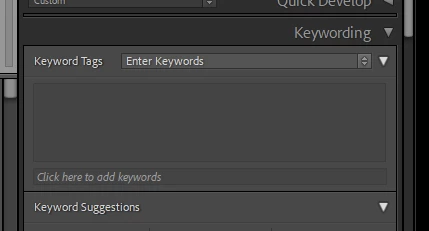
Blank!  It should show a few keywords.  This example is for a file showing a Peregrine Chick so it should show the keyword "Peregrine Chick". 

If I check the "Keyword List" that keywork is not checked.
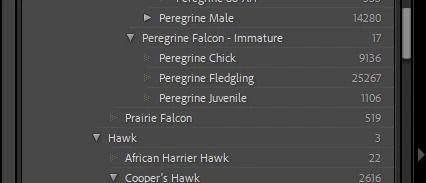
There are thousands of other files showing the same error for a wide range of keywords that have been applied.

If I check the "Library Filter" for May 2023 I see there are 1060 files with the keyword "Peregrine Chick".
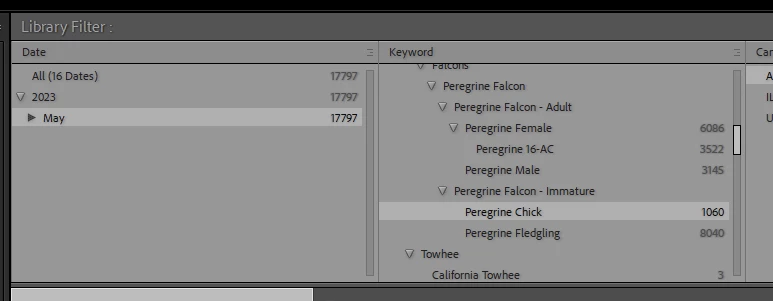
None of them show any keywords in the Keywords Tag panel of the Keywords List.  This is the case for many other keywords.  Tens of thousands of files are showing no keywords.  This is obviously inconsistent.


I am hoping that the keywords are actually there as shown in the Library filter, but why are they not showing in the Keywords Tag panel and the Keywords list.


I am running Windows 10 latest version and LR 12.4.


Correct answer johnrellis

Testing my understanding and next troubleshooting steps:


1. In the Keyword column of the Library Filter bar, you've selected "Peregrine Chick". The column shows there should be 1060 photos with that keyword. When you select All Photographs, do 1060 photos appear in grid view?


2. When you select some of those 1060 photos, the Keywording panel doesn't contain "Peregrine Chick",?   Can you find any of those 1060 photos in which Keywording contains "Peregrine Chick"?


3. Try deleting the Helper.lrdata folder:
a) Do Catalog Settings > General > Show to open Finder / File Explorer on the current catalog folder.
b) Exit LR.
c) In that folder, delete the folder "<catalog> Helper.lrdata".
d) Restart LR, and it will rebuild the folder.


The Helper.lrdata folder caches information about metadata, keywords, folders, collections, and other things to speed the performance of LR and it can sometimes get corrupted. In recent versions, LR has used it more heavily to improve the speed of displaying metadata, and there have been a fair number of bugs with it.


4. If that doesn't help, download my utility plugin Show Catalog Metadata, which dumps all the catalog information about a photo:

https://www.dropbox.com/s/rkd0lx1wjraxe4l/showcatalogmetadata.1.6.zip?dl=0 


Install it following similar instructions for my other plugins.  Then do File > Plug-in Extras > Show Catalog Metadata > Show. In the text file that opens, search for a group of lines starting with "keywords =", e.g.

    keywords = {--table: 5
        [1] = "Astronomical object < A < Labels < Any Vision (88311915)", 
        [2] = "Ship < S < Labels < Any Vision (88311993)"}, 

Do you see "Peregrine Chick"? 

1 reply

johnrellis
johnrellisCorrect answer
Genius
June 27, 2023

Testing my understanding and next troubleshooting steps:


1. In the Keyword column of the Library Filter bar, you've selected "Peregrine Chick". The column shows there should be 1060 photos with that keyword. When you select All Photographs, do 1060 photos appear in grid view?


2. When you select some of those 1060 photos, the Keywording panel doesn't contain "Peregrine Chick",?   Can you find any of those 1060 photos in which Keywording contains "Peregrine Chick"?


3. Try deleting the Helper.lrdata folder:
a) Do Catalog Settings > General > Show to open Finder / File Explorer on the current catalog folder.
b) Exit LR.
c) In that folder, delete the folder "<catalog> Helper.lrdata".
d) Restart LR, and it will rebuild the folder.


The Helper.lrdata folder caches information about metadata, keywords, folders, collections, and other things to speed the performance of LR and it can sometimes get corrupted. In recent versions, LR has used it more heavily to improve the speed of displaying metadata, and there have been a fair number of bugs with it.


4. If that doesn't help, download my utility plugin Show Catalog Metadata, which dumps all the catalog information about a photo:

https://www.dropbox.com/s/rkd0lx1wjraxe4l/showcatalogmetadata.1.6.zip?dl=0 


Install it following similar instructions for my other plugins.  Then do File > Plug-in Extras > Show Catalog Metadata > Show. In the text file that opens, search for a group of lines starting with "keywords =", e.g.

    keywords = {--table: 5
        [1] = "Astronomical object < A < Labels < Any Vision (88311915)", 
        [2] = "Ship < S < Labels < Any Vision (88311993)"}, 

Do you see "Peregrine Chick"? 

DClark064
DClark064Author
Inspiring
June 27, 2023

1.  Yes

2.  No

An update.  I selected one of the 1060 files and re-applied the "Pergrine Chick" keyword using the "Keywords Tags" panel.  That keyword now shows up for that file.  The Library filter still shows 1060.  But, if I check any other of the 1060 files, they also show the Peregrine Chick keywords!  But no other keywords.  Even more bizarre, if I move down a row in the Library Filter and selected the "Peregrine Fledgling" keyword which has 8040 files, I see 8040 files, all of which show only the "Peregrine Chick" keyword (not Peregrine Fledgling).


I am a bit reluctant to do anything to LR for fear of losing many hours of work applying keywords.  I am going to hold off doing step 3 until you comment on this latest behavior.  Am I taking a risk in just restarting LR?


johnrellis
Genius
June 27, 2023

"Am I taking a risk in just restarting LR?"


It won't add to any risk. Restarting is always a good first step.


Assuming restarting doesn't help, step 3, deleting the Helper.lrdata file, won't hurt -- it's purely a cache, and LR rebuilds it from the catalog after it gets deleted.  There's a reasonable chance it has gotten corrupted and is causing your symptoms.