


Known Participant
March 2, 2023
Question

Part of my images missing in a folder in LR CC 12.2

  • March 2, 2023
  • 3 replies
  • 1090 views

My OS is WIN10 fully updated.

After updating to LR CC 12.2 I miss a lot of pictures in one of my drives:

Normally there are 9345 pictures in this folder.
So I try to Synchronize the folder and indeed there are 9345 new photos to import:
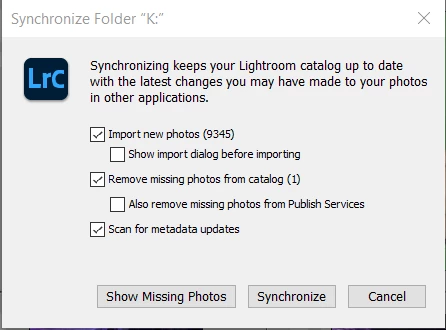
LR CC starts the synchronisation but didn't import none of those missing images.
My conclusion is they are in the LR Catalog but not visible in the LR Library.
Maybe importing them again will help?
Well, no. The Import detected the photos on the hard drive but then made them greyed out to indicate they are already in the catalog.

 

I already followed a similar problem here but the solution proposed didn't help.
Any suggestions.


Tkx.

This topic has been closed for replies.

3 replies

Known Participant
March 5, 2023

@Sean McCormack  and @dj_paige :
The least thing I could say is that LrC made a mess of my pictures in my hard disks.
Don't take this personally guys but I'm frustrated (and a lot of LrC known users) about what happened:
At this moment I find out that there were 16450 pictures missing after I run "Library > Find all missing pictures".
LrC detected a lot of them them are in a HD driver I: who is not the original HD where these pictures were saved.
I: is an 500Mb USB stick where only BOOT acceleration software is on it. It's too smaal to contain a lot of images at min. 22,5 Mpx.
Other pictures were missing on my HD T:. Don't understand this because drive T: is still there but all pictures grayed out and missing original folder (who still is drive T:)
I had to select each folder (and subfolder) individually and let LrC find the location of that folder. Doing a HD location find didn't work.
I merged them as asked by LrC and hope that this will not happen again with a new update. After done that there were still images not in the right folder! Specially in subfolders with the same name.
My folder structure is:
Folder Name (of a journey or event
Subfolders with my camera type: Canon R6, Canon 5D and Lumix. These subfolders are not detected correctly.

After 2 days of reordening everything still 10869 images are missing! These are mostly located (according to LrC) on the USB stick I: !!!
Finaly my questions ( 🙂 ) 1. How to remove savely these images on USB I: without losing them on the original HD K: ?
2. Do you have a document explaining in detail how the catalog is build and works?


Regards. 


Sean McCormack
Community Expert
Community Expert
March 5, 2023

Has the drive mapping been messed up somewhere along the way? Was HD K: originally I:? if you can remap the drive letters, this should help. 

https://learn.microsoft.com/en-us/windows-server/storage/disk-management/change-a-drive-letter

Sean McCormack. Author of 'Essential Development 3'. Magazine Writer. Former Official Fuji X-Photographer.
Known Participant
March 10, 2023

Sorry guys, but non of the proposed solutions worked.
As you can read in my last post, LrC made a mess and choas in my drive and folder structure.
I resolved it myself by analysing each tread and can be resumed as follow:
1. do an new import on every drive. This will add missing photo's.
2. next do a "Synchronize Folder" on every folder in the catalog. It will find a lot of photos to synchronize and add to the catalog.
3. Search in the catalog folders with a question mark (?). Find the location of that folder and click on it. You recovered the folder location and the catalog will be up to date.

4. finally, in the library do a "Find all missing photo's". I still had over the 20.000 photo's missed. Recover them by going to their place in the hard drives and import them.

5. If in the catalog you still have folders with missing photos BUT physically those photos are not on the refered hard disk (control it with WIN Explorer) then remove them from the catalog.

6. Do a manual catalog update to be sure the new set is saved.


These steps worked for me and also for a friend having the same problem after an update of LrC.

BONUS: since I did this my PC starts very fast comparing to before: within the 2 minutes to over the 10 minutes before. 
Before I had a lot of "System Interrupts" when powering up my PC. 
Now they are gone. Don't ask me why, I can't see any relation between a PC start up and missing photo's in LrC.

TIP: regulary do a "Find Missing Photo's" and keep that catalog up-to-date.


So, this post can be closed and I hope it will bring a solution for other.

Sean McCormack
Community Expert
Community Expert
March 2, 2023

In the Library menu, is Show Photos in Subfolders turned on? 

Sean McCormack. Author of 'Essential Development 3'. Magazine Writer. Former Official Fuji X-Photographer.
dj_paige
Legend
March 2, 2023

This happens because you have already imported the photos into Lightroom Classic, and probably (accidentally?) you imported them into a different location using COPY or MOVE. You need to search for (at least) one of these photos in your Lightroom Classic. Please perform all 4 steps in order:


  1.  Click on "All Photographs"
  2.  Turn off filters
  3.  Expand all stacks (Photo->Stacking->Expand All stacks)
  4.  Use the Filter bar to search for one of these photos by either file name or capture date. 


Once you find the photos, you need to make a note of what folder LrC thinks these are stored in. NOTE: LrC is not a file browser like Windows explorer or Mac Finder, what you see in your operating system may not match where LrC thinks the photos are located.

Known Participant
March 3, 2023

@dj_paige : I already did this when searching for a solution in this community. Tkx for the advice.
I perfectly understand the difference between LrC Catalog and WIN explorer.
Both gives my drive K: as the place where the images are located.

Synchronizing Folder, Update folder location, Import to this folder ... nothing helps.

@Sean McCormack : yes, it's on.

The last solution I'm thinking about is to change the (extern) HD letter name and see if an Update of the Folder location resolves my problem.
What do you both think of this?
NOTE: LrC is a king of a program I used since V1.0 but I observe that with every new version update there are more and more problems with drives and folder locations. Normally te Update Folder Location offers a solution but neverless it happens to offen.
I have a friend that after the update to V12.2 has his entire Library mixed: al his folders, subfolders and images were spread all over his hard disks!

Sean McCormack
Community Expert
Community Expert
March 3, 2023

There's definitely known issues with 12.2 and not showing photos in folders. What happens if you roll back to 12.1? (you click on the 3 dots on the right for Lightroom Classic in Creative Cloud and choose Other Versions)

Sean McCormack. Author of 'Essential Development 3'. Magazine Writer. Former Official Fuji X-Photographer.