


Participant
September 25, 2018
Answered

Liquify Tool Black pixels after MOJAVE OS

  • September 25, 2018
  • 66 replies
  • 40915 views

Just updated my Mac to Mojave today.

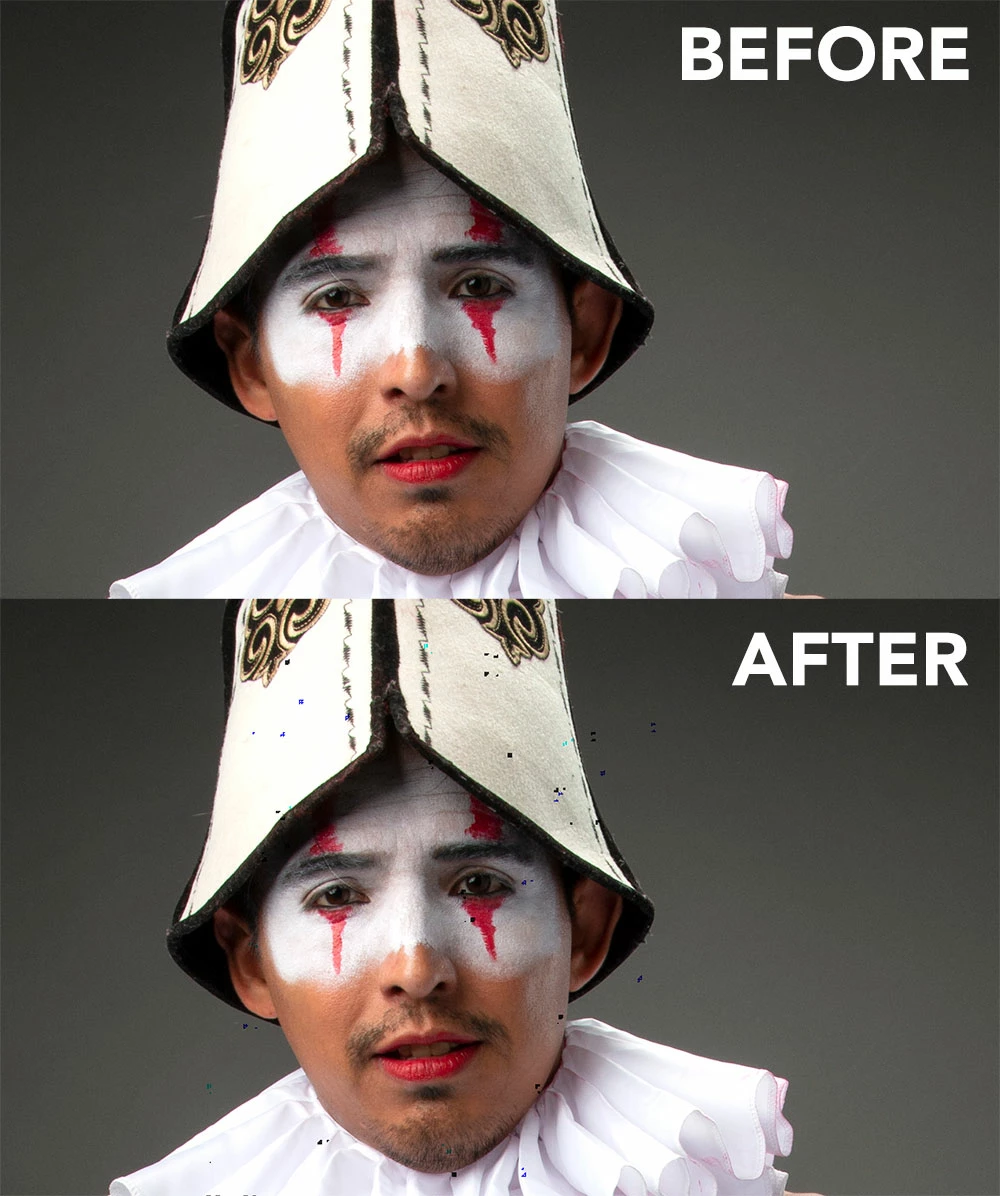
Liquify is creating black pixels when used.

I have tried to optimize performance but I still get the same error.

I have a super fast machine, so is not a RAM error. Liquify was working normally before Mojave OS.

In the image below, I have slightly adjusted the smile of the subject.
This topic has been closed for replies.
Correct answer Jeff Arola

This doesnt work for me.


Apple has just released the 10.14.1 Mojave update so install that and see if the Liquify issue is solved.

66 replies

Inspiring
December 11, 2018

10.14.1 update has sorted black pixel problem for my mid 2015 27inch iMac.

PPhotography808
Known Participant
December 5, 2018

NOTE TO ALL...Mojave update 10.14.2 WILL BRING BACK the artifacts!

Participant
December 7, 2018

thanks, too late i update and i cant work again with my $3000 USD imac..... great

Participant
November 10, 2018

I still have a same problem after update Majave 10.14.1

I use Macbook Pro 15' Mid 2015

Jeff Arola
Community Expert
Community Expert
November 10, 2018

Your sure it's 10.14.1?

Go to Apple>About This Mac to verify.

idsn
Participant
October 30, 2018

MacPro 2013,  Mojave 10.14, CC2019

the problem is still here... disabled GPU acceleration, but this is not a solution

hey, Adobe, at Max you told us about very close work with Apple, so how this happened and STILL now fixed?

Very dissapointed. Want my money back for subscribtion 

October 29, 2018

Does anyone know if the cc2019 fix the issue?

Participant
October 29, 2018

No CC 2019 doesn't fix it.

KJB101
Participating Frequently
October 29, 2018

Ive posted on a different thread about this having the same issue.

My current work around is when you go to select the liquify tool in the dropdown menu, PRESS/HOLD OPTION BUTTON, and select the liquify tool. You will know if it works by it taking longer to load the image and the liquify brush will be slowed.


It will take a little bit longer than normal but its not as slow as if you disabled the graphics card.

b3photo
Inspiring
October 29, 2018

Take a look at my solution above.  If you follow my solution, you don't have the slowed liquify brush.  A few extra steps but it works well.  I have been using it for the last couple of days now with perfect results.

b3photo
Inspiring
October 27, 2018

I have another work around that works well for me....here it is:

1. Open the image in Liquify as you normally do and edit.

2. Before closing, from the menu, select "Save Mesh" and elect a name for the file and save

3. Return to PhotoShop by clicking "Cancel"

4. Open the image again in Liquify but this time while holding down option key on Mac (Alt on PC).

5. Select "Load Mesh" from the menu and select the mesh you just saved.  Liquify loads the mesh and all of the changes made in previous step are incorporated into the image.

6. Return to PhotoShop by clicking on "OK"

This eliminates the need to use the very slow use of liquify with the graphics processor disabled and no more random pixels.

I need to add, this method only adds about a minute to my editing time....I can live with that until the update comes out.

Participant
December 11, 2018

@b3photo- Great tip. All other solutions have failed for me. Up until now I didn't even know saving a mesh was possible!

CarlosGordillo
Known Participant
December 17, 2018

The saving mesh trick don't work for me

Participating Frequently
October 25, 2018

I have the same problem.

HaB Korea
Participant
October 23, 2018

I had the same issue.

Update your Mac OS to "Mojava 10.14.1 beta" it will fix it.

Participant
October 22, 2018

Don't disable the graphics processor in preferences as it does a lot of things ok. HOLD DOWN THE OPTION KEY WHILST SELECTING LIQUIFY this will disable the GPU just for that process, it will run slowly but get the job done without artefacts and wait for the updates to fix the problem