

Participant
July 14, 2026
解決済み

Photos opened in photoshop appear washed out and low contrast in the workspace

  • July 14, 2026
  • 返信数 2.
  • 114 ビュー

After updating to the most recent version (v 27.9) image coloring appears incorrectly in the editing workspace. When opening a .jpg using photoshop, the photo appears in the workspace washed out and with no contrast. In the navigator window and Camera Raw, the photo appears with the correct coloring. I’ve included a photo for reference. The photo coloring returns to normal once saved and exported out of Photoshop.

Step 1- Open the .jpg by right clicking the image and selecting open with Photoshop

Step 2- The photo appears in the workspace with incorrect coloring.
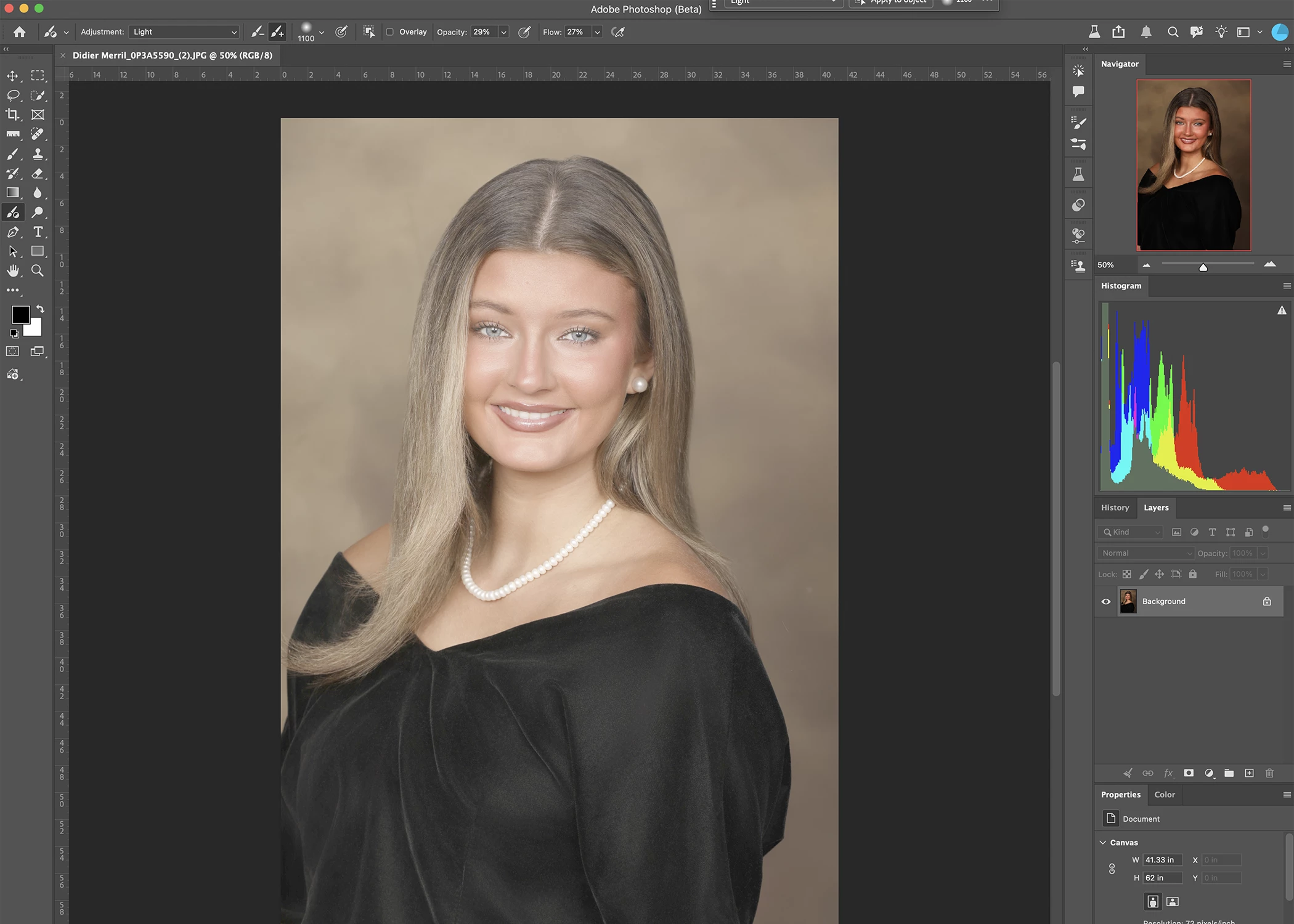
In workspace- incorrect coloring
In navigator window- correct coloring


    解決に役立った回答 JohanElzenga

    There is a bug in Photoshop. Go to Photoshop 2026>Settings>Technology Previews, and uncheck Precise color management for HDR display and then restart Photoshop.

    返信数 2

    Participant
    July 15, 2026

    My photoshop does not have (Photoshop 2026>Settings>Technology Previews, and uncheck Precise color management for HDR display) checked and still has the issue. I have deadlines. All my designs are washed out. Can you please help me.

    Participant
    July 16, 2026

    I am also experiencing this issue where images look washed out, but the solution to uncheck the Precise color management for HDR display box doesn’t apply as it was already unchecked. 

    I ended up going back to the older version of photoshop via the CC app and then uninstalled the newest version. Images look fine now.

    To do this, while in the apps section of Creative Cloud, click the three dots on the Photoshop app and select “other versions,” then install an older version. I believe you can leave the newer version installed if desired, but make sure you open files in the older version.

    Hope this helps for now!

    JohanElzenga
    Community Expert
    JohanElzengaCommunity Expert解決!
    Community Expert
    July 14, 2026

    There is a bug in Photoshop. Go to Photoshop 2026>Settings>Technology Previews, and uncheck Precise color management for HDR display and then restart Photoshop.

    -- Johan W. Elzenga
    Participant
    July 14, 2026

    This worked! Thank you so much!!