


Inspiring
November 29, 2024
Answered

What is the best way to use guide lines to crop/zoom on multiple images to match

  • November 29, 2024
  • 1 reply
  • 173 views

I have 4 images of horses that will be printed. I want that prints to match in terms alignment (ex: same size head, equal negative space around the horse's head, etc..)


I am using guides to manually mark where the top, bottom, left, & right side of the horse's head is located. Then manually adjusting the image so each horse is on the same guide lines.


If 1 horse's head is slightly smaller than the other 3, I need to enlarge the image so it fights on the guide lines. Currently, I am increasing the Image Size, then adjusting the Canvas Side to match the originally desired size (7500x7500).


Example of current (manual) process:
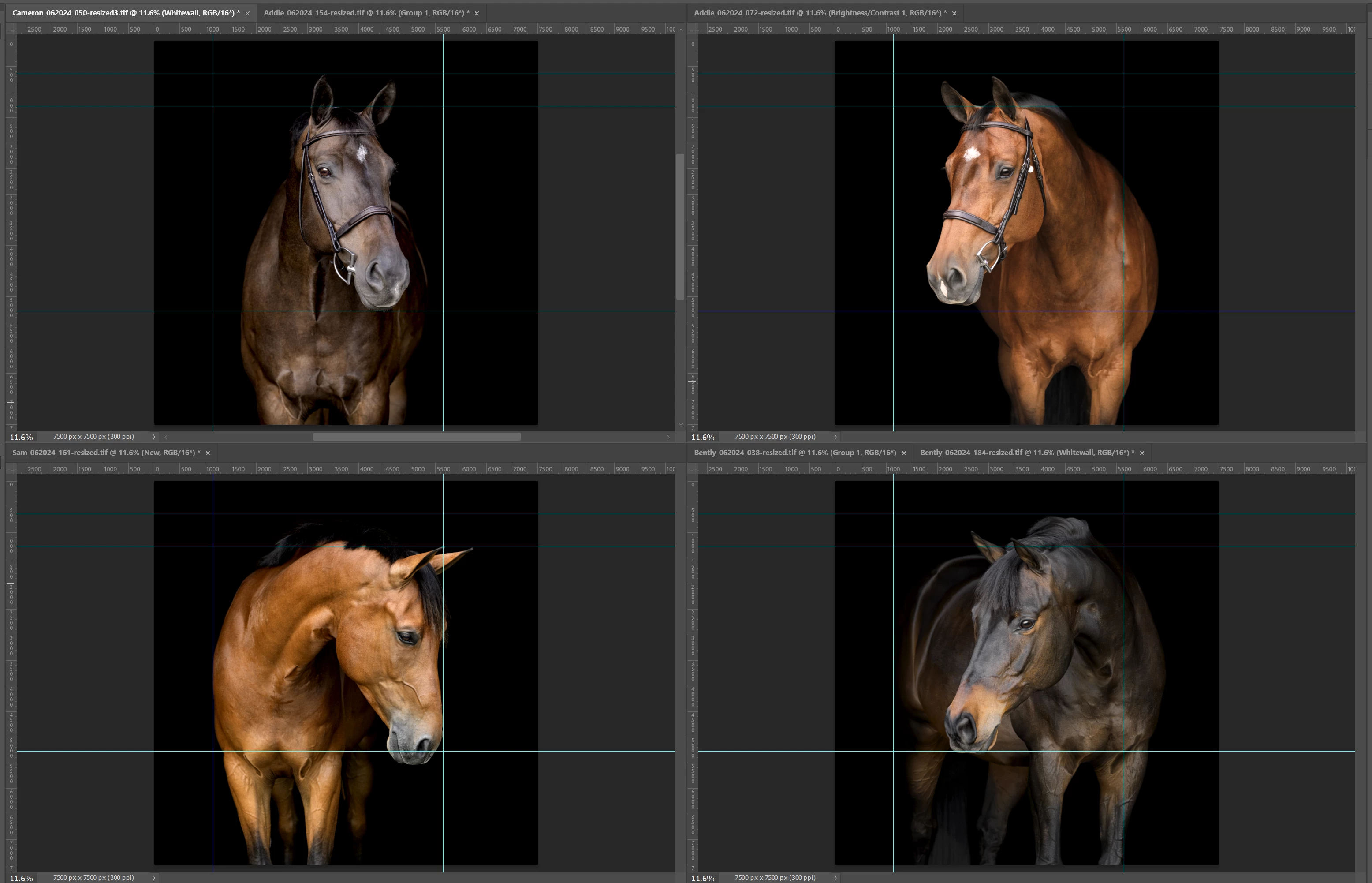
 

1) Is there a better way adjust the image size if I need to "zoom in" on one image (so the horse's head is touching the bottom & top lines)?

2) Is there a way to quickly add multiple guide lines to multiple images without having to manuall add and edit the location of each of them?


This topic has been closed for replies.
Correct answer Stephen Marsh

I'd create a blank template document at the required pixel dimensions, and resolution with the required guides. Then use the place embedded or linked command to place, size, and position the images against the template.


If you know that you need to add guides in the same position against multiple documents, create an action to record adding the guides on one image, then play the action on the other images.


Another option is to apply multiple guides at specific desired positions in a single dialog:


1 reply

Stephen Marsh
Community Expert
Stephen MarshCommunity ExpertCorrect answer
Community Expert
November 29, 2024

I'd create a blank template document at the required pixel dimensions, and resolution with the required guides. Then use the place embedded or linked command to place, size, and position the images against the template.


If you know that you need to add guides in the same position against multiple documents, create an action to record adding the guides on one image, then play the action on the other images.


Another option is to apply multiple guides at specific desired positions in a single dialog: