


ppearce43
Participating Frequently
July 5, 2017
Answered

Couple in a field of flowers

  • July 5, 2017
  • 1 reply
  • 1811 views

I can't seem to grasp layer and adjustment masks, and how to use them effectively.  I am working on a project.  It calls for putting an image of a person in a field of flowers (I have both photos - the field of flowers and the person).  I want the person to be partially obscured by the flowers.  My thought was to open the field of flowers (image 1), then copy the person to it (image 2), then add a layer mask of the first image (the field) and "paint away" the portion of that image that obscures the person.  But I obviously am doing lots of things wrong.

I'm using PSE 15.

I've watched videos, read my user guide, even bought a book on PSE, but I just can't seem to do this.

Any help greatly appreciated.  I hope I've explained what I'm trying to do clearly enough that someone can tell me how to do it.

Here's the effect I want:
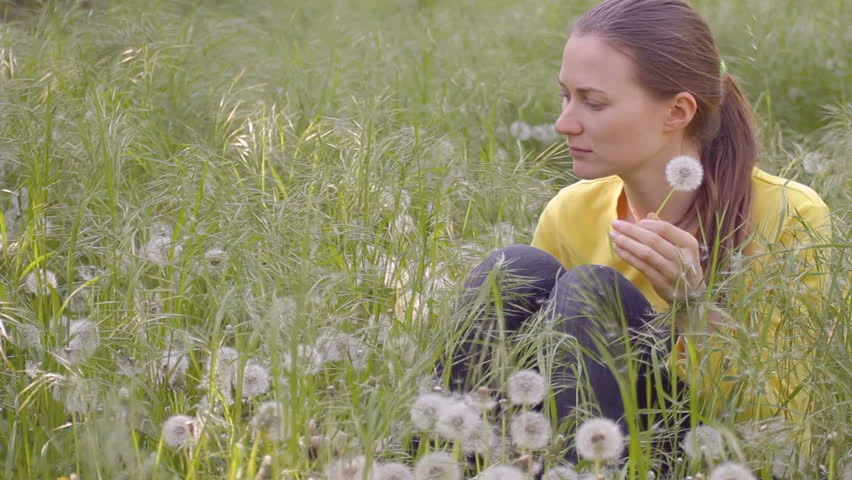
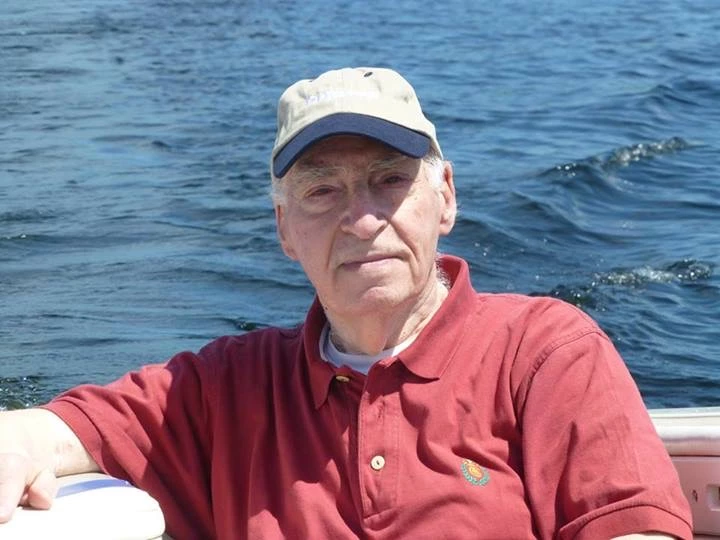
I have the photo of the grass and dandelions, and the photo of a person.  Is it possible to drop her into the photo of the field, as shown?
This topic has been closed for replies.
Correct answer hatstead


Here are some options:

1. You can use one of the selection tools, e.g. lasso tool or selection brush, to select the foreground, then place this on a new layer (press CTRL+J), then delete the original layer

2. If the background is a solid color, you can use the Magic wand tool to select it, then delete the background by hitting delete on the keyboard

3. If the background is complex, one can use a mask  to "mask"it. You paint with black on the mask to hide what you wish to mask from view, If you go too far and make a mistake, you  can reverse /reveal with a white brush.  Black hides; white reveals.


1 reply

hatstead
Inspiring
July 5, 2017

ppearce43  wrote

I have the photo of the grass and dandelions, and the photo of a person.  Is it possible to drop her into the photo of the field, as shown?

Yes.

  1. Open the photo of the grass & dandelions, and the photo of the person without any background. If the person-photo has a background, delete it.
  2. Use the move tool to position the person in the grass..
  3. The grass-dandelion will be Background layer, and person will be Layer 1
  4. Open a blank new layer above this - Layer 2
  5. Activate the clone stamp tool, and work on Layer 2. On the tool's option bar, be sure that "Sample all Layers" is checked.
  6. Proceed to clone grass and dandelions over the person to achieve the effect. You will need to clone small areas serially. Note, you can vary the layer opacity of the 3 layers to suit.

If you are so inclined, post the 2 pictures (or similar) so that we may work on them as well.

ppearce43
ppearce43Author
Participating Frequently
July 5, 2017

Back soon as I can work on this. Thanks.

ppearce43
ppearce43Author
Participating Frequently
July 6, 2017

Great help, worked out great, but I'm sure you guys can improve on my feeble effort.  Thank you very much.

Here are the photos I started with:

I will watch for your posts to see how the pros do it.

Thanks again.