



waynewalkerorg
Participant
April 27, 2023
Question

Corrupted Pink/Green image on almost all footage, but audio and playback fine.
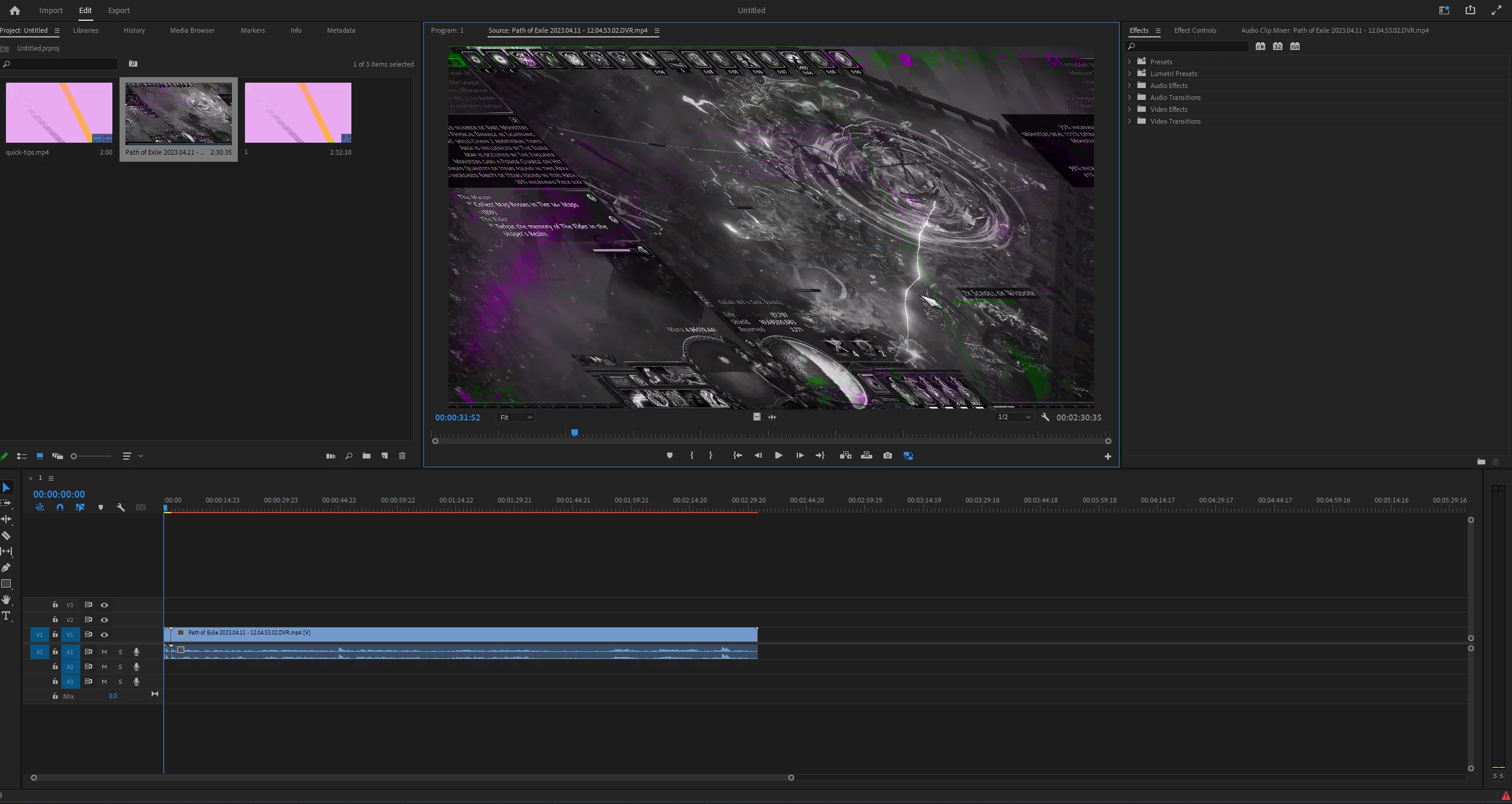
  • April 27, 2023
  • 2 replies
  • 709 views


As you can see in the photo, most of the footage looks like this on import. It plays fine and audio is working, but the image itself is corrupted. Also, my ProRes footage from my Atomos works perfectly. I've updated my all my drivers, I've tried enabling / disabling settings like Mercury. I'm at a loss, and frankly, I'm at my wits end with this program. I should note Da Vinci plays and edits the files fine. It seems there's just an issue with how Premiere is handling the image of these files.

This topic has been closed for replies.

2 replies

Peru Bob
Community Expert
Community Expert
April 28, 2023

Delete the Media Cache and Media Cache files:
https://community.adobe.com/t5/premiere-pro/faq-how-to-clear-your-media-cache-in-30-seconds-in-premiere-pro-2020/m-p/11017257/thread-id/260446?page=1

If that doesn't work, try resetting the preferences:
https://community.adobe.com/t5/premiere-pro/faq-how-to-reset-trash-preferences-in-premiere-pro/td-p/8236158?page=1

If that doesn't work, try resetting the Workspaces:
Reset a workspace
Reset the current workspace to return to its original, saved layout of panels.
1. Do one of the following:
• Click the Workspace menu icon and select Reset to Saved Layout.
• Choose Window > Workspace > Reset to Saved Layout.
from here:
https://helpx.adobe.com/premiere-pro/using/workspaces.html

If that doesn't work, try Preferences > Audio Hardware and set Input to None.

If that doesn’t work, try updating or rolling back your graphics driver directly from the video card manufacturer’s site. If NVIDIA, do a clean installation of the latest Studio Driver (NOT the Game Driver)

If that doesn't work, try creating a new project and import the old one into it.

Peru Bob
Community Expert
Community Expert
April 27, 2023

Please use the free MediaInfo and post a screenshot of the properties of your media in tree view:
https://mediaarea.net/en/MediaInfo

Many users are having issues with VFR. If the file is variable frame rate, use Handbrake to convert to constant frame rate:
https://handbrake.fr/downloads.php
Here is a tutorial:
https://www.youtube.com/watch?time_continue=34&v=xlvxgVREX-Y

Shutter Encoder may also be used to convert to Constant Frame Rate:
https://www.shutterencoder.com/en/


waynewalkerorg
Participant
April 28, 2023

Mediainfo on one of the affected clips