


markkoskg15941118
Inspiring
April 30, 2019
解決済み

Cut parts of movies without losing quality? (read)

  • April 30, 2019
  • 返信数 3.
  • 5429 ビュー

Sometimes I watch movies that weigh more than 3-7 GB and accumulate in my external disc of 4tb.

I want to save fragments of movies that I liked. For example cut and export with adobe premiere 10 minutes of the 2 hours of the movie.

Without losing anything of quality. How can I do?

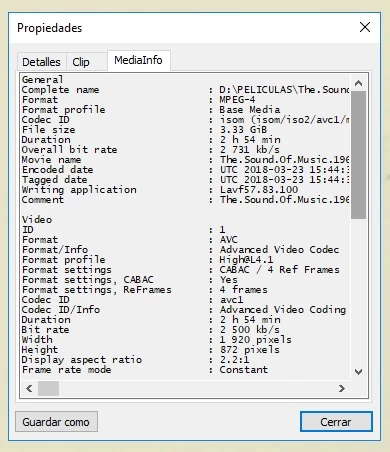
movie example:
Sorry for my english.

Google translate.

このトピックへの返信は締め切られました。
解決に役立った回答 Carlos Ziade

01. Start a new Premiere Pro project

02.  import your video into Premiere Pro Project Panel

03. Drag the video from the project panel to the empty timeline

04. Either set the work area bar to the in/out points or set the playhead to the In point

      and press 'I' then go to the out point and press 'O'

05. Go to File - Export Media

06. in the Source Range choose 'Work Area' or 'Sequence In/Out'

07. Format: H.264 ------ Preset: Match Source - High Bitrate

08. Export (directly from PP) or Queue to export from Media Encoder

For more details and a video tutorial please check this from Motion Array:

https://motionarray.com/premiere-pro/how-to-export-adobe-premiere-pro/

返信数 3

Averdahl
Community Expert
Community Expert
April 30, 2019

I use TMPGEnc MPEG Smart Renderer 5

No re-encoding and thus no loss of quality and since it smart renders the media it is lightning fast as well. Just set an in point and an out point and the program just copies the media you want to keep without re-encoding it.

Ann Bens
Community Expert
Community Expert
April 30, 2019

The only way not to loose (visible) image quality is to export to a lossless codec such as Cineform or Prores.

But unfortanetely these files can get huge. So you need to settle for less as in mp4.

For the rest follow Carlos workflow.

Carlos ZiadeCommunity Expert解決!
Community Expert
April 30, 2019

01. Start a new Premiere Pro project

02.  import your video into Premiere Pro Project Panel

03. Drag the video from the project panel to the empty timeline

04. Either set the work area bar to the in/out points or set the playhead to the In point

      and press 'I' then go to the out point and press 'O'

05. Go to File - Export Media

06. in the Source Range choose 'Work Area' or 'Sequence In/Out'

07. Format: H.264 ------ Preset: Match Source - High Bitrate

08. Export (directly from PP) or Queue to export from Media Encoder

For more details and a video tutorial please check this from Motion Array:

https://motionarray.com/premiere-pro/how-to-export-adobe-premiere-pro/