


Inspiring
August 28, 2022
解決済み

Make a graphic stay on screen for entire video

  • August 28, 2022
  • 返信数 1.
  • 479 ビュー

Mind you while I am well experienced in Photoshop, Illustrator and InDesign, I am a rank amateur in Premiere Pro. I am making a video collection of songs for a high school reunion that will run about an hour and fifteen minutes. I have successfully created the audio track in Audition and imported it in to PP with no problem. For this video, the audio is the thing, I want to simply fade in the reunion logo at the first and fade it out at the end. It is essentially background music and putting it on you tube makes it easily accessible to pipe if as background music for several events. The graphics are there merely to avoid a blank screen.


I have the graphics and audio in place to dissolve in at the start with no problem.

My question is: Is there an easy way to make the logo stay on the screen besides manually grabbing the end and dragging it through the entire video. There's got to be a better way and I am totally ignorant of what that might be.


Thanks to those who know more than me,

Joe
このトピックへの返信は締め切られました。
解決に役立った回答 Warren Heaton

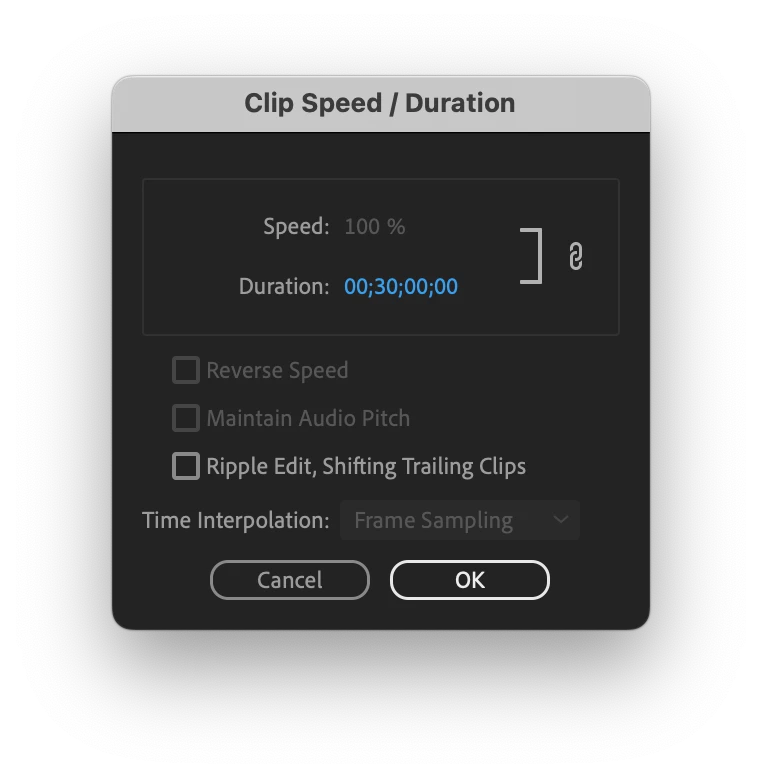
You could have done an Overwrite edit for exact duation of the audio, but since you already have the graphic in a Video Track: select the graphic in the Timeline, choose Clip > Speed Duration, enter the duration of the edit (you'll see this at the lower right of the Program tab), and then click OK.

Then add your dissolve at the tail.

返信数 1

Warren Heaton
Community Expert
Warren HeatonCommunity Expert解決!
Community Expert
August 28, 2022

You could have done an Overwrite edit for exact duation of the audio, but since you already have the graphic in a Video Track: select the graphic in the Timeline, choose Clip > Speed Duration, enter the duration of the edit (you'll see this at the lower right of the Program tab), and then click OK.

Then add your dissolve at the tail.

camelbreath作成者
Inspiring
August 28, 2022

Warren,

Thanks for you help. It worked, but when it got to YouTube, they detected a couple of songs with copyright issues so rather than use their trim process since it's not terribly time consuming, I'm going to delete the audio, reinsert it and trim back the video. If you can stick my nose in how to do a "overwrite edit," I'll have that knowledge on the next such adventure.

Thanks again,

Joe

Warren Heaton
Community Expert
Community Expert
August 29, 2022

Add the audio to the Timeline.


Go the 1st frame (press Home)


Press X to Mark Clip (the In Mark and Out Mark in the Timeline will be across the entire audio clip boundary).


Double-click on the Still Image to open it in the Source Panel (or press Shift O) then press Option/Alt X to clear the default In Mark and Out Mark (for the Windows Clear In to Out keyboard shortcut, check the Markers pulldown menu... it's something like Control Shift X).


In the Timeline (Shift 3), set the Source Patching (the blue V1) and Track Target (the blue V1, V2, V3 a little less to the left) are set as preferred.


Then press period (or click Overwrite) to place the Still Image clip boundary in the patched Video Track for the In to Out duration in the Timeline.


I believe that everything other than Source patching should a have a keyboard shortcut available or that can be assigned, but V1 for Source Patching should be enabled by default.