




Want to change the signer of an agreement? We’re here to help!
Sent a wrong file or to the wrong person for signing? Don’t worry. Learn how to change who signs, reset the expiration date, cancel an agreement, and set reminders.
Accidentally sent an agreement to an incorrect e-mail address or want to change/replace the email of the current signer. Use this easy process to make changes.
- Log in to your Adobe Sign account directly via https://secure.echosign.com/public/login
- Click on the Manage tab.
- Select the agreement and then mouse over the current recipient.
- An information balloon expands to the left.
- Click the Replace Participant link.
- Provide the email for the new recipient and click Replace.
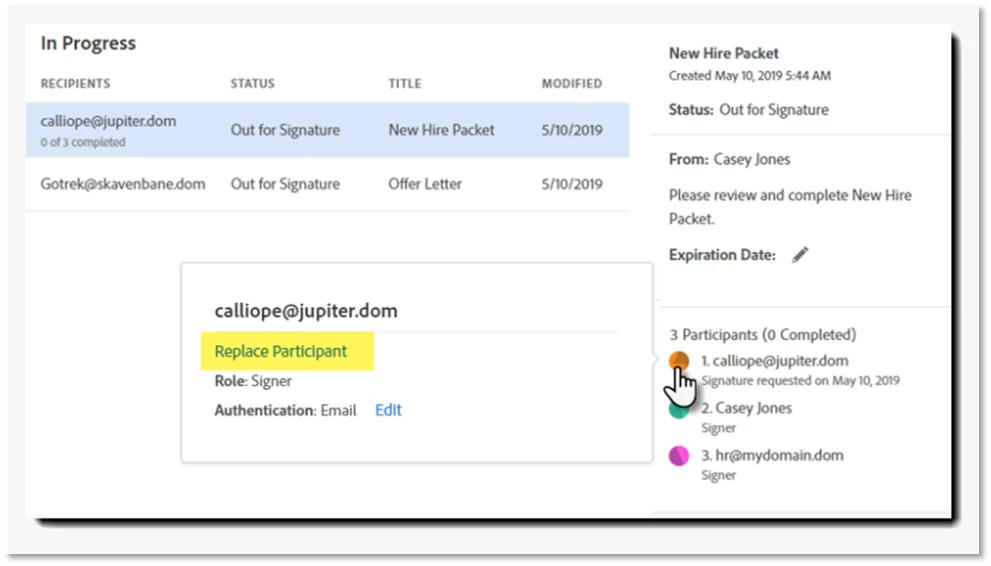
If you prefer a more verbose explanation of the process, you can find the full Step-by-Step here!
Review the same instructions for the classic Adobe Sign UI here
Note: This action only replaces the current signer of the agreement. If you need to change a signer that is later in the process, wait until it is their turn to sign.
If you are one of those who don’t like to click too much, then try our video tutorial and see if that help.
Tell us if these helped you use Acrobat better. Join the conversation here. We are listening!
To discover a host of other great features –
Go straight to: Replace the document on an agreement| Set, edit, or cancel reminders | Cancel the agreement
 AdChoices