


- Home
- After Effects
- Discussions
- Re: Automatically scale layer based on proximity o...
- Re: Automatically scale layer based on proximity o...
Copy link to clipboard
Copied
Hi there!
I'm trying to write an expression that will scale a layer up/down as another layer gets closer (simulating a UI element jumping off the page as a mouse cursor hovers over it). This is what I've got so far (expression applied to the scale property of the target layer):
x = Math.abs((effect("Mouse Layer")(1)).transform.position[0] - transform.position[0]); // distance between target layer and mouse on x-axis
y = Math.abs((effect("Mouse Layer")(1)).transform.position[1] - transform.position[1]); // distance between target layer and mouse on y-axis
t = Math.sqrt((Math.pow(x,2)) + (Math.pow(y,2))); // actual distance from mouse layer to center of target layer
fadeDist = effect("Fade Dist")(1); // distance at which layer begins scaling
sMin = effect("sMin")(1); // scale minimum
sMax = effect("sMax")(1); // scale maximum
s = ease(t, 0, fadeDist, sMax, sMin);
[s,s];
It works fairly well, but it's based on the distance between the center of the target layer and the mouse, not the boundaries/edges of it. Because of this, the target layer's scale changes while the mouse is moving around within the area of the layer itself.
Is there a way for me to write this expression that will 1) allow me to reference the distance between the mouse and the edges of the target layer (a rectangle) as the factor affecting the layer's scale, and 2) maintain the scale of the rectangle while the mouse moves around within it?
Thanks!!


 1 Correct answer


This probably isn't exactly what you're looking for, but it may give you some ideas. It seems to work for a rectangular solid. It scales as the Mouse Layer approaches, but stays at maximum scale once the mouse is inside the solid:
sMax = 150; // max scale
sMin = 50; // min scale
dMax = 100; // distance where scaling starts
dMin = 0; // distance where scaling ends
M = thisComp.layer("Mouse Layer");
pm = M.toComp(M.anchorPoint);
x = pm[0];
y = pm[1];
p = toComp(anchorPoint);
xMin = p[0] - width*sMax/200;
xM
...
 6
Replies
6
6
Replies
6


Copy link to clipboard
Copied
Well, a rectangle is just a bunch of X and Y coordinates that you need to add/ subtract to/ from your position, is it not? conversely, the same would apply to remapping the mouse behavior, with the only caveat being that you may need to distinguish between horizontal and vertical movement...
Mylenium

Copy link to clipboard
Copied
Just to save you some work, you can avoid the first three lines by using
t = length(effect("Mouse Layer")(1).transform.position[0] , transform.position[0])the length function takes two points and returns the lengths between them (I also did it the Pythagorean way for ages until someone told me that.).
You can put an if statement in there that checks if the mouse's co-ordinates are within the boundaries of the target layer.
m = effect("Mouse Layer")(1).transform.position; //to save some typing
if (Math.abs(m[0]) < rectWidth && Math.abs(m[1])< rectHeight){ //if the mouse is within the bounds of the rectangle
    t = length(m, transform.position);
}
rectWidth and rectHeight are variables representing the width and height of your rectangle, however that's calculated.
The trick now is to calculate the size the layer based on where it was when it entered the rectangle. I'm going to need coffee before I work that out.
Copy link to clipboard
Copied
Yes! Super helpful, thanks so much.
Thanks for the tip on the length function - I was glad the Pythagorean way worked, but that hugely simplifies the code haha.
That code you gave seems to work great for calculating the area within the rectangle - I'm assuming that works only on shape layers with a rectangle path, as opposed to a masked solid? And would it need to be the width and height/2? (i.e. the horizontal/veritcal distance from the center of the layer to the edge of the layer)?
Visually, here's what I'm looking to do. The code I've gotten so far (see above) basically accomplishes this (the red rectangle is the target layer):

Again, it works fine if/when the target layer was a square or circle. But if the mouse is coming towards the target layer from the top or bottom, the rectangle starts scaling up much sooner than if/when it's coming from the sides.
So, I'm trying to find a way to make the FadeDist work more like this, where the fade "boundary" is even around all the edges of the shape, if that makes sense - and then once the mouse is inside the are of the rectangle itself, the rectangle's scale doesn't change.
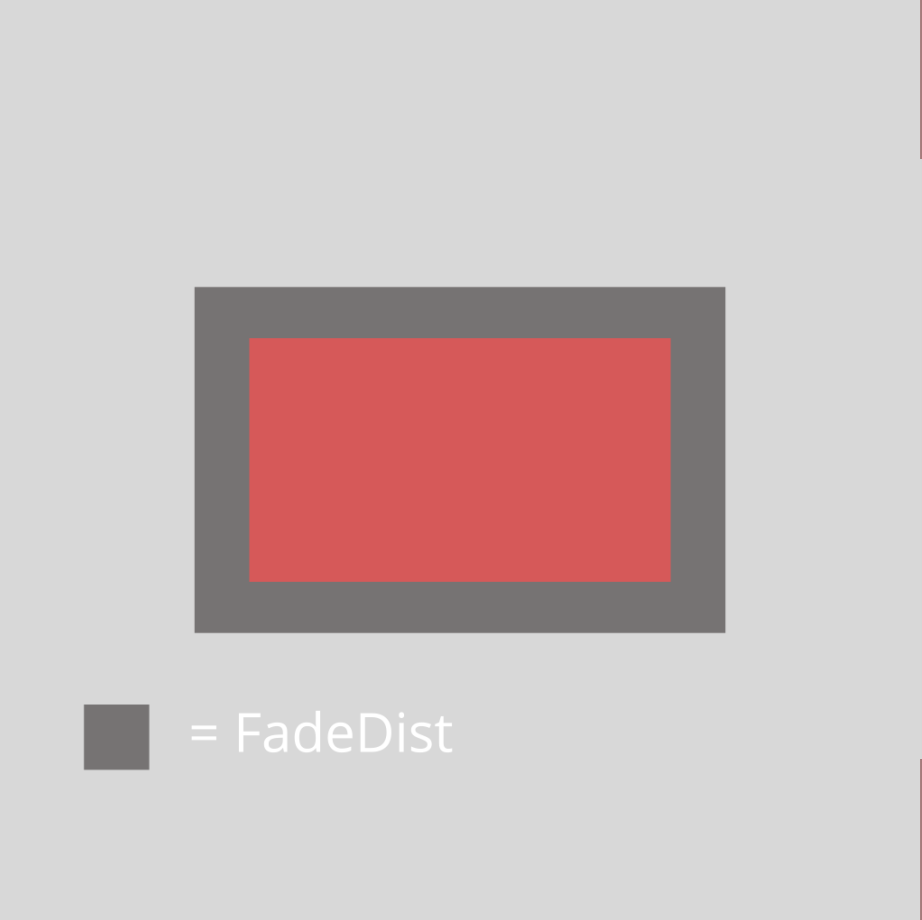
Given we can calculate the distance from the center to the mouse layer (i.e., green dot), is there some way we can calculate the distance from the center to the edge of the rectangle along the length "line", and then add a boundary around it?

Would one way to do that be to create a second rectangle and just add a certain amount (i.e. 100px) to the length/width, effectively creating a 100px boundary around the target layer, and then use the expression you wrote to calculate when the mouse is within that second layer, and then use that to affect the scale of the target layer?
My head hurts.
Copy link to clipboard
Copied
This probably isn't exactly what you're looking for, but it may give you some ideas. It seems to work for a rectangular solid. It scales as the Mouse Layer approaches, but stays at maximum scale once the mouse is inside the solid:
sMax = 150; // max scale
sMin = 50; // min scale
dMax = 100; // distance where scaling starts
dMin = 0; // distance where scaling ends
M = thisComp.layer("Mouse Layer");
pm = M.toComp(M.anchorPoint);
x = pm[0];
y = pm[1];
p = toComp(anchorPoint);
xMin = p[0] - width*sMax/200;
xMax = p[0] + width*sMax/200;
yMin = p[1] - height*sMax/200;
yMax = p[1] + height*sMax/200;
if (x < xMin){
if (y < yMin){
d = length(pm,[xMin,yMin]);
}else if (y < yMax){
d = xMin - pm[0];
}else{
d = length(pm,[xMin,yMax]);
}
}else if (x < xMax){
if (y < yMin){
d = yMin - pm[1];
}else if (y < yMax){
d = dMin;
}else{
d = pm[1] - yMax;
}
}else{
if (y < yMin){
d = length(pm,[xMax,yMin]);
}else if (y < yMax){
d = pm[0] - xMax;
}else{
d = length(pm,[xMax,yMax]);
}
}
s = linear(d,dMin,dMax,sMax,sMin);
[s,s]
Dan
Copy link to clipboard
Copied
This was pretty much spot on. I ended up using the sourceRectAtTime() to pull the width and height of the layer, as "width" and "height" somehow pointed to the comp dimensions.
Copy link to clipboard
Copied
You could do what you want with the rectangle by first finding the angle to the mouse, then working out which quadrant the mouse was in. If it's in the quadrant above or below the rectangle (i.e. between the lines going from the centre through the top left and top right) then the scale can depend entirely on the Y distance to the top of the rect, and if it's to the side the x distance will be all you need. You need to then scale those distances proportionally to the aspect ratio of your rectangle.
Here's a really crappy diagram illustrating what I'm saying:


Get ready! An upgraded Adobe Community experience is coming in January.
Learn more
 AdChoices