Exit
  • Global community
    • Language:
      • Deutsch
      • English
      • Español
      • Français
      • Português
  • 日本語コミュニティ
  • 한국 커뮤니티
0

Create complex random shapes in After Effects?

New Here ,
Jun 03, 2018 Jun 03, 2018

Hello,

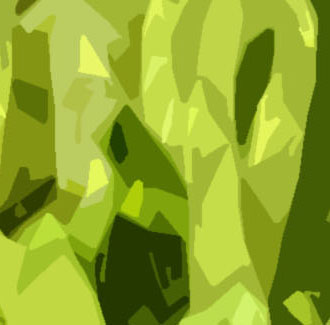
For a project, done in AE, I am trying to do something like this:

QfA.jpg

This has been achieved with the Cutout filter in Photoshop (among some others but this one mainly) and I want to reproduce this look in AE and animate it. The problem is, what I am showing is about 1/100th or less of the whole picture. Is there a way to do this aside from manually making masks/shapes for hours? I tried some approaches but so far nothing worked for me really.


I am open to questions for more details and thanks so much in advance!

2.3K
Translate
Report
Community guidelines
Be kind and respectful, give credit to the original source of content, and search for duplicates before posting. Learn more
community guidelines

correct answers 1 Correct answer

Community Expert , Jun 03, 2018 Jun 03, 2018

I did something like this in an old project. My workflow was:

1.- Export my video as an image sequence (PSD). This step is only necessary if you have a video.

2.- Import one of the PSDs into Adobe Illustrator

3.- Use the Image Trace tool for getting the correct look. Once you get the desired result, save this setting as a preset using the options menu inside the Image Trace Tool and close Illustrator without saving the changes

4.- Open Adobe Bridge, locate the folder where your images are stored. Se

...
Translate
Community Expert ,
Jun 03, 2018 Jun 03, 2018

I did something like this in an old project. My workflow was:

1.- Export my video as an image sequence (PSD). This step is only necessary if you have a video.

2.- Import one of the PSDs into Adobe Illustrator

3.- Use the Image Trace tool for getting the correct look. Once you get the desired result, save this setting as a preset using the options menu inside the Image Trace Tool and close Illustrator without saving the changes

4.- Open Adobe Bridge, locate the folder where your images are stored. Select all the images and go to Tools > Illustrator > Image Trace. This way you can automate this process to work faster. You can save the result in AI files.

5.- Open the Illustrator files in After Effects, place over a composition and go to Layer > Create > Create shapes from Vector Layer. This way you will get every single path for animating individually, and even you can use the own deformers for shape layers like Wiggle Transform and Wiggle Paths.

Translate
Report
Community guidelines
Be kind and respectful, give credit to the original source of content, and search for duplicates before posting. Learn more
community guidelines
Explorer ,
Jun 03, 2018 Jun 03, 2018

If you are using CC 2018, you could add this expression to a shape path

posterizeTime(.0000000000000001);

minPoints = 3;

maxPoints = 13;

numPoints = random(minPoints,maxPoints);

comp = thisComp;

pointAry = [];

for (var i = 0; i < numPoints; i++){

  pointAry.push([(random()*comp.width)-comp.width/2,(random()*comp.height)-comp.height/2]);

}

createPath(pointAry, [], [], true);

and this to the position

posterizeTime(.0000000000000001);

comp = thisComp;

x = random()*comp.width;

y = random()*comp.height;

[x,y];

Using a lower opacity, you could get sth like this, just by duplicating the layer with those expressions. Not as organic as your example though...
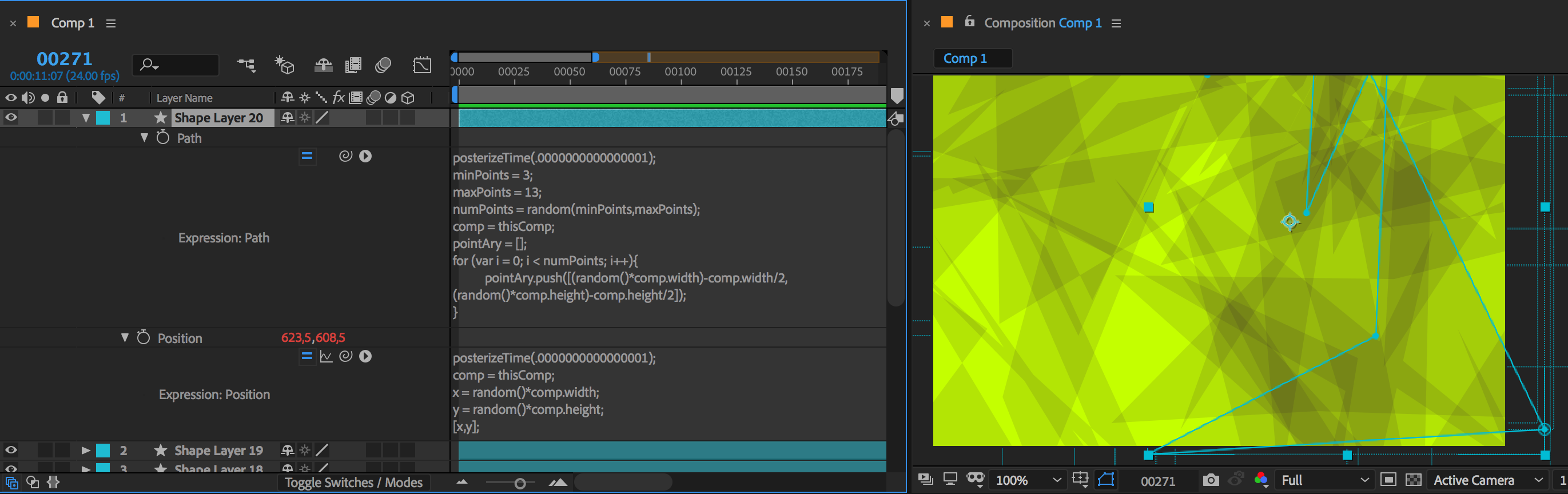

randomShapes.png

Translate
Report
Community guidelines
Be kind and respectful, give credit to the original source of content, and search for duplicates before posting. Learn more
community guidelines
Valorous Hero ,
Jun 03, 2018 Jun 03, 2018

The image you've shared looks like Turbulent Noise/Fractal Noise coupled with Colorama.

Very Advanced After Effects Training | Adaptive & Responsive Toolkits | Intelligent Design Assets (IDAs) | MoGraph Design System DEV
Translate
Report
Community guidelines
Be kind and respectful, give credit to the original source of content, and search for duplicates before posting. Learn more
community guidelines
New Here ,
Jun 10, 2018 Jun 10, 2018
LATEST

Thank you for the help and the super fast responses!

The filters in PS are applied on an image, so I needed that the shapes/masks follow a certain pattern in big scale. I did it with the Illustrator function of making a vector copy of the image (as Jose Panadero suggested) and then deleted all too small unneeded layers with a pretty cool script for AI "SelectPathsBySize".

Translate
Report
Community guidelines
Be kind and respectful, give credit to the original source of content, and search for duplicates before posting. Learn more
community guidelines