
zhenminl9312629
Participant
December 5, 2018
Answered

how to space out key-frames evenly?

  • December 5, 2018
  • 12 replies
  • 61704 views

My question is fairly simple but haven't found a good solution yet.

The image below shows all key-frames have been placed on a layer

I am wondering is there any ways that can quickly space out those dots evenly. like this image below:

I use photoshop / illustrator as well. they have a series of buttons like this:
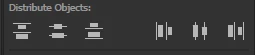
Does After Effect has something similar tools like that as well? if not, how can i quickly achieve the evenly space out dots.

Thanks, Appreciated

    Correct answer Aryan244766988iej

    Hi there, Use this Script.

    function adjustKeyframeSpace() {
        var selectedLayers = app.project.activeItem.selectedLayers;
        if (selectedLayers.length == 0) {
            alert("Please select a layer with keyframes to run this script");
            return;
        }
        var selectedProperties = selectedLayers[0].selectedProperties;
        if (selectedProperties.length == 0) {
            alert("Please select a property with keyframes to run this script");
            return;
        }
        var selectedKeyframes = selectedProperties[0].selectedKeys;
        if (selectedKeyframes.length == 0) {
            alert("Please select some keyframes to run this script");
            return;
        }
    
        var keyframeDuration = selectedProperties[0].keyTime(selectedKeyframes[selectedKeyframes.length - 1]) - selectedProperties[0].keyTime(selectedKeyframes[0]);
        var keyframeInterval = keyframeDuration / (selectedKeyframes.length - 1);
    
        for (var i = 0; i < selectedKeyframes.length; i++) {
            var newKeyframeTime = selectedProperties[0].keyTime(selectedKeyframes[0]) + (keyframeInterval * i);
            var easeIn = selectedProperties[0].keyInTemporalEase(selectedKeyframes[i])[0];
            var easeOut = selectedProperties[0].keyOutTemporalEase(selectedKeyframes[i])[0];
            var value = selectedProperties[0].valueAtTime(selectedProperties[0].keyTime(selectedKeyframes[i]), true);
            selectedProperties[0].removeKey(selectedKeyframes[i]);
            selectedProperties[0].setValueAtTime(newKeyframeTime,value);
            selectedProperties[0].setTemporalEaseAtKey(1, [easeIn], [easeOut]);
        }
    }
    adjustKeyframeSpace();
     

    12 replies

    Inspiring
    April 30, 2025

    I created this script (with the help of Perplexity...):

    {
        function spaceOutSelectedKeyframesEvenly() {
            var comp = app.project.activeItem;
            if (!(comp && comp instanceof CompItem)) {
                alert("Please select a composition.");
                return;
            }
    
            var selectedLayers = comp.selectedLayers;
            if (selectedLayers.length === 0) {
                alert("Please select at least one layer.");
                return;
            }
    
            // Find first property with selected keyframes
            var targetProp = null;
            for (var i = 0; i < selectedLayers.length; i++) {
                var layer = selectedLayers[i];
                var selectedProps = layer.selectedProperties;
                for (var j = 0; j < selectedProps.length; j++) {
                    var prop = selectedProps[j];
                    if (prop.numKeys > 0 && prop.selectedKeys.length > 0) {
                        targetProp = prop;
                        break;
                    }
                }
                if (targetProp) break;
            }
    
            if (!targetProp) {
                alert("Please select a property with selected keyframes.");
                return;
            }
    
            var intervalFramesStr = prompt("Enter interval between keyframes in frames:", "5");
            if (intervalFramesStr === null) return;
    
            var intervalFrames = parseInt(intervalFramesStr, 10);
            if (isNaN(intervalFrames) || intervalFrames <= 0) {
                alert("Invalid interval entered. Please enter a positive integer.");
                return;
            }
    
            app.beginUndoGroup("Space Out Selected Keyframes Evenly");
    
            var frameDuration = 1 / comp.frameRate;
    
            // Get selected keyframe indices sorted ascending
            var selectedKeyIndices = targetProp.selectedKeys.slice(0).sort(function(a, b) { return a - b; });
    
            // Save original keyframe data (time, value, easing, interpolation)
            var keyData = [];
            for (var i = 0; i < selectedKeyIndices.length; i++) {
                var idx = selectedKeyIndices[i];
                keyData.push({
                    originalTime: targetProp.keyTime(idx),
                    value: targetProp.keyValue(idx),
                    inInterp: targetProp.keyInInterpolationType(idx),
                    outInterp: targetProp.keyOutInterpolationType(idx),
                    temporalEaseIn: targetProp.keyInTemporalEase(idx),
                    temporalEaseOut: targetProp.keyOutTemporalEase(idx),
                    spatialInterp: (typeof targetProp.keySpatialInterpolationType === "function") ? targetProp.keySpatialInterpolationType(idx) : null,
                    roving: (typeof targetProp.keyRoving === "function") ? targetProp.keyRoving(idx) : false
                });
            }
    
            // Calculate new times spaced evenly starting at the first selected keyframe's original time
            var startTime = keyData[0].originalTime;
            var newTimes = [];
            for (var i = 0; i < keyData.length; i++) {
                newTimes.push(startTime + i * intervalFrames * frameDuration);
            }
    
            // Remove selected keyframes from highest index to lowest to avoid reindexing issues
            for (var i = selectedKeyIndices.length - 1; i >= 0; i--) {
                targetProp.removeKey(selectedKeyIndices[i]);
            }
    
            // Add new keyframes at new evenly spaced times with original values and restore easing/interpolation
            for (var i = 0; i < keyData.length; i++) {
                targetProp.setValueAtTime(newTimes[i], keyData[i].value);
                var newKeyIndex = targetProp.nearestKeyIndex(newTimes[i]);
                if (newKeyIndex > 0) {
                    targetProp.setTemporalEaseAtKey(newKeyIndex, keyData[i].temporalEaseIn, keyData[i].temporalEaseOut);
                    targetProp.setInterpolationTypeAtKey(newKeyIndex, keyData[i].inInterp, keyData[i].outInterp);
                    if (keyData[i].spatialInterp !== null) {
                        targetProp.setSpatialInterpolationTypeAtKey(newKeyIndex, keyData[i].spatialInterp);
                    }
                    if (keyData[i].roving !== undefined) {
                        targetProp.setRovingAtKey(newKeyIndex, keyData[i].roving);
                    }
                }
            }
    
            app.endUndoGroup();
        }
    
        spaceOutSelectedKeyframesEvenly();
    }
    Participant
    November 28, 2024

    I love the comparison to illustrator and would find this an extremly helpful keyboard shortcut or tool in the properties panel!

    Aryan244766988iejCorrect answer
    Participant
    January 22, 2023

    Hi there, Use this Script.

    function adjustKeyframeSpace() {
        var selectedLayers = app.project.activeItem.selectedLayers;
        if (selectedLayers.length == 0) {
            alert("Please select a layer with keyframes to run this script");
            return;
        }
        var selectedProperties = selectedLayers[0].selectedProperties;
        if (selectedProperties.length == 0) {
            alert("Please select a property with keyframes to run this script");
            return;
        }
        var selectedKeyframes = selectedProperties[0].selectedKeys;
        if (selectedKeyframes.length == 0) {
            alert("Please select some keyframes to run this script");
            return;
        }
    
        var keyframeDuration = selectedProperties[0].keyTime(selectedKeyframes[selectedKeyframes.length - 1]) - selectedProperties[0].keyTime(selectedKeyframes[0]);
        var keyframeInterval = keyframeDuration / (selectedKeyframes.length - 1);
    
        for (var i = 0; i < selectedKeyframes.length; i++) {
            var newKeyframeTime = selectedProperties[0].keyTime(selectedKeyframes[0]) + (keyframeInterval * i);
            var easeIn = selectedProperties[0].keyInTemporalEase(selectedKeyframes[i])[0];
            var easeOut = selectedProperties[0].keyOutTemporalEase(selectedKeyframes[i])[0];
            var value = selectedProperties[0].valueAtTime(selectedProperties[0].keyTime(selectedKeyframes[i]), true);
            selectedProperties[0].removeKey(selectedKeyframes[i]);
            selectedProperties[0].setValueAtTime(newKeyframeTime,value);
            selectedProperties[0].setTemporalEaseAtKey(1, [easeIn], [easeOut]);
        }
    }
    adjustKeyframeSpace();
     
    Rene Andritsch
    Community Expert
    Community Expert
    March 31, 2023

    @Aryan244766988iej  Thank you for writing this script!

    Participant
    January 22, 2023

    Hi there, Use this Script.

    function adjustKeyframeSpace() {
        var selectedLayers = app.project.activeItem.selectedLayers;
        if (selectedLayers.length == 0) {
            alert("Please select a layer with keyframes to run this script");
            return;
        }
        var selectedProperties = selectedLayers[0].selectedProperties;
        if (selectedProperties.length == 0) {
            alert("Please select a property with keyframes to run this script");
            return;
        }
        var selectedKeyframes = selectedProperties[0].selectedKeys;
        if (selectedKeyframes.length == 0) {
            alert("Please select some keyframes to run this script");
            return;
        }

        var keyframeDuration = selectedProperties[0].keyTime(selectedKeyframes[selectedKeyframes.length - 1]) - selectedProperties[0].keyTime(selectedKeyframes[0]);
        var keyframeInterval = keyframeDuration / (selectedKeyframes.length - 1);

        for (var i = 0; i < selectedKeyframes.length; i++) {
            var newKeyframeTime = selectedProperties[0].keyTime(selectedKeyframes[0]) + (keyframeInterval * i);
            var easeIn = selectedProperties[0].keyInTemporalEase(selectedKeyframes[i])[0];
            var easeOut = selectedProperties[0].keyOutTemporalEase(selectedKeyframes[i])[0];
            var value = selectedProperties[0].valueAtTime(selectedProperties[0].keyTime(selectedKeyframes[i]), true);
            selectedProperties[0].removeKey(selectedKeyframes[i]);
            selectedProperties[0].setValueAtTime(newKeyframeTime,value);
            selectedProperties[0].setTemporalEaseAtKey(1, [easeIn], [easeOut]);
        }
    }
    adjustKeyframeSpace();
    Participant
    November 16, 2022

    Wow, I can't believe this is so complicated.

    Inspiring
    February 24, 2022

    I wanted a load of evenly spaced hold key frames with ascending position values. My work around is this:


    1. create two key frames the required distance apart.

    2. Create a null object. This will just be like a construction guide layer.

    3. Select your two key frames and ctrl C to copy them. 
    4. Use the K key to move the play head exactly on the second keyframe and with the Null object selected Ctrl V to paste. Keep pressing K to shift the play head along and pasting until you have a guide layer of evenly distributed keyframes. 
    5. now on the layer you actually want keyframes you can use J and K to snap to your guides. And add your keyframes accordingly.

    6. For the keyframe values I had to consider the maths but I put the equation in the value box. For example I wanted each hold keyframe to increase the X position by 200 pixels so I would add the keyframe and if the existing X value was 100 I would add "+200" in the little box, hit enter and it would be 300. The next KF I added would then also be 300 and I would "+200" to that. Etc.


    7. You can delete the null layer if you don't need it anymore.


    Its not automatic but it's precise and fairly painless.

    Inspiring
    January 24, 2022

    Meanwhile I wrote an expression that has the same effect. Though not distributing the actual keyframe dots, it does distribute the values evenly when rendering. Thanks for inspiring me to do so 🙂

    Still longing for a script that distributes the actual keyframes.


    // Distribute keyframe values evenly (not the actual keyframes)
    //
    // Create markers at the Start and End times
    // Create any number of keyframes, don't care about the exact timing
    // Paste this expression in the property's expression field
    
    // Expression by jaydude.nl / 2022
    
    var mS = marker.key(1).time;
    var mE = marker.key(2).time;
    var kValue = [];
    var n = numKeys;
    var i;
    
    
    for (i = 1; i < n + 1; i++) { 
      kValue[i] = valueAtTime(key(i).time);
    };
    
    k = Math.round(linear(time , mS , mE , 1 , n));
    
    kValue[k];


    Participating Frequently
    January 17, 2022

    I've checked all the replies below and none answers his question.


    does anyone know how to do it?

    Participant
    October 25, 2022

    select your keyframes, right-click and select "Keyframe Interpolation", then choose "Linear" for both Temporal Interpolation & Spatial Interpolation.


    i hope this helps 🙂

    rachelcenter
    Legend
    October 25, 2022

    this does not space out keyframes.

    Community Expert
    April 11, 2020

    If you have hundreds of keyframes doing this can be quite a problem but if you have 10 or 20 it's pretty easy.


    1. Let's say you have 20 keyframes spaced randomly over 10 seconds. Start by setting the CTI (current time indicator) at frame 20.
    2. Select all of your keyframes by selecting the property in the timeline.
    3. Hold down the Alt/Option key and click on the last selected keyframe and drag the keyframes to the left until the last keyframe snaps to the CTI.
    4. Zoom in on the timeline by clicking on the Zoom tool at the bottom left of the layer panel to zoom all the way so you can see the individual frames.
    5. Click each keyframe and drag and they will snap to the start of the frame until they are all 1 frame apart
    6. The last step is to zoom all the way out on the timeline, select all keyframes, hold down the Alt/Option key and shift drag the last keyframe to its final position. All done. It takes about 2 minutes to do 20 keyframes.


    I have seen this question a bunch of times so I decided to record a very simple 2-minute tutorial.

    Participant
    April 27, 2020

    That video cleared so much up for me regarding using the Alt key to stretch the keyframes. I've been looking for a way to do this for several days and had read about the Alt but did not understand exactly how to do it until watching your video. Was not exactly what I was looking for, but actually better than I was looking for and more usable in many situations. Thanks so much!

    Participating Frequently
    April 11, 2020

    There I am, same questions, have not found any solution yet, If anyone could retake this issue, it would be highly appreciated. I really would like to know if there is an option to distribute evenly several keayframes in a parameter.

    Inspiring
    January 24, 2022

    I think someone could write a script to do this. Didn't find it either.