


- Home
- After Effects
- Discussions
- Re: PDF pixelated with continuous raster applied
- Re: PDF pixelated with continuous raster applied

Copy link to clipboard
Copied
Hey Guys,
Gear: Imac retina 5K
Software: After Effects, Sketch (for design)
Project: UHD 4k 23.976
3840x2160
Pixel Aspect Ratio: Square Pixels.
Having an issue with a current project where the PDF I'm using is being pixelated even with continuous raster applied. First of all, the PDF looks great before the import (image included below). Once in the project, it has a pixelated edge. I have a glow effect applied which seems to intensify the pixelation - but regardless, the pixelation is still there with or with out the glow. I thought maybe the gradient on the PDF may be the issue so I imported a white version of the logo - same problem. I tweaked the import settings (set antialiasing to "more accurate") and nothing has worked. Also brought in different size pdf's, tried adjusting quality and sampling, still nothing. I have worked on other projects before with this same PDF and never had this issue. Any help would be appreciated! Thanks!
Here are a few images (at 100%) of the issue:
PDF before import:
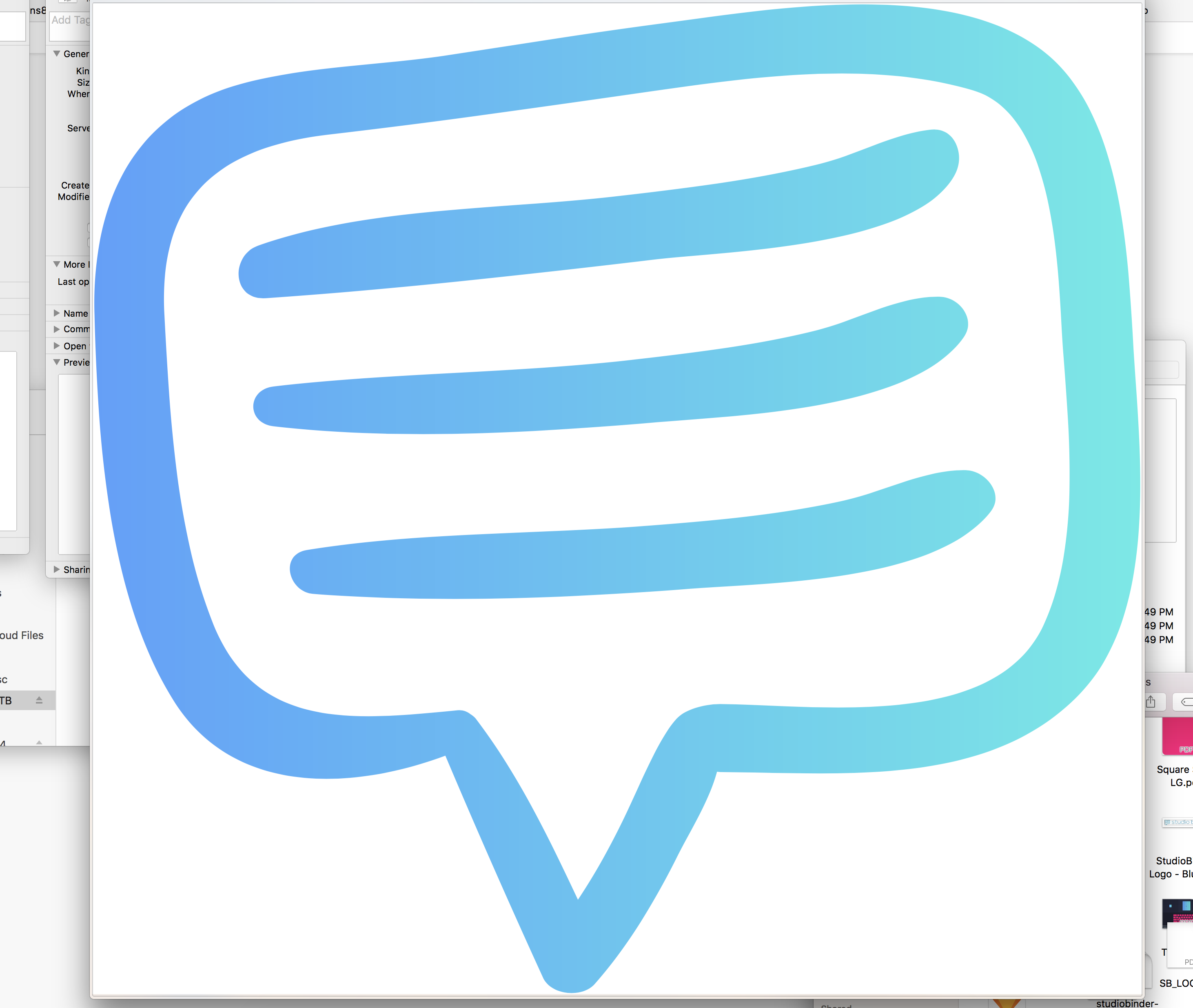
Issue:

Issue when pdf is scaled down:



 1 Correct answer


Your easier and more lightweight than Illustrator application built a very convoluted file. Here's the first warning when I opened the PDF in AI: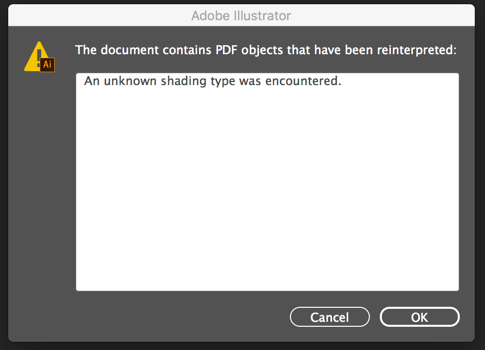
So I dug deep into the file and as I expected I found a bitmap gradient layer instead of vector art:

The Compound clipping path is vector art, but the color is a bitmap so the edges alias. The solution is to simplify the artwork by getting rid of the bottom 4 elements and just filling the compound path with a gradient.

Here are the AI and the PDF versio
...
 11
Replies
11
11
Replies
11


Copy link to clipboard
Copied
You CAN have bitmapped images in a PDF file -- look at one with photos in it. I'm guessing that Sketch is the culprit -- it didn't make a vector image. Why don't you try the same thing in Illustrator?
Copy link to clipboard
Copied
Hey Dave,
Thank you so much for responding! It actually is a vector fully created in Sketch (the same way you would create it in illustrator). Every other element in the project was created in Sketch and this is the only one causing this issue. Let me know if there are any other settings you would like to see regarding my project. I can't seem to figure this one out!
Thanks
Copy link to clipboard
Copied
Open the PDF in Illustrator, check the file and make sure it is a vector file, save as an AI file, import into AE and test again.
BTW, screenshots that only show the problem are pretty useless in diagnosing the problem. Select the layer that is giving you problems, press the U key twice to reveal all modified properties of the layer, then PrintScreen and paste the entire UI to the forum so we can actually see what is going on in the comp. If you suspect the footage may be the problem it is also good to have the footage giving you selected in the Project Panel so we can see the footage properties.
My guess is that you have something going on with the Comp Panel, the layer is set to draft, the layer isn't being rendered as a vector, that there is a layer style applied, or something else is going on. It is entirely possible that this particular layer has some kind of effect applied to it in Sketch that is causing it to be rendered in AE as pixels. It's pretty hard to guess without seeing the details or trying some experiments with Sketch.
Which "Sketch" did you use? The Mac App or the Adobe Mobile app?
Copy link to clipboard
Copied
Thanks for the reply, Rick. The logo is definitely a vector (double checked anyway), double checked on effects that might have been applied in Sketch - none there. Here are some better shots of the project:
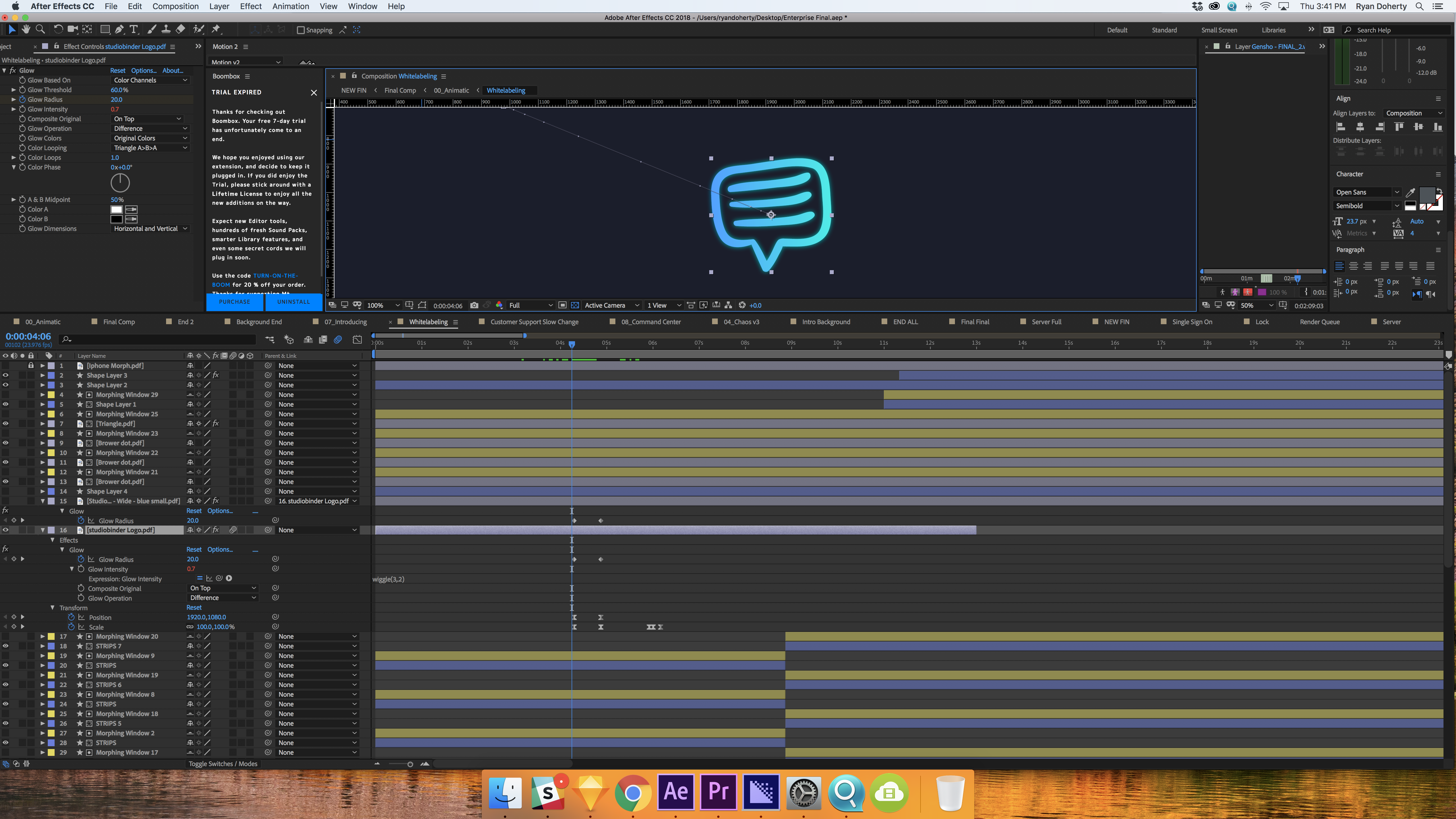

Copy link to clipboard
Copied
What happens if you add just that layer to a new comp, turn CR on and scale to 500%? If it falls apart the problem is in the PDF. If it holds up then the problem is somewhere in your comp. I'm not seeing any significant problems in the screenshots you posted.
What "Sketch" did you use to create the image? Have you tried opening it in AI and saving it as an AI file? Can you share the file?
Copy link to clipboard
Copied
Looks like the same issue is happening in a new comp:

This is 582% - still the same jagged edges. Sketch is a vector-based UI design software - I use it for designing simple things as its much quicker and lighter than illustrator imo. Just brought the pdf into Illustrator and exported as an AI with the same issue. Here is a link to the pdf: https://drive.google.com/file/d/14Vk1pInt_Yn8UY51iSO-GXT9e8No7imt/view?usp=sharing
Copy link to clipboard
Copied
The pixelation stays the same size ^^ in the image above btw. When its at 100% scale the pixelation is the same size as when its 500% scale or 10% scale so the smaller the pdf gets the "bigger" the pixelation seems to get - does that make sense?
Copy link to clipboard
Copied
I don't have access to that file. It's not public. I don't see any jagged edges in that file. Here's a pixel for pixel capture of part of the image:

Here's an Illustrator file with CR turned off at 500%

Now that's an aliased edge. Here's what happens when I turn CR on;

And now a side by side comparison with your "problem" screenshot:

I think it's the fill that has been applied to the PDF. It could also be in the interpolation that PDF is doing.
If your animation is moving it's going to be almost impossible to see the aliasing anyway. You can't judge video by looking at a single frame.
Just sent you a request for access to the file.
I'm assuming this is the software you are using: Sketch
I see from the documentation that you can export an EPS. I would try that instead of a PDF unless you have AI or Acrobat Professional so you can change the PDF options. I think that's where you are getting the aliasing.
Copy link to clipboard
Copied
I tried recreating the vector in illustrator and AE with the same result. Could it somehow be the contrast? The pixelation is exaggerated in the export with this specific pdf as well. Render settings are Pro Res 422 HQ Match Source - Max render quality, max render depth checked. Also tried exporting PNG sequence with the same result. Here is a sample of the pro res export:
Copy link to clipboard
Copied
Your easier and more lightweight than Illustrator application built a very convoluted file. Here's the first warning when I opened the PDF in AI:
So I dug deep into the file and as I expected I found a bitmap gradient layer instead of vector art:
The Compound clipping path is vector art, but the color is a bitmap so the edges alias. The solution is to simplify the artwork by getting rid of the bottom 4 elements and just filling the compound path with a gradient.
Here are the AI and the PDF versions of the fixed file. Dropbox - studiobinder-LOGO.pdf
So AE was doing exactly what it is supposed to do with a vector file that contains a bitmap (raster) effect or image. You would run into the same problem if you applied any raster effect in AI when preparing files for video.
Copy link to clipboard
Copied
Wow Rick!!! You truly are a king among men!!! It definitely was the bitmap gradient. I noticed it when I opened the file in illustrator but didn’t catch that it was bitmap.
You really saved on this one! And uploading the fixed file? You really went above and beyond my friend. Thank you!


Get ready! An upgraded Adobe Community experience is coming in January.
Learn more
 AdChoices