


- Home
- After Effects
- Discussions
- Re: Pixels in AE animation after rendering
- Re: Pixels in AE animation after rendering
Pixels in AE animation after rendering

Copy link to clipboard
Copied
Hi,
I'm new to after effects. I'm creating a simple animation in cs6 and using optical flares in the background. I have used the black solid and added 3 flares, one at the top, 2 at the right and left sides each. The flares are of white colour and I have given it fast blur effects. I'm working with 8bpc and composition size is 1920x1080. The problem is that the animation before and after rendering shows pixels and colours are not looking smoothly bl ended. Can anyone help where am I making mistake?


 9
Replies
9
9
Replies
9


Copy link to clipboard
Copied
Have you tried to change your project to 16bpc? Click on the 8bpc button located in the project panel and change it.

Copy link to clipboard
Copied
A screenshot of a black screen is useless. Unless I'm going blind all I can see is black.

If you are on a windows machine select all your layers, press the U key twice to show all modified properties, then PrintScreen and then paste to this forum so we can see the entire UI and what you have done with the layers.
Generally banding, which is what I think you are describing, is caused by subtle color changes over a fairly large number of pixels. If you are running 8bit graphics card or monitor then you are going to see banding even when it's not there in a 32bit or 16bit comp. Even if you work in 32bit, when you render for delivery to a common format like h.264 you are back to 8 bit so your only option is to hide the banding using noise or grain or by changing your design.
Copy link to clipboard
Copied
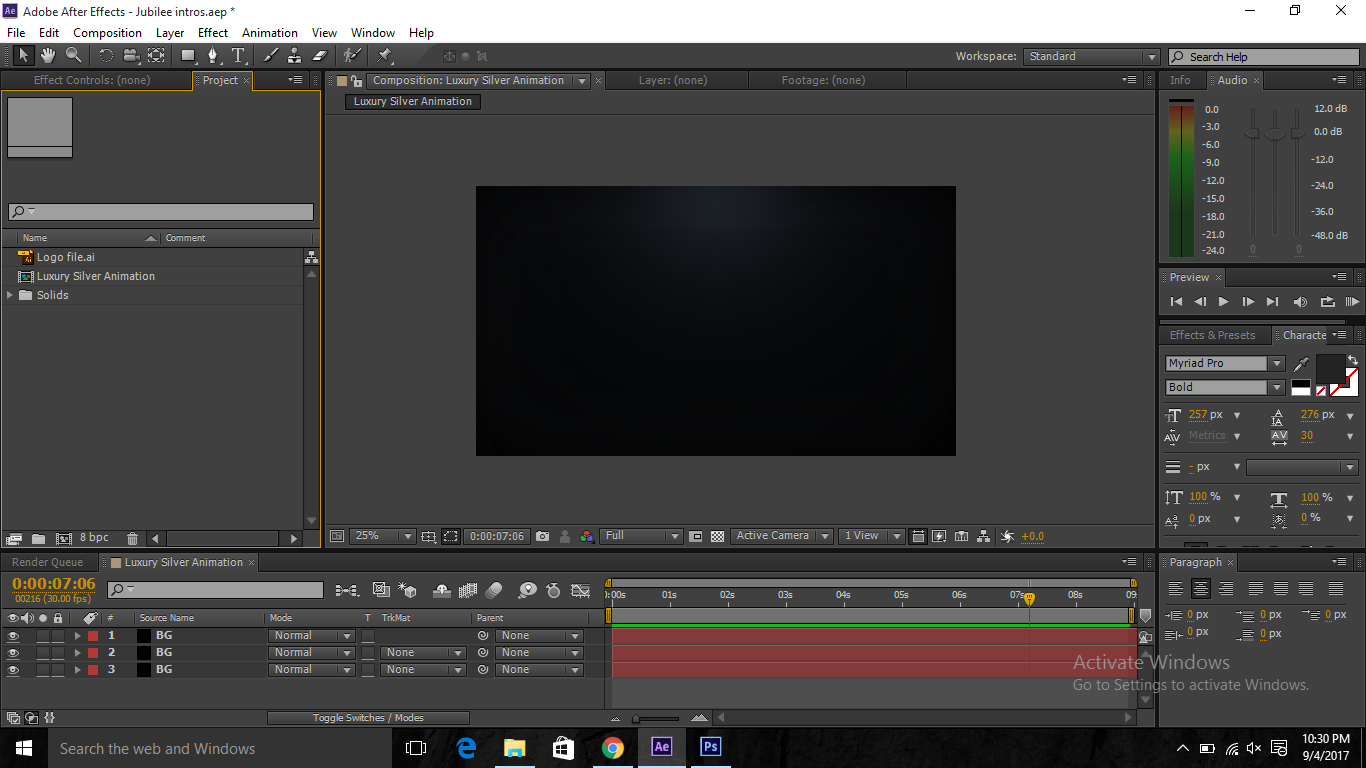
Here is the screenshot Rick. And I have tried both with 16 and 32 bpc but the result is not perfect 

Copy link to clipboard
Copied
Even with your second screen shot the preview image seems incredibly subtle - just a tiny bit of grey in the top of the frame, and otherwise totally black. Is that the effect you are going for?
Copy link to clipboard
Copied
The screenshot is a tiny bit better but we can't see the modified properties of the layers you are using. We don't know anything about the settings on the effects.
If you are putting optical flair in each layer then you must have render on transparent selected or you must set the blend mode for each layer to ADD or Screen.
Did you go over any of the training materials?
I took you screenshot and put it in a comp, then I added a text layer and added an expression to sample the color of the image. So I could see where I was sampling I created a shape layer with a 10 pixel diameter circle stroked in red and used the position of a shape layer to define the position of the sample. Then I moved the shape layer across the image vertically and horizontally using the arrow keys one pixel at a time to find out how much banding was actually going on. I found that when I moved the sample point across the image color values (red channel only in this screenshot) that the color values (zero to 1) changed every 6 to 8 pixels. That's not much banding. Here's a screenshot of my test setup. By the time you compress the project in the final render color compression will probably hide it almost completely.

The guide lines are the where dropped in the numbers changed... This is the kind of a screenshot that explains what is going on in a comp. You can easily duplicate this comp and get the same results because I showed you the modified properties of the layers in the comp.
I'm guessing that the two missing flairs are more of a problem than the banding and suggest that you try putting all flairs on the same layer or using blend modes or selecting composite on transparent and putting something on the bottom layer. Here's what composite on original looks like with the screenshot you posted as the subject.

Copy link to clipboard
Copied
Here are 2 different screenshots Rick.


Copy link to clipboard
Copied
Yeah but if we view closely and carefully, it has some horrible pixels of red and brown. It keeps the pixels after rendering as well.
Copy link to clipboard
Copied
You cannot ever judge video by looking very carefully at a single frame. You have to see it moving full size and full frame rate. I don't see any horrible pixels in your screenshots that would foul up a video. Especially if he shot is moving.
I see no animation in your composition. There are no keyframes so nothing is changing.
I also see a huge fast blur on every layer. You are also compositing all layers on black so the top layer is the only one that you will see unless you are doing something else with the layers that we cannot see.
Still not sure what you are trying to accomplish here but this looks like a question asked by someone that normally spends hours nit picking a few pixels in Photoshop trying to apply the same standards to a frame of video. From what I see in your screenshot, if you rendered the current composition nothing would change and you would only see the frame you are showing us.
Please explain what you want to see happening in the frame. Did you spend any time at all looking at the training materials that come with Optical Flares? Have you been working with video for a long time? I'm sorry, but i just don't see anything going on in your comp that would be interesting to watch, make a point, or even move.
Copy link to clipboard
Copied
I had done the text of Thanks for watching at the start with fade in effects but then deleted that part because of the background and I'm still stick on the background because of its low/pixelated view. It also happens with my Ai software if I do background with gradients.


Get ready! An upgraded Adobe Community experience is coming in January.
Learn more
 AdChoices