


- Home
- After Effects
- Discussions
- Re: Unsharp mask on adjustment layer creating erro...
- Re: Unsharp mask on adjustment layer creating erro...
Unsharp mask on adjustment layer creating errors with masks underneath

Copy link to clipboard
Copied
Hi guys,
I have a simple comp in AE. A video layer and a matte painting on top, with the top one containing a feathered mask to show only the bottom portion.
When I put an adjustment layer on top of those and add an Unsharp Mask, AE creates a massive error that's clearly created by the mask feather as when I turn the mask off it goes away.
I've tried precomping and adding the adjustment layer in the new comp but it still happens.
Does anyone have a workaround for this?
Thanks. !


 9
Replies
9
9
Replies
9


Copy link to clipboard
Copied
Change the rendering order by putting the unsharp mask on the footage instead of on an adjustment layer.
If that does not work you can use compositing options to make the unsharp mask only effect the area created by the mask.
As always, if you would include a screenshot with the modified properties of all layers that are giving you problems revealed (press u twice then PrintScreen and paste or on a Mac Shift + Ctrl/Cmnd + 3 and drag from the desktop) then we could help you fix the problem without guessing what is going on in the comp.
I'm not exactly sure what you want the unsharp mask to do but I can tell you that it will try and sharpen the soft pixels in the shot.
Copy link to clipboard
Copied
Hi Rick, thanks for the quick reply.
I want to do a basic sharpening to the whole comp, but it also goes weird due to the soft matte. Strange that it only does it here has I've used it before in other comps and I've never had a problem with it, but I've never feathered to 200 pixels and put it on top of that.
I've included some screen grabs this time. Sorry for the crude watermark, but this is still a live project.
So, image 1 is just the bottom layer turned on.
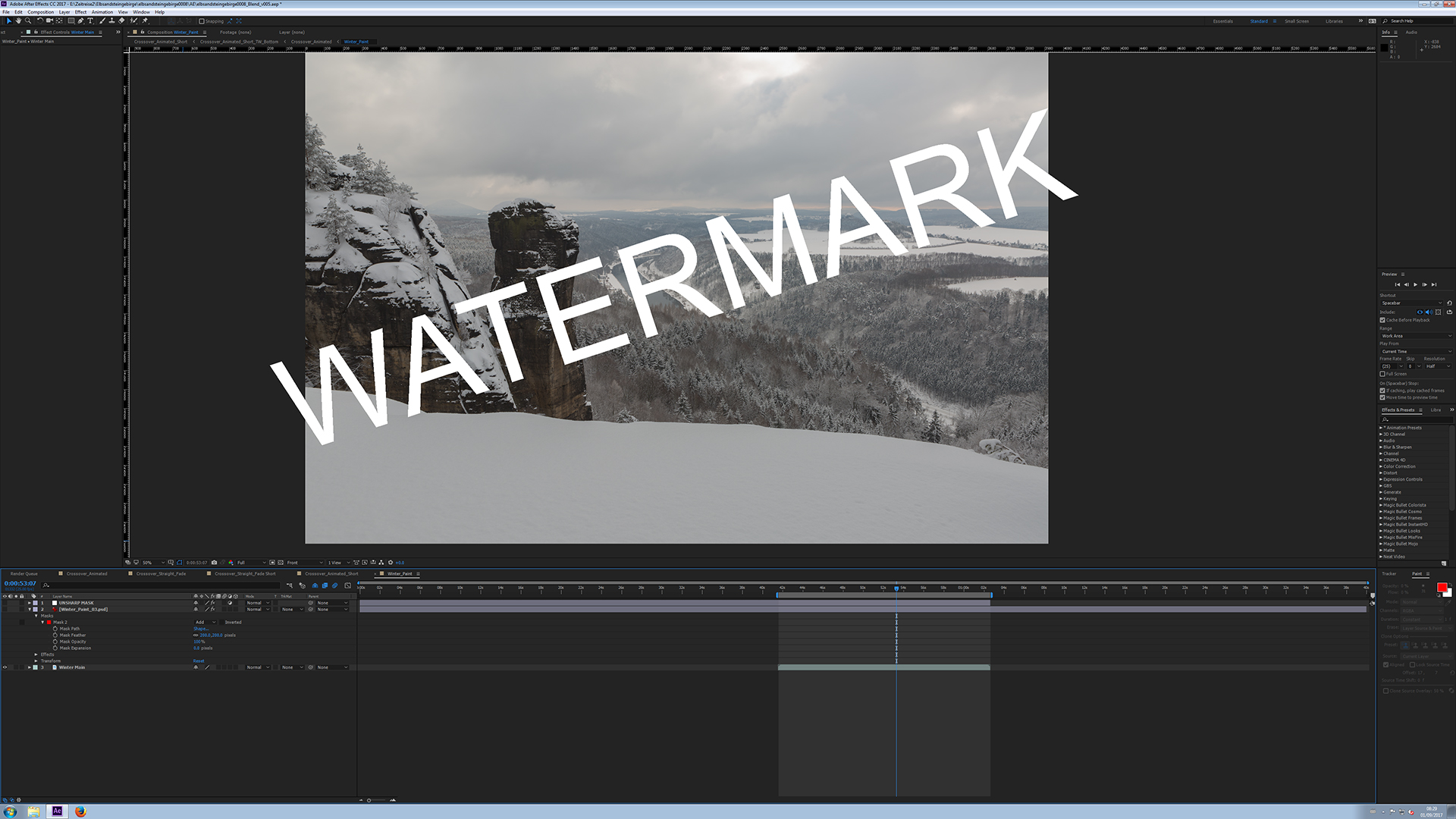
Screen 2 has the matte painting layer turned on. I've opened the mask properties for you to see.
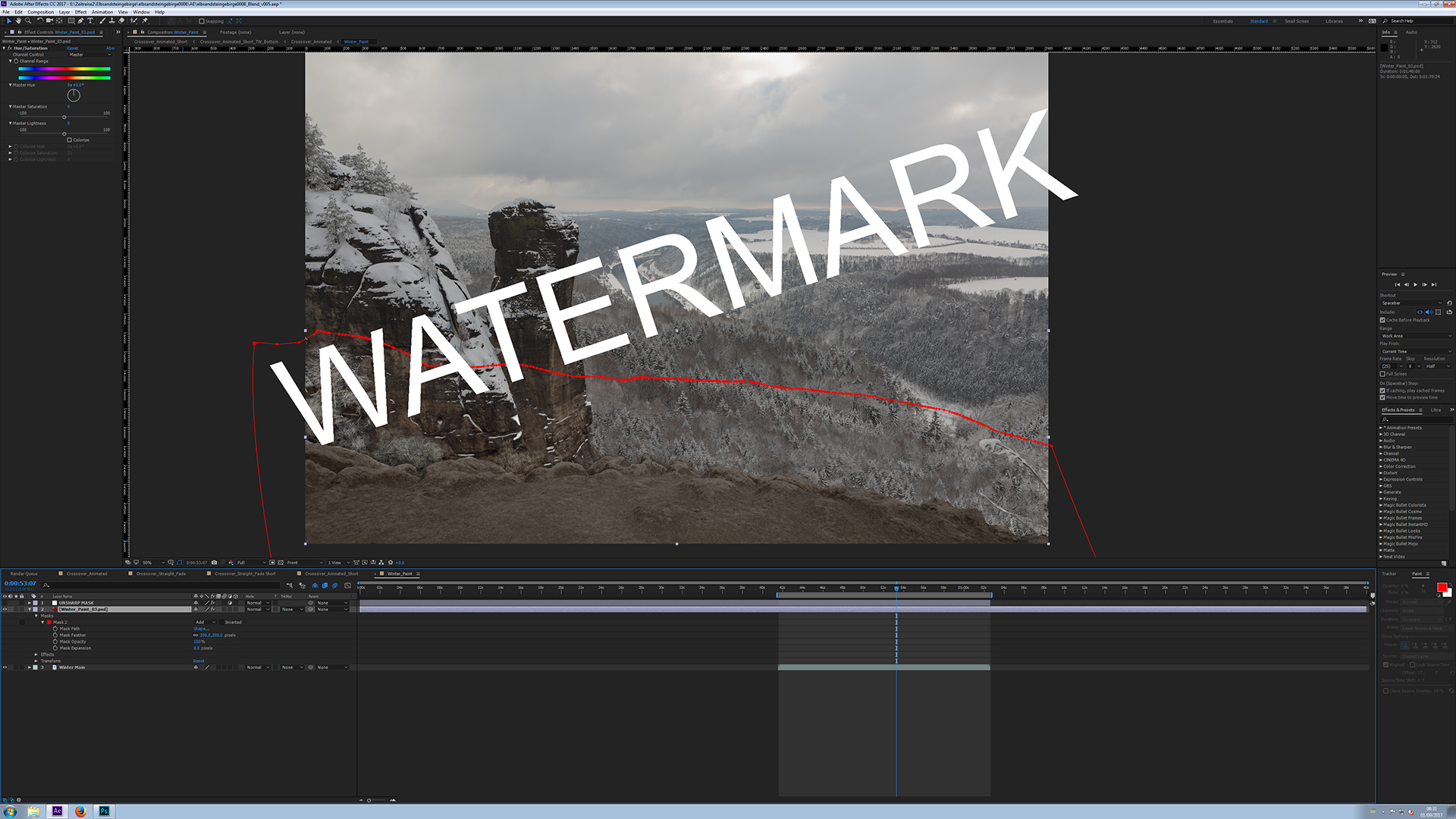
Screen 3 is what happens when I turn on the Unsharp mask. (There are two unsharp masks here, but even when I just use one it goes crazy like this.)
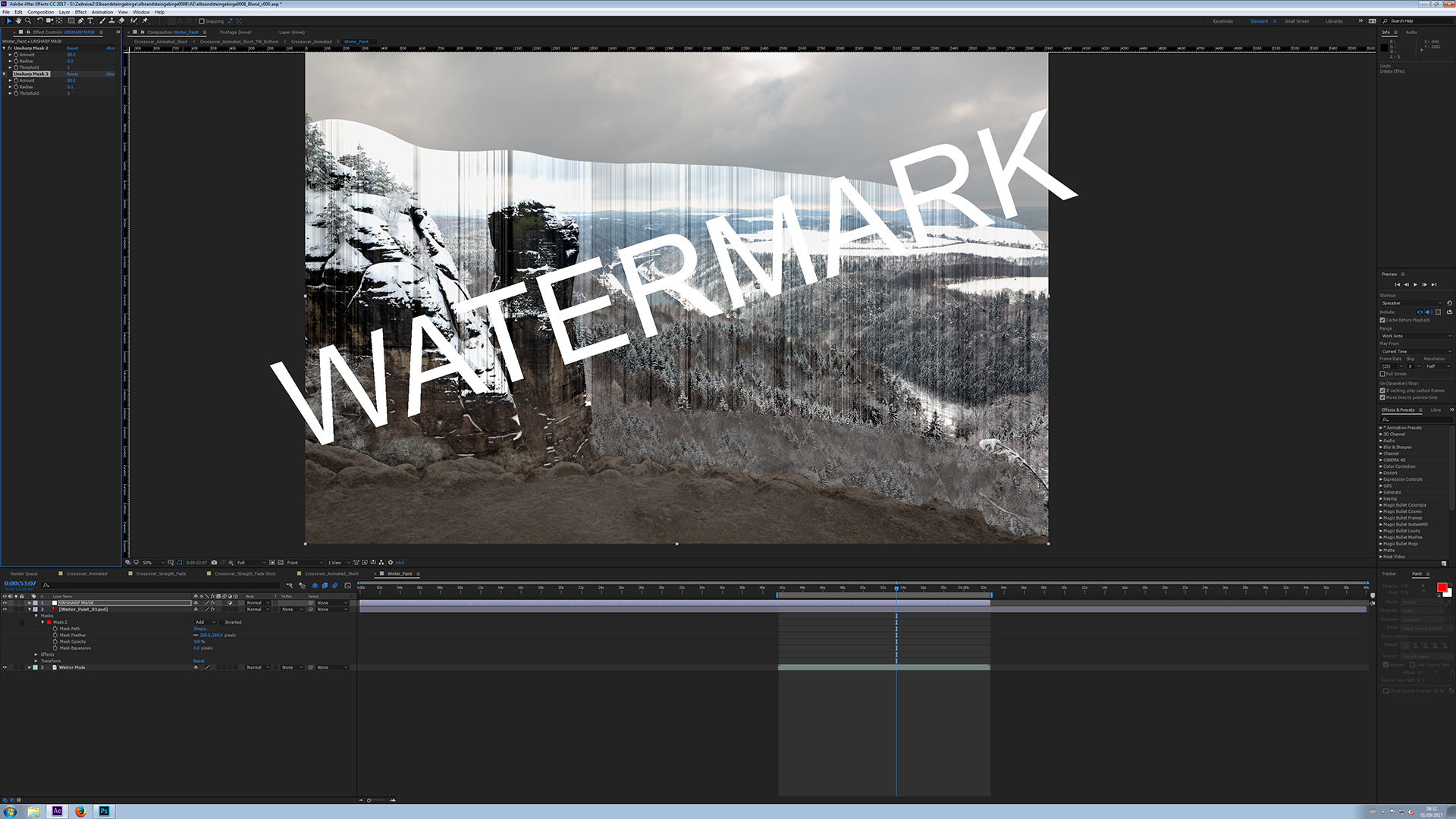
Copy link to clipboard
Copied
That's an insane monitor resolution. I'm wondering if you have GPU accelerated your display in preferences and that may be causing the problem. You might want to try turning it off.
You are still not showing us the modified properties of all layers by pressing the U key twice. What size is your comp. I can't really see the rulers because the screenshots are soft but it looks like it might be about 4K.
You show two unsharp masks and that really doesn't make much sense. I'm not sure what you are trying to accomplish with the second copy of the effect. The is no advantage to adding a second copy and over sharpening video is a really bad idea anyway. Video is not like working with stills at all. You cannot judge image quality by looking at a single frame, it's got to be playing back at full frame rate.
I am also curious about the mask. There are a zillion points on the mask and I don't understand what it is for. It's not animated. I don't know what it is revealing. The path seems to kind of follow the dirt in the foreground but it is not lined up with it and is not an exact match. The glitch seems to be the same shape as the mask but moved up in the frame so I don't understand what is going on there. What happens if you draw another mask that only has a few points on it. What is on the Matte Painting layer?
What happens when you start soloing layers. Start by soloing the Adjustment layer then solo the second layer, then the third.
You also have the resolution set to full but the magnification factor is set to 50% so you are not looking at all pixels. Try setting comp panel resolution to auto or viewing at 100% magnification. Depending on your display this could be causing problems.
This is also the first screenshot that I have ever seen that is not sharp. It is incredibly difficult to read. I'm wondering what is going on there and what kind of monster display you must be using.
Is the PSD scaled way down? Images should be at or near 100% scale at some point in your project, if they are not that will cause problems.
I wish I could be of more help but I still don't know what you are trying to accomplish with your layering and masking.
Copy link to clipboard
Copied
Sorry about the res. I've been working with a 4K monitor for so long now that I forget that it's still not totally standard.
So yes, 4K monitor with a 4K project resolution. 25fps.
I have figured out a workaround, but I'll still give you a breakdown of what I did to help you better understand the workflow.
It was a simple fix in the end. The short version is that the unsharp mask layer didn't like the feathered mask from the matte painting (which I thought was where the error was coming from) so I reset the alpha to pure white before applying the unsharp mask by adding another adjustment layer underneath the unsharp mask and adding the Set Matte effect to it.
Anyway, here's a detailed breakdown which should also help to answer some of your questions from above. (I also tried your GPU settings idea which had no effect, but thanks for the suggestions.)
So, firstly, there's a video layer. Simple enough. No settings changed.
I then added the matte painting PSD as I wanted to remove the snow at the bottom from the video layer. I created a mask using the roto brush on the video layer (the mask follows the snow line from the video layer) and then did an auto trace to create an unanimated mask. (It's a lock off shot anyway, so no animation needed.) That's the reason there are so many points on the mask. The rotomask likes to add a lot of points when you do an auto trace.
So, simple enough so far. I copied the mask that was created from the video layer to the matte painting layer. I deleted the rotobrush effect from the video layer so it's still completely clean. Zero setting changes whatsoever.
Now, in the mask settings (which is on the matte painting layer) I feathered it by 200 pixels. I also added a Hue/Sat and Levels corrections to the matte painting to help further blend it in. Simple enough still.
Now, I wanted to add an unsharp mask to the whole comp. I created an adjustment layer and then added an unsharp mask (Don't worry about using two. It's a standard practice for me which I've been using for years. Even if I delete one of them the crazy error is still there.)
So, the unsharp mask creates this error. It seems that it can't compute whats going on with the feather and that's where the error is coming from. Even if I reset a single unsharp mask to the default settings it creates the error.
What I did to fix it was to add another adjustment layer underneath the unsharp mask layer and added the Set Matte effect. I picked the alpha from the video layer in the "Take Matte From Layer" dropdown menu, (which is plain white), and then I unchecked the "Composite Matte with Original" box and presto, error is gone.
Copy link to clipboard
Copied
If I'm following you correctly a much easier way to do the project would be to create you matte painting in Photoshop on a separate layer and give it opacity. If the shot is not moving and there is no need to animate the mask then there is no need for rotobrush. You are using the least efficient workflow I can think of to remove the snow in the foreground.
I don't think the glitch and the repositioning error comes from the feathering, I think it comes from the zillion points on the mask. I think it's out of position because you have moved the layers around and used auto trace.
Here's a screenshot where I used some masks to color correct the windows in this shot. They are simple and animated using standard hand roto techniques because it was the easiest and quickest. Just for fun I feathered the mask on the rear window 200 pixels and went crazy with unsharp masks. There is no glitch.
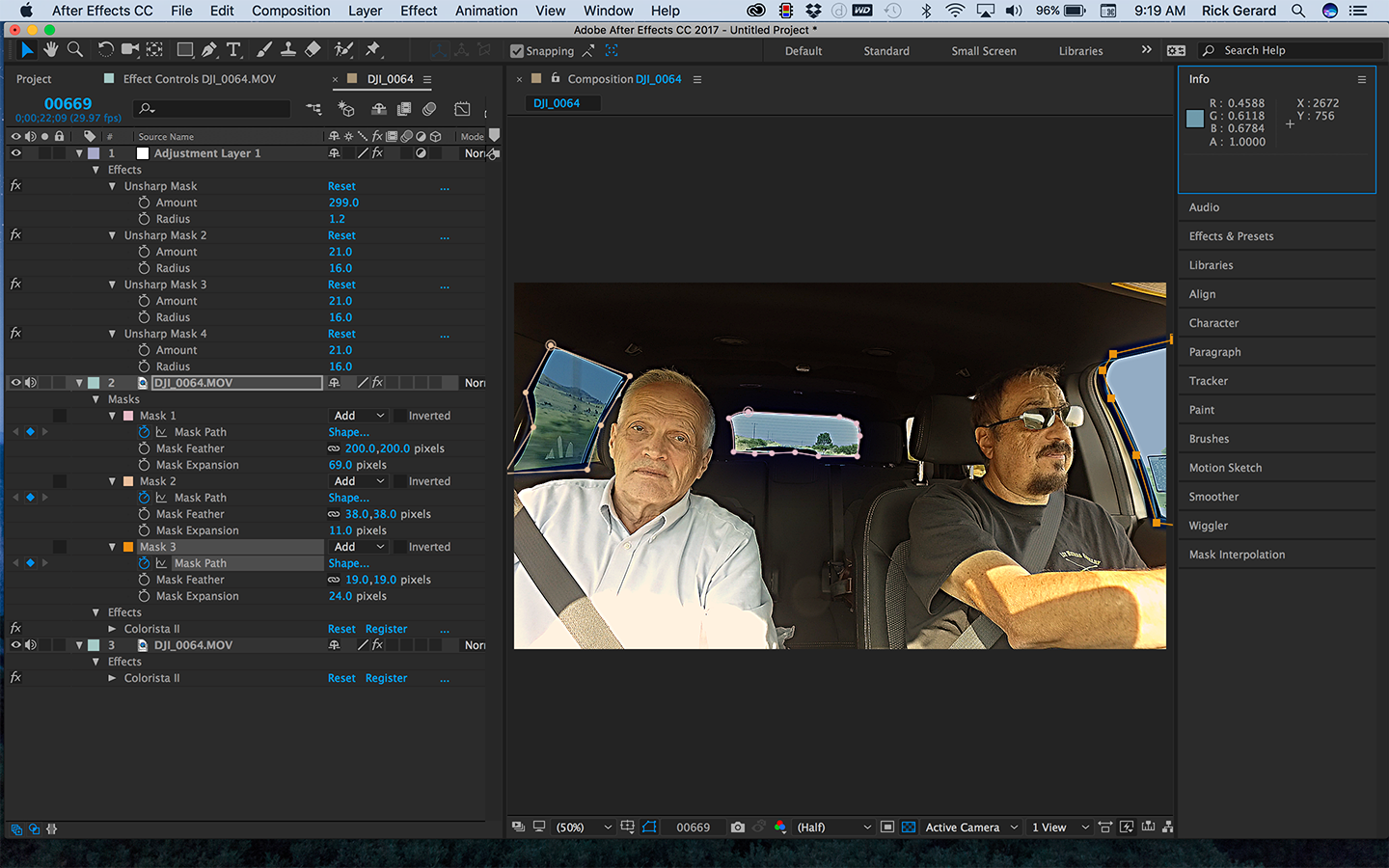
Try creating deleting the complex mask and create a simple one to see if the glitch goes away.
If you have the time try creating a PSD matte painting with the appropriate transparency in the file. You'll find it is much faster than going through the rotobrush circus. If you matte is not animated there is absolutely no reason at all to use rotobrush. Unless you specifically need masks there is no reason at all to auto trace.
Copy link to clipboard
Copied
I checked it with a simpler mask and it's still happening. The mask has 4 points, a feather of 50px and then a default settings Unsharp mask on the adjustment layer above. Error.
I actually used the rotomask from another comp in the same project in which I needed it along the snow line. It was already there so I just copy and pasted it.
In general I find the rotobrush a very quick and efficient way to grab a super tight mask. I then just use the auto trace and delete the roto brush effect as I don't need it.
I even tried it with different image formats for the matte painting. Still there.
For sure it's a conflict with the unsharp mask on the feather. It's no problem now since I found a workaround but maybe tomorrow I'll try and create a new project with different footage and see if I can recreate the error.
Copy link to clipboard
Copied
AE up to date? What are your GPU settings? GPU drivers up to date. I can't reproduce your bug on the 4 machines I use all the time. I tried today and no matter what I did, no glitch using unsharp mask on an adjustment layer.
What happens if you just apply a mask to a solid above your footage and feather the mask 200 or more pixels and apply unsharp mask to an adjustment layer on top of everything?
I understand that you are used to doing this kind of masking for matte painted PSD files all the time, but as long as you are already in Photoshop you'll get a better result with less work creating your transparency there. That's a normal workflow for every AE artist I have ever known that does matte paintings in Photoshop. I do it all the time. Not only will it save you a bunch of work in AE, the projects will render faster.
If your AE is up to date and your Graphics drivers are up to date and you still get this bug I"d file a bug report. Your screenshot not only slows a glitch, it has moved the mask so somethings going on that has not been explained somewhere.
Copy link to clipboard
Copied
I'll report a bug. I updated all my drivers and software last week as I thought that also might have something to do with it.
And it's very rare that I do any kind of matte painting these days to be honest but I'll maybe give your method a go the next time I need to do one.


Copy link to clipboard
Copied
Hi ClaranR,
Sorry for this issue. Did you ever find a solution to you unsharp mask issue? Please let us know if you have or if you still need help.
Thanks,
Kevin


Get ready! An upgraded Adobe Community experience is coming in January.
Learn more
 AdChoices