


Copy link to clipboard
Copied
Warp stabiizer is stuck in the 'analyzing in the backround' mode without displaying the percentage of fooage analyzed. Works fine in Premiere Pro but not in AE


 1 Correct answer


If you want to change the frame rate change the interpretation of the footage. If your original footage was 120 fps and you want it to playback so that one second of real time is 4 seconds of screen time then interpret the footage as 30fps. If you want to work with 24fps comps then interpret the footage as 24 fps. Then you can create a new comp from your footage and run warp stabilizer. As Byron said, the footage layer you warp stabilize must match the frame rate of the comp. Stretching footage
...
 12
Replies
12
12
Replies
12


Copy link to clipboard
Copied
Tell us what steps you are following and if you can upload screenshots.
Byron.
Copy link to clipboard
Copied
Ok. So I am editing two types of footages both shot on an iPhone. One is 1080p 120fps and the other is 4K 30fps
My steps are the same for both and the are:
1) Create a compostion of size 1920x1080 at 24fps.
2) add any footage (and stretch it for 120fps footage)
3) Add warp stabilizer.
After this AE gets stuck at this screen
.png)
Copy link to clipboard
Copied
The compositions for each video must be with exactly the same characteristics of the video that you want to stabilize, that is, the same resolution, the same fps, interlaced, progressive, etc., must be the same. After you stabilize, now you can add them to another composition with other characteristics. Drag and drop your video on the New Composition icon to create one with the same characteristics.

Byron.
Copy link to clipboard
Copied
If you want to change the frame rate change the interpretation of the footage. If your original footage was 120 fps and you want it to playback so that one second of real time is 4 seconds of screen time then interpret the footage as 30fps. If you want to work with 24fps comps then interpret the footage as 24 fps. Then you can create a new comp from your footage and run warp stabilizer. As Byron said, the footage layer you warp stabilize must match the frame rate of the comp. Stretching footage is an inaccurate way to create slow motion. Your first step should always be to change the frame rate using File>Interpret Footage>Main. This will always preserve every frame. Stretching footage will cause frame blending or frame doubling.
If on the other hand, your original footage was shot at 24 and you want it to slow down you would get better results by using time remapping and some math so you get 2 frames for 1 or 3 frames for 1, or at best 4 frames for each frame. Then you can use AE's various frame blending modes to try and achieve the best motion. Slowing down most footage more than 2 frames for 1 so that one second of real time is 2 seconds if screen time is a little dodgy. Any slower than that and it starts to look bad. Any slower than one second of real time for 4 seconds of screen time is awfully hard to pull off without a third-party plug-in like Twixtor.
There is one other thing to consider when using warp stabilizer. Your footage should be trimmed to just the frames that are going to be used in the final edit. You can add a few frames at the head and tail so you'll have a little room to fine tune the final cut, but warp stabilizing an entire shot is almost always, a waste of time, more likely to fail, completely unnecessary. If you are going to do any other processing on the frame that is complicated or has more than one or two applied effects it is almost always a very good idea to render your warp stabilized footage to a suitable production format. Once rendered you can get rid of your warp stabilized layer and replace it with the repaired footage.
The last point I'm going to make is that not all shots will warp stabilize and most that will an be improved if you learn how to fiddle with the knobs. Warp Stabilizer's default settings only work well for nearly perfect for stabilizing shots. Most of the footage I've seen that need warp stabilizing need some fine tuning.
Oops, one more point. If you need to run Camera Tracking, motion tracking or use Mocha AE to do some tracking this always works best if you do the tracking first, finish the composite, then nest the completed comp in a new comp and Warp Stabilize the nested comp. Warp stabilized footage almost always fouls up the Camera Tracker and when you pin a layer to warp stabilized footage, the pinned layer will tend to float around because warp stabilizer warps the footage in a non geometric way to try and make it smoother and your composite won't be warped.
There you go. Lots to digest. AE is complicated, slow motion is complicated, all motion stabilizing is complicated and most of the folks that post how to do this in AE tutorials on YouTube are amateurs that don't really know what they are doing or how the software works.

Copy link to clipboard
Copied
...AND....
Since it's footage shot on an iPhone, it's VERY possible it was shot in a variable frame rate. If you used an app that forces your phone to shoot at a fixed frame rate, good for you.
If you didn't, know that NO Adobe app likes variable frame rate footage despite the marketing weasels' propaganda. Transcode it using an application like Handbrake.
Copy link to clipboard
Copied
I wouldn't use handbrake because it only has MPEG options or MKV options and these can be problematic and none of them are frame based codecs. If you are just playing around, ok, use MPEG for your production format and live with the artifacts.
Copy link to clipboard
Copied
If the footage is variable frame rate from a phone you can go to the interpretation and turn that off in the other settings part of File Interpretation. The frame rate is just metadata. If you tell AE how to interpret footage you can set the frame rate to anything you want.
Copy link to clipboard
Copied
Ok . So I made a new comp for the 4K footage shot at 30fps (default camera app) and interpreted it as 30fps. There is still no progress with stabilization. here is a screenshot
.png)
Copy link to clipboard
Copied
Again. Warp Stabilizer works properly in Premiere Pro for me. Only After Effects is showing this error
Copy link to clipboard
Copied
Ok. So my footage got stabilized but it did not show the percent completion while doing so.

Copy link to clipboard
Copied
Exactly the same here: no percentage of completion. I was confused, since it seemed like nothing is happening, so I've started to google about this issue, have found this topic, and while reading, I've got warpstab running in the background. I look back now, stabilizing is ready, even the result is pretty acceptable (I work on a very shaky phone-footage).
I've experienced another issue with warpstab since the last update: when I choose method, analyzing in bg starts automatically, I have to stop it to adjust some other settings. Also by selecting rolling shutter ripple reduction.
These may be bugs, but the warpstab itself seems to work better as before.

Copy link to clipboard
Copied
Hey,
There is a problem with stabilizing and motion track in the last AE update (cc 2018).
motion tracking works only in typical mode (auto detection not working...)
The frame count also doesn't work in the main effect window,
but I found out you can see this feature in the effect properties on the layer in the timeline.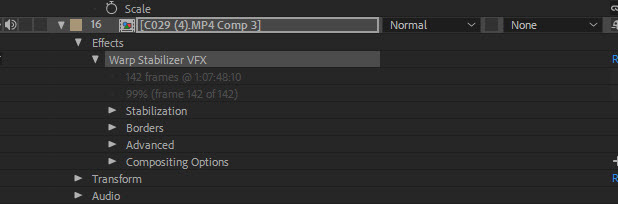
waiting for the fix.
Good Luck


Get ready! An upgraded Adobe Community experience is coming in January.
Learn more
 AdChoices