


Kbirch
Participant
October 15, 2018
解決済み

Scaling Images with shift no longer works after update (20.0)

  • October 15, 2018
  • 返信数 75.
  • 264982 ビュー

After updating to CC 2019, I am not longer able to scale images evenly simply by holding shift.

I went to keyboard shortcuts and found a "scale" shortcut that was unassigned, so i assigned it to "S" as it simply wouldn't let me assign shift:
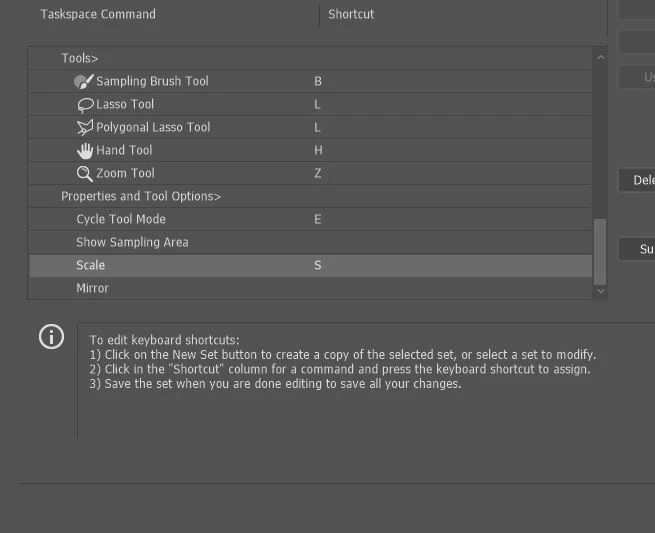
Now it seems to only want to scale evenly and won't let me scale however I want simply by dragging the corner of the image. Sometimes it doesn't go evenly when I transform with Ctrl+T and scales evenly after I press S, but wont let me go back to scaling unevenly.

Any Ideas?

解決に役立った回答 John Waller

It's a new feature. The old behaviour has been reversed. Default = proportional (constrain). Shift for non-proportional. Few people see any logic in this change.

Plenty of forum posts on this

Scaling Images with shift no longer works after update (20.0)

CC20 transform tool: Shift doesn't keep Aspect ratio

The new behaviour can be disabled.

To revert to the legacy transform behavior, do the following:

  1. Use Notepad (Windows) or a text editor on Mac OS to create a plain text file (.txt).
  2. Type the text below in the text file:

    TransformProportionalScale 0

  3. Save the file as "PSUserConfig.txt" to your Photoshop settings folder:
    • Windows: [Installation Drive]:\Users\[User Name]\AppData\Roaming\Adobe\Adobe Photoshop CC 2019\Adobe Photoshop CC 2019 Settings\
    • macOS: //Users/[User Name]/Library/Preferences/Adobe Photoshop CC 2019 Settings/

返信数 75

Participating Frequently
October 17, 2018

If it wasn't broke, why did they fix it?!

xsherry
Participating Frequently
October 16, 2018

The SCALE feature does NOT work!  It is locked in proportion and does not allow flexibility.  HELP!

nicolek55901278
Participant
October 18, 2018

It's a terrible idea--you have to hold shift to keep proportions when scaling IN EVERY OTHER APPLICATION OUT THERE—holding shift for this purpose is a learned behavior that is not just going to stop while using Photoshop. I'm beyond frustrated with having to undo what should be something easy while having to run at warp speed to get project complete for deadline. Other changes are improvements. This one is a huge fail and it boggles my mind why they thought it was a good idea.

JJMack
Community Expert
Community Expert
November 2, 2018

What's the bug about Adjustement panels fly-out... ?


In CS4 adobe added the Adjustment Panel and in the adjustment panel fly-out menu the include two bug menu item,   These work more pile Photoshop Preferences the you can not set in Photoshop Preferences and the is no interface scripts and  plug-in can NOT query  and  set them.  So Actions Scripts and Plug-ins can not set them or know how and Add adjustment  step will operate.   New and Old Actions may not work.  However, Photoshop does not always operate the way these options are set. So you can create actions that will always work correctly.  Scripts and Plug-ins can always add logic to test how adjustment layer were added.

It does not matters how the flu-out Add Mask by Default is set if there is an Active Selection when the Add adjustment layer step is played a Layer mask will be added.  It Also does not matter how Clip to Layer is set if you record the Add Adjustment Layer using the Add adjustment Dialog you can set clip to layer and that step will always clip the Adjustment layer added.   So an action can always add a Adjustment layer with an Active Selection  and use the new layer dialog and check clip to layer.  The Adjustment Layer will be added with a mask and be clipped. Then the action can change the  new Adjustment Layer to how it want the  Adjustment layer in the layer stack.

Adobe withdrew my bug report after acknowledging the bugs.

JJMack
Anna Lander
Inspiring
October 16, 2018

Hi,

did anyone face this trouble? When I use a Free Transform (Ctrl+T or by Edit menu), holding the Shift button doesn't keep aspect ratio. I have to make sure that Lock Aspect Ratio in the Control Panel is On, itit takes some more attention than I'm ready to pay for this operation )

Muqqarib Hassan
Inspiring
October 16, 2018

Hi, Go to Edit>Preferences>Performance and enable Legacy Composting then reboot your photoshop.

John Waller
Community Expert
Community Expert
October 16, 2018

That's for compositing issues, not issues using the Transform tool.

PS 2019 – Color Blend Mode Buggy

Participating Frequently
October 16, 2018

This is so STUPID and ANNOYING that i don't understand who could get that idea.

EVERY iteration of Adobe programs brings more and more STUPID ideas that make work harder and less intuitive than before.

Not only this is less intuitive, but the tool itself doesn't scale object from center as it used to be with shift.

Known Participant
October 15, 2018

Proportional scaling (without holding Shift) is now a default. Holding Shift while scaling now behaves in precisely the opposite manner, despite decades of precedent and the fact that every other application uses Shift-drag for proportional scaling.

Why? Who knows. This is easily one of the most unnecessary and counterintuitive changes Adobe has ever made.

Details and instructions for how to disable it are at the link below.

New and enhanced features | Latest release of Photoshop CC

Kbirch
Kbirch作成者
Participant
October 15, 2018

Thanks so much. I followed the instructions and got it fixed. Still seems silly its not a simple check box somewhere

The "AppData" folder was a hidden folder so I had to make is show up by going to "View" and checking "Hidden Items"