

Participant
December 28, 2020
解決済み

How to get back the original sound of a trim clip please?

  • December 28, 2020
  • 返信数 1.
  • 687 ビュー

How can I get back the original sound of a trim clip please? I have to do this many times so the fastest way the better 😉

このトピックへの返信は締め切られました。
解決に役立った回答 Phillip Harvey

You probably want to use Match Frame if your video is already edited. You can use a series of keyboard shortcuts to jump through and do the replacements.

Set your Track Targeting to be the video track(s) that contain the clips you want to get the audio back on, and set the Source Patching to be Audio Only and on the track you want the audio to be placed on.
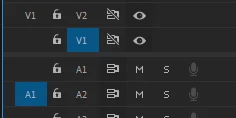
Now click the Up/Down Arrow to navigate to the starting point of the media you want to replace. Remove the In/Out points from your timeline if you have any.

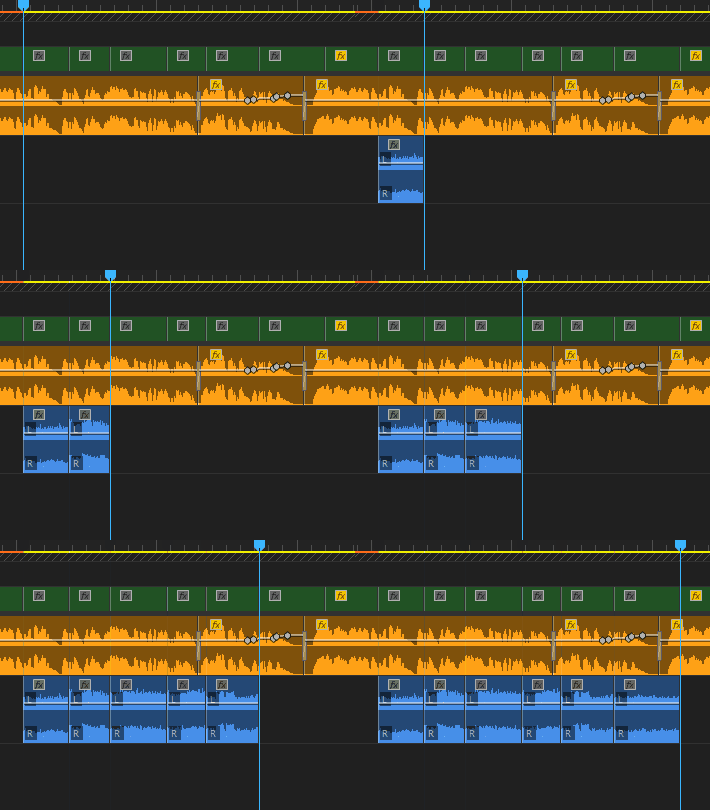
Now press F for Match Frame, then press . (period) for Overwrite. (The playhead should move to the start point of the next clip and be ready to press F again so it's just a two key operation, except if you have speed adjustments to your clip, in which case the audio coming in will be the original and not the edited. You'll need to treat those as special cases.)


It should look like this:


If the active panel is going back to the source monitor rather than your timeline when you are trying to do this, check this box in Preferences>Timeline:

返信数 1

Jeff Bugbee
Community Expert
Community Expert
December 28, 2020

What do you mean by get back the original sound? Are you trying to "un-trim" the clip?

Salomé6C2B作成者
Participant
December 29, 2020
Hi! Sorry English is not my mother tongue...I made a video with a voice
over and music, so I removed the sound that was recorded on the video
during the shooting (the original sound), but now I would like to get it
back. Do you know how to this?


Garanti
sans virus. www.avast.com

<#DAB4FAD8-2DD7-40BB-A1B8-4E2AA1F9FDF2>
Salomé6C2B作成者
Participant
January 5, 2021

You probably want to use Match Frame if your video is already edited. You can use a series of keyboard shortcuts to jump through and do the replacements.

Set your Track Targeting to be the video track(s) that contain the clips you want to get the audio back on, and set the Source Patching to be Audio Only and on the track you want the audio to be placed on.

Now click the Up/Down Arrow to navigate to the starting point of the media you want to replace. Remove the In/Out points from your timeline if you have any.

Now press F for Match Frame, then press . (period) for Overwrite. (The playhead should move to the start point of the next clip and be ready to press F again so it's just a two key operation, except if you have speed adjustments to your clip, in which case the audio coming in will be the original and not the edited. You'll need to treat those as special cases.)


It should look like this:


If the active panel is going back to the source monitor rather than your timeline when you are trying to do this, check this box in Preferences>Timeline:


Happy new year Philipp and thank you so much! This has been incredibly helpful and a huge gain of time. Best, Salomé