


jaimep79107227
Known Participant
July 2, 2019
Answered

How to remove the white outline on the text against a dark background to be transparent in Premiere Pro CC 2019

  • July 2, 2019
  • 5 replies
  • 9830 views

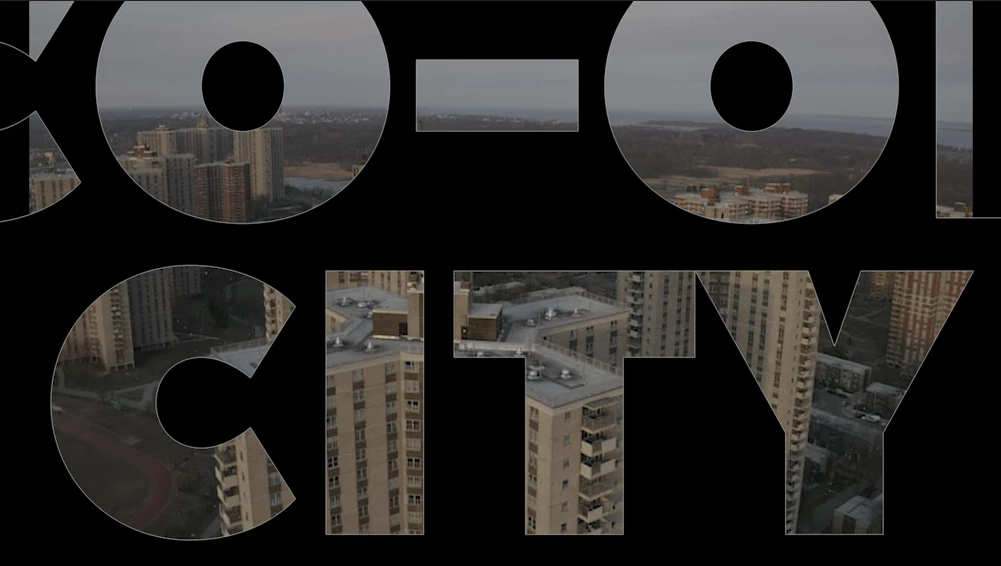
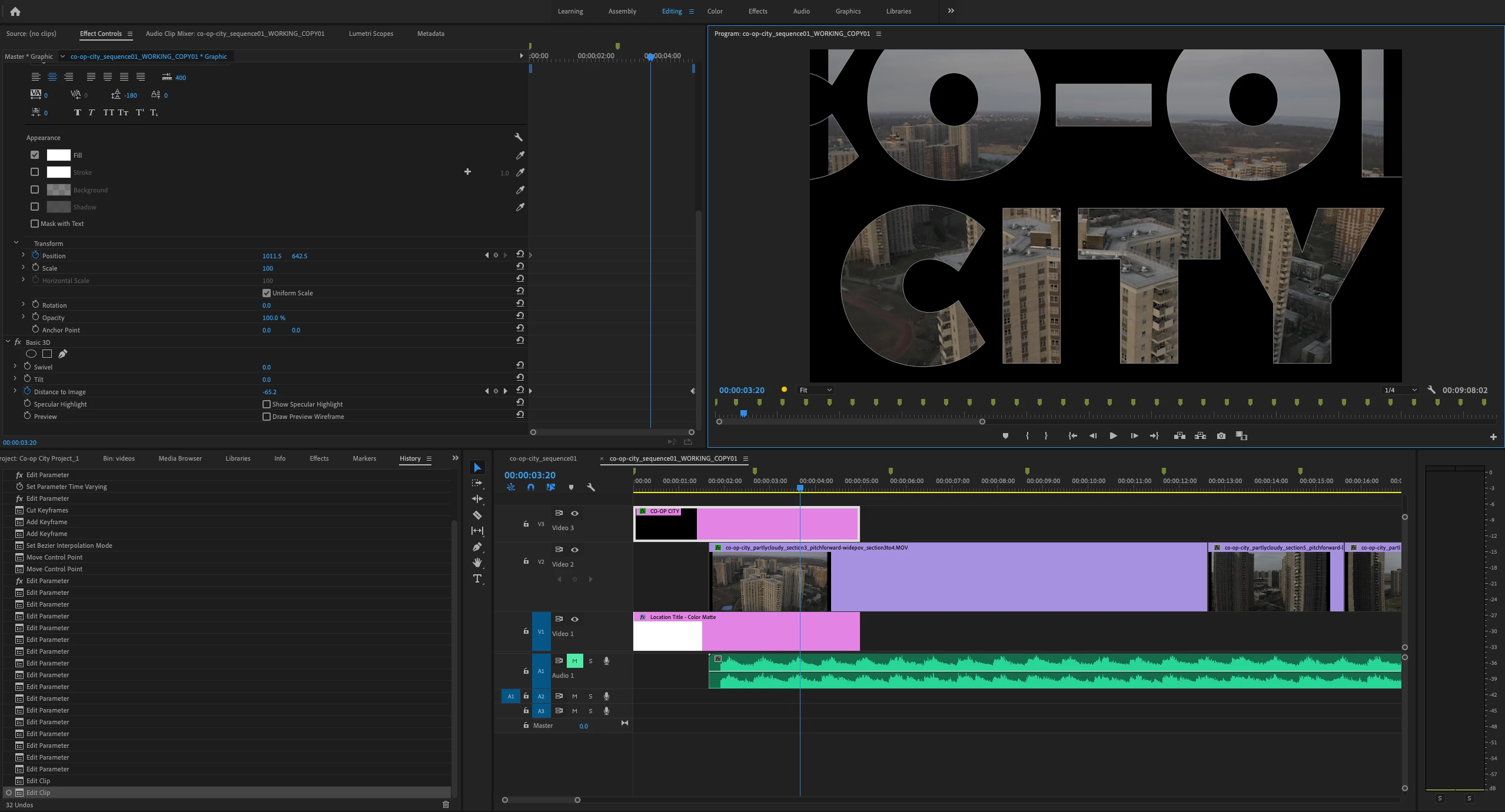
Hi, I'm a beginner in Premiere Pro software and am editing my drone footage intro that has text animating on screen that starts small then gets bigger that pops up away from the screen. The initial text color is white and then it fades into a transparent color whilst animating the text off-screen. As the text gets closer to fully being away from screen, this outline is readily apparent against the dark background as you can see in the screenshots below. I tried to find solutions in the text options if it was a text stroke or outline being enabled in the effect controls but they're unchecked and not sure where else to look to remove it.

How do you resolve this white outline on the text issue? Is there anyway to make it transparent or remove it completely?

Thanks in advance!

Close up of the text outline
Premiere Pro CC 2019 Workflow
This topic has been closed for replies.
Correct answer Carlos Ziade

This is the problem with youtube video tutorials, nice technique but could work a lot better using a different workflow...

in the video he scales text from Motion properties, and completely ignores scaling from Vector Motion or

scaling from Text properties. and better nest the track matted text and video, then track matte the nested to the blue solid,

to avoid any off-position assets due to renderer issues (in between software only or GPU acceleration).

then duplicate the nests, and track matte the blue solid to the duplicate, and keyframe the opacity of the nest duplicate as shown

in the attached video

5 replies

Legend
July 2, 2019

hehe, font squirrel … sounds like a nice animal !

Averdahl
Community Expert
Community Expert
July 2, 2019
I tried to find solutions in the text options if it was a text stroke or outline being enabled in the effect controls but they're unchecked and not sure where else to look to remove it.

jaimep79107227 Try the filter Remove Matte in Premiere Pro. Play with the Matte Type options. Just add the filter to the graphic layer.

Report back if it helps or not.

jaimep79107227
Known Participant
July 2, 2019

Averdahl I applied to the Remove Matte Effect to Color Matte & Text Graphic Layer both and individually, but it didn't work.

Jose Panadero
Community Expert
Community Expert
July 2, 2019

Sometimes, Premiere interpret Alpha channels as Staright and not Premultiplied. What you can try is to change the interpretation of the alpha channel for that graphic. Find your file in the Project Panel, right-click and go to Modify > Interpret Footage. You will find an option to activate Premultiplied alpha.

Carlos ZiadeCommunity ExpertCorrect answer
Community Expert
July 2, 2019

This is the problem with youtube video tutorials, nice technique but could work a lot better using a different workflow...

in the video he scales text from Motion properties, and completely ignores scaling from Vector Motion or

scaling from Text properties. and better nest the track matted text and video, then track matte the nested to the blue solid,

to avoid any off-position assets due to renderer issues (in between software only or GPU acceleration).

then duplicate the nests, and track matte the blue solid to the duplicate, and keyframe the opacity of the nest duplicate as shown

in the attached video

Legend
July 2, 2019

Carlos, cool video demonstration. Good going !

I only have CS6 and watched it with sound off but that's really neat what you did,

Lost me when you adjusted the track line but I don't have CC so it don't matter. Probably had to do with ease out etc. ?

Community Expert
July 2, 2019

Hey Rodney, you mean when I worked with the keyframes graph editor?

yeah that's really cool, you can control the interpolation the way you want manually

by adjusting the graph curve...

sorry for not including voice instructions as I quickly recorded that video in a noisy place ...

but will soon set a pack of short useful tutorials and tips hopefully...

Legend
July 2, 2019

hmmmm….

is that coop city in the Bronx ?  looks like nice drone shot...

what font is that ??  I'm wondering if it can be done in photoshop and brought in with alpha channel and not have that white line...

The line doesn't really bother me ( aesthetically ) but I can see it...  

good luck !

jaimep79107227
Known Participant
July 2, 2019

Yes, you're right, haha.

Font is Peace Sans. I'm learning it from a youtube video here linked here:

Video in Text Movie Title Intro inside Premiere Pro: Adobe Premiere Pro TUTORIAL - YouTube

Oh, you can do that? How does that work? I wonder if it will actually remove the white lines around the text and still have the same smooth transition.

Legend
July 2, 2019

Yeah, I usually use photoshop for most of my text stuff … make file with transparent background, add a layer, do text, import text as a layer. Your case is a bit different... you'd make a REALLY BIG file ( so you can scale it way down to begin, and then scale up without losing quality ). 

Basically your situation, a bit different... cause you basically want to make text, select it, and clear it so it's like a 'hole' ( the alpha channel)..

I don't have that font so I couldn't test it to see if it would have white line...will do something with some other font ...just for fun,,,