


App crashes on launch after macOS Catalina update - how to fix it
After updating macOS to Catalina, the Adobe CC apps will need to renew access permission to file folders. At least one or two pop-up message boxes will appear.
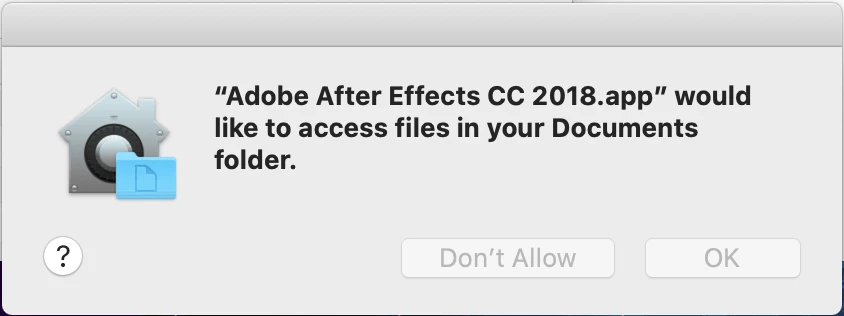
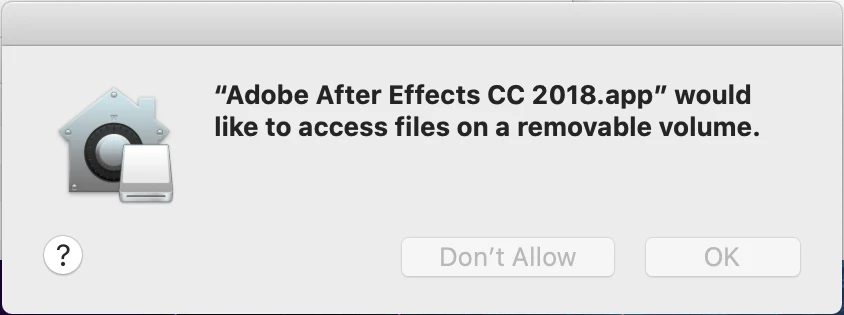
"Adobe Premiere Pro CC 2018.app" would like to access files in your Documents folder, and "Adobe Premiere Pro CC 2018.app" would like to access files on a removable volume.
If you click "Don't Allow", the app will immediately close and will continue to crash on launch until the permission is granted. If you click, "OK" the apps will work as they did before.
(But you are not here because things are working as they did before.)
To fix the issue - to grant permission to your Files and Folders - open Systems Preferences. Go to Security & Privacy, and then to the Privacy tab. In the dialogue box are a list of apps that have been given access. Make sure each box contains a checkmark.
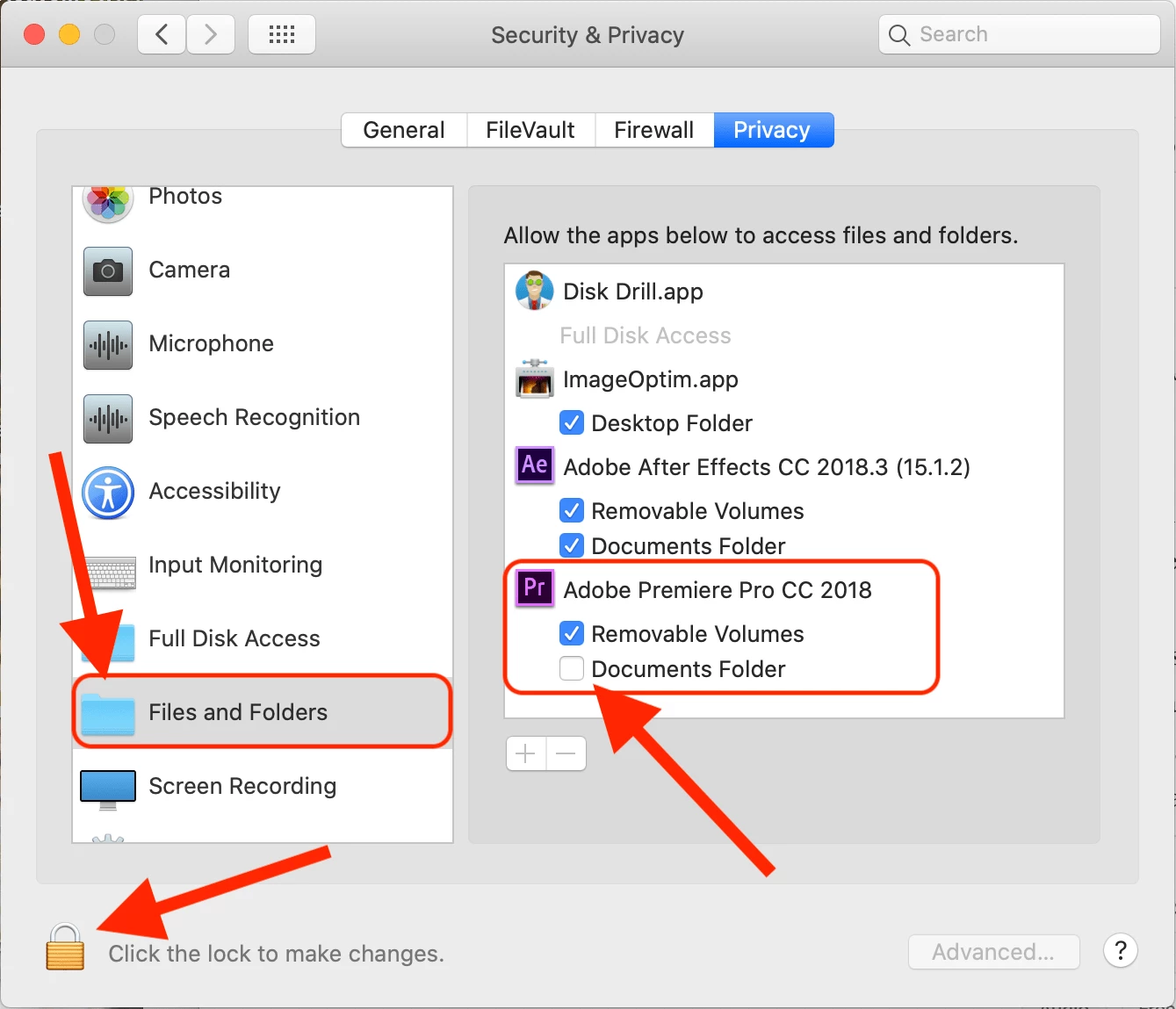
*You may need to click on the padlock in the corner to make and save changes to the system.
This particular issue was with macOS Catalina 10.15.1, Adobe Premiere Pro CC 2018 (12.1.2), and Adobe After Effects CC 2018 (15.1.2). These steps should resolve other Adobe CC apps from 2018, 2019, and 2020. Adobe has a webpage that lists compatible Adobe applications. https://helpx.adobe.com/x-productkb/global/fix-macos-64-bit-compatibility-errors.html
However, it indicates that my 2018 Creative Cloud apps are not compatible, yet they work just fine for me.
 AdChoices