












Design the future of fashion, win Firefly Pro 👗✨
Photoshop (Beta)
Recently active
-depuis la dernière version Beta, lors de l’utilisation de la souris des flash de lumière intempestifs apparaissent. dans des fenêtres de commande la case à cocher pour voir ou ne pas voir ne fonctionne pas ou fonctionne au premier clic uniquement. Dans la version standard de Photoshop je n’ai pas ces problèmes. Les flashs intempestifs n’apparaissent pas dans mes logiciels habituels de Windows 11
I open an image and it opens very dark and in a few moments it is restored to its expected brightness. and in the process of working the image it may go dark for a few seconds and then return to its expected brightness. I googled this issue and got a known GPU issue recommending to disable GPU - which is not an option for me.
pick 2 images in lightroom captured for pano, use photoshop pano, the windows shows up, select Auto pano, and ok, Photoshop Beta freezes, this is on Mackbook pro max M1
When using photoshop Beta, the screen brightness dips and then comes back when selecting different layers etc. Only started with Beta updates (27.11). Seems that 27.9.1 Photoshop works okay.
No matter how I go about trying to auto-select the subject in the image, I get the error message that there is no subject to select, which is wrong. EVERY. SINGLE. TIME. Yet it works in the regular photoshop app… Fix this.
the mouse moves across the image with all other tools - but if select the brush tool it moves freely around the menus but freezes at the edge of the art board and will not enter the image space
Photoshop Beta stopped alllowing certain tools to work like the crop tool as it says the scratch disks are full. They are not. 215gb on the hard drive - 565Gb on the external. Photoshop 2026 is working.Mac OS 26.5.1photoshop beta 27.11
HOW CAN I FIX THIS PROBLEM?The Eyedropper Tool in Photoshop Beta is not working properly. When I move the cursor over a specific color, it detects and displays a different shade than the actual color.For example, when I click on a dark blue color, the Eyedropper Tool may select a different shade of blue. As I move the cursor around the same area, it continues to show different shades instead of accurately detecting the color under the cursor.I have been experiencing this issue for a long time, and it makes it difficult to accurately pick colors from an image. example: eyedropper tool is in the center of the circle but a lighter shade of green than it should be.😫
Now available in the April 2024 release of Photoshop (beta) on desktop 25.9 previews an early look at a new capability in Photoshop -- Generate Image. Generate Image, using Text to Image technology, enables you to create entire images and composites from scratch on a canvas using descriptive text prompts and additional creative controls, including Content Type, Style Effects, and Reference Image, all without leaving Photoshop. To access this feature, follow one of these steps: Navigate to Edit > Generate Image In an empty canvas, see the button option in the contextual task bar From the tool in the toolbar. The options in generating the image include: Prompt: type a descriptive prompt into the textbox, including details such as desired colors, mood, lighting, and style to help guide the creative process Prompt inspiration: use this curated inspiration gallery of Firefly-powered user-generated images and their cor
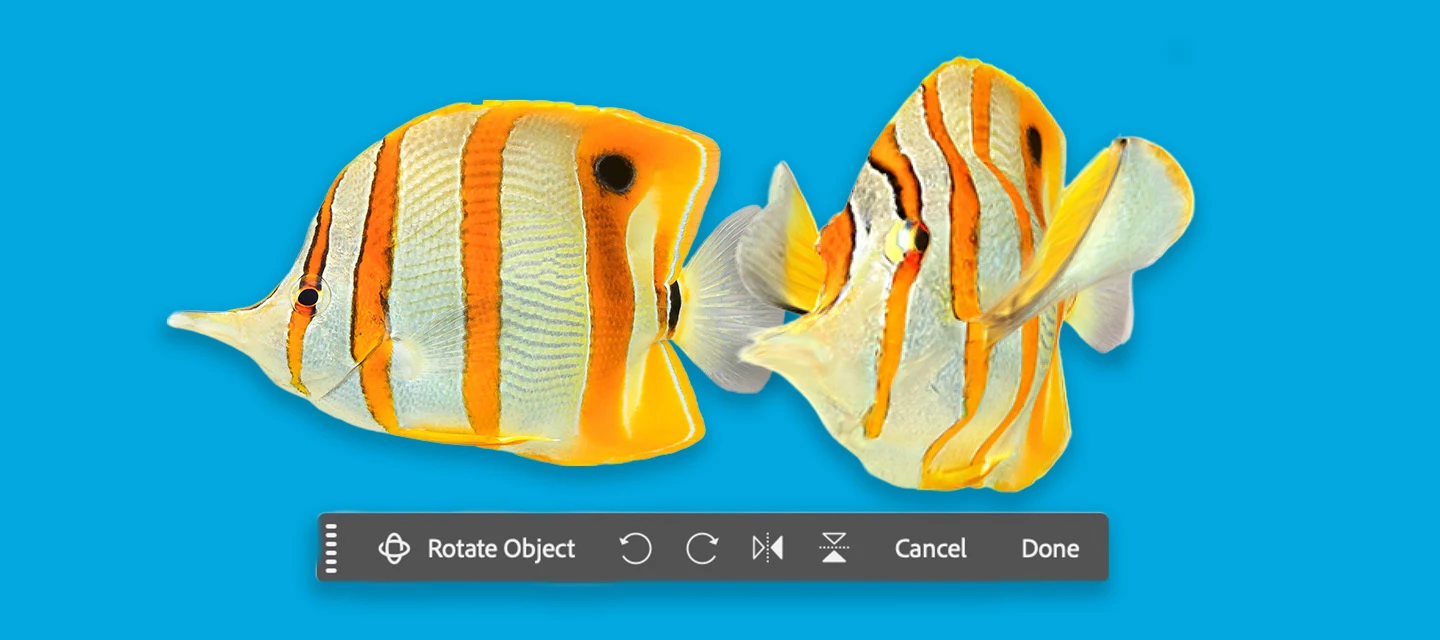
Rotate Object lets you quickly transform 2D objects into rotatable 3D images, allowing rotation (spin, tilt, dolly) from any viewpoint to match perspective and depth. (Version: 27.5.0 20260311.m.3453)HOW TO TEST:1. Open or place an image 2. Select a pixel layer that contains an object. PRO TIP: You may want to duplicate the layer → as the layer will be converted to a Rotate Object LayerCmd + T to enter transform mode or Edit > Rotate Object Click the Rotate object button in the context bar - note this feature is 20 Generative Credits, the first 3 tries do not deduct generative credits.3. After the 3D conversion is complete, the initial rotated object will be a low-res PREVIEW. The layer was converted to a Rotate object layer. DIFFERENT WAYS TO ROTATE AN OBJECT: Contextual Task Bar: click to use the Rotate and Tilt sliders. Click and drag the blue on-canvas controls around the object. Right-click on the object and drag (on-canvas for unconstrained rotation). Properties panel:
plz allowing us to point to a custom script folder in the user documents rather than in the OS disk.i would like i would like to add script in my data document drive instead in the OS drive . `D:\Users\userName\Documents\Adobe` and hell no in this dangerous place `C:\Program Files\Adobe\Adobe Photoshop 2024\Presets\Scripts
Photoshop version: 27.9.0 BetaComputer: MacBook Pro M1 ProOperating System: macOS Tahoe 26.5.1aIssue:Smooth gradients and dark vignette backgrounds display with blotchy, cloud-like artifacts when Use Graphics Processoris enabled.Steps to reproduce:Open an image with a smooth dark gradient or vignette. Enable Preferences → Performance → Use Graphics Processor. Observe blotchy artifacts in the gradient. Disable Use Graphics Processor. Reopen the image.Result:The artifacts disappear immediately when GPU acceleration is disabled.Additional information:The same JPEG and TIFF display correctly in Lightroom Classic. GPU Compatibility Check reports the Apple M1 Pro as fully compatible. Changing OpenCL and GPU Compositing individually does not resolve the issue.
Depuis la dernière mise à jour, les images brutes apparaissent pâles dans Photoshop 27.10 (beta)Depuis Lightroom, je clique “Modifier dans Adobe Photoshop (beta)”
when we edit the image remove the background option that time error comes coudnt’ find background to remove ...
When using Generative Upscale in Photoshop, the feature modifies text that is already embedded in the image and distorts line drawings and other precise graphic elements.This is not editable text on a separate text layer. The source is an existing flattened PNG file in which the text and line art are part of the image pixels.During upscaling, Photoshop changes individual letters, makes text unreadable, and redraws some characters incorrectly. Thin lines, outlines, and detailed line-art elements are also distorted or replaced with inaccurate shapes. As a result, the upscaled image is less accurate and often less usable than the original.Steps to reproduce:Open a flattened PNG containing embedded text and line art. Run Generative Upscale. Compare the result with the original image. The text characters and line-art details are altered or distorted.Expected result:The original content, letter shapes, line structure, and graphic elements should remain unchanged. The feature should increase
When selecting the Crop Tool while a selection is active, Photoshop usually sets the crop area to the selected area by default. Now, this no longer works.
When I isolate an object to rotate and chose Edit/Rotate Object the layer turns blank. Trying with different images and settings always results in the same blank layer. Sounds like a great feature, but I have not gotten it to work.
I saw there was a new parametric filter called embroidery. I wanted to try it, but every time I do, it shuts down photoshop and I get that little box that says "An error has occurred and photoshop needs to shut down." I have tried several times and same result. I am running Windows 11.
Bug courbes personnaliséesLorsque j’importe mes fichiers de courbes en .acv, je peux les utiliser de suite, en revanche dès que je ferme le logiciel et que je veux réutiliser les courbes précédemment importées, j’ai cette fenêtre qui apparaît et qui supprime mon paramètre de courbe personnalisé. Je dois donc les charger à chaque nouveau lancement du logiciel.
firmware .2727 when trying to have software select subject:error "can not complete your request a pop up says Subject classifier model not loaded correctly.
Photoshop Beta 27.9.0 (macOS) – PSD becomes unreadable after "Stamp Visible" (⌥⌘⇧E) and SaveEnvironment* Photoshop Beta Version: 27.9.0* Operating System: macOS* File size: approximately 291 MBDescriptionI created and edited a PSD normally in Photoshop Beta. There were no crashes and no Beta update between editing and saving.The final action before saving was creating a merged visible layer using the shortcut ⌥⌘⇧E ("Stamp Visible" / "Merge Visible to New Layer").Immediately afterwards I saved the document using File → Save.Since then the PSD can no longer be opened.Photoshop displays the message:"The document could not be opened because it is not compatible with this version of Photoshop."I am using the same Photoshop Beta version that created the file. I do not have another Photoshop version installed.Another PSD created on the same day opens without any problems.Additional observations:* The PSD file is approximately 291 MB.* The file was saved directly to the local disk (not cloud s
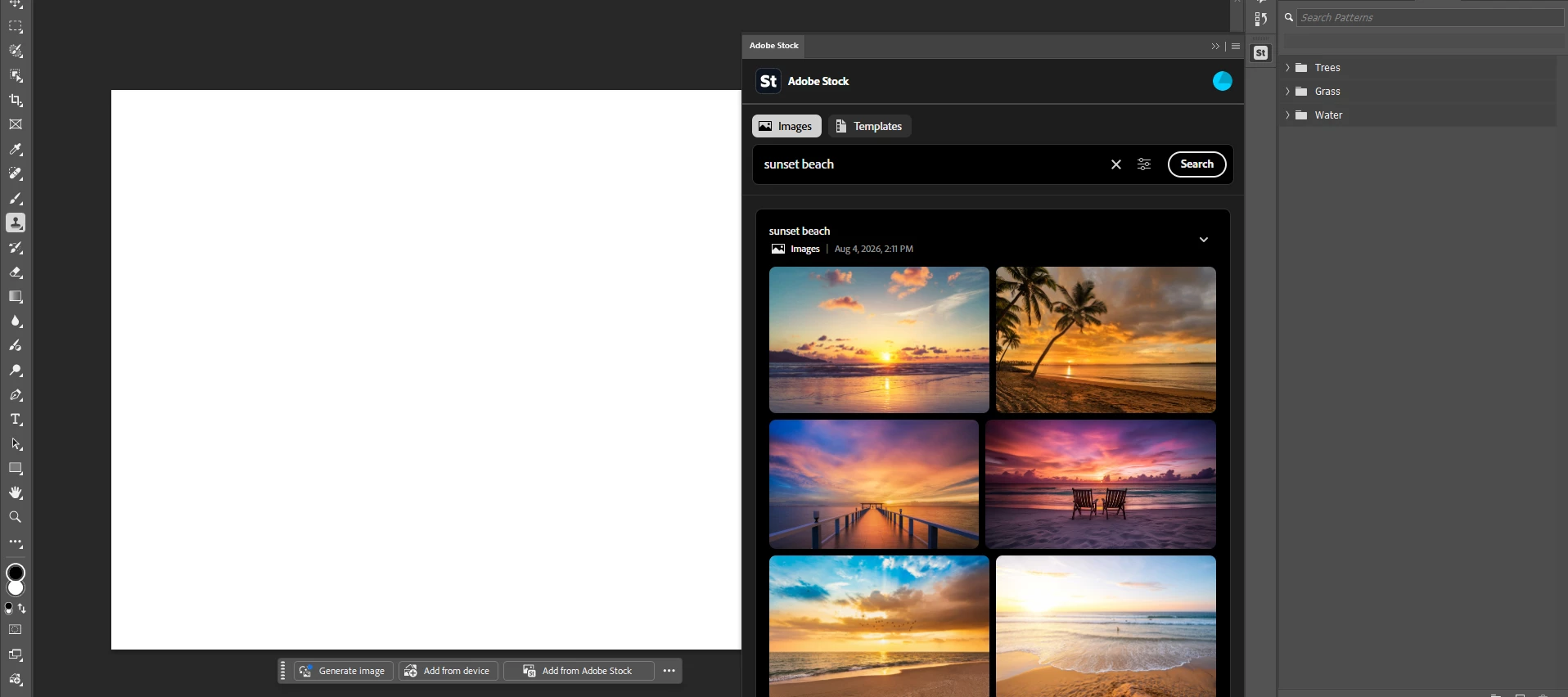
Browsing, importing and licensing Adobe stock in Photoshop is getting an overhaul. No more searching for stock content in Photoshop, only to have to tab-hop out to the Stock website to complete the process. This brings Photoshop up-to-grade with the experience you would get in Premiere today.What's actually new hereUpgraded browsing experience now returns free and paid content (not just free), expanding the choices you see when browsing. Drag-and-drop straight from the panel onto the canvas Preview-to-license— license a full-res asset directly from something you previously previewed, no digging required (from the properties panel or the layer panel context menu) Credit balance visible in-panel for subscribersWhere to test it (known WIP)Try every entry point you can find — File menu, Window menu, context bar, Add Image button, frame tool, Photoshop Home. Some may still route to the old experience or not be live yet — that's expected right now, just flag which ones aren't updated.What if
After updating Photoshop Beta to version 27.10.0, all RGB PSD documents appear significantly brighter/overexposed.The same PSD files display correctly in the current release version of Photoshop on the same Mac.SystemMacBook Pro 16-inch (2021) Apple M1 Pro 16 GB RAM macOS Tahoe 26.5.2External monitor:ASUS PA279 (4K via HDMI)The issue occurs on both:Built-in Liquid Retina XDR display External ASUS PA279Tests performedSame PSD files display correctly in the release version of Photoshop. Problem exists only in Photoshop Beta. Proof Colors changes the rendering and makes the image appear much closer to the correct colors. Disabling GPU Compositing does NOT solve the issue. Disabling OpenCL does NOT solve the issue. Disabling "Use Graphics Processor" completely fixes the problem.Expected behaviorRGB documents should display identically to the release version of Photoshop with GPU acceleration enabled.Actual behaviorWith GPU enabled, RGB documents appear washed out / overexposed.
Product: Photoshop Beta 27.9.0, 27.10.0 (and previous version .8?)OS: Windows 11 Pro 25H2 26200.8655If the image is in Greyscale Mode, choosing the Selection Brush shows a circular selection brush as expected, but holding down the mouse button doesn’t select anything - no magenta overlay is shown, nothing is selected. Switching to the Marquee Tool confirms that nothing was actually selected. Converting the image to RGB immediately makes selection brush work properly. Converting it back to Greyscale makes it stop working immediately, nothing else needs to be done. Selection brush hardness and opacity are at 100%, size doesn’t matter. This has been working fine for years but broke about a week and a half ago.It still works correctly in Photoshop Mainline 27.8.0.
when i open an image from beta it does not look like it does on my hard file imge. same when imported from apple photos and click “edit in”
Remix with Firefly Community Gallery
Thousands of free creations to fall in love with and remix in Firefly.
Already have an account? Login
Enter your E-mail address. We'll send you an e-mail with instructions to reset your password.