PrincessDaisy
Participant
December 13, 2016
Answered

InDesign Damaged Files – Error code 0/Error code 4

  • December 13, 2016
  • 8 replies
  • 18118 views

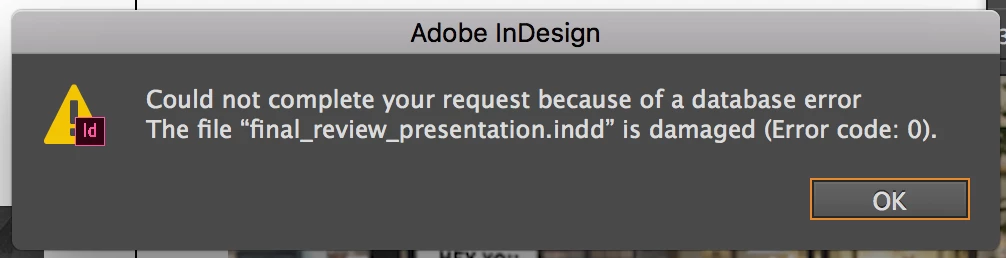
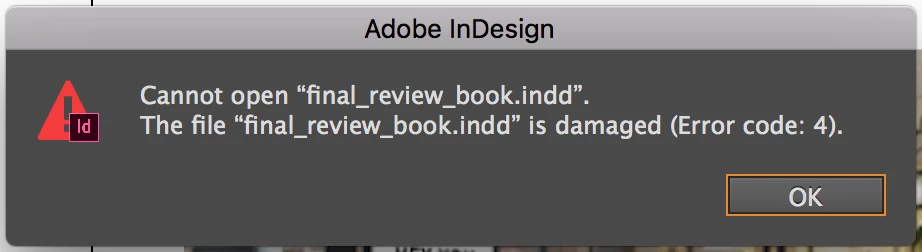
I'm having issues with InDesign. Actually, I've had issues for a long time. My files keep getting damaged. Error code 0 when trying to save, Error code 4 when trying to open damaged files. I am not working from a hard drive or any external storage.

Now, before anyone goes suggesting I update InDesign, I want to say this has happened with CS6, CC 14, CC17 (might have also happened with CS4 and CC15/15.5, but I can't remember for sure). Like I said, I've had this issue for a while. It used to be pretty rare; would only happen maybe once or twice a year. But now, as I just updated to CC 2017, it's happening more frequently.

My question: Does anyone know what causes the files to become damaged? That way, I can figure out how to avoid it in the future.

Bonus question: does anyone know if there is way to fix damaged files?

Would appreciate the help. I haven't been able to find much help elsewhere online...

- Daisy
This topic has been closed for replies.
Correct answer

I had the same problem but tried Resetting InDesign Preferences (thanks to ​Michael Witherell​). Seems to be working so far...

https://helpx.adobe.com/indesign/kb/troubleshoot-damaged-indesign-documents.html@

To re-create the InDesign preference files:

1. Quit InDesign.

2. Relaunch InDesign and hold down the appropriate keys for your OS:

Mac OS X: Control+Option+Command+Shift

Windows: Control+Alt+Shift

3. When prompted to delete InDesign preference files, click Yes. InDesign launches with defaults and regenerated preference files.

Hope this helps!

PrincessDaisy

8 replies

Lori_Neilsen-Carr
Participant
June 18, 2018

I cant get this to work..   Im on windows but I cant open OS.

gaily95298265
Participant
May 27, 2018

Thanks, it worked

Participant
March 9, 2018

I just found the same issue with ALL of my indesign files bring up the same error message. I hadn't opened these files since updating to CC 2018.

Reset the preferences:

"To re-create the InDesign preference files:

1. Quit InDesign.

2. Relaunch InDesign and hold down the appropriate keys for your OS:

Mac OS X: Control+Option+Command+Shift

Windows: Control+Alt+Shift

3. When prompted to delete InDesign preference files, click Yes. InDesign launches with defaults and regenerated preference files.

Hope this helps!"

PrincessDaisy

This worked and I can now open the originally broken files.

Most helpful post I've ever found. ;-)

Merry_Daisy0D44
Participant
November 14, 2017

I'm currently having the same issue. I was attempting to save a final revision, it's now midnight and last save was at 1121pm... nothing on my device has changed that I'm aware of. This spontaneously just occurred out of the blue.

I read a few remedies for fixes on CS5, but they haven't worked on here thus far. Any solutions?

davielb1993
Participant
October 9, 2017

Hello,

I am currently having the same issue. It is with files that I save and try to open hours later. It is to the point where I can't even open folders to even get to in InDesign file or any file for that matter. It is affecting my class assignments. I do not understand how a file could be damaged if I'm still working on it. I tried to go through my time machine for older files and even they will not open. Can anyone tell me how to fix this?

Thanks!

Participant
October 25, 2017

Same for me. Just updated to CC 2018 and now inDesign files I've just worked in are damaged...

Participant
January 17, 2017

I have this issue sometimes when I save a file on 1 computer and try open it on a 2nd computer... the file is not damaged!

I found this on another thread that worked on the 2nd computer:

Upgrade to InDesign CC (2017) results in error code 4

Basically...

Restore preferences by holding down the COMMAND + OPTION + CONTRL + SHIFT on restarting the app.

Participant
November 14, 2017

This worked for me. Thank you!

Participant
November 15, 2017

what worked for you?

SanyamTalwar
Community Manager
Community Manager
December 15, 2016

Hi,

There are multiple factors both internal and external to InDesign application that can lead to document corruption. However, I can take a look and see if the file can be repaired. Please email your InDesign file to corrupt_indesign_docs@adobe.com and I will take a look at the document.

If the file is larger than 10 Mb, you can zip (and password protect) the file and upload to Creative Cloud account (or Dropbox) and send us the document link.

Regards,

Sanyam Talwar

Participant
December 21, 2017

I'm having the exact same problem, but with InDesign CC 2018 (just downloaded last week).  Every file I have modified or created now has either an Error 0 (if it's open) or an Error 4 if it was previously saved, but now won't open.  It's driving me crazy!!!  Please help.  I'm on a Macbook Pro using High Sierra 10.13.1. 

Correct answer
January 3, 2018

I had the same problem but tried Resetting InDesign Preferences (thanks to ​Michael Witherell​). Seems to be working so far...

https://helpx.adobe.com/indesign/kb/troubleshoot-damaged-indesign-documents.html@

To re-create the InDesign preference files:

1. Quit InDesign.

2. Relaunch InDesign and hold down the appropriate keys for your OS:

Mac OS X: Control+Option+Command+Shift

Windows: Control+Alt+Shift

3. When prompted to delete InDesign preference files, click Yes. InDesign launches with defaults and regenerated preference files.

Hope this helps!

PrincessDaisy

Mike Witherell
Community Expert
Community Expert
December 14, 2016