


Participant
September 25, 2018
解決済み

Liquify Tool Black pixels after MOJAVE OS

  • September 25, 2018
  • 返信数 66.
  • 40914 ビュー

Just updated my Mac to Mojave today.

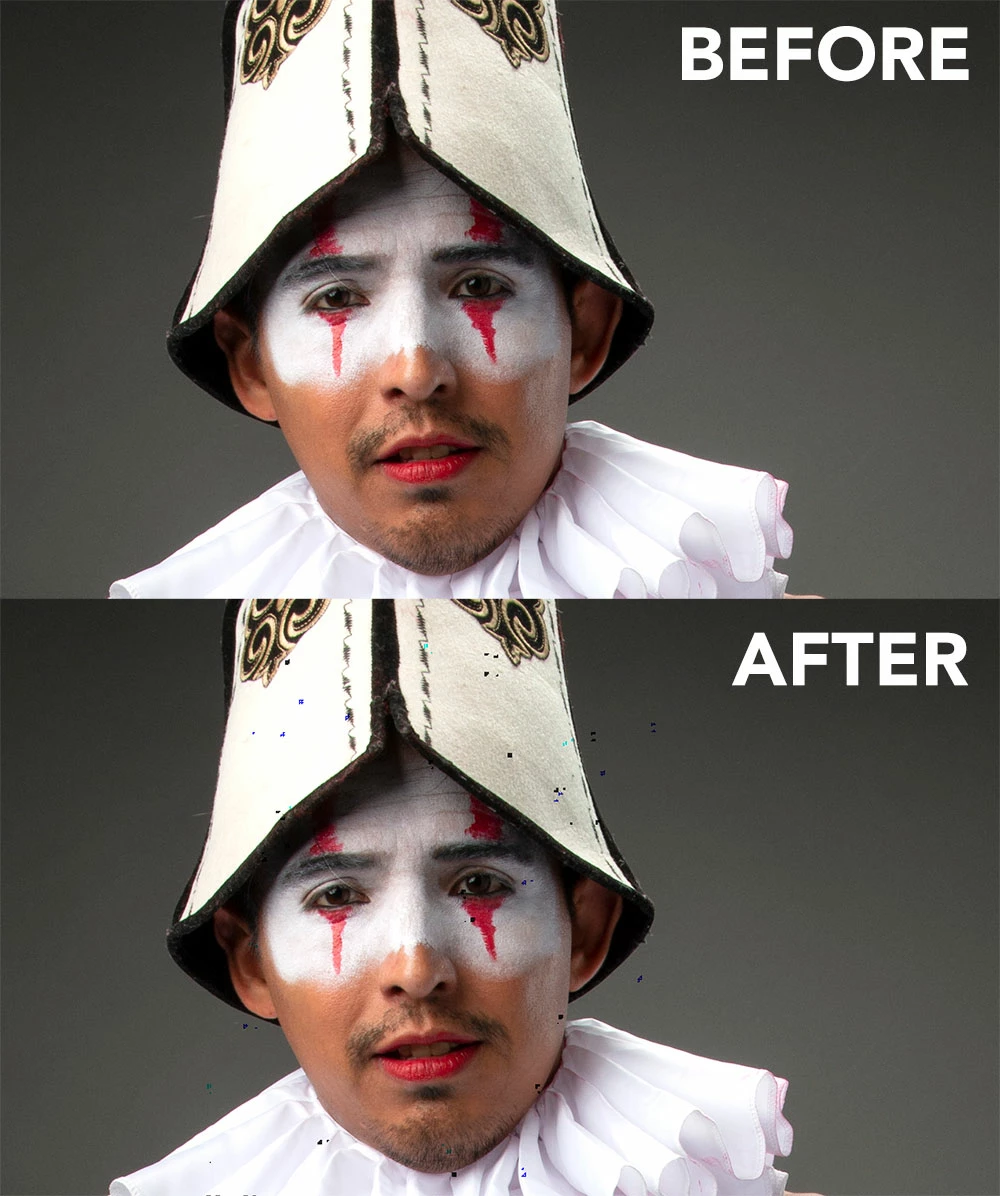
Liquify is creating black pixels when used.

I have tried to optimize performance but I still get the same error.

I have a super fast machine, so is not a RAM error. Liquify was working normally before Mojave OS.

In the image below, I have slightly adjusted the smile of the subject.
このトピックへの返信は締め切られました。
解決に役立った回答 Jeff Arola

This doesnt work for me.


Apple has just released the 10.14.1 Mojave update so install that and see if the Liquify issue is solved.

返信数 66

Participant
October 21, 2018

Disabling GPU does work but it's slower..!!

Known Participant
October 19, 2018

After Mohave OS upgrade I'm having problems with Transform-Distort toll.... it skews instead

I wish these two companies would create a liaison team to crush bugs BEFORE updates and system changes.

Participating Frequently
October 17, 2018

Same issue here! So annoying

Participant
October 11, 2018

Same Problem! Its killing my workflow and I'm getting way behind. Sat on the phone for over an hour and a half with Adobe with no answers or solutions.

gener7
Community Expert
Community Expert
October 12, 2018

barrym39721248  wrote

Same Problem! Its killing my workflow and I'm getting way behind. Sat on the phone for over an hour and a half with Adobe with no answers or solutions.

Post 15 suggests holding down the Option key to disable the GPU, but also.

10.14.1 beta seems to have fixed it. (Post 17)

Check the link I posted to the beta program for 10.14.1 in Post 20, if you can't wait for the final release.

As always, read and heed before installing.

Participant
October 11, 2018

Another crutch.

1. Duplicate the layer (Cmd + J)

2. Filter->Liquify... ( Shift+Cmd+X )- working on the image, click OK
3. Remove the top layer
4. Preferences->Performance... - uncheck with Use Graphics Processor, click OK
5. Apply to the bottom layer - Liquify ( ^+Cmd+F )

But with this method does not work Pin Edges

Participant
October 10, 2018

I was having this same issue, but the upcoming update to Mojave 10.14.1 seems to fix this problem - I'm running the beta version now and the problems with artifacting have disappeared for me.

Participant
October 11, 2018

I want to know where I can download the beta version.

I can't wait to fix this error using it. This gives me too much stress and makes me work on my old Windows laptop.

gener7
Community Expert
Community Expert
October 11, 2018

륜팡팡  wrote

I want to know where I can download the beta version.

I can't wait to fix this error using it. This gives me too much stress and makes me work on my old Windows laptop.

This article gives you all the details, warnings and precautions:

https://www.imore.com/how-download-macos-public-beta

balintb77390711
Participant
October 8, 2018

I work in a really big image so disabling the gpu is suicide for me. With cpu render the liquify window is laggy and unuseable

My workflow for the black dots:

I noticed that every time I click "ok" in the Liquify window, it generates the dots in random positions. So if you do what you want in a new layer and then you duplicate the original layer and just apply the last liquify modifications from the filter menu, you have 2 layers with the same effect but different black dot positions. Now you can use a very little eraser tool in the upper layer.

Not the best solution but maybe useful if you need to work with big image right now.

Inspiring
November 8, 2018

b3photo - that's a simple solution that works a treat. Thanks.

Note to self - give it a while before updating OS. ;-P

Mike_Gondek10189183
Community Expert
Community Expert
September 26, 2018

Can you try frame selecting slightly larger than the mouth area and try again. Curious if the black spots crop at the selection edge, and I have a liquify issue with frame selecting but in CC2018 High Sierrra.

Liquify after Frame Select appears to not work or off center in CC2018

Try turning of Open GL

Participant
September 26, 2018

I had the same problem and found a workaround for now...

If you disable your graphics processor (photoshop prefereces > Performance > uncheck "use graphics Processor"), the pixel problem disappears. It's not the best solution, but it will work for now...

Hopefully Adobe will address this problem in an update... Fingers crossed!

D Fosse
Community Expert
Community Expert
September 26, 2018

https://forums.adobe.com/people/Thijs+Louis  wrote

Hopefully Adobe will address this problem in an update... Fingers crossed!

In the post immediately preceding yours, I said, "A new major CC release is coming shortly, tested and ready for Mojave".

What broke this wasn't Photoshop CC2018, but a brand new operating system from Apple, changing the old rules, and which users didn't have to install on day one. They could have just waited until the new, Mojave-ready Photoshop CC release, which is expected any day now.

Participant
September 26, 2018

I meant: Hopefully someone will address this this issue, didn't mean to point any fingers...

D Fosse
Community Expert
Community Expert
September 26, 2018

So already this is one Mojave problem not covered in the official "known issues" document. More will come.

It cannot be stressed enough: Don't upgrade to a new operating system release until the initial problems have been identified and resolved. Wait until the dust settles and you know what you're getting into.

A new major CC release is coming shortly, tested and ready for Mojave. I'd still wait a while and see how it plays out.