Participating Frequently
October 31, 2021
Answered

P: Perform Healing Operations ( CAR / Spot / Clone ) before AI Selection (Sky, etc) for best results

  • October 31, 2021
  • 24 replies
  • 58268 views

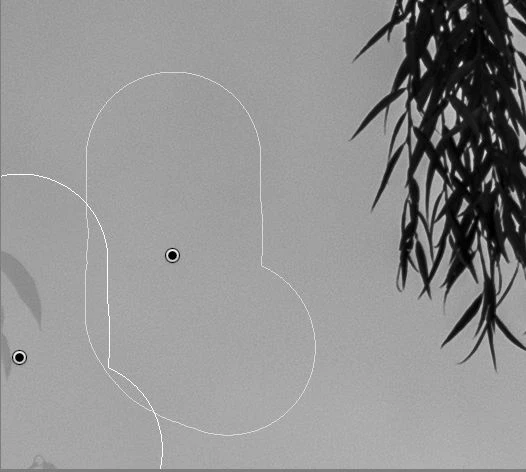
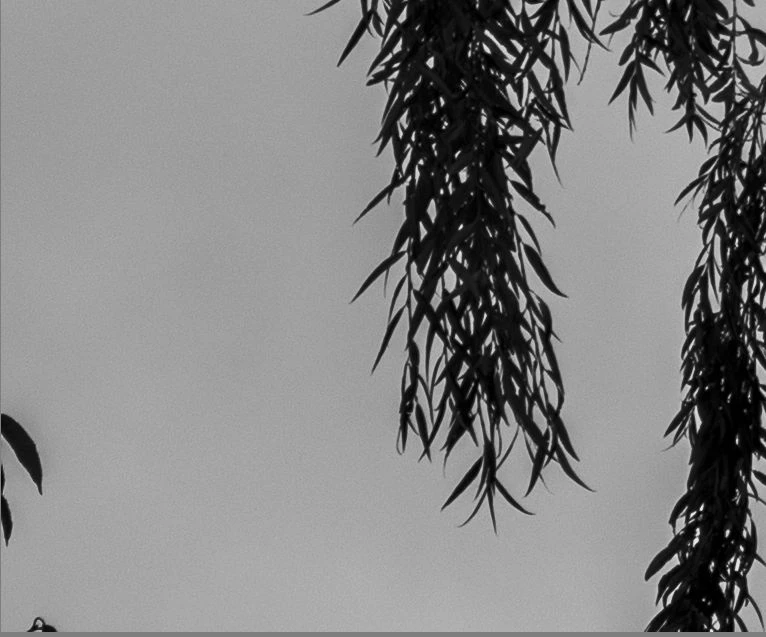
Problem: When I use the spot removal tool in Lightroom Classic version 11 to remove a leaf against open sky after Sky Select was used, Lightroom fails to remove the spot completely. It leaves a light gray version of the leaf behind. See samples below. I checked and opacity is set to 100%.


The problem does not occur if I do spot removal before Sky Select is used.


This is on Windows 10, working on a Fuji GFX 50R RAF.
 

Correct answer richardplondon

Did you have any masked adjustments already active on this image?


If so: for example, a Select Sky mask that had been put in place before doing this object removal, would have followed the boundary of this object and not treated it as an area of Sky. The adjustments applied by this mask would therefore continue to avoid its area, while applying to adjacent areas of sky, thus leaving a "trace" of that difference.


Working in a changed sequence - so: removing unwanted objects first, and then generating any masks that refer to picture content - will naturally avoid this. Or, forcing a later update of the AI masking - either way resulting in a (e.g.) Sky mask which has taken proper account of your removal of this object.

24 replies

dennyw57241037
Participating Frequently
November 18, 2021

I recently updated to LR Classic 11.0

Working in Windows 10 Pro (OS Build 19042.1348 if that matters)

I tried to clone a bird out of a blue sky. Instead of removing the bird (as Spot Removal would have done in LR Classic 10 and earlier), it inverted the black bird on the blue sky and made it a white bird on the blue sky. I tried multiple variations.

I tried both Clone and Heal options - no difference in the bird (slight difference elsewhere, but not the bird)

I tried changing opacity - as I ran the opacity slider, the bird transitioned from black to white, but never went away.

I tried changing the target location from which I was cloning - no difference.

I tried a 2nd and 3rd layer of spot removal over the top of the first - no difference (interestingly, it kept the white bird in all instances, rather than inverting the bird every time)

I tried changing the Size of my spot removal brush - no change.

I tried changing the Feather of my spot removal brush - no change.


This absolutely feels like a bug. A bug that makes the spot removal tool useless, at least for this image.


Bird in the sky


Spot Removal with Clone


Spot Removal with Heal


WAIT - I just spotted the source of the bug. It appears to be a bug at the intersection of the Spot Removal and the new Masking tool. I have a mask changing white balance and reducing exposure in the sky. It appears that the black bird has been replaced with the un-masked version of the sky (brighter and more yellow temp).


Clone showing mask settings


Clone properly executed when I remove the mask.


Bottom line: There is a bug in LR 11.0 in the Spot Removal tool where it does not interact well with the new Mask tool. This is a new problem that did not exist with the prior Spot Removal and Mask tools in LR 10 and earlier.


JohanElzenga
Community Expert
Community Expert
November 18, 2021

This is a known issue. For now, you have to clone/heal first and add your masks later.


-- Johan W. Elzenga
dennyw57241037
Participating Frequently
November 18, 2021

After this thread was merged with another (which had not turned up in a search for "Spot Removal"), I looked at some of the replies there and realised this is not an issue at all. I cloned an item in a place where a sky mask had been applied. I did not need to change my Spot Removal vs. Mask order. I simply needed to add a quick brush stroke to my mask and.... VOILA.... I got the results I wanted. Offered in case someone else is having this same problem.


TLDR: No need to change the Mask & Spot Removal order. Just edit the mask to include the apparently incorrectly removed spot.

Known Participant
November 17, 2021

I have found something unusal when using the new masking tool and spot removal. I have a photo with a clear blue sky and an unwanted bird in it. If I go to mask the sky (to darken it and add a bit of saturation) and Select Sky and then close the masking tool, and then use the Spot Healing brush to heal out the unwanted small bird, I'm left with a bright spot where the bird was.


This may not be a bug, but it did surprise me. I'm guessing it was because the Select Sky mask selected the bird in addition to the blue sky around it and when I tried to heal out the bird, it replaced it with a bit of sky that did not have the adjustments I made when I applied the Select Sky mask. But I would have thought that the healing brush would have "healed" the bird using the sky in the state it was in after I added the mask.


I also did another test where I darkened and saturated only a portion of the sky around the bird using a Brush. When I then applied the healing brush to the bird, the healing action gave me a result I expected: the bird was replaced by a darkened, saturated sky. So maybe there's a problem with the Select Sky tool.


Mac Big Sur 11.6.1

Lr Classic 11.0.1

delh66567694
Known Participant
November 5, 2021

Hi,

I've been using masks in the new LRC and find it operates a bit odd with cloning.  More likely, I'm not understanding 🙂

So, I have an image where the sky is a overexposed compared to my subject.  There are also other objects in frame - the edge of a crane, building etc.

I want to use the "select sky" mask to bring the sky down a bit.  Then I'm using the clone tool to get rid of the bits and pieces at the edge.

When I use the clone tool it leaves a ghost image.  If I switch the sky mask off, it operates as expected.

It feels like I'm probably doing something wrong with masks - and then trying to clone.  As if in PS where I'm sampling wrong layers etc.


Thanks for any help.

DdeGannes
Community Expert
Community Expert
November 5, 2021

See the article at the link below.

https://jkost.com/blog/


Regards, Denis: iMac 27” mid-2015, macOS 11.7.10 Big Sur; 2TB SSD, 24 GB Ram, GPU 2 GB; LrC 12.5,; Lr 6.5, PS 24.7,; ACR 15.5,; (also Laptop Win 11, ver 24H2, LrC 15.0.1, PS 27.0; ) Camera Oly OM-D E-M1.
Bob Somrak
Legend
November 5, 2021

@DdeGannes 

Instead of us digging through that big blog, exactly what and where in that link pertains to this issue?   It looks like a bug to me.

M4 Pro Mac Mini. 48GB
Rikk Flohr_Photography
Community Manager
Community Manager
October 31, 2021

This is current as-designed behavior.

The workflow is to correct spots (Content Aware Heal, Spot Heal Tool, Clone Tool) prior to using any AI Masking (Sky, Subject, Object, People, etc.)


Using the Healing tools after applying an AI Selection Mask will likely show artifacts where they overlap.


Rikk Flohr: Adobe Photography Org
Participating Frequently
October 31, 2021

Thanks for the quick response Rikk.


At least we know now. I'm curious, is this documented anywhere?


Also, why would it be designed this way? From a user perspective, there's no reason to expect this behaviour. One of the great strengths of Lightroom to date has been that you don't have to fuss about the order in which most things are done.

Rikk Flohr_Photography
Community Manager
Community Manager
October 31, 2021

AFAIK it is not documented publically (Until this post!)


The rational is that if you spot heal after a Sky AI, you would need to recalculate the Sky selection every time you placed a spot heal corrections. I've seen a lot of images with dozens/hundreds and that is a lot of recomputing. 


Future enhancements may provide a way around this. 

Rikk Flohr: Adobe Photography Org