




















Master Photoshop with the help of our global community.
Recently active
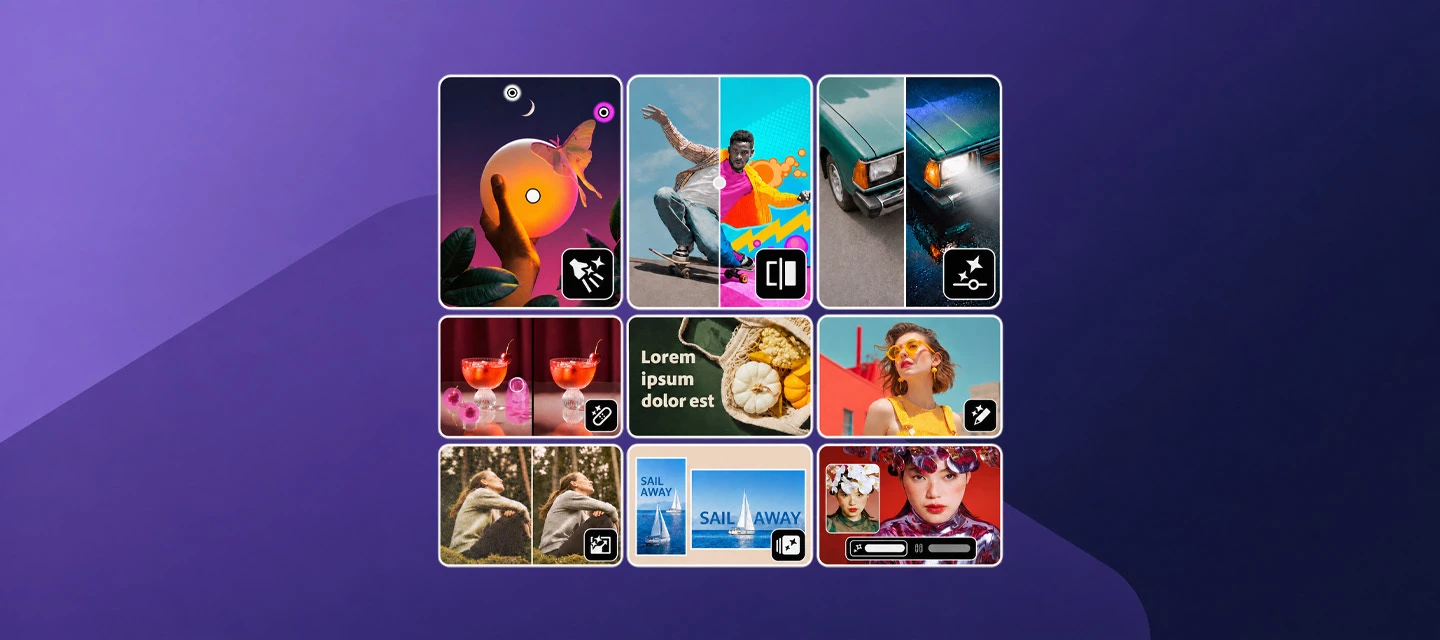
The MAX 2026 release of Adobe Photoshop delivers a faster, more stable, and more robust editing experience, alongside powerful AI-driven capabilities and enhanced creative controls. This update brings interactive image relighting, editable generative adjustments, smarter object removal, AI-assisted editing workflows, image comparison tools, text-prompt-based editing, image upscaling, and customizable placeholder text. Whether you're refining professional photography, creating social content, or exploring creative concepts, these additions make it easier to experiment, iterate, and fine-tune your work. The highlights:Add up to three customizable light sources with Relight to adjust lighting, color, intensity, and diffusion directly on your image canvas. Turn generated edits into editable layers with Generative Restyle and fine-tune results using dedicated controls. Remove unwanted objects and their associated shadows, reflections, smoke, and other visual artifacts for cleaner compositio
You asked, we listened, and we're excited to share that Quick Compare is now available in Adobe Photoshop on desktop.A lot of you wanted an easy way to see your edit next to where you started, without breaking your flow. Retouching a photo, tweaking color and tone, or trying a new look all lead to the same question: is this actually better than what I started with? Now you can find out in a click. What's new?With Quick Compare, you can quickly compare your current edits with the original document state. Simply select Quick Compare from the Tools panel. From there, you can:Toggle between the original document state and your current edits Use Left/Right Split View to compare them side by side Use Top/Bottom Split View to compare them vertically Switch to Single View when you want to focus on one version at a timeYou can also access Quick Compare by selecting View > Quick Compare, or assign a keyboard shortcut to make comparing your edits even faster. When it’s handy Checking that a po
Ever wished you could completely change the mood of a photo without setting up lights or reshooting? With Relight in Photoshop, you can add dramatic, cinematic, or subtle lighting effects to an image using interactive on-canvas controls powered by generative AI.Relight detects the existing lighting in your image and intelligently builds on it, making it easy to create realistic results. You can add up to three custom light sources and adjust their position, color, intensity, and diffusion directly on the canvas. Whether you're creating a dramatic portrait, warming up a product shot, or adding depth to a scene, Relight gives you precise control over how light shapes your image. Heads up on creditsEach generation uses 30 generative credits, so plan your experiments before you dive into the creative fun! For details, read the Generative credits FAQ. Why you'll love itReshoot? Nah. Add realistic lighting effects without complex masking or compositing. Reposition lights interactively on th
Thanks for the excellent images put forward in our Halloween ‘Haunted’ challenge. Well done to everyone who took part.There is an old song which started ‘You need hands...’ So, this week we have a set of hands. These three tiny hands are from a wristwatch, and were photographed through a microscope. I am sure you will be able to think of a new use for them, and show us what that is. The “rules”:Use the starter image as at least part of your own image entry. Anything goes, as long as it meets the forum rules on decency, copyright, etc. Anyone, and everyone, is welcome to have a go, whether you are a complete beginner or a Photoshop expert. This is not just for our forum “regulars”. The challenge is not limited to Photoshop. Any Adobe software can be used. There are no prizes apart from the chance to practice, show off your skills, or bring a bit of humor and fun. Don't be shy, join in and have a go! The starter image is made available for you to use in this forum challenge only.To down
It was wonderful meeting so many of you face-to-face at MAX! A big thank you to everyone who stopped by, shared their experiences, asked questions, and gave us honest feedback.Hearing directly from our users helps us better understand your challenges and what matters most to you. We're listening, and we're continuously working to improve your experience.We've heard your feedback and will be sharing it with our product and engineering teams. Your insights help us understand where we can do better and what needs our attention. We're Listening to Your Pain Points, and We're Working on Them!We also want to acknowledge some of the issues reported following recent Photoshop release. Our teams are aware of these issues and are actively working to address them.If you're experiencing any of the issues listed below, please click the relevant link and check the pinned response for the latest available status, updates, or workarounds. Properties Panel Shows Incorrect Canvas Dimensions Based on Doc
This amazed the heck out of me, so I have to share. My wife is President of a local Garden Club and asked me to help create a poster for an event. Because she has never used Generative AI, she was not encumbered with thoughts that limited what you might reasonably ask of it, so she gave me this completely (I thought) OTT prompt to paste in its entirety into the Prompt to Edit text field:Create a premium A4 Christmas Lunch invitation for the Awatere Garden Club. Surround the entire invitation with a lush, realistic floral border dominated by bright red New Zealand pōhutukawa flowers, silver fern fronds, kawakawa leaves, mānuka foliage, native greenery and a few hydrangeas and roses. The border should be abundant and elegant with no empty corners. Add subtle gardening elements at the bottom including a vintage watering can, garden trowel and gardening gloves. Centre panel in warm cream parchment with sophisticated typography in deep green and Christmas red. High-quality print-ready de
You asked for it, and we’ve brought it to Adobe Photoshop! The latest desktop release delivers a faster, more stable, and more intuitive editing experience, packed with highly requested features and workflow improvements. From Quick Compare, Layer Cleanup, and Dynamic Text to a more accurate Select Subject, a modernized Actions panel, a new Adjust Colors experience, an enhanced Object Selection tool, and a customizable Save dialog, there’s plenty to explore. And with significant stability and performance enhancements, you can enjoy fewer crashes, smoother workflows, and more time for creativity!You've been telling us what Photoshop needs for years, from small workflow improvements to big creative requests. While we can't deliver every feature at once, your feedback continues to shape how Photoshop evolves. We're listening, prioritizing, and turning your ideas into meaningful improvements, one release at a time. Here's what's available in the latest Photoshop!Improved Stability 🛠️ Phot
How to Report a Bug in the Adobe App Community Run into something that’s not working the way it should in Photoshop? Let’s tackle it together. When you share bugs in the Adobe Community, you’re helping product teams see what’s really happening, recreate the issue, and fix things faster. Think of this guide as your sidekick—it’ll walk you through creating a clear, helpful bug report, no technical expertise needed. Before you startBefore jumping in with a new bug report, take a quick look around the community to see if someone’s already spotted the same issue. If you find a matching post, add your vote and feel free to add your experience there instead of starting from scratch. It keeps everything in one place and helps the team connect the dots and solve things faster. Note: Any duplicate posts will be merged into a primary post that you can follow for updates on the issue. What makes a good bug report?A great bug report tells the full story it explains what happened, what you expected
I am clicking on the update button but it doesn’t move.
I have created a path and typed text into it. Along the path is a little circle with an x in it. This little x appears to be hiding my text and i can not move it. How do I get my text to show up???
Since Photoshop 27.x, painting or erasing beneath a semi-transparent group produces temporary viewport compositing artifacts when Foreground composite caching (found under the Performance menu) is enabled.The problem is completely reproducible and was not present in Photoshop 26.x.Disabling Foreground composite caching immediately resolves both the artifacts and, on my system, actually improves responsiveness. No restart is required.SystemPhotoshop 27.x (all tested 27.x versions) Windows 11 Home Intel Core i9-13900 64 GB RAM NVIDIA GeForce RTX 3070 Ti NVIDIA Studio Driver (latest available) GPU Acceleration ON Multithreaded Compositing ONSteps to reproduceEnable Use Graphics Processor. Enable Foreground composite caching. Create a Group. Set the Group Opacity to less than 100%. Place two or more Normal layers inside the Group. There must be artwork on at least one of the layers. Paint or erase on a layer below the Group.ResultTemporary square or tiled viewport artifacts appear along
"In the future, I want to create more high-quality stock assets, improve my editing and design skills, and build a consistent income as a contributor."
Creative Cloud 桌面端,Photoshop 仅剩 28.0(标记为不兼容)和 27.0–27.11.1。 官方技术文档写明 27.x 与 28.x 的最低系统要求为 macOS 14.0。 我的电脑版本是 macOS 13.5,不更新系统旧无法使用。 偏好设置中已没有「显示旧版应用」这一选项,仅剩自动更新与安装位置。个人订阅用户如何获取 26.x 安装程序(例如通过客服申请、账户后台提供安装包,或其他方式)?
I had Photoshop activated on my Tower PC and laptop. My tower bombed and has been destroyed. I was forced to reinstall Windows 11 therefor reinstallation of photoshop again. This I cannot do as Adobe says the software has been activated twice before.
In previous versions, you used to be able to use the Move tool to drag and creating a box that would select all layers in that area if auto-select layer is on. This feature is no longer working in 2027 (v28). Please fix this bug!
Hello,I am experiencing a known bug with Photoshop 2026 (v27.5.0) on my Mac Mini M4 running macOS 26.3.1, where the entire Plugins menu becomes greyed out as soon as any plugin is installed.My setup:- Mac Mini M4, macOS Tahoe 26.3.1- Booting from external SSD (my home directory ~/Library is located on the external SSD)- System/Applications are on the internal NAND- Photoshop 27.5.0, installed via Creative CloudThe problem:- After a fresh Photoshop installation, the Plugins menu works correctly on first launch- As soon as I install any plugin via Creative Cloud (e.g. PiXimperfect Compositing), the Plugins menu becomes permanently greyed out- This happens regardless of whether Photoshop runs natively (ARM) or via Rosetta- The root cause appears to be that Photoshop registers plugins in ~/Library/Application Support/Adobe/UXP/PluginsInfo/v1/PS.json with the path "$localPlugins/External/...", but cannot load them correctly when the home directory is on an external volume- Emptying PS.json
Bonjour, mon outil pinceau ne marche plus. Cela me l' fait plusieurs fois ces derniers temps. J'ai réinitialisé le pinceau, je suis allée également dans edition-préferences-performance- décocher le bouton utiliser un processeur graphique. Cela a remarcher une journée et ce matin rebelotte, cela ne fonctionne pas. C'est récurrent et cela me bloque dans mon travail. Comment régler ce problème définitivement svp
I used to be able to select multiple images by drawing a marquee around them by holding down the Ctrl button and drawing a marquee around them with the move tool to select everything that was under it. I can no longer do that. Now my workflow has changed. Any suggestions on how to select multiple images with the move tool now?
Hello Adobe Team,I am experiencing an issue where the selection mode options (New selection, Add to selection, Subtract from selection, Intersect with selection) in the top options bar randomly switch on their own while using selection tools such as the Magic Wand Tool.Steps to Reproduce:Open an image in Photoshop 2027 on macOS. Select the Magic Wand Tool (or other selection tools) with "New selection" active. Work on the canvas (using shortcuts like Shift/Option, panning, or switching tools). Notice that the active selection mode icon in the options bar unexpectedly switches to another mode (e.g., Add or Subtract) without me manually clicking it or holding down modifier keys. Expected Result:The selection mode should stay on the currently selected option (e.g., "New selection") unless I manually click another icon or hold down a modifier key.Actual Result:The selection mode switches spontaneously and gets stuck on a different mode, interrupting my workflow.
Thanks for all the entries in our previous ‘You need hands…’ challenge. There were some very clever ideas.This week we are off to Whitby on the North East coast of England. The abbey pictured was built around 1220 - 1350 but the site has held a monastery since 657 AD. Built on the top of the headland, and reached by a climb of 199 steps, it also provided inspiration for Bram Stoker’s 1897 story of Dracula. It appeared in the story as did St Mary’s church, the roof & tower of which can just be seen to the right of the ruins.With such real and literary history, we have a scene in which you can let your imagination run loose. What will you make with it? The “rules”:Use the starter image as at least part of your own image entry. Anything goes, as long as it meets the forum rules on decency, copyright, etc. Anyone, and everyone, is welcome to have a go, whether you are a complete beginner or a Photoshop expert. This is not just for our forum “regulars”. The challenge is not limited to P
Hi,Trying to watch Photoshop tutorials but they don,t have any audio but they run ok apart from the lack of sound.This is in Photoshop28.Speakers on laptop all ok.Any ideas as to why this is please? Thankyou
Device-mode Select Subject appears to leak retained memory by approximately 2–3 GB per image, even on small images around 1500–2000 px on the long side. Photoshop memory is limited to ~35 GB on a 64 GB Windows system, but once the retained memory reaches the Photoshop ceiling, the entire machine becomes nearly unusable despite apparent free RAM remaining.Cloud mode behaves differently: memory rises during Select Subject, then partially drops, and accumulates much more slowly. This strongly suggests the issue is specific to the local Device processing path rather than the images or action.Edit > Purge > All does not release the memory.Closing documents does not release the memory.Only quitting Photoshop clears it.After several images, Device mode begins falsely reporting that no subject/object can be found.This makes batch editing workflows a joke, because after 5 or 6 images using on device, the Select Subject starts reporting it can’t find subjects, even though they are there. A
System Information: OS: Windows 11 Processor: Intel Core i9-12900KS RAM: 64 GB GPU: NVIDIA GeForce RTX 3080 Ti (12 GB) NVIDIA Driver: Studio Driver 621.24 (November 12, 2026) Photoshop: 2026, version 27.11.1 (also tested an earlier version) Camera Raw: 19.0.0.2794 Adobe Bridge: 2026 Description of the Problem I'm a professional photographer experiencing severe and highly inconsistent problems opening multiple RAW files from Adobe Bridge into Adobe Camera Raw.I've used this workflow for years without significant issues. I regularly photograph events involving hundreds or thousands of images, review them in Bridge, and open large selections simultaneously in Camera Raw for editing.On Monday, November 16, I successfully opened approximately 1,000 RAW images in Camera Raw using this same computer and workflow. Shortly afterward, the software began failing without any clear explanation.The issue has become progressively more unpredictable, and I've spent hours troubleshooting
Could not complete the Layer command because of a program error (b56333.405) [Mod: Edit title]
In Bridge, I open an NEF file in Adobe Camera Raw (by default). I then open it in Photoshop, do my processing edits on layers, flatten the layers and do a Save As to save it as a JPG. I want it to save in my Local Disc/User/[name[/Pictures. I do not want it to try to save in Microsoft One-drive Personal, and I also do not want it to default to Home. I’ve tried changing settings in Preferences in File Handling and in Export to have it save to the folder it came from, but it simply won’t do it. I’ve tried various suggestions from Google Assistant. This only started happening with the latest update of the Photoshop. Using Windows 11 on a desktop PC.
Already have an account? Login
Enter your E-mail address. We'll send you an e-mail with instructions to reset your password.