
Premiere Pro | 4K monitor | Windows Scaling Enabled - PROBLEMS, BUGS, ISSUES
Hi,
Since Adobe staff doesn't seem to pay much attention to this bug yet (some of them claim this is not a bug, others see the problems as resolved, etc.) I thought maybe we could "unite" and gather all the known issues, bugs and problems related to 4K resolution workflow (with windows scaling set to ON) here.
Hopefully this would bring as many people struggling with it as possible in one place, to help Adobe to take notice of this problem.
There are many unpleasant consequences of this bug, for now I will describe the ones that I'm aware of, but you are welcome to add anything new you find. I will try to update this first Post from time to time, so it stays up to date. The more bugs related to this problem we find, the higher the chance it will finally get fixed! Also, remember to use the feature request form, from what I understand, the more a specific feature or bug is mentioned, the faster it reaches to developers. You don't have to waste much of your precious time, just briefly describe the problem and paste a link to this post. Thanks!
NOTE: I am not a native english speaking person, so please forgive any grammar or spelling mistakes.
What seems to cause the problem:
Before we start, I would like to introduce two terms: "old fullscreen" and "new fullscreen", which in my opinion will make the further discussion much easier.
Let me describe this using an example scenario:
- We run Premiere Pro on Windows machine, with Windows Scaling option inactive (turned off).
- We maximize the main Premiere window on our 4K resolution monitor.
- This is the default setup, it works properly and that interpretation of all the content scale and position in Premiere's main (maximized) window is what I'm going to call the "old fullscreen".
- We close Premiere, enable Windows Scaling option (things get harder and messier if you use multiple monitors with different resolutions) on our 4K monitor to 200%, restart the system and run Premiere again.
- At the first glance everything looks fine, even better than a moment ago, as the UI, letters, buttons and everything else is now bigger and easier to work with. That's awesome, that's what we wanted achieve. But wait, here come the bugs...!
- Now here is some speculation on my part, about what actually might be going on in the background:
- What Windows does to achieve the larger Premiere UI look, is in my opinion the following: it scales up all the content x2 (in this particular case, because we set Windows Scaling to 200%), then recalculates all buttons, sliders, etc. positions to place them back where they were on screen before the scaling occurred. Things are a little harder than with typical apps, as Premiere also has its own windows inside its main window, but this seems to work fine nevertheless.
- Then it's up to Premiere's scaling optimization code to handle the rest, i.e. letters and button sizes, timeline behaviour, maximizing its own windows within the main window and so on.
- This results with the main Premiere window first being scaled up, and then shrinked back down, but with the UI elements size left twice as big. So it's kind of an emulated fullscreen, which I will call the "new fullscreen" .
- Now here is some speculation on my part, about what actually might be going on in the background:
- As it turns out, not all of the built in effects and behaviors respect these new settings. Some of them deep down act like the scaling process never happened, even tough "on the surface" everything looks fine. What I mean by that is these effects use the "old fullscreen" to work, even tough the user sees "new fullscreen" interface. This is most likely the cause of 90% of the problems described in this thread. For example Alt+MouseWheel timeline zooming works oddly, because when you place the mouse cursor in the middle of your timeline and try zooming in to that specific spot, Premiere interprets the cursor position as if it was in the furthest right edge of the screen. This is because that particular action (and many others) makes Premiere read the mouse cursor position on screen basing on the "old fullscreen" interpretation, which was effectively "scaled down" during the process of scaling, and now the "old fullscreen" (which is invisible to the user, as he sees the already scaled "new fullscreen") only takes up 1/4 your monitor. Which means, what you see as the middle of your screen, Premiere in this case sees as the right edge of the screen. This results in seemingly "wild" behavior of zooming, but actually it makes sense - premiere just zooms to some point to the right, because that's where it thinks the mouse cursor was positioned. I'm aware this is very confusing, I will try to provide some pictures later to make it easier to understand. Anyway, it's all about the mouse cursor position in relation to the size of windows, buttons and resolution interpretation.
This seems to be the main root of this whole problem, and I suspect it lies beneath all the issues described below.
Here are the known issues, sorted from the most annoying to the least:
- 1. ALT+ScrollWheel timeline zooming
- Re: BUG: Alt+Scroll to Zoom with 4K Monitor on Windows | Re: Windows scaling is effecting my timeline scrolling and my full screen playback. | Re: Timeline Scaling on a 4K monitor Windows 10, Premiere CC
- The timeline does not respond properly according to mouse cursor position.
- The further the cursor is to the right, the more inaccurate zooming results are.

image by TeeKayCC
- 2. Fullscreen playback scaling Bug in Mercury Transmit - playback screen on Win 10 with display scaling | UHD display - full screen not scaling up bug | 4K Monitors and Full screen mode. : Adobe Premiere Pro
- The "Fullscreen playback" option ignores the first part of Windows' scaling process and acts like no scaling has been performed, but doesn't ignore the second part of the process which is shrinking the image.
- In our example scenario, this would result in "fullscreen" only taking up 1/4 of the screen, because that's the size of the "old fullscreen"(which Premiere uses to calculate image in this case) after being shrinked when Windows Scaling is set to 200%.
- If there was a setup with two 4K monitors and Windows Scaling was set to 200%, and Premiere was set to deliver the fullscreen playback to both of them simultaneously, the result would be two small previews on the first monitor, side by side, each taking 1/4 of the actual monitor size.
- In this case there are three monitors: FHD-4K-FHD (the image below), and Windows Scaling is set to 150%, the fullscreen preview on the main 4K monitor only takes up 2/3 of its size. Thats's beacuse in this case "old fullscreen" wasn't scaled down as much, due to lower Windows Scaling setting.
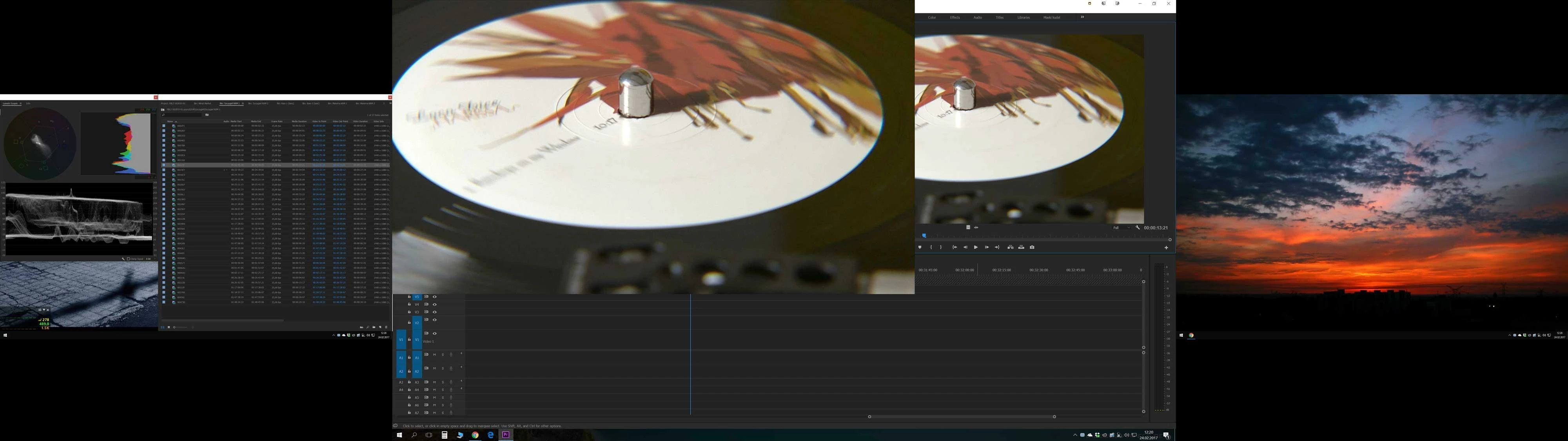
image by ana_bee
- Here are two monitors: vertical 1080p on the left, and 55" 4K TV on the right. I'm 99% sure that in this case Windows Scaling is set to 200%, just like in our example scenario, because "fullscreen" preview is exactly 1/4 size of the tv screen.
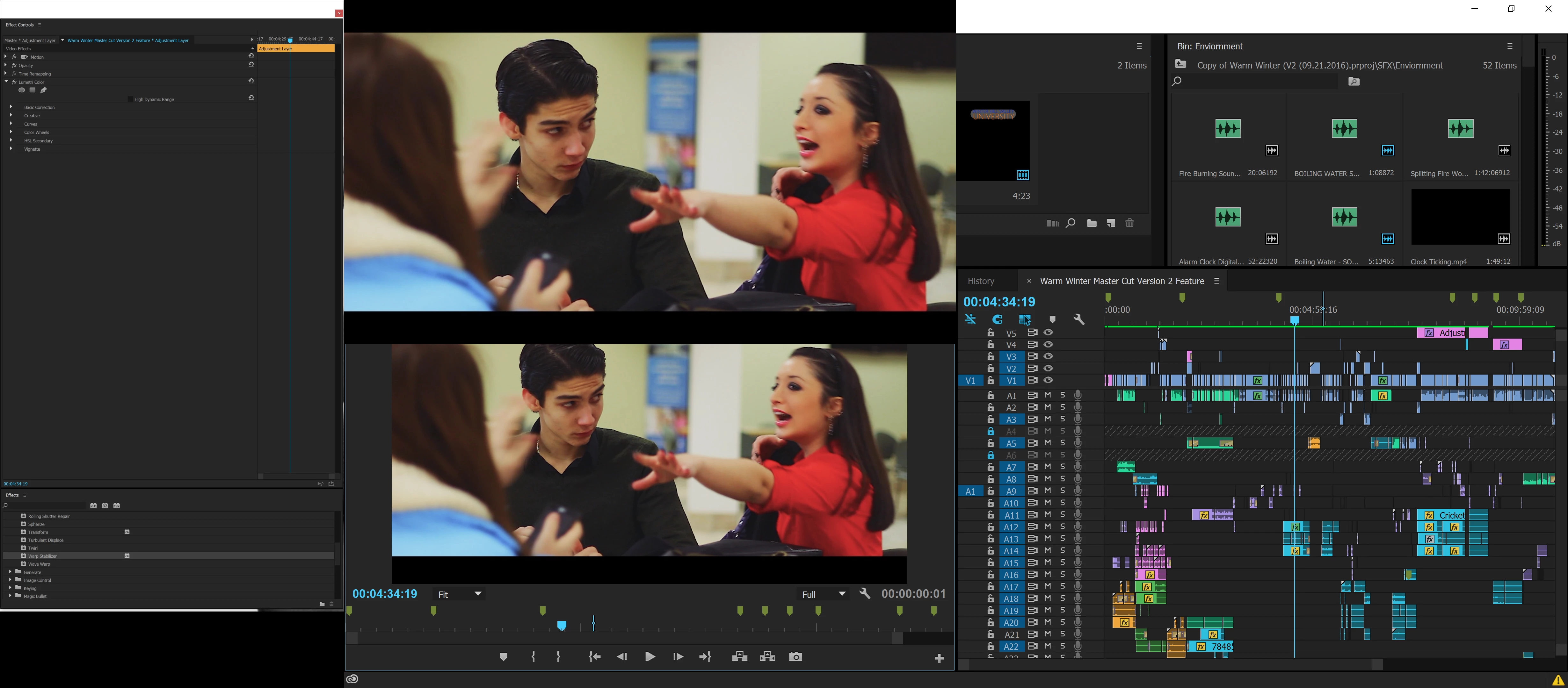
image by Antoine SinClaire - Creative COW
- Sometimes this problem gets resolved by tapping windows button twice, or alt+tabbing (pressing the windows button makes the start menu appear, thus Premiere window gets deactivated, pressing again makes Premiere an active app again). It looks like re-activating Premiere application while the fullscreen is on, forces it to recalculate image size and position using the proper "new fullscreen".
- Unfortunately most of the minimizing or deactivating Premiere application and then re-activating it results in preview changing its position/size in an improper way, or disappearing completely (which probably means the preview runs somewhere offscreen where we can't see it).
- 3. Improperly sized "Custom setup" windows for all the effects with that option
- Effects like Multiband Compressor, DeHummer, and pretty much every other effect with "custom setup" option will result with setup window too small.
- The only know solution is to manually resize the window EVERY TIME WHEN USED.
- Effects like Multiband Compressor, DeHummer, and pretty much every other effect with "custom setup" option will result with setup window too small.
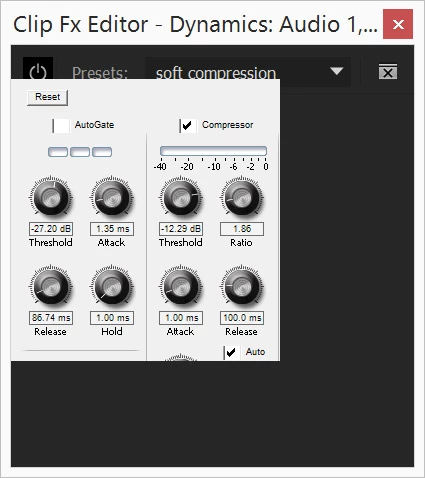
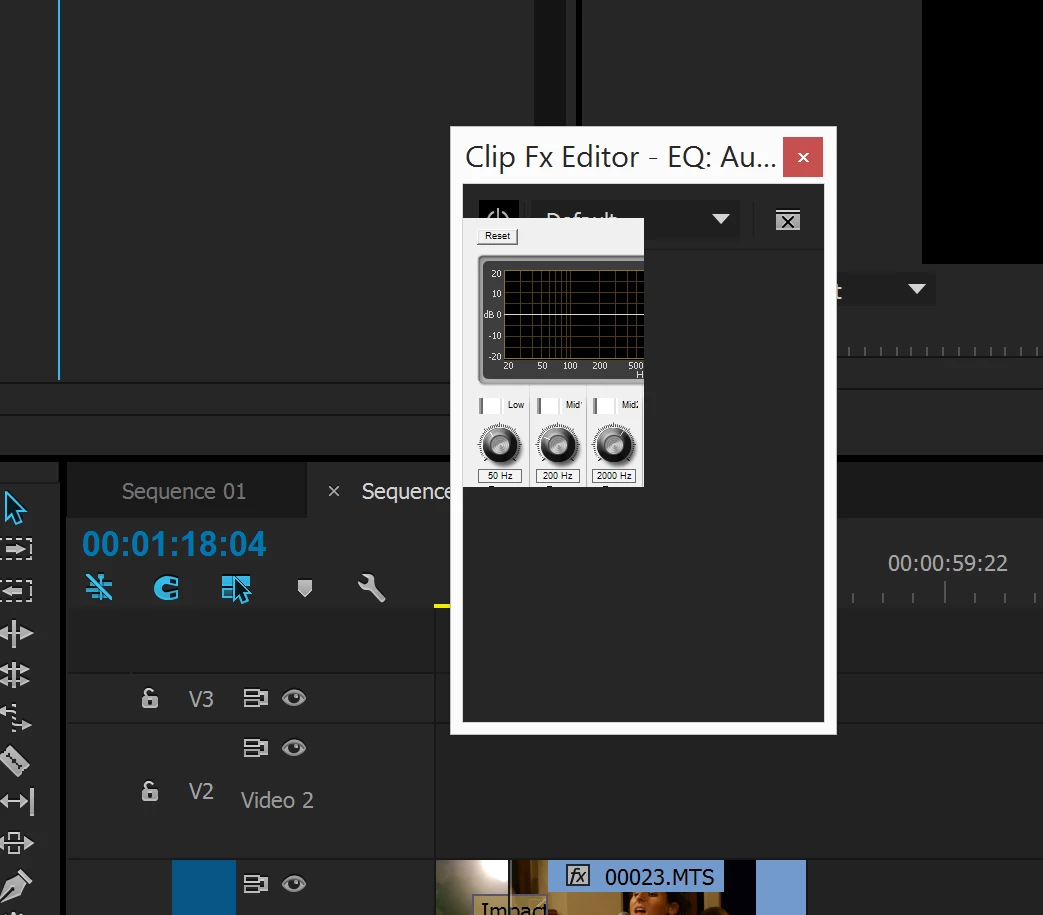
image by TeeKayCC, randyalan99
- 4. Usless color picker
- The color picker in any effect does not work. Or, to be more precise, it works, but just like the other bugs (which are all caused by this one über-BUG) it reads the cursor position from shrinked "old fullscreen". The user has to guess the picker's position judging by changes in the little colored square near the picker icon, blindly moving the mouse across the screen. In our example scenario, if the project window is located in the upper right corner of the monitor (default setup), to get the proper color or even "hit" the "real" project window seen by Premiere with the picker at all, we would have to operate in the area where number 11 is located on every rectangular clock (I can't find any easier way to explain this, but take a look at Antoine's 55" tv in the picture above - see how his "fullscreen" only takes up 1/4 of space? That's what Premiere sees as its whole application window. So in this small space, it's upper right quarter would be the right area to blindly try picking any color
 ).
). - The workaround to this is to manually eyeball the color we intended to pick in the first place.
- The color picker in any effect does not work. Or, to be more precise, it works, but just like the other bugs (which are all caused by this one über-BUG) it reads the cursor position from shrinked "old fullscreen". The user has to guess the picker's position judging by changes in the little colored square near the picker icon, blindly moving the mouse across the screen. In our example scenario, if the project window is located in the upper right corner of the monitor (default setup), to get the proper color or even "hit" the "real" project window seen by Premiere with the picker at all, we would have to operate in the area where number 11 is located on every rectangular clock (I can't find any easier way to explain this, but take a look at Antoine's 55" tv in the picture above - see how his "fullscreen" only takes up 1/4 of space? That's what Premiere sees as its whole application window. So in this small space, it's upper right quarter would be the right area to blindly try picking any color
- 5. Improper clip selecting in Media Browser
- When opening a bin containing many clips in Media Browser, something strange happens. You can highlight/select specific clips, but only if you click on the area on them which size corresponds to the "old fullscreen" area of your monitor. In other words every clip in Media Browser (thumbnail view) acts as if it was your tiny monitor, with its own "old fullscreen" area that works for highlighting.
This is all I can think of for now, I hope this post will make it easier for people to find the right place discussing their problems with scaling, and for Adobe staff to finally look into it and fix it.
Feel free to describe other issues and bugs related to this one you find.
GOOD LUCK!
Below I attach some people who I think should find this post interesting, and some of Adobe people as well to bring them here 
davidpayne1981 septil11160334 TeeKayCC OMont vidream SiliconPixel BrotherBloat tmetzfire DMH79 bwone walkerbuzzbell wehdet jnarchive jhex66 chrisc57769006 owiseone61755 hamza95 SupeSonicBoom randyalan99
Kevin-Monahan Jim_Simon petergaraway sunnyladkani jinting_lv RameezKhan Colin Brougham A.Kubba
https://forums.adobe.com/people/Vidya+Sagar https://forums.adobe.com/people/Vinay+Dwivedi https://forums.adobe.com/people/Mark+Mapes https://forums.adobe.com/people/kulpreet+singh


 AdChoices