













Design the future of fashion, win Firefly Pro 👗✨
Photoshop (Beta)
Recently active
Rotate object not working. When click rotate object, that new layer is completely transparent, then when rotate changes accepted, always receive an error.Beta = 27.7 m.3511. Error = Could not update smart object files because of a program error (e2266e.571).
Photoshop Beta 27.11 — GPU-accelerated canvas rendering shows incorrect color (warm/red color cast) that does not match Camera Raw, Print Preview, exported files, or any external viewer.System:Photoshop Beta 27.11 Camera Raw 18.5 Windows 11 pro for workstation CPU: AMD Threadripper 3960X, 128GB DDR4 GPU: NVIDIA RTX A5000, driver 610.88 (NVIDIA Studio driver) Monitor: BenQ SW2700PT (wide-gamut), custom ICC profile generated via Palette Master Elements, recalibrated every 15 days NVIDIA Control Panel color settings: Output color depth 10bpc 64 bit, Output dynamic range Full/Maximum, "Precise" color precision mode enabled (reference mode not excluded) Photoshop Preferences > Performance > Advanced: "Use Graphics Processor" enabled, "30-bit Display" enabled, OpenCL enabledIssue:With GPU acceleration enabled, Photoshop's main canvas displays a visible warm/red color cast on an image that does not match: (a) the same image previewed in Camera Raw, (b) Photoshop's own Print Preview wind
Issue has not been resolved. I just tested the latest beta 207.11 and the problem still persist where the image in PS has much more contrast that the LR original. See sample included: I turned off Usse Graphic Processor and it appears to have fixed the issue. The problem I would have with that is I have an NVIDIA GForce RTX 3090 and I want to use the power of that card for effciency. Now we know the workaround, how do we fix it?
I see there is a new 27.12 beta release, but cant see any release notes relating to the ongoing colour issues in previous releases (after 27.9) being resolved? can anyone confirm? also, usually there are only 3 previous versions available to roll back to, with 27.12 does this mean 27.9 (last working version) also will dissapear? Normallly i would test this out but dont want to lose access to the last working version 27.9 Cheers
EDIT: Problem is solved. I’ve never encountered this before. For some reason, I needed to disable all of my monitors, except one, launch PS Beta, and then it worked (even when the other monitors were renabled). No idea why this was happening and why it didn’t affect regular PS (with the same HDR box checked) nor other programs with HDR support. I don’t know how to close this report.________________________________Hello, I just updated Photoshop Beta to 27.5.0 (260305.m.3446). I have been using Photoshop on an HDR display for at least two years. OS is Windows 11 with HDR turned on for this display.“Precise color management for HDR display is checked.” ALL images now appear very dark on the screen. I have tested more than 30 photos. Most are NOT HDR photos. This includes JPG’s, tiff, PSD and both 8-but and 16-bit images. The same images look normal in non-Beta Photoshop. They also look normal if I move the photoshop window from an HDR to a non-HDR display.If i disable the “Precise color
Adobe Photoshop Version: 27.12.0 20260916.m.3679 with the new update brush pen pressure not work with or without PSUserConfig.txt
in camera raw funktioniert der Befehl “ Vorherige einstellungen anwenden” nicht mehr
Toolbar icons not rendering/showing blank after latest Beta update. Steps to reproduce:1. Updated Photoshop Beta via Creative Cloud last week2. Since then, all toolbar icons show blank/empty (left toolbar panel)3. Tried: uninstall + reinstall, Creative Cloud reset, Windows Essential reset — issue persists4. Photoshop Stable version works fine, only Beta affectedSystem: Windows, GPU set to Basic mode — still broken
In the creative cloud app the photoshop beta has disappeared and when I select app from left tool bar, there is nothing in there.
This started in 27.10 where a new dialog box next to the brush you open starts flat in the angle and roundness description-for each brush I select, I always have to open the brush to it’s default position-this is completely opposite of helpful, especially if you already have a way to do this in the brush panel setting. I reset the brushes and it still comes up FLAT in each new brush I select. I updated to 27.11 and it’s still there. Sorry, this was PS Beta-not PS currently as 27.9.1I see now this was discussed in the Beta forum, please disregard...
Using File > Package won’t cover external dependencies, e.g. textures for filters.Sample steps to reproduce: Create a file with content or open any image, convert one of the layers for Smart Filters, apply, Filter Gallery > Distort > Glass, load an external texture from another PSD, apply, save. If you try to use Package — you’ll get “Could not complete the Package command because there are no external links” warning. If you have another linked image, you’ll get no warning, but as you remove the external texture from its original location and try to edit the smart object with the preapplied filter — it will be reset back to one of the built-in textures.Also won’t attach any of non-Adobe Fonts Fonts. So basically most of the collects created with Package in Photoshop won’t provide reproducible and editable file to work on another machine
.tif file appears washed out only in Photoshop Beta with GPU enabled. The same file displays correctly in regular Photoshop. Turning off Use Graphics Processor fixes the appearance.
Bad. Just like the last update it’s laggy and just bad. I guess with a 4080, amazing CPU, and 64gb of ram your software just doesn’t work… ridiculous. I’m about to switch to a free program at this point :\
Photoshop (Beta) — Remove Tool Performance RegressionI'm reporting a specific, reproducible regression in the Remove tool in the current Beta build (27.10.0) that I've diagnosed as thoroughly as I can from the user side.SummaryThe Remove tool, which previously worked quickly and well in this Beta build, has stopped functioning correctly. It now takes several minutes to remove even a tiny selected area, regardless of settings. The same operation completes instantly in the standard (non-Beta) release of Photoshop on the same machine, same file, same hardware.TimelineThe tool was working correctly. At some point it stopped — without any update on my part (no Photoshop version change, no graphics driver update, no known Windows update). I cannot pin down exactly when it broke, only that no deliberate change preceded the failure.SystemNVIDIA GeForce RTX 5070 Ti, correctly detected in Photoshop's Graphics Processor Settings, "Use Graphics Processor" enabled, GPU used normally elsewhere in th
But (!) If I save a copy, the copy has the same exposure as the original and *is not* blown out / over-exposed (as viewed in Bridge). This happened with Canon CR-2 files taken yesterday, but also with some older jpegs & older tiffs. BUT some older tiff/jpegs open normally. Can't deduce a pattern. Problem started w/Beta 27.10. I have not changed my default settings in a year, still sRGB, etc. Applying *auto* adjustment settings in Camera Raw show changes in the sliders, but NO CHANGES in the photo. WTF!!??,
Watch the movie to see the tool begin to set up the rotation dialog, but then stops, displays a popup that one could infer means I’m out of credits. CC>view balance fails with message, “Unable to load selection - Retry.”
Photoshop Beta 27.11.0 20260902.m.3662 8045dad x64Windows 11 64-bitThe new Light adjustment layer does not always render correctly in a linked PSD when Layer Comps are being used.I have a PSD placed as a Linked Smart Object inside a master Photoshop document. The linked PSD contains a Light adjustment layer using Exposure and Shadows.The Light adjustment looks correct when I open the linked PSD itself. When I save that PSD, the master document correctly detects the change and refreshes the Linked Smart Object. Other changes from the linked PSD update correctly, but the Light adjustment does not appear.I can force it to update with this workaround: Turn the Light layer off. Update the Layer Comp. Save the linked PSD. Turn the Light layer back on. Update the Layer Comp again. Save again. After doing this, the Light adjustment appears correctly in the master document.Expected behavior: the Light adjustment should render correctly in the master document whenever the linked PSD an
Dark Grey Interface creates screen flickering and makes the screen darker both in Beta and PS StableSetting the UI back to normal light grey seems to fix the issue, but I prefer working in dark grey. Windows 11, PC, Dell Laptop.
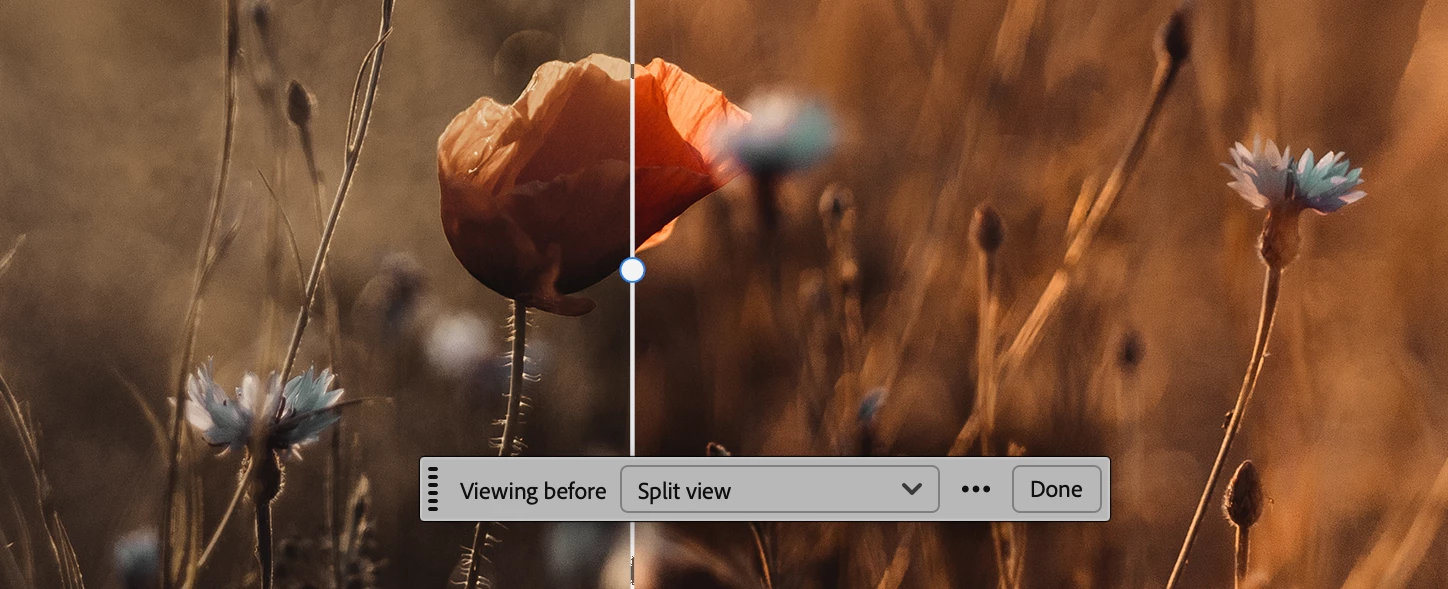
Quick Compare gives you a built-in view for toggling between your current edited state and the original — where "original" is how the file looked when you opened it this session.Enter the modal view and zoom, pan, and move freely to inspect exactly the details you care about. Use Single View to flip between states, or Split View to drag a slider and reveal the before/after in place.It's already resonating with how people work:"A simple way to demonstrate the before/after view — great for visualizing the changes from a technique I just taught." "I do a lot of rebuild work as a finisher for entertainment, and I have to make sure items don't jump too much. This would be SUPER helpful." "Perfect for deciding whether I've gone too far when iterating through adjustments and manipulations." Give it a test drive and tell us what you think — your feedback shapes where this goes next.
My workspace does not persist across exiting and relaunching the app. Palettes that were opened or arranged a specific way in my custom workspace upon exiting the app will appear closed or rearranged the next time the app is launched. I constantly have to go to “Workspace > Reset” in order to bring my custom space back to its appropriate order.
Buenas tardes, cuando intento abrir Photoshop beta versión 27,11 empieza la pantalla de inicio a abrirse pero se cierra y no se abre; en cambio el Photoshop versión 27.10 no beta se abre perfectamente.A que puede ser debido?Un saludo : Sergio
Con l'ultimo aggiornamento la rotondità del pennello va sempre a 0%.Ho provato rimettendola a 100% dal pannello “Impostazioni pennello”, ho provato a reinstallare photoshop beta, a cancellare la cartella dei settaggi, a pulire il registro di sistema, a disinstallare la tavoletta grafica. Quando clicco sull’icona del pennello per cambiarlo o cambiare la grandezza, la rotondità torna subito a 0%.Con una versione differente di photoshop il problema non si presenta.**This post has been moved by the administrator.
Remix with Firefly Community Gallery
Thousands of free creations to fall in love with and remix in Firefly.
Already have an account? Login
Enter your E-mail address. We'll send you an e-mail with instructions to reset your password.