



















Master Photoshop with the help of our global community.
Recently active
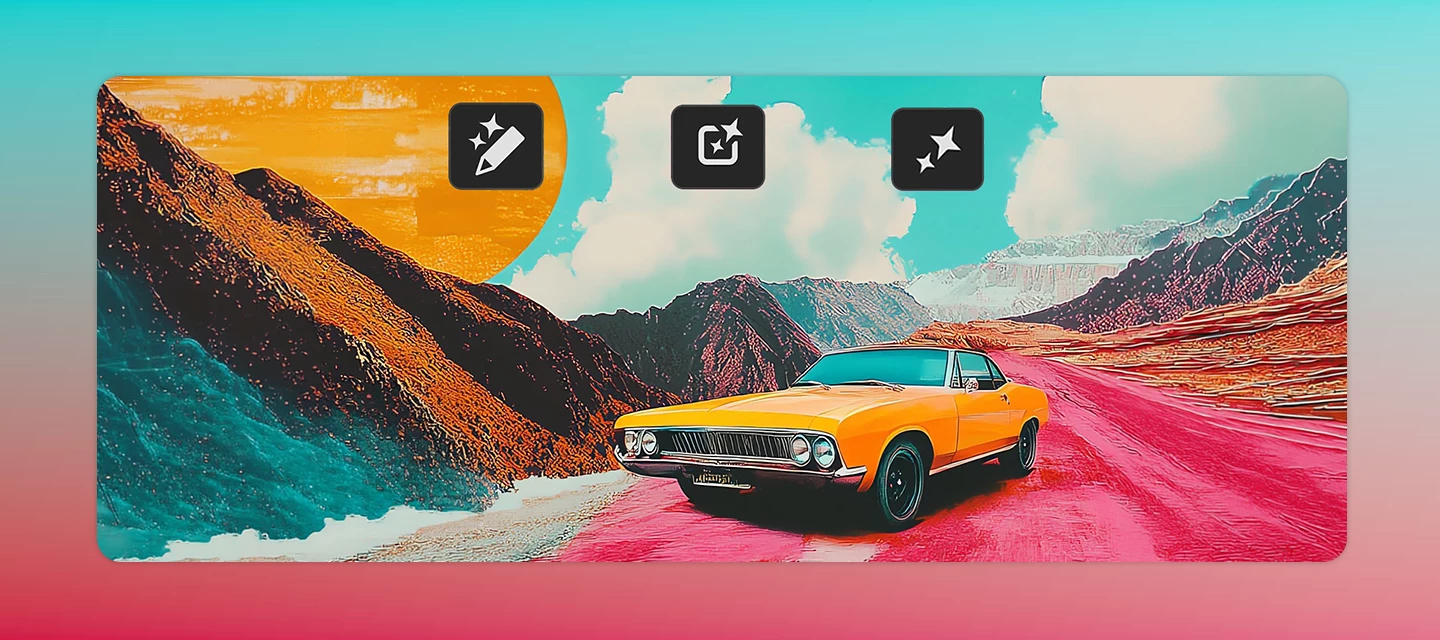
What’s NewPhotoshop 27.10 introduces powerful new ways to edit and create with AI while giving you more control over your workflow. You can now fine-tune image lighting non-destructively with the new Light adjustment layer, making it easier to adjust exposure, contrast, highlights, shadows, and more without permanently changing your original image.This release also brings the AI Assisted editor (Beta) directly into Photoshop, giving you access to Firefly-powered creative tools from within your editing workflow. New AI capabilities include Prompt to Edit, which lets you make image changes using natural language, and Markup, which enables you to guide AI generation and editing with visual annotations. For more precise AI-powered editing, you can now use masks and selections to control exactly where generative edits are applied. Text workflows are also improved with Dynamic Text for shapes and paths, allowing text to reflow and resize as you adjust shapes and paths automatically. Addition
You asked, we listened, and we're excited to share that one of the community's long-standing feature request is now available in Photoshop 27.10. For years, many of you have asked for more control over the file formats shown in the Save As and Save a Copy dialogs, including the ability to hide formats you don't use and create a cleaner, more streamlined saving experience. Today, we're happy to say: it's here! What's new? You can now customize the file formats displayed in the Save As and Save a Copy dialogs. Simply go to: Edit > Customize Save Dialog File Formats From there, you can: Enable or disable file formats Move formats you don't need to the Disabled File Formats column Restore the default list at any time Whether you're a photographer who primarily exports JPEGs and TIFFs, or a designer working mostly with PSDs and PNGs, you can now tailor the save experience to match your workflow. Why you'll love it No more scrolling through long lists of formats you never use. Thi
Help us shape this community: What content do you want to see? Whether you're a longtime community member or just found this space, your input will directly shape what we publish here. We want this to be a place you return to, not just when something breaks, but when you want to learn, get inspired, or connect with other creatives. What we’re considering:🚀 Feature Highlights: What’s new in Photoshop, explained with real workflows.📖 How-to Guides: Step-by-step tutorials for common tasks, errors, and workflows.💬 Community Discussions: Polls, questions, and conversations about how you work.🌟 Community Highlights: Spotlighting community members, standout work, and creative journeys. We’d love to hear your thoughts:What type of content do you find most useful when you visit this forum? Is there a Photoshop topic you keep looking up but never find a great answer for here? Would you want to share your own creative workflow or be featured in a community highlight? What kind of projects wou
How to Report a Bug in the Adobe App Community Run into something that’s not working the way it should in Photoshop? Let’s tackle it together. When you share bugs in the Adobe Community, you’re helping product teams see what’s really happening, recreate the issue, and fix things faster. Think of this guide as your sidekick—it’ll walk you through creating a clear, helpful bug report, no technical expertise needed. Before you startBefore jumping in with a new bug report, take a quick look around the community to see if someone’s already spotted the same issue. If you find a matching post, add your vote and feel free to add your experience there instead of starting from scratch. It keeps everything in one place and helps the team connect the dots and solve things faster. Note: Any duplicate posts will be merged into a primary post that you can follow for updates on the issue. What makes a good bug report?A great bug report tells the full story it explains what happened, what you expected
Problem Description:Problem Description: While actively working in Photoshop, an empty, translucent white modal window suddenly appears over the workspace, completely blocking the application. The program interface becomes unresponsive: the top menu items become inactive (grayed out), interaction with the canvas stops, and standard keyboard shortcuts (such as Ctrl + S to save) are ignored. Any mouse clicks on the canvas or menu items are accompanied by the standard Windows system error sound. The issue may be directly related to the background JavaScript Runtime process (node.exe), running within Photoshop. Attempting to terminate node.exe using the standard Windows Task Manager method is blocked by the operating system. The only way to temporarily restore access to the interface is to force-quit the process via the command line. After force-quitting node.exe, Photoshop displays a delayed error message: "There was a problem with Generator. Please close Photoshop and try again..." Desp
After 27.8.2026 updates I face randomly several errors in Photoshop, Camera Raw and Lightroom. Freesing, closing, not exporting, memory issues. Anyone else? All those worked perfectly till the update. In Task Manager everything looks like before.
Thanks to all who took part in our last, ‘Holy Island’, challenge. There were some great entries that showed the imagination and skill of this community.The regulars in these challenges will know that sometimes we start with a scene and sometimes an object. This week we have two starter images, the first with a magnifying glass and a paper. The second is the same magnifying glass but with a transparent background. You can use either, or both, to start your entry. The scene was created and rendered in Blender 3D with Adobe Substance 3D Designer and Adobe Substance 3D Painter used for textures.How imaginative can you get with this simple scene, or object?The “rules”:Use the starter image as at least part of your own image entry. Anything goes, as long as it meets the forum rules on decency, copyright, etc. Anyone, and everyone, is welcome to have a go, whether you are a complete beginner or a Photoshop expert. This is not just for our forum “regulars”. The challenge is not limited to Pho
Adobe has made its new Light Adjustment very good, which is truly commendable, but it does not include a Brightness option... We still have to go to the Legacy mode for the Brightness option, which is not really right... The Brightness option should also have been added to this same Light Adjustment. When there are already so many options, having one more option would not have caused any problem... Yes, it is a different matter that we can achieve the same level of tuning using Exposure or the other options, but the Brightness option has been deeply familiar to us for many years and has become a part of our workflow... It should have been kept here as well, even if it was placed at the bottom... We still have to go to Legacy mode for it, and why should we have to go there when it could simply be available in this same adjustment? Please add it if possible.
After the latest update, the new "AI Assistant" / "Pro Editor" elements added to the Options Bar take up too much horizontal space. On standard Full HD (1920x1080) resolution, this pushes essential tool controls completely off-screen (notably the Commit/Confirm ✓ and Cancel ⃠ buttons during Free Transform, Crop, and Warp modes).Steps to reproduce: Use Photoshop on a standard 1080p display. Select any layer and enter Free Transform (Ctrl + T) or select the Crop Tool (C). Look at the right side of the Options Bar. Expected result: The Commit and Cancel buttons should fit cleanly on the Options Bar.Actual result: The bar overflows and the buttons are cut off / hidden.
as described in the title bar RegardGert Laursen
Photoshop and other applications from my plan cannot find an internet connection. They cannot be verified and give an error, first 12015 and then 102. After that, the application closes. The Internet is available, the subscription is paid. I have a windows 11 64x
I’m just editing the artboard normally, but the colors keep changing on their own.This happened after I updated to the new version 27.10.0.For the full details, please watch the attached video.
My keyboard shortcuts are not working in Photoshop at all.Regular typing works normally inside text fields, but none of the shortcuts respond (for example: V, B, Ctrl+T, Ctrl+C, Ctrl+Z, etc.).I have already tried the following troubleshooting steps: Reset Photoshop preferences using Ctrl + Alt + Shift on launch Verified that Keyboard Shortcuts are set to Default Switched keyboard language to English Restarted Photoshop and the computer multiple times Checked that I am not inside a text layer Reset tools inside Photoshop Disabled background applications that may interfere with shortcuts Updated Photoshop to the latest version Despite all of this, the keyboard shortcuts still do not work only inside Photoshop.The keyboard works perfectly in other applications.Is there any deeper fix related to system conflicts, drivers, or Photoshop configuration files that I may be missing?
Note: I am working on an Imac Intel 2020, Mac OS Sequoia 15.7.9. with 32GB RAM. I am working in Photoshop v 27.9.1. Have had NO problems running Photoshop……….until NOW! Attempted to use Spin Blur (Filter > Blur Gallery > Spin Blur). Check “Spin Blur”. NOTHING APPEARS! In control panel Tabs underneath show: Effects - Motion Effects - Noise. (A) When selecting “Effects”, there is the following message: “Available for only Field Blur” (B) Selecting “Motion Effect”, shows message: “Available only for Path Blue and Spin Blure”. (C) Selecting “Noise”/Gaussian produces no effect. At no time, under any circumstances does the Spin Blur ‘Control wheel’ (not sure WHAT Adobe calls this gizmo) appear. Things I tried and/or considered: (1) - Reset Blur Gallery - NO help! (2) - 8-bit vs 16-bit - NO help! (3) Smart Object (Layer) vs Raster (Layer) - NO help! Closed PS and re-launched - NO help! (4) - UN-checked “Use Graphic Processor” - NO help! I am at my wits end!!! “””SOMETHING””
Since version 27.4 and continuing in 27.5 I’ve been experiencing image flickering when using the Curves adjustment. In version 27.4, the issue occurs in all Curves use cases. In 27.5, it appears primarily when applying Curves as a Smart Adjustment on a Smart Object. It is slightly improved, but still noticeable when using Curves as a standard adjustment layer.I’ve attached a video demonstrating the issue: The first example shows Curves applied as a Smart Adjustment on a Smart Object (strong flickering). The second shows a direct adjustment on a non-Smart Object layer (no issue). The third shows a standard adjustment layer (minor flickering still visible). The flickering is clearly visible, especially in the first case.Please look into this issue, as it makes precise adjustments very difficult.Thank you.example video:https://youtu.be/jbe6K-ORr44
Hello Adobe Support, I have a colour display issue between Lightroom and Photoshop on Win 11. When I send a photo from Lightroom to Photoshop for editing, the colours in Photoshop appear much more saturated than in Lightroom. This only happens when “Use Graphics Processor” is enabled in Photoshop.If I disable the Graphics Processor in Photoshop, the colours in Lightroom and Photoshop match correctly.I am using the latest versions of Lightroom and Photoshop, as well as the latest NVIDIA driver for my GeForce RTX 4080.Could you please advise what may be causing this and how I can use GPU acceleration without the colour shift?Thank you.
Je ne voudrais pas que ça le demande le code de validation
When I click on “Open in Photoshop 2026...”, Photoshop opens, but doesn’t open the Lightroom edited image. I confirmed “Full Disk Access” permissions in System Settings.I uninstalled both programs and reinstalled. I reverted back to Photoshop 27.9.1 and the issue went away.
(Shapes and lines similar to these)
I was working as usual for a couple of hours until I saw that there was a Photoshop update. I updated it and continued working, but immediately after the update, I started noticing the program flickering—sometimes it’s black, other times white. It happens constantly and only in Photoshop, so it’s pretty obvious that it’s a bug in the update.
I’m trying to get the white background removed from this image of the American flag image. But, obviously, I want to keep the white in the stripes. Is there a quick and easy way to to that? I have been trying different tools, but I can’t seem to isolate the background without also selecting the stripes.
Working with latest version of PS for the PC. Used Bridge to open jpgs in PS then tried to automate PDF presentation and initially got a PDF with nothing in it. Tried again and got a series of error messages 1) unable to open file for writing. It may be locked or unavailablefollowed by2) Cannot complete your request because of program errorfollowed by 3)PDF presentaiton could not be created. This happened irrespective of whether I used bridge to open the jpgs in PS or I did it through PS
I loaded eight photos into photoshop File > Scripts > Load Files into Stack.I then selected all eight layers followed by Edit > Auto Align layersAnd followed that by Edit > Auto Blend Layers (Stack images)A focus stacked image was created as expected. However, I wasn’t pleased with one portion of the image and intended to blend it manually. I started toggling all images off and deactivating masks to find the portion of the image I wanted to use. I then selected that image, duplicated it, deleted its layer mask (when asked to apply or delete mask, I chose delete) and drug it to the top of the layer stack. The result was if the layer mask was still applied to the duplicated image. I witnessed a very patchwork, jigsaw puzzle looking display.
Hi everyone,I’m experiencing a recurring issue where Photoshop 2026 (Windows) consistently crashes about 5 minutes after launching. The app starts normally, I can begin working, but then it either freezes or closes unexpectedly.I checked the logs and found several repeated errors that seem related to Adobe services rather than a direct Photoshop crash. The most frequent messages include:“User Signed Out” “There is no valid user profile to get an access token” “Error fetching IMS access token” “CCXProcess timed out” “Failed to get data from CCXProcess” “Unable to find user in api.json”I have also attached two log files for reference in case they help identify the issue more precisely.What I have already tried:Clearing cache Clearing preferences Checking for updates of my GPUThe issue still persists. Any help would be greatly appreciated.Thank you in advance.
The title says it all. The latest Photoshop update, 27.10, has a visual bug when adding a second image to the layers.Now I only have the "Enter" key or the "OK" button at the bottom of the screen to do the same thing. It's a bit inconvenient because I like using the button at the top. Incidentally, the distortion modification button is no longer visible either. And when I use the eraser tool, the confirmation buttons disappear as well. It's impossible to confirm in that area.I think this is a code issue related to the responsive effect after adding the two new buttons "AI Assisted" and "Pro Editor", which shifts everything to the right and thus hides the validation or cancel buttons in image editing mode via certain tools.
Remix with Firefly Community Gallery
Thousands of free creations to fall in love with and remix in Firefly.
Already have an account? Login
No account yet? Create an account
Enter your E-mail address. We'll send you an e-mail with instructions to reset your password.