




















Design the future of fashion, win Firefly Pro 👗✨
Master Photoshop with the help of our global community.
Recently active
A big thank you to everyone who took part in our last ‘Off the cuff’ challenge. Also thanks for your patience in waiting for the new challenge, whilst the image upload functionality was restored.The SFTW challenges last two weeks and this one covers Halloween. I couldn’t let that pass without having a bit of fun. I rendered this scene in Blender 3D using models from Adobe 3D Assets which I textured in Adobe Substance Painter. After rendering I finished the image in Photoshop. So we have a haunted house. What will you produce with it, to fit this week’s scary theme.The “rules”:Use the starter image as at least part of your own image entry. Anything goes, as long as it meets the forum rules on decency, copyright, etc. Anyone, and everyone, is welcome to have a go, whether you are a complete beginner or a Photoshop expert. This is not just for our forum “regulars”. The challenge is not limited to Photoshop. Any Adobe software can be used. There are no prizes apart from the chance to prac
This amazed the heck out of me, so I have to share. My wife is President of a local Garden Club and asked me to help create a poster for an event. Because she has never used Generative AI, she was not encumbered with thoughts that limited what you might reasonably ask of it, so she gave me this completely (I thought) OTT prompt to paste in its entirety into the Prompt to Edit text field:Create a premium A4 Christmas Lunch invitation for the Awatere Garden Club. Surround the entire invitation with a lush, realistic floral border dominated by bright red New Zealand pōhutukawa flowers, silver fern fronds, kawakawa leaves, mānuka foliage, native greenery and a few hydrangeas and roses. The border should be abundant and elegant with no empty corners. Add subtle gardening elements at the bottom including a vintage watering can, garden trowel and gardening gloves. Centre panel in warm cream parchment with sophisticated typography in deep green and Christmas red. High-quality print-ready de
The September 2026 release of Photoshop 27.11 introduces new AI-powered capabilities designed to help you work faster and achieve more professional results. With Enhance Edge, you can create cleaner, more natural-looking selections by refining object edges and reducing unwanted background color fringing. This release also brings GPT Image 2 directly into Photoshop, allowing you to generate entirely new images and make precise edits using natural language prompts, all without leaving your creative workflow.Click here for more details. Bug fixes – Thanks to you!Canvas Size dialog did not retain the previously used units. Image > Apply Image preview did not work with the modern UI enabled and GPU disabled. Setting the default unit to inches in Preferences > Units was ignored by Canvas Size. New Guide dialog did not recognize the unit set in Preferences. Edit > Stroke used the previously selected color instead of the newly chosen color on the first attempt. Opacity changed when u
Hello everyone, It’s time to reserve your spot at Adobe MAX - The Creativity Conference, taking place at the Miami Beach Convention Center. Get ready for what’s next - with three days of creative skill-building, visionary keynotes, and valuable connections. Featured Speakers - Big ideas, inspired voicesWho You’ll MeetIf you found this announcement helpful, click 👍 Like. Use ⭐ Subscribe to stay informed about future updates. You may also share this post with others who might want to stay updated on MAX.
Turn creative ideas into editable image transformations using AI. With Prompt to edit, you can describe changes using natural language and generate image-wide edits in seconds. Use Markup and Marks to guide the AI toward specific areas of an image, add instructions, or indicate where new elements should appear. How This Workflow Works Start by generating an image edit using a text prompt. If needed, use markup tools to indicate specific areas and describe the changes you want. Step-by-Step Guide 1. Open an image Select File > Open and choose the image you want to edit. 2. Generate an edit with Prompt to edit Select a pixel layer or generative layer containing the image. If you're working with a generative layer, make sure the entire image is selected. Select Prompt to edit from the Contextual Task Bar, or choose Edit > Prompt to Edit. Enter a prompt describing the changes you'd like to make across the image. Sample prompts: Change the lighting to a warm sunset tone. Improve
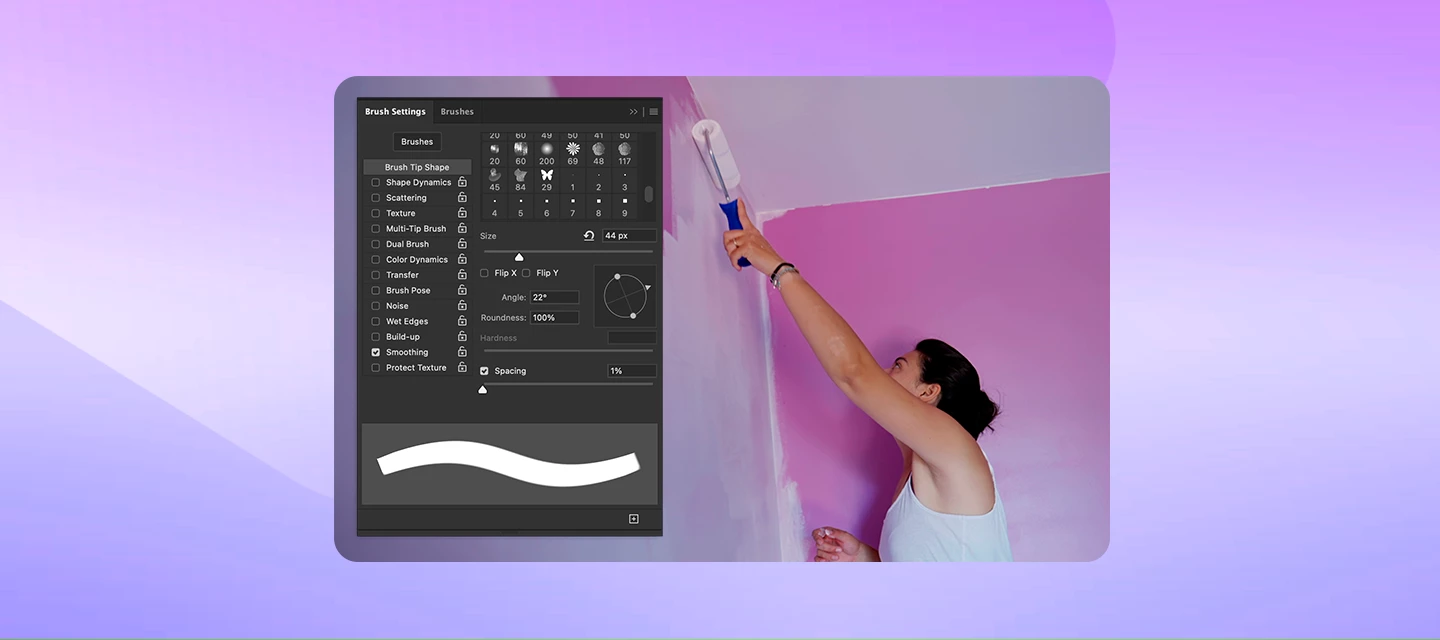
Ever Feel Like You’ve Painted Yourself Into a Corner? Sometimes in Photoshop, the shape of your brush makes a simple cleanup harder than it needs to be. A round tip is useful for curved edges and soft transitions, but its curved outline can leave a gap where two straight edges meet.A square brush gives you straight sides and defined corners that you can align with your subject. In this guide, we’ll find a square brush, rotate its tip, draw straight strokes, and combine it with layer masks and selections for precise cleanup.Note: A square tip fits a right-angle corner when it is aligned correctly. For an acute angle or an irregular edge, use a smaller tip and a selection to protect the surrounding area Get the BrushStart with a simple square tip in Photoshop on desktop. Use a temporary empty pixel layer to test the brush before working on your image or mask.Select the Brush Tool in the Tools panel, or press B. If another tool in that group is active, choose Brush Tool from the group. Ch
What if editing an image felt more like having a conversation than learning complex tools?The new AI-assisted editor (Beta) in Photoshop 27.10 introduces a streamlined, AI-powered editing experience designed to help users create and refine images using natural language prompts.Whether you're new to Photoshop or looking for a faster way to make quick edits, AI Assisted Editor (Beta) simplifies the creative process without sacrificing flexibility. Turn Ideas Into Edits, Instantly Instead of navigating multiple panels and settings, simply describe what you want to change. AI Assisted Editor (Beta) interprets your prompt and helps you achieve the result using built-in AI capabilities.With tools like: Prompt for natural language image editing Markup to visually indicate areas you want to modify Fill to add or replace content Remove to eliminate unwanted elements Crop and Expand to extend compositions beyond their original boundaries Upscale to improve image resolution Remove Backgroun
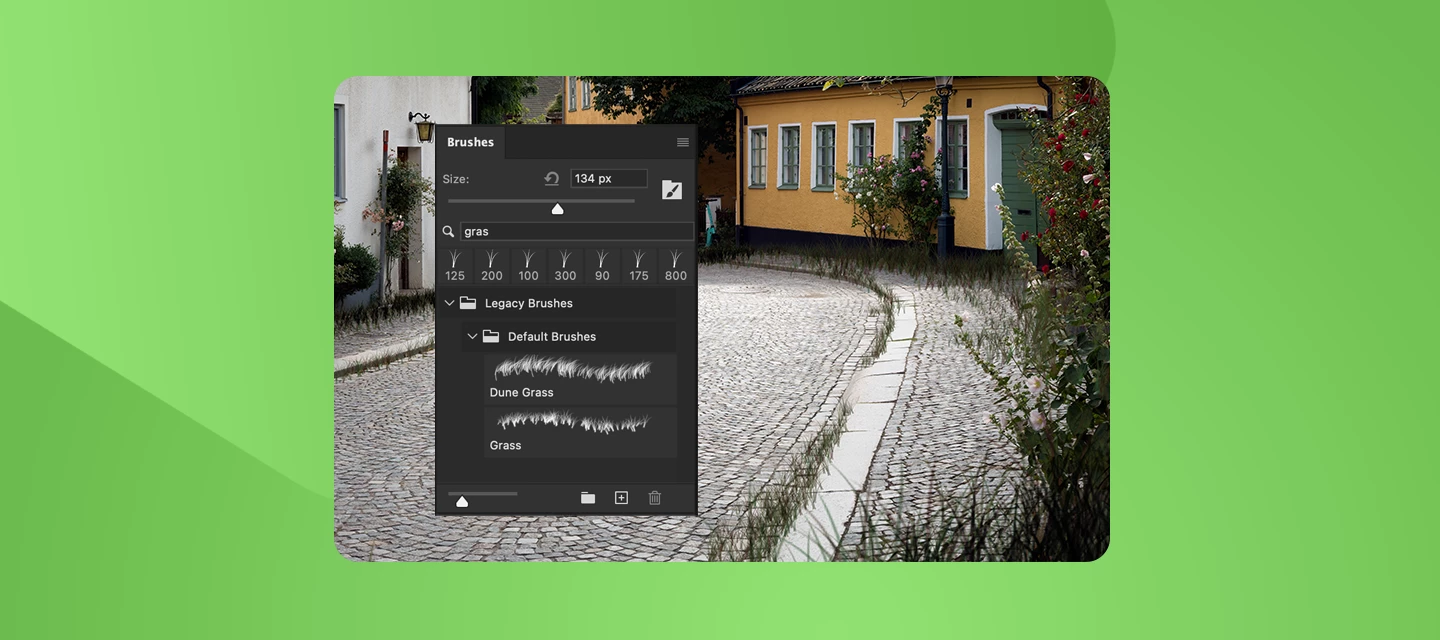
Let’s Create Some Grass Brush Details Using Adobe Photoshop!The Grass brush in Photoshop can be used to effectively add grass details to a composition in a randomized - yet controlled - way. We'll discover how to access the Grass brush - which can be a major stumbling block for designers unfamiliar with this brush. We'll also examine the peculiar features of this brush through an examination of Brush Settings. Finally, we'll go ahead and use the Grass brush to add details to a photographic composition to make the scene appear to be more overgrown and unkempt. How to Create this Detail in Photoshop: Loading the Legacy Brushes CollectionThe first item that needs to be addressed is the location of the Grass brush. If you are looking for it within your pre-installed brush collections… you likely will have a hard time finding it - as it is considered a Legacy Brush and that collection of brushes must be loaded first, before you can access the brush.In Photoshop, select the Brush tool and o
Ever wish you could change the mood, season, lighting, or even the action in a photo without diving into layers, masks, and complex edits? With Prompt to Edit in Adobe Photoshop, you can make powerful image-wide changes using simple natural language. Just tell Photoshop what you want to see, and AI helps bring it to life. What Is Prompt to Edit? Prompt to Edit lets you transform an entire image using a text prompt. Instead of manually adjusting multiple settings, you can describe the result you're after, and Photoshop generates variations for you to review and apply. Whether you're enhancing an existing photo or experimenting with creative concepts, Prompt to Edit makes image transformation faster and more intuitive. What Can You Do With It? Here are a few ways creators are already using Prompt to Edit: Change the atmosphere "Change the lighting to a warm sunset tone." "Create a cinematic evening mood." Transform the environment "Change the season to rainy, add rainfall and pudd
You asked, we listened, and we're excited to share that one of the community's long-standing feature request is now available in Photoshop 27.10. For years, many of you have asked for more control over the file formats shown in the Save As and Save a Copy dialogs, including the ability to hide formats you don't use and create a cleaner, more streamlined saving experience. Today, we're happy to say: it's here! What's new? You can now customize the file formats displayed in the Save As and Save a Copy dialogs. Simply go to: Edit > Customize Save Dialog File Formats From there, you can: Enable or disable file formats Move formats you don't need to the Disabled File Formats column Restore the default list at any time Whether you're a photographer who primarily exports JPEGs and TIFFs, or a designer working mostly with PSDs and PNGs, you can now tailor the save experience to match your workflow. Why you'll love it No more scrolling through long lists of formats you never use. Thi
Help us shape this community: What content do you want to see? Whether you're a longtime community member or just found this space, your input will directly shape what we publish here. We want this to be a place you return to, not just when something breaks, but when you want to learn, get inspired, or connect with other creatives. What we’re considering:🚀 Feature Highlights: What’s new in Photoshop, explained with real workflows.📖 How-to Guides: Step-by-step tutorials for common tasks, errors, and workflows.💬 Community Discussions: Polls, questions, and conversations about how you work.🌟 Community Highlights: Spotlighting community members, standout work, and creative journeys. We’d love to hear your thoughts:What type of content do you find most useful when you visit this forum? Is there a Photoshop topic you keep looking up but never find a great answer for here? Would you want to share your own creative workflow or be featured in a community highlight? What kind of projects wou
How to Report a Bug in the Adobe App Community Run into something that’s not working the way it should in Photoshop? Let’s tackle it together. When you share bugs in the Adobe Community, you’re helping product teams see what’s really happening, recreate the issue, and fix things faster. Think of this guide as your sidekick—it’ll walk you through creating a clear, helpful bug report, no technical expertise needed. Before you startBefore jumping in with a new bug report, take a quick look around the community to see if someone’s already spotted the same issue. If you find a matching post, add your vote and feel free to add your experience there instead of starting from scratch. It keeps everything in one place and helps the team connect the dots and solve things faster. Note: Any duplicate posts will be merged into a primary post that you can follow for updates on the issue. What makes a good bug report?A great bug report tells the full story it explains what happened, what you expected
wenn ich - z.B. ein Stacking” aus 4 Fotos in Photoshop “automatisch überblenden” will, und aus Lightroom heraus die 4 Fotos mit dem Auftrag “ in Photoshop als Ebenen öffnen” an Photoshop übergebe , öffnet sich Photoshop aber das ist es dann, die Fotos werden nicht geladen, Photoshop reagiert nicht mehr (auch nach 10 Minuten nicht) und lässt sich nur noch über den Taskmanager beenden! das passiert sowohl in der PS Version 27.10 und auch in 27.11. ich bin wieder auf Version 27.9,1 zurück gegangen, da funktioniert die Übergabe und das Laden problemlos!ich arbeite mit Win 11 Home 25H2, Lightroom Classic 15.6 und PS 27.9.1
When I hold down Command (⌘) and click the document filename in the title bar, the folder hierarchy menu no longer appears in Photoshop or Illustrator.This feature still works normally in other apps, such as Preview, where I can see the file’s location and open its containing folder.Has anyone else experienced this? Is there a setting or a fix to restore this functionality?
Hello, for some reason my shortcuts in photoshop are not working on my laptop. For all the other Adobe apps its fine, also if i work on my home desktop I have no issues. I have already scoured this forum for a solution but have yet to find one. Any tips are highly appreciated.
I am trying to batch save hundreds of PDF files as JPG. I created an action where I open a PDF file, and save as JPG, then close the PDF file without saving it. Simple. But when I run the automation it opens the PDF, never saves the JPG, then doesn’t close the PDF. There is apparently no way to batch close hundreds of files in PS, so I have to force quit. If I look at the action, there’s clearly a Open, Save and Close function. Using the “Save As dialogue in the automation window doesn’t change anything. Same thing. PS opens the PDF, starts batch opening all 300 images, then does nothing. How can I accomplish this seemingly simple task?
Ich kann seid kurzem keine Datei (Bild) von Adobe LR nach Adobe PS zum bearbeiten verschieben.Die Datei ( Bild ) hängt sich in Adobe LR auf.
Hi. This is happening too often to be a coincidence and I’m not sure if this is a Photoshop issue or a Microsoft Word issue. But what seems to happen from time to time, only on one of the computers I use for work, is that when I open a Word document off a network drive and make a text selection and copy, Photoshop and (and not any other Adobe app) and Word becomes unresponsive. None of the programs ever crash, they just seem to hang endlessly. Only when I force-close Word does Photoshop become responsive again.I’m not sure what can consistently cause it, but when it does happen, it makes it very difficult to work with because I’m copying and pasting often and it actively stops me from doing that. This has happened on and off for months.Here is some basic system info:Adobe Photoshop Version: 27.11.0 20260929.r.26 8c16e56 x64 (final, Release)Number of Launches: 163Operating System: Windows 11 64-bitVersion: 11 or greater 10.0.26100.9711System architecture: Intel CPU Family:6, Model:5, S
It’s all in the title.Ever since this popup appeared, the brush tool has become very slow. When I make a brush stroke, the visible line lags by at least one second.However, I have the subscription until the end of November.I’ve attached a video that shows the issue. This bug is truly unbearable; I’ve never encountered anything like this in any of the versions of Photoshop I’ve used.
Thanks for the excellent images put forward in our Halloween ‘Haunted’ challenge. Well done to everyone who took part.There is an old song which started ‘You need hands...’ So, this week we have a set of hands. These three tiny hands are from a wristwatch, and were photographed through a microscope. I am sure you will be able to think of a new use for them, and show us what that is. The “rules”:Use the starter image as at least part of your own image entry. Anything goes, as long as it meets the forum rules on decency, copyright, etc. Anyone, and everyone, is welcome to have a go, whether you are a complete beginner or a Photoshop expert. This is not just for our forum “regulars”. The challenge is not limited to Photoshop. Any Adobe software can be used. There are no prizes apart from the chance to practice, show off your skills, or bring a bit of humor and fun. Don't be shy, join in and have a go! The starter image is made available for you to use in this forum challenge only.To down
O Filtro neural Desfoque de profundidade não esta funcionando, ao usar o efeito nenhuma mensagem de erro aparece e nenhum efeito é aplicado Photoshop 27.11.0
I recently installed in my new computer photoshop. I have used it in the past in many previous versions. I used to save as with layers, or as a flat copy and others without photoshop could see the PDFs. I can no longer do that. Is this a Photoshop settings issue, bug or it was changed to no longer export or make PDFs that can be seen elsewhere but in Photoshop?
Hey everyone,Up until recently, I was using Photoshop 27.8 (Mac 26.5.1) and everything worked perfectly fine.The newer Generative Fill and Expand model produces textures that are way too smooth. I’d even call them blurry. And yes, I’m aware of the 1024×1024 px limitation, but this happens even with 100×100 px selection.Because of that, I’ve been using the old Firefly 1 model from 2023, which, unlike the newer model, works really well for my use case. It handles textures amazingly well. I mainly use it for removing distractions: I select the unwanted object, leave the prompt empty, hit Generate, and Firefly 1 understands perfectly well that the selected area should be removed.However, something seems to have changed starting with version 27.9.If I leave the prompt empty now, Firefly 1 starts generating completely random objects instead of simply filling/removing the selected area. For example, I had a white T-shirt with some red text on it that I wanted to remove. I selected the text, l
EnvironmentPhotoshop 27.8.0 macOS 26.5.1 Apple Silicon (MacBook Pro M5 Pro)Issue 1 – Incorrect preview in Save for Web and Export AsSteps to reproduceOpen an image in either Adobe RGB or sRGB. Open File → Export → Save for Web (Legacy) or File → Export → Export As.ExpectedThe export preview should match the image displayed in the main Photoshop window.ActualBoth Save for Web and Export As display a significantly oversaturated preview. The preview does not match the document displayed in Photoshop.For Export As, the exported JPEG is nevertheless correct and opens with the expected colors.Issue 2 – Save for Web JPEG reopens as Missing ProfileSteps to reproduceOpen an Adobe RGB image. Convert it to sRGB IEC61966-2.1 using Edit → Convert to Profile. Export using Save for Web (Legacy) with Convert to sRGB and Embed Color Profile enabled. Reopen the exported JPEG in Photoshop.ExpectedThe JPEG should reopen with the embedded sRGB profile.ActualPhotoshop displays:The document does not have an
Remix with Firefly Community Gallery
Thousands of free creations to fall in love with and remix in Firefly.
Already have an account? Login
Enter your E-mail address. We'll send you an e-mail with instructions to reset your password.