













Design the future of fashion, win Firefly Pro 👗✨
Photoshop (Beta)
Recently active
Hello, it's been 24 hours now that I can't work with adobe photoshop beta with artificial intelligence (AI) I keep getting this message: We're experiencing high demand, please try again later... I try every hour but nothing works. I downloaded the app yesterday for info and I can't enjoy the tool. Sorry for my writing, I'm french THANKS
After newest update to Photoshop Beta 27.9 I tried opening an image from Camera Raw and it opens completely flat and desaturated. Not how it looks in Bridge or Camera Raw at all making it impossible to work with. Please look into this. Attached are screenshots of what I’m talking about.
* AI Assistant panel shows document as empty when all layers are inside artboards — no layer outside artboards triggers no state sync.* AI Assistant state_info reports artboard bounds as dynamic content bounds rather than the fixed artboard frame dimensions. This makes it impossible to reliably calculate layer centering within artboards, as the reported bounds shift when child layers are moved. Artboards should report their fixed frame rect (equivalent to `artboard.artboardRect` in JSX), not the bounding box of their contents.* The 'Copy' button in the AI Assistant chat panel does not copy the full response. Content above a certain threshold is silently truncated, with copying starting mid-response rather than from the beginning. Users cannot reliably extract long responses such as code blocks or multi-section answers.* AI Assistant cannot execute Photoshop's native align commands (`ADSCentersH`/`ADSCentersV`, align to artboard/canvas). The only available repositioning tool is `move_la
In Photoshop BETA the on device remove tool is not using GPU, and although it starts using vRAM it than start using RAM and CPU for a long time.It does "work”, no errors, but can take minutes.Using Photoshop on same PC same picture it works great, faster as cloud.is this something in the configuration, or reload / reinit required to repair ?
In 27.10.0, when opening a file (rgb, 32 bit), if I Select all and then go to Edit/Generative fill, it is grayed out. It works fine in regular Photoshop. I've tried several images (black and white and color), and they all have the same problem. Generative fill is grayed out.
Photoshop version: Photoshop Beta 27.10OS: macOS Tahoe 26.5Steps to reproduceLaunch Photoshop Beta 27.10. Open an existing TIFF file. The image appears heavily overexposed on open, despite the file displaying correctly in the regular release of Photoshop.Expected result:TIFF files should open with the correct exposure and match how they render in the regular version of Photoshop.Actual result:Some TIFF files open with a severely overexposed preview in Photoshop Beta. The image data itself is unchanged—only the rendering in Beta is incorrect.Additional information:The issue began immediately after updating to Photoshop Beta 27.10. I've been working with the new Light Adjustment layer recently, so it's possible there's a connection, although I haven't been able to verify that.
Brightness is blown out in PS Beta...Fine everywhere else.
Die Dateien aus der Cloud-Speicherung können nicht geladen werden.
A PSD Document I created in PS Beta suddenly displays all faded when opened in Pgotoshop Beta but still displays correctly in the regualr PS26PS Beta is 27.10.0 releasePS26 is 27.8.0 releaseScreenshots attached:Top: PS26, Bottom PS Beta
This month's update brings on-device removal powered by a downloadable AI model, the Remove Tool's ability to detect signs, poles, and other distractions beyond people, Live Filter Layers for non-destructive filtering directly in the layer stack, and the ability to send documents straight to Firefly Boards. A broad set of generative AI, interface, and file handling bugs have also been resolved. Feature Updates & Additions On-Device Remove ToolYou can now download an AI model (approximately 4 GB) to run generative removals entirely on your device, with no internet connection required. Processing is faster, works offline, and is well suited for enterprise or restricted-network environments. On NVIDIA-equipped systems, the model now correctly uses GPU acceleration for optimal performance.General Distractors DetectionThe Remove Tool can now automatically detect and remove signs, poles, trash, and other unwanted objects, not just people and wires. One-click removal handles a broader ran
After updating my software to the most recent update, any photos pulled into photoshop appear in the workspace very light and with no contrast. It does appear correctly in the Navigator window and also in Camera Raw. My coworker who also updated is having the same issue, yet my boss who has not updated is not having this issue. I’ve attached a copy of the system report and a screenshot for reference.Adobe Photoshop Version: 27.9.0 20260711.m.3601 44aeec5 arm64 (beta, PublicBeta) Number of Launches: 121 Operating System: Mac OS 26.5.2 System architecture: Apple M1, NEON, DOTPROD, HybridCPU(4:4) Physical processor count: 8 Built-in memory: 16384 MB Free memory: 7535 MB Memory available to Photoshop: 13010 MB Memory used by Photoshop: 70 % Crash Handler: Adobe DCX Version: 9.22.0 SAM SDK Version: 15.1.5 ACPL.next Status: - SDK Version: 5.11.6 - Sync Engine Status: Reachable and compatible - Sync Engine Running: 4.0.0 - Min Sync Engine Required: 4.0.0 Live Edit Client SDK Version: v6.
I am experiencing a color management issue in Photoshop Beta 27.9.0 after the latest update.Since updating, images are displayed without the correct Color Proof preview by default. The images appear significantly too bright compared to the expected proofed view. I have to manually enable View → Proof Colors every time to get the correct color appearance.Interestingly, if I disable the Graphics Processor in Photoshop preferences, the behavior returns to normal and the correct proofing appearance is shown immediately, as it was before the update.System configuration:MacBook Pro M4 (2025) macOS 26.5.2 Photoshop Beta 27.9.0 Two Apple Studio Displays 27” (recent models) Display profile: Apple Display (P3-600 nits)Problem details:No changes were made to macOS display settings. No changes were made to Photoshop color settings or color profile settings. The issue occurs with standard RGB 8-bit images from different sources: iPhone photos Android phone photos Canon camera files The problem i
27.10.0 m.3610Edit > Generative Fill is greyed out when full canvas is selected (Ctrl A)I can use Generative Fill from the Contextual Toolbar with the same selection.If I contract the selection by even just 1 pixel (with Canvas Bounds checked) I can then use Edit > Generative Fill.The release version does not behave this way.I don’t think it is relevant, because the release version is working as expected, but I install Configurator Reloaded last night. Configurator Reloaded is there in both release and Beta versions. The F4 shortcut is custom btw.
Editing a saved file and the app stops responding then crashes
après transformation ce calque disparait de la liste des calques
tout est dit dans le résumé
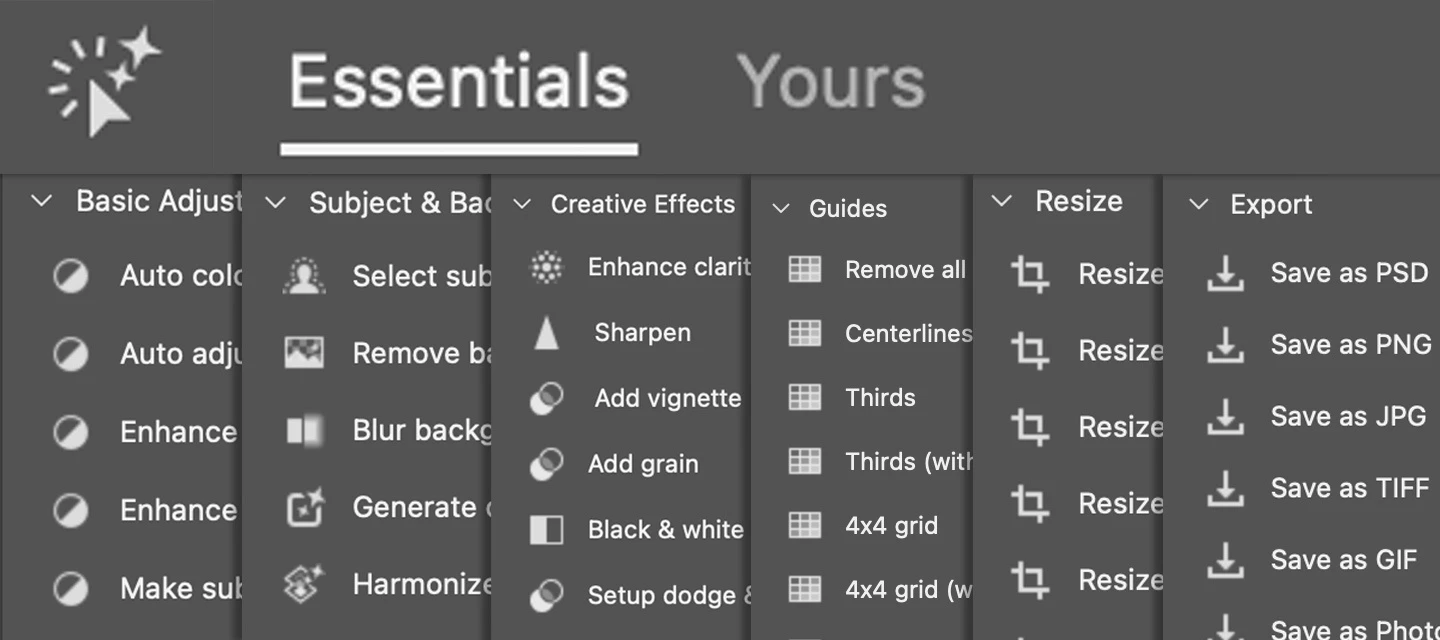
We are excited to announce the latest updates to the Actions panel which are now in Photoshop beta!As part of our continuous efforts to improve the Actions panel, we have introduced some changes to help streamline your editing workflows. 🆕 Introducing the Essentials tabWe're excited to unveil the rebranded "Essentials" tab (formerly known as the "Suggestions" tab). The new Essentials tab provides a new default set of categorized actions, created to help simplify common editing workflows from edit to export. Check it out!Go to Window > Actions. Browse through the Essentials set of actions and select the ones that fit your workflow. Essentials categories include: Basic Adjustments, Subject & Background, Creative Effects, Guides, Resize, and Export. Please try out the new Essential actions and share your feedback with us! Thank you!
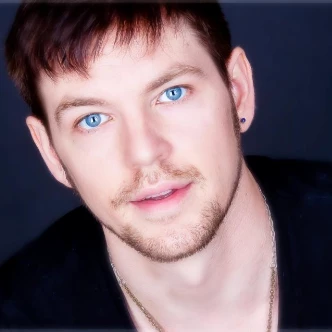
Hi All,I've tried dozens of ways to add new eyes to a male ballet dancer's face with generative fill and no matter what I try a message pops up telling me I am violating the guidelines. I'm at my wits end. I'll list what I've tried below and upload some images. Does anybody have a 'workaround' or solution I haven't already tried? I'd really appreciate any input! Thanks so much! Things I've Attempted to Stop Generative Fill from blocking Results:Updating Photoshop BetaCleaning all temporary files and cookies from my drive and restaring both my laptop and PSBetaMaking my selection area smallerPutting a period in the prompt boxBlacking out/covering almost all the bare skin in the image before using Gen FillUsing several prompt wordings: 'The eyes of the man' 'The eyes of the model' 'The model's eyes and eyebrows' Etc.Using 3 different reference imagesUsing no reference imageUsing a reference image and no promptUsing a prompt and no referen
Clone Stamp Tool brush preview disappears and turns into a mouse pointer on new layers (Windows Beta) It's both version 27.8 and 27.9. App version: Photoshop Beta (Windows)OS: WindowsIssue Description:When using the Clone Stamp Tool (S) on a newly created blank layer, the brush circle preview completely disappears and changes into a mouse pointer/arrow instead. This makes it impossible to see the brush size or the area I am sampling.Steps to reproduce:Create a new blank layer above the background layer. Select the Clone Stamp Tool and set Sample to "Current & Below" or "All Layers". Move the cursor over the canvas. The brush ring disappears and turns into a mouse cursor. What I have already tried (but did not work):Checked Caps Lock (It is turned off). Changed Layers Panel Options -> Thumbnail Content to "Entire Document". Closed and reopened the Layers Panel. Reset the Clone Stamp tool settings. The issue persists only in the Beta version when working on a new layer. Please hel
I use both 27.8.0 PS and the Beta 27.9 and have attempted to set the Beta as default for CR3 and several other file formats. It will not allow me to set it as the default and always returns to the non-beta version. I am doing this through the windows default app tools. The beta does not even display under the default applications and I have to use the link “Choose an app on your PC” to find the Beta. I make the selection, prompt for use as default and the update will not work.
ce serait mieux que ce soit fait sans “couture” visible
Adobe Photoshop Version: 27.5.0 20260316.m.3464 eb0251b x64 (beta, PublicBeta)Operating System: Windows 10 64-bitVersion: 10 10.0.19045.6466Hello,I am experiencing a bug when using the Spot Healing Brush, Remove Tool, and Healing Brush in Adobe Photoshop.The tools behave unpredictably and produce anomalies that are difficult to describe. They do not follow the cursor movement. Instead, they start from a completely different location and perform actions that do not match my input.Steps to reproduce:Select any of the mentioned tools (Spot Healing Brush, Remove Tool, Healing Brush)Start brushing over an areaObserve that the stroke does not follow the cursor and jumps to another locationExpected result:The tool should follow the cursor precisely and apply corrections where I paint.Actual result:The tool starts from a different location and applies unexpected, incorrect movements.one click does this here is a video file that shows the behavior of the bughttps://photos.app.goo.gl/PAWhb7fsrf
Hi , remove background not working new version kindly check please rectify the issue
I downloaded the latest version of Photoshop beta and it worked perfectly at first, but after a few edits if I use the camera raw filter and then revert the image to Photoshop the image is badly bleached out. I reverted and downloaded the previous version of Beta, which had worked perfectly before, but now the problem happens with that version as well! If anyone has an idea how to solve this problem I’d be very grateful.
Edit your whole image by describing the change, and now direct that edit two new ways: draw or add text on the canvas to guide your generation, or use a slider to view a generated result. Prompt to edit is a streamlined, whole-image editing experience in Photoshop desktop. Open it from Edit > Prompt to edit or the Contextual Task Bar, type what you want changed across the canvas, pick a model, and generate. Results come back as a new layer so you can compare with the original. This build adds two features that build on it. Prompt to edit feature on Contextual Taskbar (CTB) What's newMarkupShow the change instead of describing it. Draw directly on your image inside Prompt to Edit: select areas to recolor, add text annotations, or brush in rough shapes for size and position, then generate. Markup tools require a Gemini model (Nano Banana 2 or Nano Banana Pro) for this Beta release. Switch to another model and the tools disable, with a tooltip explaining why.Example Brush and Text Anno
Remix with Firefly Community Gallery
Thousands of free creations to fall in love with and remix in Firefly.
Already have an account? Login
Enter your E-mail address. We'll send you an e-mail with instructions to reset your password.