















Join the Acrobat Sign community. Connect, Help, Be helped.
Recently active
Sent a wrong file or to the wrong person for signing? Don’t worry. Learn how to change who signs, reset the expiration date, cancel an agreement, and set reminders. Accidentally sent an agreement to an incorrect e-mail address or want to change/replace the email of the current signer. Use this easy process to make changes. Log in to your Adobe Sign account directly via https://secure.echosign.com/public/login Click on the Manage tab. Select the agreement and then mouse over the current recipient. An information balloon expands to the left. Click the Replace Participant link. Provide the email for the new recipient and click Replace. If you prefer a more verbose explanation of the process, you can find the full Step-by-Step here! Review the same instructions for the classic Adobe Sign UI here Note: This action only replaces the current signer of the agreement. If you need to change a signer that is later in the process, wait until it is their t
TL;DRIn-Person Signing lets a designated host collect a legally binding signature face-to-face on a single shared device, with no email or printing required. It is now available in Acrobat Sign Solutions and Acrobat Sign for Government (not included with Acrobat Standard or Pro on its own). An admin turns it on once at the account or group level, then any sender can add the In-Person Signer role to an agreement. It works online or offline, and every step is captured in a secure audit trail. Printing, scanning and endless email exchanges shouldn’t stand in the way of the business just for a signature. With the improved In-Person Signing feature from Adobe Acrobat Sign, documents can now be signed instantly, making the process faster and more seamless than ever with any device.Whether you are closing a deal, onboarding a client or finalising contracts, In-Person Signing helps keep business moving without interruptions.Less paperwork. Fewer steps. Better Signing Experience. ✍️ What is I
At Adobe, we are committed to empowering users with tools that make document workflows more flexible, efficient, and tailored to their needs. With the introduction of Dynamic Participation, Acrobat Sign unlocked additional control over agreements — both before and after they've been sent for signature. This feature is designed to adapt to evolving business requirements, ensuring seamless collaboration and streamlined workflows at every stage of the agreement lifecycle. In this blog we are covering the evolution of Dynamic Participations in Acrobat Sign until Today: PHASE 1: DYNAMIC PARTICIPATIONS FOR DRAFT AGREEMENTS What's New? Draft agreements are agreements in the authoring phase that have not been sent to recipients for signature. Dynamic Participation was introduced to add a comprehensive suite of capabilities, which allows users to “go back” and fully customize the assigned participants, agreement names and any other details of their agreements before initiating the signing proc
The Adobe Acrobat Sign February 2026 release just got an upgrade and delivers meaningful enhancements that make signing workflows more flexible, more accurate, and easier to manage—without sacrificing compliance or control. From better in-flight changes to improved authoring and recipient experiences, this release is all about reducing friction while increasing confidence. Here are the highlights: 1. Dynamic Participation for In-Flight AgreementsWork doesn’t always go exactly as planned—and now your agreements don’t have to either. With Dynamic Participation, senders can remove recipients from agreements that are already in progress without canceling and restarting the transaction from scratch. Acrobat Sign automatically revokes access, updates reminders, removes assigned fields, and preserves a complete audit trail. This is especially valuable when the additional signatures are no longer needed.Find out more here. 2. Copy Agreements to Move FasterRepetitive work just got a whole lot e
Easily download the agreement that you have hidden previously from the Adobe Sign account. You have hidden an agreement from the account as you thought it will not be required anymore and now you need it urgently. Not to worry! You can retrieve it until you have not deleted it permanently. Want to know how? Let us help you with the steps: If you access the service directly from Adobe Sign dashboard: Log in to the Adobe Sign account. Navigate to Account > Privacy Enter the email address of any one participant of that particular transaction in the search tab. List of all the documents for that user will appear. Select the agreement from the list and click on Download Agreement. NOTE: It is not possible to make the agreement visible again in the account. 2. If you access the Adobe Sign service via Document Cloud account, use the fol
Learn about Adobe Sign transaction limits based on the service/subscription level to send agreements. Adobe Sign currently limits transactions based on the service level of the sending party. A transaction is a document sent from your account for signature. Adobe Sign Individual and Small Business plans include 150 transactions per user per year. Learn more about Adobe Sign’s Use Limitations. Transaction Limit: File size/Upload: Adobe Sign limits the size of each file uploaded. If you attempt to upload a document outside this bound, you get an error under the file that says, "Upload limit exceeded." Pages/Transaction: The whole transaction (all files merged together) have a total page limit. This limit is adjustable by the support team on request for business and enterprise customers. If you attempt to send a document that is larger than your account set limit, you get the error "Adobe Sign was unable
Close deals on the spot. Host a signing session on a shared device, so each signer can sign in the room, with no email link and no printouts. A customer is standing at your counter, ready to sign. They may not have connectivity, or they may not have their phone, or access to a working email address. Until now, that meant paper, or a second visit.In-person signing in Adobe Acrobat Sign removes that gap. A designated host opens the agreement on a shared device, hands it to the signer, and guides them through it. The signer reviews, signs and hands the device back. The whole process happens in one place, in one sitting, within minutes. What is in-person signing?In-person signing is a host-controlled signing workflow. The sender assigns the in-person signer role to a recipient and names a host, who must be an internal user in the sender’s Acrobat Sign account. The sender then sends the agreement. When it is time to sign, the host starts the session from their own device. The host passes th
I’m trying to set up a contract to sign and send to a recipient for signing. When I click on ‘Request e-signatures’ in the bottom left of the screen nothing happens. I have ‘Acrobat Sign’ as part of my package.Can anyone advise please?
I am trying to sign my severance agreement and the document is picking up the nickname I had in my personal Adobe account (the agreement was sent to my personal email address associated with the Adobe account). I corrected the name in my account to my full name in all of the places I found it, but the document still picks up the nickname in the signature box. I am unable to edit the signature. I was able to Draw a signature, but the name underneath it next to the date still shows the nickname. I’ve tried: clearing the browser cache and closing out my browser, using an icognito window, using a different browser, trying to type over or delete the existing signature. I tried from both my laptop and my phone. Any other suggestions?
We’ve been running into a recurring issue with Adobe Acrobat Sign over the past few days across multiple users on our team and multiple recipients.This issue is currently affecting our ability to get documents completed and signed, so we’re trying to determine if this is a known problem or something new.When recipients go through and complete all signature and initial fields in the document, they are still prompted that one required field remains. When they use the arrow prompt to navigate to the remaining field, one of the following occurs:There is no visible signature or initial field anywhere on the page (or surrounding pages) to complete. There is a visible field, but it appears to already be completed. The client can click it again and reapply their signature, but the system still shows a required field remaining and continues to loop them back to the same field when using the navigation arrow.This has been happening consistently over the last 2–3 days across different documents (
Created a webform once to test it.Now cannot delete it. 1. Go to https://acrobat.adobe.com/link/documents/agreements/#agreement_type=webform2. Find webform3. Try to delete it: IMPOSSIBLE As well tried it in https://acrobat.adobe.com/link/signatures/?signUri=%2Faccount%2FaccountSettingsPage%23pageId%3A%3AACCOUNT_SETUP(where you can delete actual agreements) The 🙎is stuck in "editing", yet I cannot edit, sign, abort, delete, or whateverI want this webform gone, that's all Once again Adobe strikes at "hey, lets make things as f***** hard as possible, because hey we charge a lot for our services so why shoud it be simple"Really I am an easy going, very tolerant person but working with Adobe has not only stolen my last ever nerve, it also cost me more money than my child so far. Please instruct. Refund if not possible to delete.
When we export a Google Slides deck into an Adobe PDF, everything gets messed up. I have been trying to find a way to export it seamlessly so that nothing else changes. When you export a Google slides into an Adobe PDF- what are the steps? I usually just do file, export as a pdf. Thank you.
I'm having problems with the signature blocks . When I send the doc for signature, the recipient are seeing the signature block in the place I didn't designated.
Hi, I am trying to create a form that has two sections, the first filled out and signed and then sent to a second person to fill out their section and sign. I need this form to work repeatedly as multiple people will be assigned to fill out the first section, and they will have to fill out this form individually hundreds of times for each client, to send on to multiple possible second persons for completion. When I try to test run this form, it locks after I have signed it, keeping it from being fillable by the second person. I cannot go in every time to unlock and turn off read only for each box of the second section as I will not always be the first signer and I am the only person on the team with an adobe pro account. Is there a way to make this form work?
I have several forms I send out to clients regularly for fill and signature, so I made a template of one of them yesterday. I sent it to two additional clients after creation, from the *desktop app* template category. Today I made another, and now the template category says (0) templates. I can find them in the web app, but I do 99.999% of my work in the desktop app. Where did they go and how do I return to having access in the desktop app like I had yesterday?*The program is up to date*. cycling down to and returning from old acrobat does not bring them back.
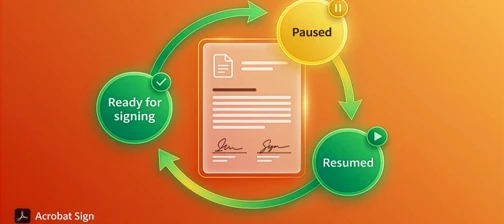
When a signer fails authentication, pause and resume the agreement instead of resending.A procurement team is close to finishing a supplier agreement. Internal approvals are complete, one supplier representative has signed, and the final signer is ready to finish. Then that signer exhausts the allowed authentication attempts.Previously, the agreement was cancelled. The sender had to recreate the agreement from scratch, and recipients who had already signed had to authenticate and sign again. One recipient’s difficulty became extra work for everyone.With Pause and Resume, that no longer happens. When your admin enables this feature, Adobe Acrobat Sign automatically pauses the agreement and notifies the sender. The sender can reset the signer’s authentication method if needed, and resume the same agreement, with all completed signatures and recipient actions preserved. Preserve completed signatures intactThe main benefit is straightforward: an authentication issue does not have to undo
Hi,I sent 132 individual agreements using Acrobat Sign Send in Bulk with a CSV file. The bulk send worked correctly and recipients are signing their individual agreements successfully.However, as the sender, I received a completion email only for the first agreement that was signed. Many agreements have subsequently been completed, but I have not received completion notifications for them.When I open those agreements in Acrobat Sign, their Activity logs confirm that they were successfully signed and completed.I have also checked Personal Preferences > My Notifications, and Email > “Agreement signed or approved” is enabled.Is this expected behavior for Send in Bulk?Specifically:Should the sender receive an individual completion email for every child agreement created by Send in Bulk? Does Acrobat Sign suppress or aggregate completion emails when many Send in Bulk agreements are completed? Is there a specific account/group notification setting that an Acrobat Sign administrator nee
We are integrating Acrobat Sign (REST API v6, na3 region) with our application. Our users do not have Acrobat Sign accounts. We create an agreement in the AUTHORING state, then call POST /agreements/{id}/views with name AUTHORING and commonViewConfiguration { autoLoginUser: true, noChrome: true }, and open the returned URL in a new browser tab. The user places fields and sends the agreement from Adobe's editor.After the user confirms the login page, their browser is authenticated as the account that owns our API token. If they then open secure.na3.adobesign.com in the same browser, they have access to the whole sender account, including other agreements, Manage, Reports and Settings. noChrome only hides the navigation bar. It does not stop this access.What we need is for our users to reach only the field placement and sending for the one agreement we created, and nothing else in the sender account.Can the auto-login session be restricted to a specific agreement or to the AUTHORING view
We are integrating adobe sign to one of our clients who has an enterprise license. In this integration, we are using adobe sign text tags for signing positions of the signers involved. Followed the https://helpx.adobe.com/sign/web/form-field-authors/create-forms-with-text-tags/text-tag.html for that. This works totally fine if all the line of recipients are signers. But, for a specific scenario when approvers come into the line, it fails. For example, the below are the recipients we have configured. Now in this example, there are only two signers, and the middle one is the approver. Signing order Recipient Role 1 User 1 SIGNER 2 User 2 APPROVER 3 User 3 SIGNER In this scenario, our client positions signing positions two signers with the following text tags considering that there are two signers in the list since the second one is an approver and not expected to sign the document. {{Sig_es_:signer1:signature}} {{Sig_es_:signer2:signature}}The agreement is sent with t
Is there any way to force my recipients to use the "Draw" signature option? I could not figure out how to do so.... Thanks!
According to the World Wide Web Consortium (W3C), digital accessibility means that websites, tools, and technologies are designed and developed so that people with disabilities can use them. Beyond legal and ethical considerations, digital accessibility can bring significant business benefits. These can include increased customer satisfaction, loyalty, and retention. It can also improve brand reputation and help businesses reach a wider audience, including people with disabilities who represent a significant market segment. Ensuring digital accessibility can provide a competitive advantage, as it can differentiate a business from its competitors and position it as a leader in accessibility and inclusive design. Adobe Acrobat Sign is a leading eSignature solution, supported by the technology of Acrobat. Acrobat Sign powers business and document workflows and is trusted by some of the largest industries and companies worldwide, making accessibility even more imperative. When
Why is Adobe Sign adding signature fields automatically? I have to go in and delete each one manually. Like below, except the document is 8 pages of this:
I use the in progress in the desktop app to monitor outstanding documents. Today I open it and it says I only have 5, while the online in progress list is 20. I have confirmed I am up to date.I have logged out completely and back in.I have cycled back to old view and new again.If I search the document directly I can find it and it lists as ie., 0 of 1 signatures; therefore it should be in the in progress list.I hate the online page. How do I fix the desktop?
We send documents to clients for e-signature often in our financial advising office. We have a few clients who have recently gotten married and their last names have changed. If I try to send a document for her to sign, when I drag the signature box over, it displays the client’s maiden name (the name associated with the email account). Example: ******* is now Jane Brown and needs to sign as Jane Brown. E-signature field displays Jane Doe.Our clients don’t often have Adobe accounts to go into settings and update their information. We also don’t want them to have to jump through hoops to sign our documents. Is there any way to send a document to ******* and manually change the e-signature field to a different name (i.e. Jane Brown) so she can sign a form with the correct name? Thank you![Personal Info removed by moderator]
My Adobe account login works, but my legacy Acrobat Sign service reports that the account is deactivated. I need to retrieve thousands of historical agreements across all years, including completed, signed and archived agreements with their audit reports. During an existing support investigation, incorrect Sign provisioning was identified. The proposed archive/reprovision step was accompanied by a warning that existing agreements and templates would be lost, and I was asked to back them up first. Access is blocked, so I cannot create that backup. Could an Adobe employee help route this to the appropriate Sign provisioning and data-access team? I can provide the existing support case number privately through an official Adobe channel. Before any reset, I need the original Sign user/account mapping and retained agreement inventory checked. Is a data-preserving reactivation, access to the original source user, or assisted export available for this situation? Can the historical External Ar
Already have an account? Login
Enter your E-mail address. We'll send you an e-mail with instructions to reset your password.