
















Design the future of fashion, win Firefly Pro 👗✨
Master Photoshop with the help of our global community.
Recently active
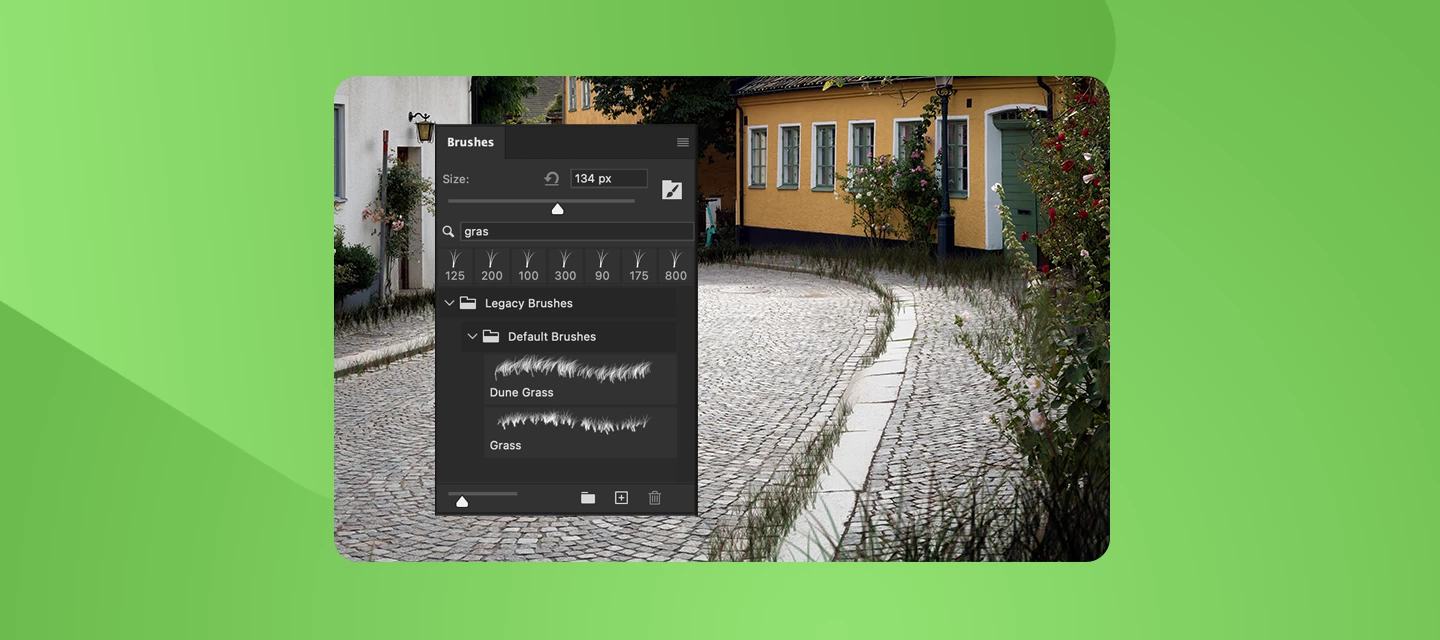
Let’s Create Some Grass Brush Details Using Adobe Photoshop!The Grass brush in Photoshop can be used to effectively add grass details to a composition in a randomized - yet controlled - way. We'll discover how to access the Grass brush - which can be a major stumbling block for designers unfamiliar with this brush. We'll also examine the peculiar features of this brush through an examination of Brush Settings. Finally, we'll go ahead and use the Grass brush to add details to a photographic composition to make the scene appear to be more overgrown and unkempt. How to Create this Detail in Photoshop: Loading the Legacy Brushes CollectionThe first item that needs to be addressed is the location of the Grass brush. If you are looking for it within your pre-installed brush collections… you likely will have a hard time finding it - as it is considered a Legacy Brush and that collection of brushes must be loaded first, before you can access the brush.In Photoshop, select the Brush tool and o
Thanks to all who took part in our ‘mystery’ challenge. It is amazing to see the variations explaining what might have happened in the woods.Those who regularly take part in these challenges will know that sometimes we start with an object and sometimes a scene. This week it is the turn of these handcuffs. They are from Adobe 3D assets and were textured in Substance Painter, along with the other objects, then rendered in Blender 3D, before finishing in Photoshop. How will you use the cuffs? Will they appear on someone in your image or will you turn them into something else completely?The “rules”:Use the starter image as at least part of your own image entry. Anything goes, as long as it meets the forum rules on decency, copyright, etc. Anyone, and everyone, is welcome to have a go, whether you are a complete beginner or a Photoshop expert. This is not just for our forum “regulars”. The challenge is not limited to Photoshop. Any Adobe software can be used. There are no prizes apart fro
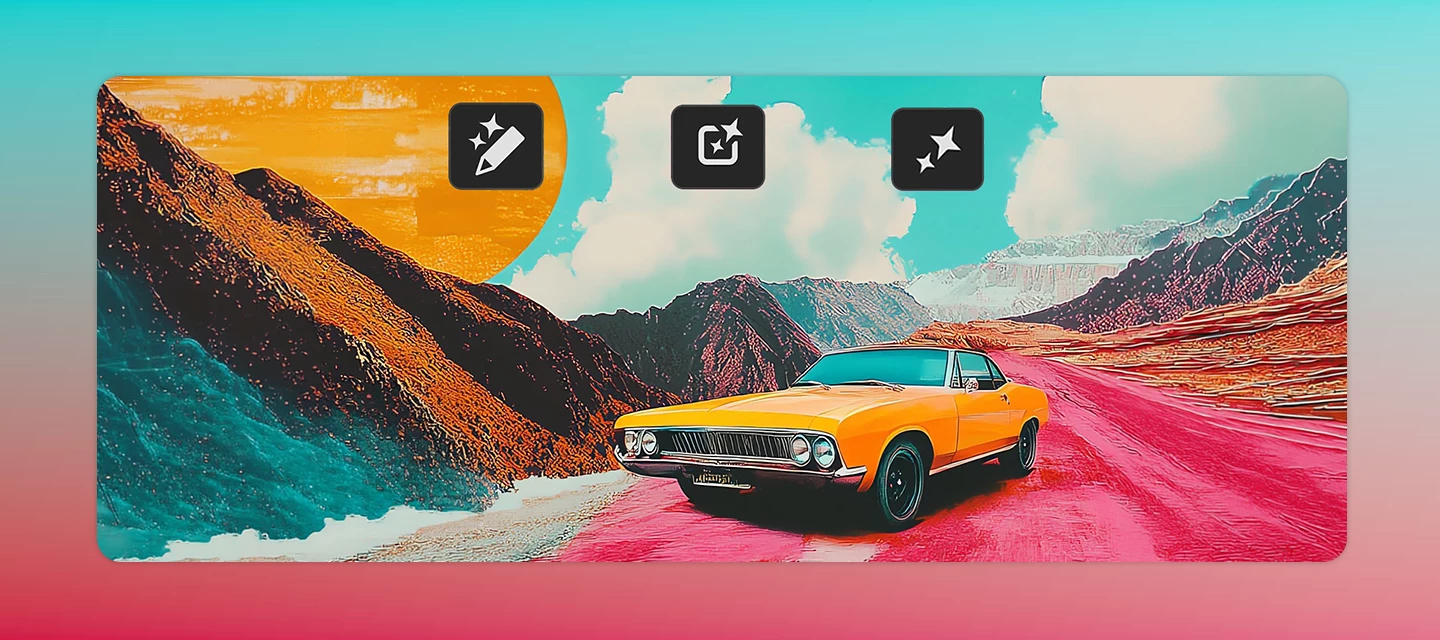
What if editing an image felt more like having a conversation than learning complex tools?The new AI-assisted editor (Beta) in Photoshop 27.10 introduces a streamlined, AI-powered editing experience designed to help users create and refine images using natural language prompts.Whether you're new to Photoshop or looking for a faster way to make quick edits, AI Assisted Editor (Beta) simplifies the creative process without sacrificing flexibility. Turn Ideas Into Edits, Instantly Instead of navigating multiple panels and settings, simply describe what you want to change. AI Assisted Editor (Beta) interprets your prompt and helps you achieve the result using built-in AI capabilities.With tools like: Prompt for natural language image editing Markup to visually indicate areas you want to modify Fill to add or replace content Remove to eliminate unwanted elements Crop and Expand to extend compositions beyond their original boundaries Upscale to improve image resolution Remove Backgroun
Hello everyone, It’s time to reserve your spot at Adobe MAX - The Creativity Conference, taking place at the Miami Beach Convention Center. Get ready for what’s next - with three days of creative skill-building, visionary keynotes, and valuable connections. Featured Speakers - Big ideas, inspired voicesWho You’ll MeetIf you found this announcement helpful, click 👍 Like. Use ⭐ Subscribe to stay informed about future updates. You may also share this post with others who might want to stay updated on MAX.
The September 2026 release of Photoshop 27.11 introduces new AI-powered capabilities designed to help you work faster and achieve more professional results. With Enhance Edge, you can create cleaner, more natural-looking selections by refining object edges and reducing unwanted background color fringing. This release also brings GPT Image 2 directly into Photoshop, allowing you to generate entirely new images and make precise edits using natural language prompts, all without leaving your creative workflow.Click here for more details. Bug fixes – Thanks to you!Canvas Size dialog did not retain the previously used units. Image > Apply Image preview did not work with the modern UI enabled and GPU disabled. Setting the default unit to inches in Preferences > Units was ignored by Canvas Size. New Guide dialog did not recognize the unit set in Preferences. Edit > Stroke used the previously selected color instead of the newly chosen color on the first attempt. Opacity changed when u
Turn creative ideas into editable image transformations using AI. With Prompt to edit, you can describe changes using natural language and generate image-wide edits in seconds. Use Markup and Marks to guide the AI toward specific areas of an image, add instructions, or indicate where new elements should appear. How This Workflow Works Start by generating an image edit using a text prompt. If needed, use markup tools to indicate specific areas and describe the changes you want. Step-by-Step Guide 1. Open an image Select File > Open and choose the image you want to edit. 2. Generate an edit with Prompt to edit Select a pixel layer or generative layer containing the image. If you're working with a generative layer, make sure the entire image is selected. Select Prompt to edit from the Contextual Task Bar, or choose Edit > Prompt to Edit. Enter a prompt describing the changes you'd like to make across the image. Sample prompts: Change the lighting to a warm sunset tone. Improve
Ever wish you could change the mood, season, lighting, or even the action in a photo without diving into layers, masks, and complex edits? With Prompt to Edit in Adobe Photoshop, you can make powerful image-wide changes using simple natural language. Just tell Photoshop what you want to see, and AI helps bring it to life. What Is Prompt to Edit? Prompt to Edit lets you transform an entire image using a text prompt. Instead of manually adjusting multiple settings, you can describe the result you're after, and Photoshop generates variations for you to review and apply. Whether you're enhancing an existing photo or experimenting with creative concepts, Prompt to Edit makes image transformation faster and more intuitive. What Can You Do With It? Here are a few ways creators are already using Prompt to Edit: Change the atmosphere "Change the lighting to a warm sunset tone." "Create a cinematic evening mood." Transform the environment "Change the season to rainy, add rainfall and pudd
You asked, we listened, and we're excited to share that one of the community's long-standing feature request is now available in Photoshop 27.10. For years, many of you have asked for more control over the file formats shown in the Save As and Save a Copy dialogs, including the ability to hide formats you don't use and create a cleaner, more streamlined saving experience. Today, we're happy to say: it's here! What's new? You can now customize the file formats displayed in the Save As and Save a Copy dialogs. Simply go to: Edit > Customize Save Dialog File Formats From there, you can: Enable or disable file formats Move formats you don't need to the Disabled File Formats column Restore the default list at any time Whether you're a photographer who primarily exports JPEGs and TIFFs, or a designer working mostly with PSDs and PNGs, you can now tailor the save experience to match your workflow. Why you'll love it No more scrolling through long lists of formats you never use. Thi
Help us shape this community: What content do you want to see? Whether you're a longtime community member or just found this space, your input will directly shape what we publish here. We want this to be a place you return to, not just when something breaks, but when you want to learn, get inspired, or connect with other creatives. What we’re considering:🚀 Feature Highlights: What’s new in Photoshop, explained with real workflows.📖 How-to Guides: Step-by-step tutorials for common tasks, errors, and workflows.💬 Community Discussions: Polls, questions, and conversations about how you work.🌟 Community Highlights: Spotlighting community members, standout work, and creative journeys. We’d love to hear your thoughts:What type of content do you find most useful when you visit this forum? Is there a Photoshop topic you keep looking up but never find a great answer for here? Would you want to share your own creative workflow or be featured in a community highlight? What kind of projects wou
How to Report a Bug in the Adobe App Community Run into something that’s not working the way it should in Photoshop? Let’s tackle it together. When you share bugs in the Adobe Community, you’re helping product teams see what’s really happening, recreate the issue, and fix things faster. Think of this guide as your sidekick—it’ll walk you through creating a clear, helpful bug report, no technical expertise needed. Before you startBefore jumping in with a new bug report, take a quick look around the community to see if someone’s already spotted the same issue. If you find a matching post, add your vote and feel free to add your experience there instead of starting from scratch. It keeps everything in one place and helps the team connect the dots and solve things faster. Note: Any duplicate posts will be merged into a primary post that you can follow for updates on the issue. What makes a good bug report?A great bug report tells the full story it explains what happened, what you expected
Using Photoshop 27.11 in Windows 11. I have a 16-bit image file with six layers and dimensions of 3461x3461. Photoshop insists that this needs to be saved as a PSB as it’s too large to be saved as a TIFF. This seems odd to me as I have never encountered this before despite having many image files with larger dimensions and more layers. Also, the option to save as or export as TIFF are both missing. Is this because Photoshop thinks the file is too big?
I am no longer able to select multiple layers by using CTRL+Click and dragging over the layers that I want to select all at once. I must now CTRL+Click each individual layer which slows down the process immensely.
Hello. This message starts to pop up now with using GenAI tool (Photoshop beta and 26.7.0, both version) "You don't have enough credits for this generative action. Upgrade your Firefly plan now to get more credits for continued access or wait until your monthly reset."I have the annual subscription (renewed several days ago) and 250 credits included into this plan. Usually when all credits are gone, GenAI just continue to work slower, but there wasn't any block to use this tool. Are there any new rules/tariff changes for using this tool?
I'm trying to streamline my JPEG export workflow in Photoshop.I understand that Quick Export allows me to configure JPEG quality in Preferences, but I don't see an option to specify the resampling method (Bicubic, Bicubic Sharper, etc.).Export As provides these options, but I find myself having to select my preferred quality and resampling settings each time I export an image.Is there a way to save these settings as defaults so I don't have to configure them every time? Ideally, I'd like to use Quick Export with my preferred JPEG quality and Bicubic resampling method.Am I overlooking something, or is this simply not supported?
I have updated the GPU drivers, but still the issue seems to persist. Other edits seem to work fine; only the denoise function is converting the image to B&W. Below is the system info copied from the Lightroom— Lightroom Classic version: 15.5.1 [ 202608131348-cab7eed5 ]License: Creative CloudLanguage setting: enOperating system: Windows 11 - Home Premium EditionVersion: 11.0.26200Application architecture: x64System architecture: x64Logical processor count: 16Processor speed: 3.6GHzSqLite Version: 3.36.0Adobe GSDK Version: 1.4.0.213CPU Utilisation: 4.0%Power Source: BatteryBuilt-in memory: 32153.8 MBDedicated GPU memory used by Lightroom: 12.6MB / 128.0MB (9%)Real memory available to Lightroom: 32153.8 MBReal memory used by Lightroom: 1840.6 MB (5.7%)Virtual memory used by Lightroom: 2096.9 MBGDI objects count: 693USER objects count: 2619Process handles count: 2137Memory cache size: 213.6MBInternal Camera Raw version: 18.5.1 [ 2687 ]Maximum thread count used by Camera Raw: 5Camera
I am currently working on a Mac mini, Tahoe 26.7. I have the Creative Cloud Photography plan with 1 TB on a yearly plan.The issue that I have been experiencing is the inability to use the REMOVE TOOL when taking an image from Lightroom Classic into Photoshop. When I click on the remove tool, I get a message: Required components are being downloaded. Check back later to use the feature once the download is complete. I do that, hit ok and nothing. I will try again and hit cancel and briefly a message says that the download successfully installed. There is still no change to the situation and the option bar for the remove tool does not appear. The mouse just turns into a cross hair.I also noted that the PS icon appears again on my dock when I am working in photoshop in this situation. I am not sure if this is a relevant matter. I am running Lightroom 15.5.1, camera raw 18.5.1 and Photoshop 2026, 27.10.0 release.I have spent 3 hours on 3 separate occasions with tech support at Ado
Hi, I’m a Teaching Assistant for a graphic design course. My instructor and I have been having issues with students submitting the completed End files from Adobe Classroom in a Book lessons as their own work. Some even modify the End files before submitting them.We now require students to submit their original Illustrator and Photoshop working files (.ai). Is there a reliable way to check a file’s editing history or determine whether a student worked through the lesson themselves instead of modifying the provided End file?
I am having GPU issues. All worked fine on my laptop until about 3 weeks ago. Camera Raw shut down my GPU and In camera Raw preferences/performance GPU status shows off and is greyed out. Below the status box there is a message telling me that an error occurred and my GPU has been disabled. In Help /GPU compatibility everything is fine and ticked. In Edit / Preferences / General my GPU is ticked and in advanced settings all boxes are ticked except for 30 bit display. I have uninstalled and re-installed all my Adobe apps (I am on subscription so have latest versions (Craw 18.7.0 2743) and I have reinstalled my graphics driver from the Nvidia site (Nvidia GeForceRTX 4050Laptop Version 617.42) I have even done a factory rest on my laptop but without success. Any suggestions would be greatly appreciated
Anyone successful installing and using Dr Brown's Image Processor Pro on Mac M4 silicon, Sequoia in Photoshop 26.3?
The "Export As" window is glitching, which sometimes makes it go behind Photoshop. Additionally, its size does not stay adjusted as usual and it is always smaller. I have to resize it every time I open the program and use the "Export As" function.Another problem is that the file preview is pixelated, which does not happen in the regular version. This started in this last beta update; it didn't have this problem before. Furthermore, the image only looks good if I set the zoom to 100%. However, I cannot see the full image with good quality like before because it goes past the borders. I have to keep moving it to see the corners that do not show up. Image from Photoshop version 27.9 Previous version 27.8 is perfectly normal and trouble-free.Image from Photoshop version 27.8I reported this bug in the Beta version, and even so, they updated the definitive version with the exact same error that many people were complaining about. Apparently, the Beta version is no longer serving its purpose
Hey everyone,Up until recently, I was using Photoshop 27.8 (Mac 26.5.1) and everything worked perfectly fine.The newer Generative Fill and Expand model produces textures that are way too smooth. I’d even call them blurry. And yes, I’m aware of the 1024×1024 px limitation, but this happens even with 100×100 px selection.Because of that, I’ve been using the old Firefly 1 model from 2023, which, unlike the newer model, works really well for my use case. It handles textures amazingly well. I mainly use it for removing distractions: I select the unwanted object, leave the prompt empty, hit Generate, and Firefly 1 understands perfectly well that the selected area should be removed.However, something seems to have changed starting with version 27.9.If I leave the prompt empty now, Firefly 1 starts generating completely random objects instead of simply filling/removing the selected area. For example, I had a white T-shirt with some red text on it that I wanted to remove. I selected the text, l
when i try to open it starts loading and then says file not found
When using the Remove Tool, sometimes it works but most frequently, after a long while of “Removing area...” I get an error: “Could not complete your request because of a program error”. Clicking the “Learn how to fix” doesn’t offer any help since all the solutions on that page I have tried or are not related with this case.This happens both in Ps Beta 28.0.1 and Ps 27.11.0 but it doesn’t happen always. Sometimes I try and it fails, then I redraw the selection again and it works with all the same parameters except for the hand drawn magenta selection.Tried to attach a screenshot here but it is not working properly now, so here is a link:https://drive.google.com/file/d/16IgiCRt0VKaeLZ342qE9pTLBgp8vCNzL/view?usp=sharing
Summary:When painting with the Brush tool, Photoshop's canvas redraw appears hard-capped at approximately 31–32 FPS, even on a 144Hz monitor with a high-end GPU that is barely utilized during the stroke. This does not happen in other applications (e.g., MS Paint) on the same machine, which render smoothly up to the monitor's full refresh rate.System specs:GPU: NVIDIA GeForce RTX 4060 (8GB VRAM) CPU: AMD Ryzen 5 5600 (6 Cores, 3,5 GHz) Driver version: 591.86, CUDA 13.1 Monitor: 144Hz (confirmed set correctly in Windows Display settings) OS: Windows 11 Photoshop version: Adobe Photoshop 2026Steps to reproduce:Open any document (tested on both small ~1000x1000px and larger 2560x1440px canvases — file size does not affect the issue) Select the Brush tool (tested with standard round brushes, Smoothing set to 0%) Paint continuously on the canvas while monitoring FPS via MSI Afterburner / RivaTuner Statistics Server overlay Observed FPS stays around 31–32 FPS during active brush strokesWhat I
Remix with Firefly Community Gallery
Thousands of free creations to fall in love with and remix in Firefly.
Already have an account? Login
Enter your E-mail address. We'll send you an e-mail with instructions to reset your password.