




















Design the future of fashion, win Firefly Pro 👗✨
Master Photoshop with the help of our global community.
Recently active
A big thank you to everyone who took part in our last ‘Off the cuff’ challenge. Also thanks for your patience in waiting for the new challenge, whilst the image upload functionality was restored.The SFTW challenges last two weeks and this one covers Halloween. I couldn’t let that pass without having a bit of fun. I rendered this scene in Blender 3D using models from Adobe 3D Assets which I textured in Adobe Substance Painter. After rendering I finished the image in Photoshop. So we have a haunted house. What will you produce with it, to fit this week’s scary theme.The “rules”:Use the starter image as at least part of your own image entry. Anything goes, as long as it meets the forum rules on decency, copyright, etc. Anyone, and everyone, is welcome to have a go, whether you are a complete beginner or a Photoshop expert. This is not just for our forum “regulars”. The challenge is not limited to Photoshop. Any Adobe software can be used. There are no prizes apart from the chance to prac
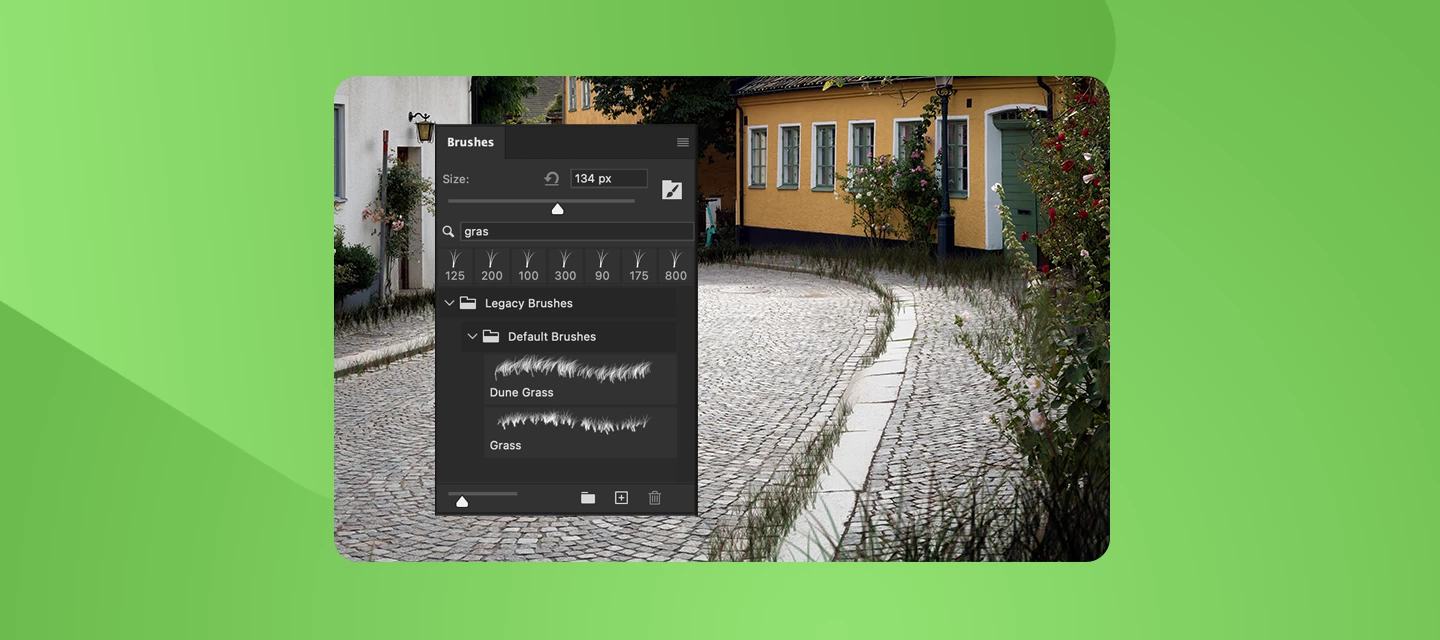
Let’s Create Some Grass Brush Details Using Adobe Photoshop!The Grass brush in Photoshop can be used to effectively add grass details to a composition in a randomized - yet controlled - way. We'll discover how to access the Grass brush - which can be a major stumbling block for designers unfamiliar with this brush. We'll also examine the peculiar features of this brush through an examination of Brush Settings. Finally, we'll go ahead and use the Grass brush to add details to a photographic composition to make the scene appear to be more overgrown and unkempt. How to Create this Detail in Photoshop: Loading the Legacy Brushes CollectionThe first item that needs to be addressed is the location of the Grass brush. If you are looking for it within your pre-installed brush collections… you likely will have a hard time finding it - as it is considered a Legacy Brush and that collection of brushes must be loaded first, before you can access the brush.In Photoshop, select the Brush tool and o
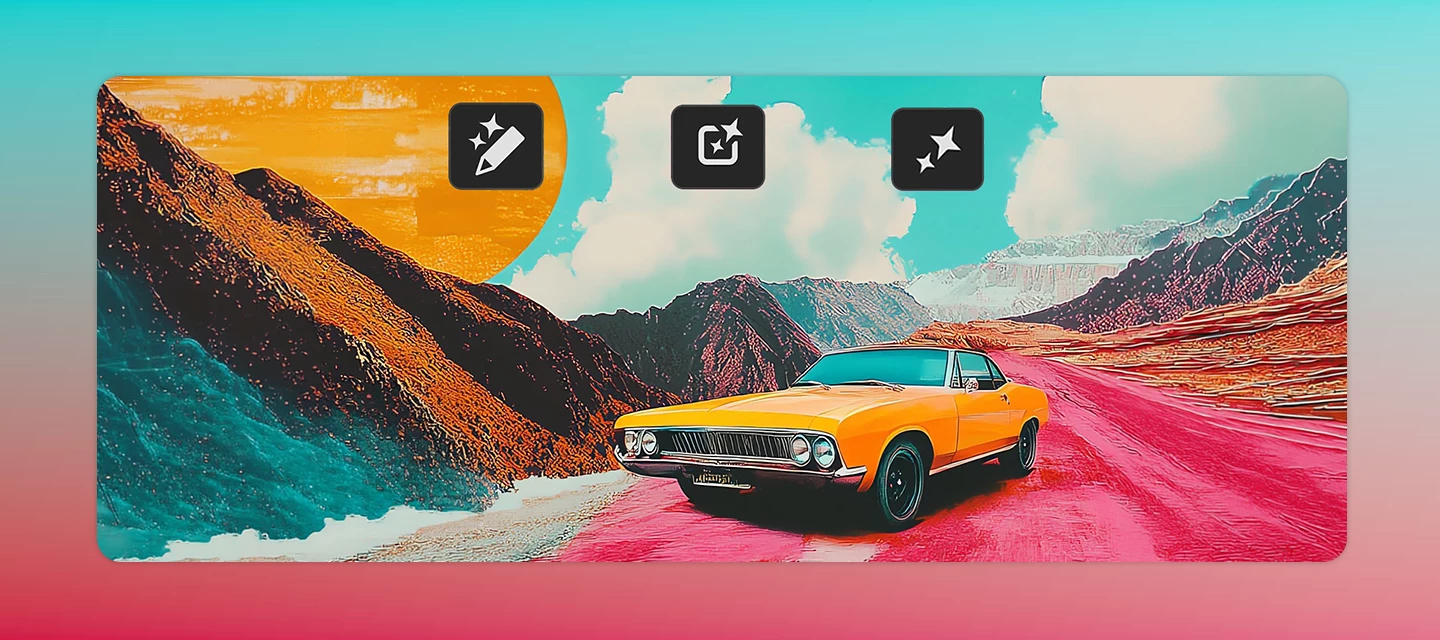
What if editing an image felt more like having a conversation than learning complex tools?The new AI-assisted editor (Beta) in Photoshop 27.10 introduces a streamlined, AI-powered editing experience designed to help users create and refine images using natural language prompts.Whether you're new to Photoshop or looking for a faster way to make quick edits, AI Assisted Editor (Beta) simplifies the creative process without sacrificing flexibility. Turn Ideas Into Edits, Instantly Instead of navigating multiple panels and settings, simply describe what you want to change. AI Assisted Editor (Beta) interprets your prompt and helps you achieve the result using built-in AI capabilities.With tools like: Prompt for natural language image editing Markup to visually indicate areas you want to modify Fill to add or replace content Remove to eliminate unwanted elements Crop and Expand to extend compositions beyond their original boundaries Upscale to improve image resolution Remove Backgroun
Hello everyone, It’s time to reserve your spot at Adobe MAX - The Creativity Conference, taking place at the Miami Beach Convention Center. Get ready for what’s next - with three days of creative skill-building, visionary keynotes, and valuable connections. Featured Speakers - Big ideas, inspired voicesWho You’ll MeetIf you found this announcement helpful, click 👍 Like. Use ⭐ Subscribe to stay informed about future updates. You may also share this post with others who might want to stay updated on MAX.
The September 2026 release of Photoshop 27.11 introduces new AI-powered capabilities designed to help you work faster and achieve more professional results. With Enhance Edge, you can create cleaner, more natural-looking selections by refining object edges and reducing unwanted background color fringing. This release also brings GPT Image 2 directly into Photoshop, allowing you to generate entirely new images and make precise edits using natural language prompts, all without leaving your creative workflow.Click here for more details. Bug fixes – Thanks to you!Canvas Size dialog did not retain the previously used units. Image > Apply Image preview did not work with the modern UI enabled and GPU disabled. Setting the default unit to inches in Preferences > Units was ignored by Canvas Size. New Guide dialog did not recognize the unit set in Preferences. Edit > Stroke used the previously selected color instead of the newly chosen color on the first attempt. Opacity changed when u
Turn creative ideas into editable image transformations using AI. With Prompt to edit, you can describe changes using natural language and generate image-wide edits in seconds. Use Markup and Marks to guide the AI toward specific areas of an image, add instructions, or indicate where new elements should appear. How This Workflow Works Start by generating an image edit using a text prompt. If needed, use markup tools to indicate specific areas and describe the changes you want. Step-by-Step Guide 1. Open an image Select File > Open and choose the image you want to edit. 2. Generate an edit with Prompt to edit Select a pixel layer or generative layer containing the image. If you're working with a generative layer, make sure the entire image is selected. Select Prompt to edit from the Contextual Task Bar, or choose Edit > Prompt to Edit. Enter a prompt describing the changes you'd like to make across the image. Sample prompts: Change the lighting to a warm sunset tone. Improve
Ever wish you could change the mood, season, lighting, or even the action in a photo without diving into layers, masks, and complex edits? With Prompt to Edit in Adobe Photoshop, you can make powerful image-wide changes using simple natural language. Just tell Photoshop what you want to see, and AI helps bring it to life. What Is Prompt to Edit? Prompt to Edit lets you transform an entire image using a text prompt. Instead of manually adjusting multiple settings, you can describe the result you're after, and Photoshop generates variations for you to review and apply. Whether you're enhancing an existing photo or experimenting with creative concepts, Prompt to Edit makes image transformation faster and more intuitive. What Can You Do With It? Here are a few ways creators are already using Prompt to Edit: Change the atmosphere "Change the lighting to a warm sunset tone." "Create a cinematic evening mood." Transform the environment "Change the season to rainy, add rainfall and pudd
You asked, we listened, and we're excited to share that one of the community's long-standing feature request is now available in Photoshop 27.10. For years, many of you have asked for more control over the file formats shown in the Save As and Save a Copy dialogs, including the ability to hide formats you don't use and create a cleaner, more streamlined saving experience. Today, we're happy to say: it's here! What's new? You can now customize the file formats displayed in the Save As and Save a Copy dialogs. Simply go to: Edit > Customize Save Dialog File Formats From there, you can: Enable or disable file formats Move formats you don't need to the Disabled File Formats column Restore the default list at any time Whether you're a photographer who primarily exports JPEGs and TIFFs, or a designer working mostly with PSDs and PNGs, you can now tailor the save experience to match your workflow. Why you'll love it No more scrolling through long lists of formats you never use. Thi
Help us shape this community: What content do you want to see? Whether you're a longtime community member or just found this space, your input will directly shape what we publish here. We want this to be a place you return to, not just when something breaks, but when you want to learn, get inspired, or connect with other creatives. What we’re considering:🚀 Feature Highlights: What’s new in Photoshop, explained with real workflows.📖 How-to Guides: Step-by-step tutorials for common tasks, errors, and workflows.💬 Community Discussions: Polls, questions, and conversations about how you work.🌟 Community Highlights: Spotlighting community members, standout work, and creative journeys. We’d love to hear your thoughts:What type of content do you find most useful when you visit this forum? Is there a Photoshop topic you keep looking up but never find a great answer for here? Would you want to share your own creative workflow or be featured in a community highlight? What kind of projects wou
How to Report a Bug in the Adobe App Community Run into something that’s not working the way it should in Photoshop? Let’s tackle it together. When you share bugs in the Adobe Community, you’re helping product teams see what’s really happening, recreate the issue, and fix things faster. Think of this guide as your sidekick—it’ll walk you through creating a clear, helpful bug report, no technical expertise needed. Before you startBefore jumping in with a new bug report, take a quick look around the community to see if someone’s already spotted the same issue. If you find a matching post, add your vote and feel free to add your experience there instead of starting from scratch. It keeps everything in one place and helps the team connect the dots and solve things faster. Note: Any duplicate posts will be merged into a primary post that you can follow for updates on the issue. What makes a good bug report?A great bug report tells the full story it explains what happened, what you expected
When I drag the edge of a panel (Properties, Layers, Color) in Photoshop, the panel content disappears for several frames, ghost panel edges/scrollbars flash in the middle of the workspace, and the layout jumps around. Screen recording attached. Illustrator is just as bad. Premiere Pro is affected too, but noticeably less. The same workflow is perfectly smooth on a Mac.System:- Photoshop 27.10, Illustrator [Version], Premiere Pro [Version]- Windows 11 25H2 (build 26200.9445)- AMD Radeon RX 6700 XT, Adrenalin 26.8.1- CPU: AMD [CPU model]- Dell S3422DWG, 3440x1440 @ 144 Hz via DisplayPort- Windows and Photoshop UI scaling at 100 %Already tried (no change):- FreeSync off; Anti-Lag, Chill, Enhanced Sync, Image Sharpening all off- Multiplane Overlay (MPO) disabled- Use Graphics Processor off / Basic drawing mode- Native Canvas deactivated- WebView2 GPU rendering disabled (WEBVIEW2_ADDITIONAL_BROWSER_ARGUMENTS=--disable-gpu)- Clean boot- Fresh Windows user accountNot affected:Chrome, Edge an
My imac is a powerful imac intel i7 - unable to install the latest photoshop because of compatibility.please provide a link to a working download link version for intel i7? photoshop 2024? I cant find any sort of access to older versionsthank you
Help.
Gradient produced after V27.7 are producing very visible banding.I am currently creating a greyscale gradient to print a gradient of white ink on a UV printer.We use this process to avoid any visible banding when printing, however after V27.7 the photoshop gradients now have very visible banding.Is this a known issue?Is there a plan to fix this bug?
What an [cursing removed] update.Whol day I can’t work because all my works can’t be saved during edition. I can’t use CRTL+S the only solution is Save as and save as new file with new name. Whole day [cursing removed].
ssue summary: Can´t save certain TIF-files - Error warning.Product and version: Photoshop desktop version 27.11Operating system: W11 26H2Steps to reproduce:1. Open an existing TIF-file.2. Choose File > Save.3. An error warning pops up.“Photoshop konnte nicht speichern weil die datei bereits geöffnet ist oder von einer anderen anwendung nicht geschlossen wurde”4. I can not save the fileExpected result: It is possible to save a TIF-file after modification.Actual result: I have to save the TIF-file under a different name.
needs to update it to work with this version of macOS. Contact the developer for more information.
バージョンに限らず、photoshopのみが・全体的にものすごく遅くてラグがひどい・ツールの切り替えがショートカットでできない(キーを押している時だけそのツールになる/ツールバーでクリックすれば切り替えることができる)など使用に差し支える状態です。他のソフトで同様の重さはないです。 Tahoeにしてから重かったのですが、他のすべてのウィンドウを隠す(cmmopH)と少し軽くなるようだったのですがこのところはそれも効果がないです。原因特定と解消のためお知恵を拝借できますと幸いです。よろしくお願いいたします。⦅iMac⦆24-inch M1,2021 16G Tahoe 26.5⦅photoshop2026の環境設定⦆パフォーマンス:photoshopで使用する容量10838MB(90%)ヒストリー数50/キャッシュレベル4/1024K✔︎マルチスレッド合成 ✔︎全景の合成キャッシュグラフィックプロセッサー:Appe M1 ✔︎GPを使用画像処理:デバイス 高速 高速 高速仮装ディスク:MacintoshHD 381.67GB 起動ディスク⦅アクティビティモニタ⦆メモリ:5~6GBくらいCPU:~20%くらい
I believe many others have a distaste for the inability to dock the contextual task bar. It becomes a tedious thing to continually have to move while working in Photoshop. It's always in the way, and pinning doesn't really work well. I suggest making it able to be docked like any other panel, integrating into the control (options) bar like every other contextual task before this, or adding to the properties panel. I'm not a beginner, so why am I forced to have a beginner-like user experience? The beauty of Photoshop and other Adobe software is to be able to customize your tools for your workflow and how you like them. This takes away from that, and other Adobe software such as Illustrator is starting to copy what Photoshop did. I love gen fill, however, so it presents a conundrum. Do I only turn it on when I'm using gen fill or always leave it on? To the best of my knowledge, gen fill is the only thing that the bar has that there's no other way to do other than to go to
using Ps 27.9.1 on MacOSBecause there’s no ability to update the current workspace, I end up with a new workspace whenever I make a small adjustment. This leads to me needing to cull my workspaces to keep the list managable so it’s easier to find the ones that really matter.Before I can delete a workspace, I need to look at it to make sure I want to delete it.Problem is, I can’t delete the current workspace I’m looking at. So I’m left with having to eithera) remember the workspace name of the current workspace, switch to a different workspace, then delete the previous one I was just looking atb) go through the workspaces and write down the one’s I want to delete, then select a workspace not on my delete list, then go back through my list and deleting the workspaces one at a time (since the delete dialog exits as soon as I delete a workspace).I feel this process could be better a number of ways let me delete the currently selected workspace allow me to delete more than one workspace a
Hello,I purchased Adobe Creative Suite 5 Design Premium for approximately $700 as a perpetual license. My question concerns the entire suite, not just Photoshop.Both of my Windows computers now display “Activation limit reached.” I cannot open the applications to access Help > Deactivate. My Adobe account’s Activated Devices page shows no activated devices.I contacted Adobe support and was told that they could not reset the activation count. The advisor also said that the CS5 activation servers had been permanently retired, but I have not received an official reference confirming this specifically for CS5 Design Premium.Could someone please clarify: Is there an official way to deactivate these installations without opening the applications? Can I restore access to the suite using my existing serial number? Have the activation servers for CS5 specifically been retired? If so, where is Adobe’s official announcement? I understand that this is an old, unsupported product. I am simpl
Is there no way to efficiently back up preferences, tools etc. instead of having to start all over again after being forced to - yet again - reset PS settings?Do I have to dig through all sorts of folders an back the up externally every time I make a change because this preferences issue STILL doesn’t work properly?
Photoshop 27.11.0 will sometimes crash when selecting the Object Selection Tool. Windows 11 Pro with Intel i9, and NVIDIA GeForce RTX 2060. Happens randomly when choosing the Object Selection Tool. Reset Photoshop preferences, made no difference. Disabled Object Finder and Object Subtract, made no difference. Generated crash report multiple times, sent to Adobe. Sometimes it will black out the entire screen before crashing, sometimes will freeze Photoshop where task manager can’t end task, requiring system reboot.
Hi everyone,I'm experiencing a consistent issue with Photoshop 2026 (27.11.0) on my MacBook Pro M5 Pro running macOS 26.7.1.The problem:When my Mac is disconnected from Wi-Fi, saving a JPEG causes Photoshop to freeze for approximately 5 seconds, displaying the spinning beachball. The entire Photoshop interface becomes unresponsive during this time, but the file eventually saves successfully.When Wi-Fi is connected, the exact same operation is instantaneous.What I've tested: Files are saved directly to the local Desktop (internal SSD), not to cloud storage. Disabling "Save in Background" makes no difference. Activity Monitor process samples taken during the freeze show Photoshop's main thread waiting on a condition variable (__psynch_cvwait). Most importantly, downgrading Photoshop to version 27.9.1 on the same M5 Pro completely resolves the issue, even with Wi-Fi disconnected. This strongly suggests a regression introduced in Photoshop 27.10 or 27.11, possibly involving a network
PS 27.11.0, I’m trying to use the wand tool and it’s not selecting what I select. There are areas that are a single color, and when I click on one of those areas to select it, the wand tool is selecting other things, kind of random. No, I’m not on a mask, I’m on the background. I even flattened the image to make sure. I click on the slight orange background at the top, and I get the mask below: Nothing that I click on gives me the selection I’m expecting. Any ideas?
Remix with Firefly Community Gallery
Thousands of free creations to fall in love with and remix in Firefly.
Already have an account? Login
Enter your E-mail address. We'll send you an e-mail with instructions to reset your password.