












Design the future of fashion, win Firefly Pro 👗✨
Photoshop (Beta)
Recently active
In the last few days the remove tool is painfully slow.
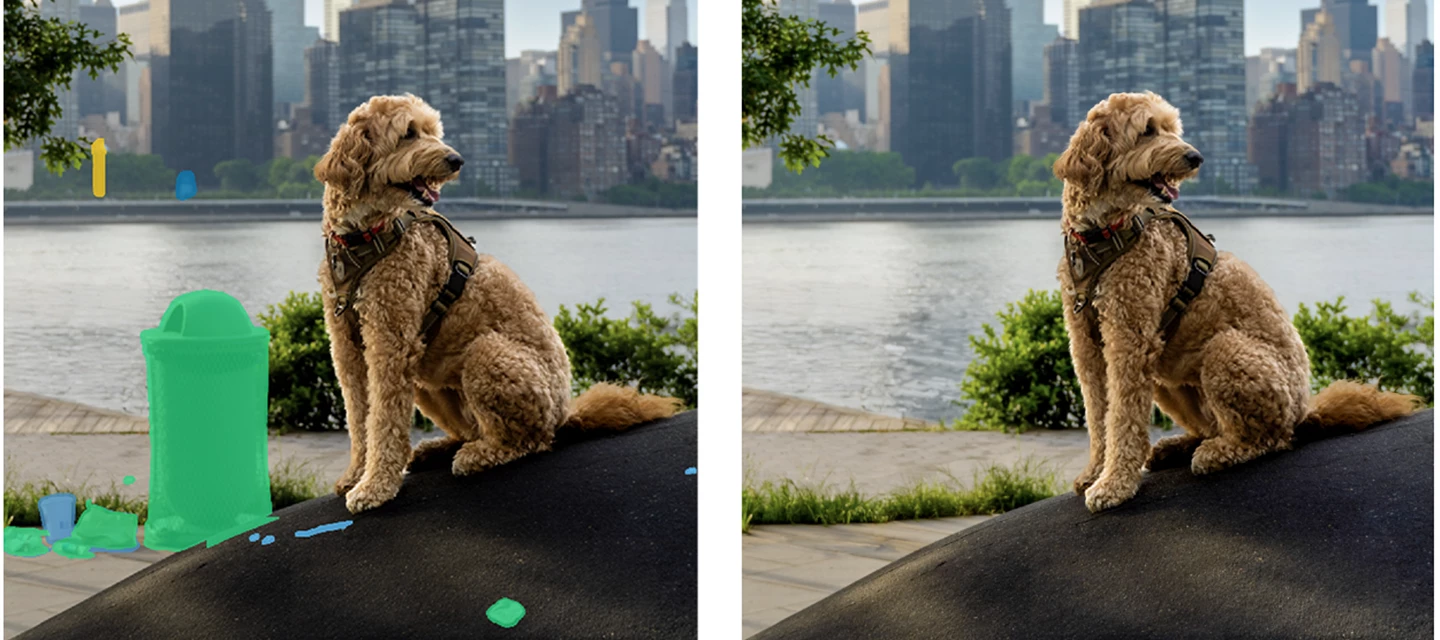
Quickly clean-up unwanted objects that pull attention away from your main subject.General Distraction Removal (beta) in the Remove Tool automatically finds and removes common distractions—like poles, vehicles, and visual clutter—with just a few clicks.How to try it in Photoshop (beta) for desktop:1. Select the Remove Tool from the toolbar.2. In the Options bar, click Find Distractions.3. Click Find next to General Distractions.A color‑coded list of detected distractions appears, and each distraction is highlighted on the canvas with a matching overlay. You can change the color of the distraction overlay by clicking on the color swatch in the panel. Select the Remove Tool, then choose Find General Distractions from the Options Bar to see color‑coded results and editable overlays 4. Use the checkboxes to turn targeting on or off for each distraction category.You can also refine the results by brushing directly on the canvas using the + / − controls in the Remove Tool options bar.
[Photoshop Beta 27.11.0] When I click ‘Generative Fill’ in the toolbar, I am used to start typing, because the text field had the cursor in it already. Now I have to click the text box to be able to start typing. The result is:I click Generative Fill in the toolbar I start typing, using all keyboard shortcuts under the sun watching my screen jump around Sigh Cleck on the text field Start typingThis used to be a two-stop process, and I think there is no UX reason why the original behaviour should not prevail. When I choose Generative Fill I will type, or not, a immediatly useable text field is the best.
When opening the Brush tool at the Options bar, roundness appears at 0% with any brush. It works when fixed, but as soon I open again, it returns to 0%. It's not the case when opened with the brush panel at the left, there it works fine.
We’re excited to announce that new contextual task bars are now available in Photoshop Public Beta. We know that finding the right tool, at the right time, can sometimes slow down a great workflow. Our new contextually aware task bars aim to help by providing common tools, actions and next steps right on the canvas where you’re working. We are currently launching five bars for importing new documents, making selections and using the Type Tool. Learn more below: Open Image or File This bar will appear when you open an image or file in Photoshop (i.e. not a new, empty document) New Document Workflow This bar will appear if you open a new, blank document from the Photoshop home screen If you choose to select “import image”, your image will be placed in the document as a Smart Object and the Free Transform bar will appear to help finalize placement Type Tool Workflow This bar will appear when you select the Type tool from the tool bar and draw a text bo
Issue: Clone Stamp brush becomes a flat horizontal line after the latest Photoshop Beta update, and the Clone Stamp tool is also no longer functioning correctly.Photoshop version: [paste from Help → System Info]OS: macOS [version]Steps to reproduce:Open an image. Select the Clone Stamp tool. Choose a normal Soft Round brush. The brush preview/cursor appears as a thin horizontal line instead of a round brush. Option-click to sample an area. Paint with the Clone Stamp tool.Expected result:A normal round Clone Stamp brush that reproduces the sampled pixels correctly.Actual result:The brush appears as a horizontal line, and the Clone Stamp itself is not working correctly. It produces strange, distorted or otherwise incorrect cloning results instead of reproducing the sampled area normally. The issue is not just the cursor/brush preview. The actual cloning behavior is broken.Additional notes:This started immediately after updating Photoshop Beta today. Resetting Clone Source, checking curso
Photoshop Beta 27.11.0Using “Hugh / saturation” the selection of colors is wrongYellow gives the red controlGreen gives the yellow controlRed gives the green controlRed button selected … green controlPurple gives the light blue controlPink gives the blue control
selecciono imagenes con el bridge , edito en camara raw y despues intento abrir en photoshop pero se bloquea el progrma. antes lo hacia asi cn muchas imagenes . ahora solo se puede hacer uno a uno y solo si desde bridge eligo abrir directamente en photoshop y no camara rawnunca antes paso esto pero hace unos dias si
I’m using Beta 27.11 on a windows 11 Pro machine (64 bit). Have used Beta quite a bit with no issues until this last update.Now I can’t adjust the brush type. I can change the size or angle, and go from hard to soft, and change opacity & flow, but any selection of a round brush defaults to elliptical. I’m able to select specialty brushes like wet or dry media or special effects brushes. This seems to only affect the round brushes in the “General Brushes” folder. Here is the step by step: 1. Select brush tool. 2. right click or use menu bar to open brush adjustment menu. 3. Select any round brush. 4. Instead of a being round, the brush is elliptical and is fully adjustable and normal (if you had wanted an elliptical brush in the first place) - can change size, angle, softness. I’m finding this bug in using the brush directly on the layer or on a layer mask. It affects the brush tool and other brush+ tools like history brush, adjustment layer brush, eraser, etc. The healing brush too
This still appears to not be fixed. If I open files with Graphic Processor off they load correctly If I turn it back on they open super saturated in the mail view. Switching Image modes doesn't help me.
I honestly feel that Photoshop is no longer Photoshop. It is becoming a fundamentally different product, increasingly designed around AI-assisted creation at the expense of the traditional manual tools and workflows that made Photoshop what it is.I want to make something very clear: I am not against AI, innovation, or change. Quite the opposite. I have been working with Photoshop practically since its earliest years, and I have often preferred using Beta versions precisely because I enjoy experimenting with new tools and new possibilities. I have welcomed AI features when they complement manual work and make it faster or expand what we can do — features such as 3D object rotation are a perfect example.The problem is that the balance now seems to have been lost.Basic, historical Photoshop operations are becoming unnecessarily difficult, unpredictable, or actively obstructed by new behaviours.For example, guides, rulers and snapping behaviour make even something as elementary as drawing
I'm using the latest version of Photoshop Beta. Whenever I right-click on the canvas to open the brush picker and select a different brush, the Brush Roundness automatically changes to 0%.I have to manually set it back to 100% every time. Is there a setting that controls this, or could this be a bug in Photoshop Beta?I do a lot of photo compositing, so this becomes quite annoying and time-consuming. I also don't want to reinstall Photoshop since I have several custom brushes and other settings installed that I'd prefer not to lose.
I'm using the latest version of Photoshop Beta. Whenever I right-click on the canvas to open the brush picker and select a different brush, the Brush Roundness changes to 0% automatically.I have to manually set it back to 100% every time. Is there a setting that controls this, or is this a bug in Photoshop Beta? I do a lot of photo compositing so this is annoying and a hassle on my part. and i dont want to reinstall it because I have several brushes and others.
Mehr gibt es nicht zu erläutern, die Neural Filters funktionieren nicht mwehr seit dem Update auf 27.11.0
Hi, since a few days when opening Photoshop, the keys don't work properly. I can't use CTRL+N or +O for a new file or to open a File. When I open an image by mouse, I can click on the tools and rename the layers for example. But I can't use the keys to select the tools or to increase/decrease my brush. The Function keys still work so I can show/hide my layers/colors etc. Anyone an idea? Already went to Preferences/Tools and turned on/off Spring-loaded Tool Shortcuts, that didn't do the trick. Also tried booting in Save mode and clearing all preferences to defaults.. Nothing works. If I open Illustrator, the keys work. Anyone an idea? This drives me crazy 😞
Camera Raw 18.4+ – Subject Masking Regression: identisches WinML-Modell funktioniert in 18.3.2, wird ab 18.4 nicht mehr korrekt geladenIch konnte das Problem inzwischen anhand der Camera-Raw-Logs und des ModelZoo genauer eingrenzen.SystemWindows 11 Photoshop 27.10.0 Camera Raw 18.3.2 / 18.6 Intel Arc Graphics, Meteor Lake, 128 EU Intel Grafiktreiber: 32.0.101.8860 identische Hardware und identische Photoshop-Version für den VersionsvergleichDas Problem tritt auf zwei unterschiedlichen Windows-11-Systemen auf.FehlerbildSeit Camera Raw 18.4 funktioniert in Maskieren → Motiv auswählen die automatische Motiverkennung nicht mehr.Camera Raw zeigt:„Das KI-Auswahlmodell kann nicht heruntergeladen werden.“Andere KI-Maskierungsfunktionen, insbesondere Himmel, funktionieren weiterhin.Außerdem funktioniert in Photoshop selbst:Auswahl → Motivproblemlos auf derselben Hardware.Ein Downgrade auf Camera Raw 18.3.2 behebt das Problem sofort.Adobe führt für Camera Raw 18.4 selbst eine Änderung an genau d
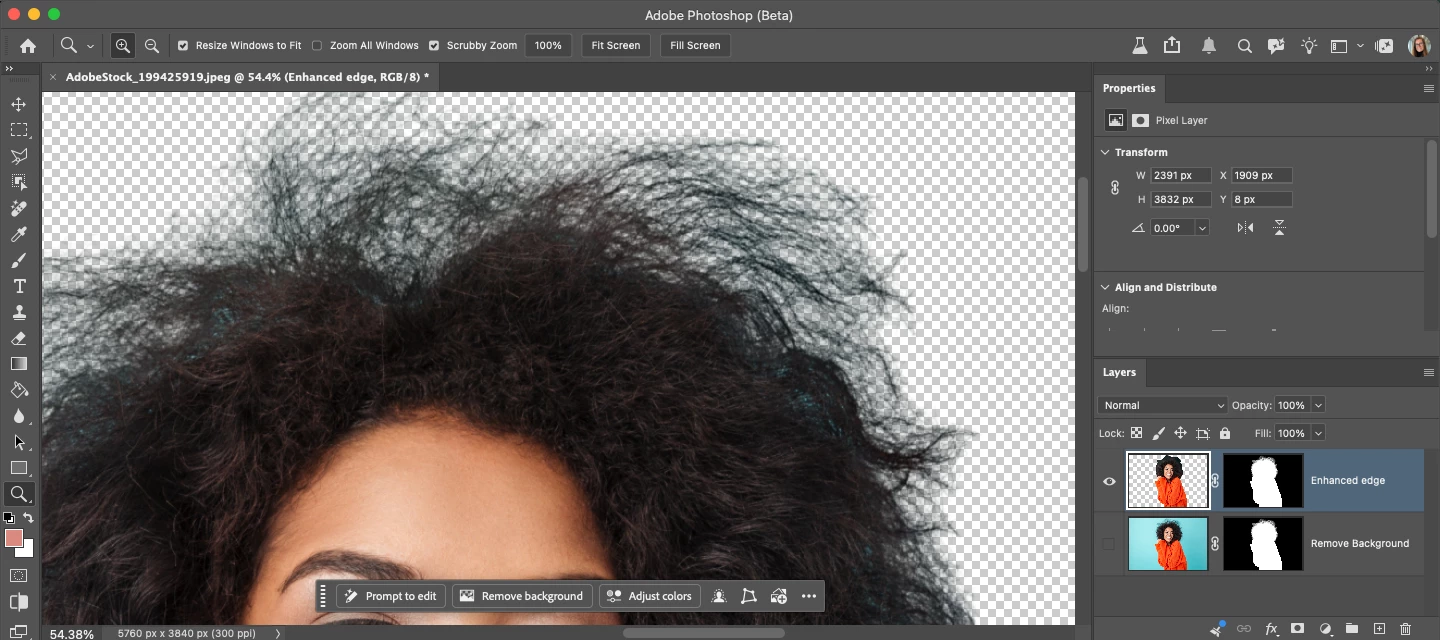
We are happy to introduce Enhance Edge is available in Beta (Aug 31, 2026 - 27.11.0 20260830.m.3655). WHAT IS THIS FEATURE Enhance Edge uses AI to analyze pixels at the edge of a mask, removing background color fringing while preserving fine details and generating smooth, natural-looking edges. This feature is particularly good at removing high contrast background colors from hair and fur.Enhance Edge is a Generative AI feature that costs 20 credits and requires an internet connection. HOW TO TEST 1. Open or place an image you would like to cut out or remove the background. Note that this feature is best used on color-contaminated edges.2. Select a pixel layer that contains an object or subject → Select Remove Background. Currently, Remove Background leaves a blue “halo” around the hair.Note: you can run Enhance Edge on any Layer Mask. Just select the Layer Mask in the Layers Panel and right-click the thumbnail to open the context menu. Select "Enhance edge" 3. On the Mask C
Bug report template:Issue: Photoshop version: 27.10 & 27.11 Beta OS: Windows 11Steps to reproduce:Use a black/white brush or gradient on a mask Expected result: A smooth gradient or brush markActual result: Grey banding occurring, looking like a low colour bit-depth is being used (when the image mode is 16-bit). I tested the same image on multiple versions. I get smooth gradients and brush marks on Release version 27.5 and Beta 27.9, but I see banding when I update to 27.10 and 27.11.I have checked all my gradient and brush settings and made sure they’re identical between all versions of the apps. I have tried playing with brush spacing, smooth and gradient dithering and classic vs smooth method, but that doesn’t make much of a difference.I have also tried toggling Use OpenCL on/off in the graphics preferences but it doesn’t help.I have Use Graphics Processor ticked on, Use OpenCL off, Anti-Alias Guides and Paths on, 30-bit display off and GPU compositing on. My GPU is an RTX 4080.
PS Beta 27.11The brush tip cursor flickers every second all the time.I attached a video of the issue
Adobe Photoshop Version: 27.11.0 20260830.m.3655 ceb0621 arm64 (beta, PublicBeta)If you try to open Black and White window (cmd+opt+shit+b) it fails to build:Drover error in ok_cancel_dialog:Drover error in black_and_white_view:<unknown>:1:0: error: cell named 'show_auto_button'already exists.File: layout descriptionLine 00010: sub_layout(name: "content");char 00000: ^^^
There is an awful AI Assisted button on the top bar that doesnt seem to be removeable. This must be removeable. Advise how to remove this awful thing
We are happy to introduce an update to Photoshop, scratch disk monitoring. Photoshop uses a scratch disk—a portion of your hard drive—to store temporary files and as virtual memory when the computer's RAM is insufficient for operations. If your scratch disk runs out of space, you risk losing unsaved work. This update could help you avoid that by monitoring the available space. What is the update? At launch, Photoshop will verify that you have the recommended amount of scratch disk space. If you do not, a popup will alert you and allow you to: Switch to a larger scratch disk volume Delete files on your hard drive to free up additional space Add and designate an external hard drive as an scratch disk Close the popup and continue working Opt out of future warnings Click “Learn more” for additional info. Want to set the recommended threshold for your scratch disk warning? By default, you will get a warning if your free space is less than 45GB. Here’s how chan
"When using the crop tool with AI generative fill, the result isn't perfect."
Photoshop Beta: Brush/Eraser Resetting to 0% Roundness After Every StrokeI need help :( This is so frustrating!!!!!!!!!!!!!!! What I have tried so far (and failed):Reinstalled Photoshop Beta: Completely uninstalled Photoshop Beta and reinstalled it from the Creative Cloud app. Reset Tool / Reset All Tools: Right-clicked the Brush/Eraser icon in the top options bar and selected Reset Tool, as well as trying Reset All Tools. Manual Setting Overrides: Manually changed the brush roundness value back to 100% in the brush options panel. Disabled Shape Dynamics Control: Opened Brush Settings (F5) -> Shape Dynamics, and verified that the Control dropdown menu under Size Jitter and Angle Jitter is set to Off (not stuck on Pen Pressure or Stylus Wheel).The Persistent Behavior:Despite all of these resets, the moment I lift my pen or mouse stroke, the roundness value for both the Brush and the Eraser instantly drops back down to 0% automatically. HELP!!!
When using Cmd shortcut to auto-select, when group is selected it selects layers, when layers is selected it selects groups
Remix with Firefly Community Gallery
Thousands of free creations to fall in love with and remix in Firefly.
Already have an account? Login
Enter your E-mail address. We'll send you an e-mail with instructions to reset your password.