  • 1337 Product updates

2026(21.0)でレイアウトグリッドにずれや空白が生じる問題について

2025年10月末にリリースされたInDesign 2026 (21.0)でレイアウトグリッドを表示したドキュメントを開くと、 グリッド表示に問題が生じることを確認いたしました。 この問題は特に文字の「垂直/水平比率」を調整していた場合に問題が確認されます。   【確認された主な問題】 ・ドキュメントを開いた際にレイアウトグリッドの末尾に空白箇所が発生する ・レイアウトグリッド設定の「文字垂直比率」や「文字水平比率」を調整すると、指定してある行数と異なる行数のグリッドが表示される     【回避方法】 大変恐縮ではございますが、2026 (21.0) バージョンの設定による回避策はございません。 レイアウトグリッドを利用したドキュメントを利用する場合には、今しばらくは一つ前のInDesign 2025 (20.5) をご利用くださいませ。   以前のバージョンのInDesignがインストールされていない場合には、お手数ですが以下リンクを参考に導入してください。 以前のバージョンの Creative Cloud アプリケーションのインストール ※2026 (21.0) とは別のアプリとなる為、両方を入れておくことも可能です。       ご報告は以上です。 今後、情報のアップデートがありましたらこの投稿を更新いたします。ご不便おかけし恐縮ですが、ご確認よろしくお願いいたします。

Illustrator 2026 v30.0 | フォントブラウザ、カラー、スナップ機能とアートボードの強化、ターンテーブルなど

この記事は 2025/10/28 Illustrator 2026 v30.0 | Font Browser, Color, Snapping & Artboards Enhancements, Turntable and more @Anubhav M  の翻訳です。 みなさん、こんにちは! Adobe Illustrator 2026 v30.0 (MAX) のリリースをお知らせします。Creative Cloud Desktop から今すぐご利用いただけます!今回のアップデートでは、刷新されたフォントブラウザ、ディザリングと知覚的ブレンドによる滑らかなグラデーション、強化されたスナップツール、そして全体的なパフォーマンスの向上が実現されました。さらに、多角的ビューを実現するターンテーブル(ベータ版)、共同作業のためのプロジェクト機能、Firefly生成画像への直接アクセス、集中管理された生成AIツールといった新機能も追加。アートボード管理の簡素化、パーソナライズされたワークスペース、Adobe Expressとのシームレスな連携もお楽しみいただけます。   アプリを更新してください Illustrator 2026 v30.0 の最新機能と強化点を試してみてください。 Illustratorを更新する   フォントを簡単に見つけ、適用し、整理する 強化されたフォントブラウザで、フォントを簡単に探索しましょう。整理されたセクションと新しいフィルターにより、豊富なAdobe Fontsライブラリから素早くフォントを見つけ、発見できます。さらに、Creative Cloudライブラリを使ってフォントをシームレスに整理・管理できます。フォントブラウザ内で直接操作可能です。強化されたフォントブラウザのオプションを探索し、必要なフォントを見つけてください. Illustrator 2026におけるカラー強化機能 グラデーションディザリングでより滑らかな色の遷移を実現します。 グラデーションにおける知覚的な色の混ざり具合を制御し、自然な遷移を実現する。 強化されたカラーピッカーで、色のプレビュー、選択、適用をより迅速に行えます。 創造的で、すぐに使えるグラデーションプリセットを適用します。 Illustratorのカラー補正について詳しく知る Illustrator 2026のスナップ機能強化 スナップ線を接線に端点を合わせる。 正確な位置合わせには垂直スナップを使用してください。 Illustratorのスナップ機能の強化について詳しく知る. Illustrator 2026におけるアートボードの機能強化 アートボードをロックして誤編集を防止します。 カラフルなアートボードでワークスペースをカスタマイズしましょう。 必要なアートボードのみをエクスポートします。 キャンバスを離れることなくアートボードを管理する。Illustratorのアートボード機能強化について詳しく知る. アプリのパフォーマンス向上を体験してください 大容量ファイルの保存を高速化し、作業を即座に保護。予期せぬクラッシュ後も文書を迅速かつ確実に復元。移動、拡大縮小、回転、複製時の編集がよりスムーズに——遅延や中断なしに。パフォーマンスの向上について詳しく知る. 複数の角度から2Dオブジェクトを閲覧し、新たな創造的な方向性を探る Illustratorのターンテーブル(ベータ版)を使用して、アートワークを任意の角度から回転・表示し、よりダイナミックなデザイン視点を得ましょう。Illustrator(ベータ版)でターンテーブルの使用方法を学び、フィードバックを共有しましょう. プロジェクトを使って整理、共有、共同作業を行う プロジェクト内に共有スペースを作成し、Adobe PhotoshopやAdobe Expressなどのアプリ間でファイルをシームレスに整理・共同作業できます。プロジェクトを使用して整理、共有、共同作業を行う方法を学びましょう. Adobe Firefly画像をアプリ内で直接配置・調整 Illustratorのホーム画面またはワークスペースから直接ジェネレーション履歴にアクセスし、Fireflyウェブサイトで作成したラスター画像を操作できます。ダウンロードやアップロードは不要です。IllustratorでFirefly画像にアクセスする方法を学ぶ Adobe Expressのテンプレートでより速く作成 Illustratorのホーム画面から直接、最適なテンプレートを閲覧・選択し、Adobe Expressで微調整してください。Adobe Expressのテンプレートの探し方と編集方法を学ぶ テキストからベクターグラフィックへの変換で、Fireflyモデルを探索し、より創造的な制御を実現 Firefly Vector 4 および Vector 3 モデルでシーン、被写体、アイコンを生成する実験を行い、クリエイティブなビジョンに最も合うものを選択してください。テキストからベクターグラフィックへの変換で、Fireflyモデルの選択方法を学びましょう。 生成AIの全機能を中央で一括管理 ツールバーの「生成AI」ボタン、または「オブジェクト」>「生成AI」メニューから、すべての生成AI機能を1か所で利用できます。 その他の変更点 システム更新: Illustrator 2026 は macOS Monterey (バージョン 12)、Windows 11 v22H2 および v21H2 デバイスではサポートされていません。 修正された問題: Illustrator 2026 には多数のバグ修正と改善も含まれています。詳細はこちら   ぜひご意見をお聞かせください! Illustrator 2026 v30.0をお試しいただき、ご感想をお聞かせください。ご質問や追加のヒントが必要な場合は、お気軽にお問い合わせください! 参考になった場合は、この記事の左上にあるアップボートアイコンをクリックしてください。あなたのフィードバックは、私たちの経験を改善するのに役立ちます。 ありがとうございました! ご質問がある場合、下の「返信」をクリックして質問してください。 お役に立てた場合には「フォローする」をクリックして、この投稿を是非ブックマークしてください。

【3/11更新】バックグラウンド保存による保存エラーについて

2026年3月11日追記現時点での最新版である30.2.1バージョンにて、再びバックグラウンド保存による以下の問題を確認しています。問題を回避するために「バックグラウンドで保存」と「バックグラウンドで書き出し」からチェックを外してIllustratorをご利用くださいませ。該当機能が動作しない状態で保存をした場合には、問題が発生しないことを確認しております。 【確認された問題】・保存されたIllustratorドキュメントのサムネイルを見ると一部の画像が消えている・保存されたIllustratorドキュメントをInDesignなどの他のアプリに配置すると一部が消えて表示される------------------------------------------------2025年12月25日追記2025年12月23日リリースの29.8.4にてバックグラウンド保存を原因にした以下問題の修正を確認いたしました。 ・一部のデータにおいて、配置画像の名称が保存の度に末尾1文字消えて保存される(画像のリンク切れとなる)・データを保存して開きなおした際にレイアウトが崩れる・PDF互換のあるIllustratorデータでAcrobatレイヤーが複製される Illustrator2025をご利用の方はCreative Cloud より29.8.4へアップデートしてIllustratorをご利用くださいませ。※30.1バージョンでも該当の問題が再現されないことを確認しております。Illustrator2026をご利用の方は現在最新の30.1バージョンをご利用ください。 ------------------------------------------------Illustrator 2025 (29.8.1) バージョン以降において、環境設定の「バックグラウンド保存」に起因した保存エラーを確認いたしました。 【確認された主な問題】・一部のデータにおいて、配置画像の名称が保存の度に末尾1文字消えて保存される・ラージカンバスで定規の基準位置を変更して保存すると、開きなおした際にレイアウトが崩れる(※後にラージカンバスでない場合にも発生するケースも確認されました) 現在確認されている問題以外にも、保存エラーに繋がる可能性も考えられます。お手数ではございますが、今しばらくはバックグラウンド保存の設定を「オフ」としてご利用ください。【設定方法】1.Illustratorを起動し画面上部メニューから以下の項目を選択します。Windows:編集>環境設定>ファイル管理Mac:Illustrator>設定>ファイル管理2.「バックグラウンドで保存」と「バックグラウンドで書き出し」からチェックを外します。※上記スクリーンショットは「バージョン30.0」の画面です 3.表示パネル右下の「OK」を選択します。この設定は、「オン」にしていると保存処理の最中に追加の編集操作を行える機能です。設定を「オフ」としても、通常のIllustrator機能に影響はありません。 ご報告は以上です。今後、情報のアップデートがありましたらこの投稿を更新いたします。

Adobe Express for Enterprise: Feature updates

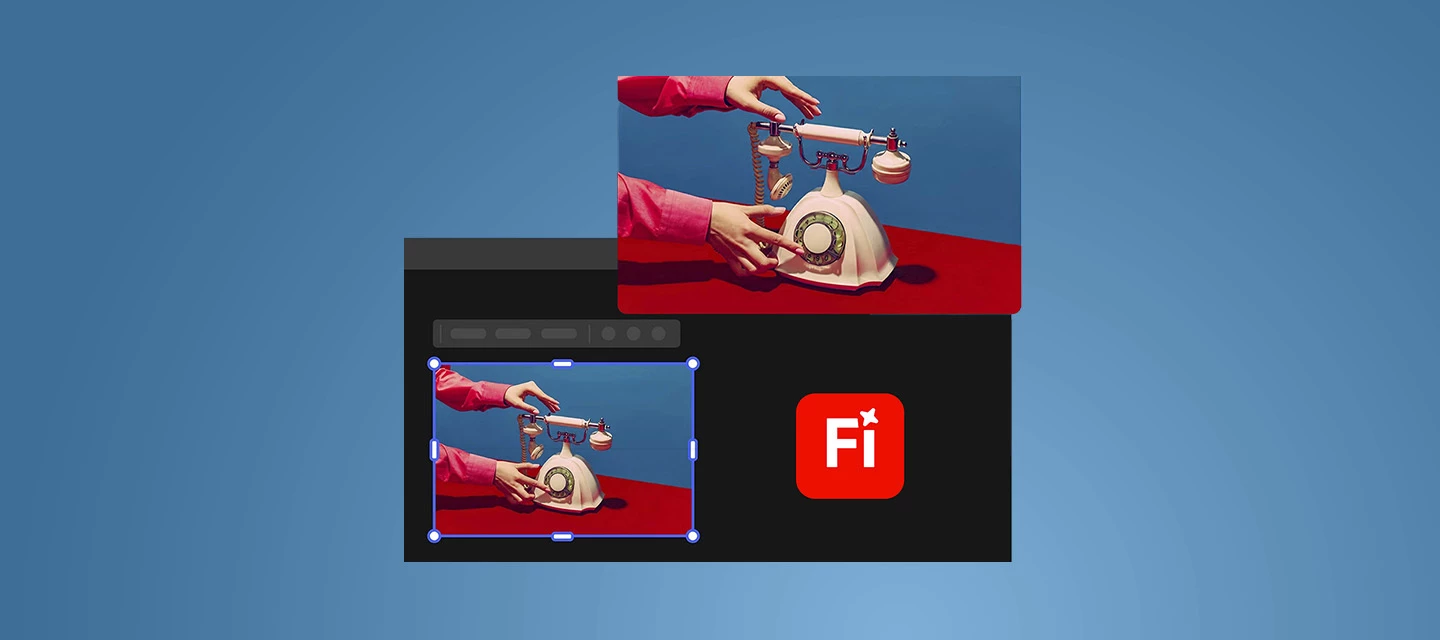
  Powering On-Brand Creation for Enterprise users!    Adobe Express is evolving to make on-brand content creation faster, smarter, and more connected for business users. With features like Enterprise Templates, asset management in Projects, and Branded Homepage, teams can now access approved assets, templates, and brand elements all in one place. Reviews & Approvals and contextual commenting simplify collaboration, while integration with Adobe Workfront and AEM eliminates bottlenecks, connects creative and marketing teams, and enables faster, scalable content creation, helping enterprises deliver brand-perfect assets every time.    Try Adobe Express   Feature Highlights     Templates 2.0 Template re-editing, moving templates to projects, and enabling users to create, manage, and organize templates according to their needs, making it easier to distribute them across their organization.         Review and Approval Adobe Express's built-in review and approval streamlines collaboration for creative and marketing teams. Integration with Adobe Workfront ensures faster, on-brand content creation.           Branded Homepage Enterprise Admins can now customise their Express homepage banner and select templates to be displayed predominantly.              Asset Management in Projects Keep your designs consistent and on-brand by linking brands to multiple projects. Manage access, reuse assets, and simplify collaboration, without recreating your brand setup every time.         Useful Links   FAQ: Get answers to common questions about Adobe Express. What's New: Get highlights on all new available features. System requirements: Find the minimum technical specifications for Adobe Express. Known Issues:  Identify the known issues around the app. UserVoice: How can we improve Adobe Express? Share your thoughts and ideas in UserVoice.  

MAX 2025 - Adobe Express introduces AI Assistant (Beta)

  Create smarter, edit faster with prompts!   Within Adobe Express, the AI Assistant combines generative AI with quick, easy design editing. You can now use prompts to explore ideas, create new content, or edit existing designs, all while keeping the parts you like intact.   AI Assistant is currently in limited beta and available for testing & feedback only on desktop devices. It's also not available on Free, Teams, Enterprise, or K12 Education plans.     Try Express AI Assistant   Feature at a glance     Use short text prompts in the Express AI assistant to: Add or replace objects, texts, images, or backgrounds  Edit visuals, apply filters, or adjust brightness or opacity Generate or rewrite text in different tones and lengths. Manage layouts, resize, align, or organize elements Apply filters, themes, or color palettes to match design styles   AI Assistant runs on trusted models like Adobe Firefly, Gemini 2.5, and Flux.1 Kontext to produce quality results directly on the canvas. You can turn it on or off at any time for more control while designing.   Common Questions   How can I access the AI Assistant (Beta)?  Early access to the AI Assistant (Beta) is available for premium plan users. Free users can start a 20-day premium trial to check the feature.    Will my Generative Credits be affected by the AI assistant? No, generative credits are only consumed if the Express AI Assistant is asked to generate an image.   Useful Links   AI Assistant overview AI Assistant FAQ Get started with the AI Assistant     Hey community! Upvote if this post was helpful, and leave a comment to join the conversation.  

Get Ready for Adobe Express with MAX - 2025

  Here's the new era of Adobe Express!    This MAX, Adobe Express is stepping into its next big chapter, one built on your feedback, creativity, and ambition. From smarter workflows and on-brand content creation to more seamless integration across Creative Cloud, this release is designed to help every creator, whether students, freelancers, or enterprise teams, move from idea to impact faster than ever.   Try Adobe Express   Feature Highlights   AI Assistant (beta)   Design, edit, and transform visuals in a flash with the AI Assistant. Explore its features and try sample prompts to get your creativity started.             Custom Gradients   Easily transform your visuals by adding preset or custom color gradients to backgrounds, shapes, text, and images.               CMYK Print Support   Download print-ready PDFs with your chosen CMYK color profile to ensure consistently professional and accurate colors every time.               Rulers & Guides   Use rulers and guides to create neat, consistent, and professional-looking designs every time.               Express templates across CC apps   Jumpstart any project with professionally designed templates in Photoshop, Illustrator, InDesign, Premiere Pro, and After Effects — then open in Adobe Express to customize, co-create, and share seamlessly.         Useful Links   FAQ: Get answers to common questions about Adobe Express. What's New: Get highlights on all new available features. System requirements: Find the minimum technical specifications for Adobe Express. Known Issues:  Identify the known issues around the app. UserVoice: How can we improve Adobe Express? Share your thoughts and ideas in UserVoice.  

Illustrator 2026 v30.0 | Font Browser, Color, Snapping & Artboards Enhancements, Turntable and more

Hey everyone! We’re excited to announce the release of Adobe Illustrator 2026 v30.0 (MAX) - now available via Creative Cloud Desktop! This update brings a refreshed font browser, smoother gradients with dithering and perceptual blending, enhanced snapping tools, and faster performance across the board.You’ll also find new features like Turntable (Beta) for multi-angle views, Projects for collaboration, direct access to Firefly-generated images, and centralized generative AI tools. Plus, enjoy easier artboard management, personalized workspaces, and seamless integration with Adobe Express. Update the App Try out the latest Features and Enhancements in Illustrator 2026 v30.0. Update Illustrator Find, apply, and organize fonts easily Explore fonts effortlessly with the enhanced font browser, featuring streamlined sections and new filters to help you quickly find and discover fonts from the extensive Adobe Fonts library. Plus, seamlessly organize and manage your fonts using Creative Cloud Libraries—right within the font browser.Explore the options in the enhanced font browser and find the font you need. Color Enhancements in Illustrator 2026 Achieve smoother color transitions with gradient dither. Control perceptual color blending in gradients for natural transitions. Preview, select, and apply colors faster with the enhanced Color Picker. Apply creative, ready-to-use gradient presets. Learn more about the Color Enhancements in Illustrator. Snapping Enhancements in Illustrator 2026 Snap line endpoints to tangents. Use perpendicular snapping for precise alignments. Learn more about the Snapping Enhancements in Illustrator. Artboard Enhancements in Illustrator 2026 Prevent accidental edits by locking artboards. Personalize your workspace with colored artboards. Export just the artboards you need. Manage artboards without leaving the canvas.Learn more about the Artboard Enhancements in Illustrator. Experience enhanced app performance Speed up saving large files to protect your work instantly, recover documents quickly and reliably after unexpected crashes, and enjoy smoother editing when moving, scaling, rotating, or duplicating—without lag or interruptions.Learn more about the performance enhancements. View 2D objects from multiple angles for new creative directions Use Turntable in Illustrator (beta) to rotate and view your artwork from any angle for a more dynamic design perspective.Learn how to use Turntable in Illustrator (Beta) and share your feedback. Organize, share, and collaborate using Projects Create shared spaces within Projects to seamlessly organize and collaborate on files across apps like Adobe Photoshop and Adobe Express.Learn how to organize, share, and collaborate using Projects. Place and refine Adobe Firefly images directly in-app Access your Generation history directly from the Illustrator homescreen or workspace to work with raster images created on the Firefly website—no downloads or uploads needed.Learn how to access Firefly images in Illustrator. Create faster with Adobe Express templates Browse and select the perfect template right from the Illustrator homescreen, then fine-tune it in Adobe Express.Learn how to find and edit Adobe Express templates. Explore Firefly models in Text to Vector Graphic for more creative control Experiment with Firefly Vector 4 and Vector 3 models to generate scenes, subjects, and icons—then choose the one that best fits your creative vision.Learn how to select Firefly models in Text to Vector Graphic. Access all generative AI features centrally Access all generative AI features in one place using the Generative AI button in the toolbar or through the Object > Generative menu. Other Changes System updates: Illustrator 2026 isn't supported on macOS Monterey (version 12), Windows 11 v22H2, and v21H2 devices. Fixed Issues: Illustrator 2026 also includes a host of bug fixes and improvements. Learn more. We’d love to hear from you! Try out Illustrator 2026 v30.0 and let us know your thoughts. Feel free to reach out if you have any questions or need more tips! If this was helpful, please click the Upvote icon in the top left corner of this post. Your feedback helps us improve the experience. Thank you! Have questions? Click 'Reply' below to ask. Click 'Follow' below to bookmark this post for easy reference.

Meet the New Font Browser in Illustrator 2026

Meet the New Font Browser in Illustrator 2026

Hey everyone!Browsing for fonts in Illustrator is more powerful; all your fonts at your fingertips with the ability to seamlessly browse your local and Adobe fonts, search by keyword and theme, apply filters based on font language and other characteristics, and organize your fonts into libraries that sync across your Adobe apps. To access it, go to Window > Type > Character, then open the font family dropdown in the Character panel. You can also find it in the Properties panel, Control panel, or the Contextual Task Bar when you select text on your canvas.  Check out this help article for more details.Explore options in the font browser in just a few steps. Try it in Illustrator using this link. Quick filtersQuick filters allow you to filter fonts by source:Show Favorite Fonts Show recently added Show Local Fonts In This Document Show Added FontsFiltersFilters allow you to filter fonts by categories:Languages & Writing Systems Font Technology Classification Weight & WidthThe Your Fonts tabThe Your Fonts tab is what you see when you open the font browser. It displays all the fonts installed on your computer, as well as those added from Adobe Fonts, organised into sections.The Libraries tabThe Libraries tab in the font browser lets you organize fonts using Creative Cloud Libraries. You can use existing Libraries or create new Libraries within the Libraries tab.The Discover More tabThe Discover More tab lists all the fonts from Adobe Fonts, arranged in sections. Explore fonts faster with intuitive selection, global settings, and smart previews - all in one place. Set the font family fieldUse the font family field to select your font you want to use from all installed options.Global Font SettingsGlobal Font Settings provides key font settings, including those for font preview and recently used fonts.Font-specific optionsWhen you hover over a font in the Your Fonts or Discover More tab, you get font-specific options and details:Add to Favorites or Remove from Favorites Show Similar Fonts Add to Library Added or font file type (Your Fonts tab only) Add, Adding, or Remove (Discover More tab only) We'd love to hear from you!Try out the new Font Browser in Illustrator and let us know how they’re improving your workflows. If you have questions or feedback, feel free to reply here and join the conversation.If you found this post helpful, click 👍Like to let us know. Use ⭐Subscribe to stay updated on future replies. You can also share this post with others who might find it useful.

Photoshop MAX 2025 is here and it’s packed with powerful new features!

 Hey Photoshop lovers, this one’s for you! From Harmonize for perfect color vibes to Nano Banana (yes, that’s real!) and Flux Kontext Pro integration, this update is packed with magic. Plus, Generative Upscale, Adobe Express templates, direct cloud export, and even Firefly animation options - it’s all here!Want to see the action? Join MAX online for free here and and dive into all the Photoshop sessions here. To update Photoshop 27.0, click "Update" in the Creative Cloud desktop app next to Photoshop. More detailed instructions for updating.  Here's what's new in Photoshop 27.0: Blend with Harmonize:Seamlessly blend objects and people into any background in Photoshop on the desktop, Mobile and Web. Create realistic composites with a natural look using Harmonize, which automatically adjusts color, lighting, and shadows to achieve a seamless appearance.Learn how to seamlessly blend your photos with Harmonize here. Partner Models with Gen-Fill:Access to Google's Gemini 2.5 Flash Image (Nano Banana) and Flux Kontext Pro image generation models directly in Photoshop when using Generative Fill. Get Photoshop's creative control combined with these cutting-edge models, working seamlessly in one pro-grade environment, to bring your creative vision to life.Learn more about Partner models here. Generative Upscale:Improve the quality, sharpness, and clarity of your images in Adobe Photoshop Desktop and Web. Instantly enhance your images with Generative Upscale, powered by Firefly and Topaz Labs. Credits vary by model and file size.Discover how to enhance your image quality with Generative Upscale here.  Adobe Express Templates in Ps:Access and customize projects faster in Photoshop by using Adobe Express templates directly from your homescreeen. Browse popular templates, layouts, and season designs, preview and edit them in Adobe Express, and quickly create polished projects.Learn more about the new Adobe Express template integration here.Animate in Adobe Firefly:Take an asset created in Adobe Photoshop and bring it to life by generating a video in Adobe Firefly. Discover how to seamlessly import your Photoshop files, apply Firefly's generative video tools, and create dynamic, visually stunning videos from your existing designs.Learn how to animate your Photoshop images in Adobe Firefly here.More New Features and Improvements in Photoshop:Adobe Photoshop 27.0 includes a variety of enhancements that make it easier to work efficiently, stay organized, and bring your ideas to life:Access Adobe Stock photos without leaving the workspace: Browse and select Adobe Stock photos within Photoshop. Export Photoshop assets to Adobe Cloud: Collaborate more efficiently by exporting final assets directly from Photoshop to the Adobe Cloud. Adjust Temperature, Tint, Vibrance, and Saturation non-destructively: Correct color balance and enhance the overall look of an image with Color and Vibrance adjustment layer. Work faster with improved Select Subject and Remov Background: Select Device to get better selections with Select Subject and Remove Background. Create shared Projects to organize assets and collaborate in one place: Organize files into Projects, collaborate with edit or comment access, and manage everything in one place. Import and edit Firefly-generated images in Photoshop: Import previously generated Firefly images in Photoshop and edit them in a new document while keeping the original asset unchanged.New Features and Improvements in Photoshop WEB:With Harmonize, Effects and Generative Upscale now live, we’re excited to introduce Liquify in Photoshop on the web. Check it out!  These updates help you streamline your workflow, collaborate seamlessly, and elevate your creative projects. Learn more about all the new features here.Are you ready to get started? Update Photoshop to the latest version and explore its exciting new features. We’d love to hear from you!Try out the new Photoshop 27.0 and let us know your thoughts. Feel free to reach out if you have any questions or need more tips!Your feedback helps us improve the experience. Thank you! We’d love to see what you’ve created and hear about your experience or feedback! Click 'Reply' below.Click 'Subscribe' below to bookmark this post for easy reference.For other questions, feel free to start a new post in the community.

📸 What's new in Adobe Camera Raw for MAX 2025

Adobe Camera Raw: Dust removal, Select Snow, and more from MAX! Welcome to all our Adobe Camera Raw users — Adobe MAX is here, and it's your time to shine! This is more than a conference — it’s a creative recharge for photographers who want to make the most of every pixel. Join MAX online for free and check out all the photography sessions with all the apps that use Adobe Camera Raw! Learn more about everything that's new in this release in our What's New!    Try it in the latest update Download the latest version and dive into the new features offered in Adobe Camera Raw.  Adobe Camera Raw 18  To update Adobe Camera Raw to 18.0 , click "Update" in the Creative Cloud desktop app next to Lightroom. More detailed instructions for updating. Here's what's new in Adobe Camera Raw 18.0 Dust Removal The Dust Removal feature, located within the Distortion Removal panel in Adobe Camera Raw, helps remove dust spots from a photo. This AI-powered feature automatically detects and removes dust spots on your camera's sensor.   Want to learn more about this Dust Removal in Adobe Camera Raw? Check out this article.   Select Landscape Snow Snow is now available as a landscape element in the Masking panel. You can also access 7 new Landscape Presets in Adobe Camera Raw.     Want to learn more about Select Landscape Snow in Adobe Camera Raw? Check out this article.   Color Variance The Variance slider lets you fine-tune the color and tone of an image to achieve tonal consistency.     Want to learn more about the Color Variance Slider in Adobe Camera Raw? Check out this article.   Camera and Lens Support + Enhancements: Adobe Camera Raw also includes newly supported cameras and lens profiles, as well as some exciting updates to existing features. Read more about these updates in our release notes.  Are you ready to get started? Update Adobe Camera Raw to the latest version and explore the new tools for faster, smarter editing. Let us know what you think below or share your before/after results in the comments. More detailed instructions for updating.   We’d love to hear from you! Try out Adobe Camera Raw 18, and let us know your thoughts. Feel free to reach out if you have any questions or need more tips! If this was helpful, please click the Upvote icon in the top left corner of this post. Your feedback helps us improve the experience. Thank you!   We’d love to see what you’ve created and hear about your experience or feedback! Click 'Reply' below. Click 'Follow' below to bookmark this post for easy reference. For other questions, feel free to start a new post in the community.

📸 What's new in Lightroom for MAX 2025

Lightroom Ecosystem: Assisted Culling, Dust removal, and more from MAX! Calling all Lightroom users — Adobe MAX is here, and it's your time to shine! This is more than a conference — it’s a creative recharge for photographers who want to make the most of every pixel. Join MAX online for free and check out all the Lightroom sessions! Want to know everything about this release? Read our release notes.    Try it in the Desktop App Download the latest version and dive into the new features offered in Adobe Lightroom.  Adobe Lightroom The Lightroom Ecosystem just got a major upgrade. Read more about how to keep Lightroom updated here.  Here's what's new in Lightroom 9.0   Organize with Assisted Culling Assisted culling helps you efficiently organize large photo collections by identifying top images, automatically rejecting low-quality ones, and allowing manual adjustments to selections.     Want to learn more about this Assisted Culling? Check out this article. Let us know your thoughts on Assisted Culling here: (Early Access) Assisted Culling (Lightroom Ecosystem - Desktop)   Dust Removal The AI-powered Dust Removal feature in the Distraction Removal panel automatically detects and removes dust spots in a photo, created by dust on your camera's sensor or lens.      Want to learn more about this tool? Check out this article.   Color Variance Now, access the variance slider in the Point Slider tool. Adjust the tone and color of an image with the Variance slider to achieve a consistent look.     Want to learn more about this Color Variance? Check out this article. What's new on Lightroom iOS and Android 11.0 Blemish Removal (EA) The Quick Actions tool in Lightroom on mobile streamlines the editing process by offering quick, AI-powered suggestions for specific parts of a photo. Open an image, select Actions, and let Lightroom analyse it to provide tailored enhancements for your photo on the go.   You can access Blemish Removal (Early Access) in Lightroom for mobile iOS, Android, and web!    Camera and Lens Support + Enhancements: Lightroom 9.0 & Lightroom Mobile 11.0 also include newly supported cameras and lenses, plus some exciting improvements: Early Access features such as Blemish Removal & Edit Suggestions on mobile and desktop.  New features on Desktop, such as GenRemove Shadow detection, Color Labels, and Batch Files Rename.  Color variance for on Desktop and Web.  New Landscape Adaptive Presets across the Ecosystem. Read more about this release in our release notes.  Check out the full list of supported cameras and lens profiles. Are you ready to get started? Update Lightroom to the latest version and explore the new tools for faster, smarter editing. Let us know what you think below, or share your before/after results in the comments. On Desktop: Open your Creative Cloud desktop app and click "Update" next to Lightroom Desktop. On Mobile: Head to the App Store or Google Play, and download the latest version of Lightroom Mobile. More detailed instructions for updating.   We’d love to hear from you! Lightroom Ecosystem just leveled up! Update now to explore powerful new tools. Show off your before/afters or drop your thoughts in the comments! If this was helpful, please click the Upvote icon in the top left corner of this post. Your feedback helps us improve the experience. Thank you!   We’d love to see what you’ve created and hear about your experience or feedback! Click 'Reply' below. Click 'Follow' below to bookmark this post for easy reference. For other questions, feel free to start a new post in the community.

📸 From MAX 2025: New Features in Lightroom Classic 15.0

Lightroom Classic 15.0: Assisted Culling, Dust removal, and more from MAX! Calling all Lightroom Classic users — Adobe MAX is here, and it's your time to shine! This is more than a conference — it’s a creative recharge for photographers who want to make the most of every pixel. Join MAX online for free and check out all the Lightroom sessions! Want to know everything about this release? Read our release notes.    Try Lightroom Classic Download the latest version and dive into the new Adobe Lightroom Classic features. Adobe Lightroom Classic 15 Big updates just dropped! Open your Creative Cloud app and hit 'Update' next to Lightroom Classic to dive in. More detailed instructions for updating. Here's what's new in Lightroom Classic Organize with Assisted Culling Assisted culling helps you efficiently organize large photo collections by identifying top images, automatically rejecting low-quality ones, and allowing manual adjustments to selections.   Want to learn more about this tool? Check out this article.   Dust Removal The AI-powered Dust Removal feature in the Distraction Removal panel automatically detects and removes dust spots in a photo, created by dust on your camera's sensor or lens.     Want to learn more about this tool? Check out this article.   Color Variance Now, access the variance slider in the Point Slider tool. Adjust the tone and color of an image with the Variance slider to achieve a consistent look.       Want to get the most out of color variance in Lightroom? Learn more here! Camera and Lens Support + Enhancements Lightroom Classic 15.0 also includes newly supported cameras and lenses, plus some exciting improvements: Other new features include Remove Shadows using Generative Remove, auto stacking, and more.  Landscape mask now includes snow and access to a new set of Landscape presets! Lecia Support for Teathered Capture  Performance improvements in the Develop module.  Read more about this release in our release notes.  Check out the full list of supported cameras and lens profiles. Open your Creative Cloud desktop app and click "Update" next to Lightroom Classic.  More detailed instructions for updating.   We’d love to hear from you! Lightroom Classic just leveled up! Update now to explore powerful new tools. Show off your before/afters or drop your thoughts in the comments! If this was helpful, please click the Upvote icon in the top left corner of this post. Your feedback helps us improve the experience. Thank you!   We’d love to see what you’ve created and hear about your experience or feedback! Click 'Reply' below. Click 'Follow' below to bookmark this post for easy reference. For other questions, feel free to start a new post in the community.

Adobe InDesign 21.0 MAX Release: Check out everything new with the app

Adobe InDesign 21.0 MAX Release: Check out everything new with the app

Hello Everyone,HAPPY MAX! We're thrilled to announce the release of InDesign 21.0, which includes exciting new features and enhancements to help you along your design journey.To update InDesign 21.0, click "Update" in the Creative Cloud desktop app next to InDesign. More detailed instructions for updating. Check out what's new in Adobe InDesign Design layouts that automatically adjust as content changesLeverage Flex Layout to create designs that seamlessly adjust and stay flexible as content evolves.Want to dive deeper into Flex Layouts? Just check out the link here. Collaborate in real time to edit InDesign documentsEdit text right in your web browser with smooth real-time collaboration and a distraction-free focus mode.Want to dive deeper into how you can collaborate faster? Just check out the link here. Convert PDFs into InDesign documents for easy editingTransform PDFs and Illustrator files into fully editable InDesign documents, maintaining precise design fidelity.Want to dive deeper into converting PDFs into InDesign documents? Just check out the link here. Format and style Math Expressions with easeQuickly format parts or entire math expressions with fonts, sizes, and colors, and paste editable equations directly from Microsoft Word.Want to dive deeper into Math Expressions? Just check out the link here. Curious about what's new in InDesign? Check out all the latest features here.Before you update, make sure your system is ready - check out the system requirements by clicking here. We'd love to hear from you!Try out InDesign 21.0, and let us know your thoughts. Feel free to reach out if you have any questions or suggestions, and we'll be happy to help! We'd love to see what you've created and hear about your experience or feedback! Click 'Reply' below.Click 'Subscribe' below to bookmark this post for easy reference.For other questions, feel free to start a new post in the community.

Welcome to the Adobe Illustrator (Beta) Community!

Hey everyone! This Beta community is the place to connect with others and share your feature feedback, bug reports, and new feature ideas on the Illustrator (Beta) directly with the Illustrator product team.  Explore the Beta app Illustrator (Beta) is available for testing and feedback. Try it now to experience new features. Get Started We are delighted to have you here and would like to give you a tour of our new community for Adobe Illustrator (Beta)! Let's begin with the various types of conversations available in this community! Key Features: Turntable Gets a Major Upgrade in Illustrator Beta - 30.1.65 and above Partner Models for Text to Vector  In this community, you can engage in different types of discussions to enhance your experience with Adobe Illustrator (Beta). Here are the three main categories: Discussions: Engage in conversations with other community members. You can chat, ask questions, and share tips and techniques related to Illustrator (Beta). Feel free to seek advice, share your expertise, and collaborate with fellow users. Bugs: Encountering an issue or need assistance with a problem in Illustrator (Beta)? This is the place to report bugs or crashes you come across. By posting in the bugs section, our team can help troubleshoot the problem and provide solutions to enhance your experience. Ideas: Do you feel that certain features are missing from Illustrator (Beta)? Have a brilliant idea to improve the existing features? Share your suggestions and ideas in the ideas section. This is the perfect platform to contribute your thoughts and insights to shape the future development of Illustrator (Beta). We encourage you to actively participate in these discussions, report bugs, and share your ideas. Your feedback plays a vital role in making Adobe Illustrator(Beta) even better for the entire community. Use Search Before posting a new bug or idea, we recommend searching the community to see if someone has already reported a similar issue or shared a similar idea. This helps to avoid duplicate threads and allows you to join existing discussions. Vote We have introduced an exciting new feature in bug and idea threads – the UpVote feature. This allows you to express your support and agreement for a particular bug or idea shared by another community member. The Illustrator team values your input, and the vote count helps us understand which features and bugs are most important to you. FAQs To ensure a seamless onboarding experience for you on Illustrator (Beta), we have prepared a comprehensive FAQ document. We highly recommend reviewing it as it contains valuable information that will answer common questions and provide guidance. Note: The Beta and pre-release app builds are the app versions that are under development and may still have bugs, incomplete features, or other issues impacting your workflow. Have questions? Click 'Reply' below to ask. Click 'Follow' below to bookmark this post for easy reference.

Scratch Disk Monitoring

We are happy to introduce an update to Photoshop,  scratch disk monitoring.   Photoshop uses a scratch disk—a portion of your hard drive—to store temporary files and as virtual memory when the computer's RAM is insufficient for operations. If your scratch disk runs out of space, you risk losing unsaved work. This update could help you avoid that by monitoring the available space. What is the update? At launch, Photoshop will verify that you have the recommended amount of scratch disk space. If you do not, a popup will alert you and allow you to: Switch to a larger scratch disk volume Delete files on your hard drive to free up additional space Add and designate an external hard drive as an scratch disk Close the popup and continue working Opt out of future warnings Click “Learn more” for additional info.     Want to set the recommended threshold for your scratch disk warning? By default, you will get a warning if your free space is less than 45GB. Here’s how change the threshold: Open Notepad (Windows) or a text editor (macOS). Paste the following text, replacing [number in GB] with your preferred threshold:# Set scratch disk free space thresholdScratch.GB.Launch [number in GB]Example: To set the threshold to 50GB, use Scratch.GB.Launch 50 Save the file as PSUserConfig.txt in your Photoshop settings folder:Windows: [Installation Drive]:\Users\[User Name]\AppData\Roaming\Adobe\[Photoshop_version]\[Photoshop_version]Settings\ macOS: /Users/[User Name]/Library/Preferences/[Photoshop_version]Settings/ Restart Photoshop to apply the new settings. Have you experienced scratch disk errors or lost work because of them? We’d love to hear your feedback below. Learn more about scratch disks and how to manage them: https://helpx.adobe.com/photoshop/using/scratch-disks-preferences.htmlhttps://helpx.adobe.com/photoshop/desktop/troubleshoot/performance-stability-issues/troubleshoot-scratch-disk-full-errors-in-photoshop.html

Fresco (iPad version 7.0) | Pose and Redesigned brush panel

  Adobe Fresco: Creativity for Everyone Fresco 7.0 for iPad is here! Unleash your creativity with pixel, vector, and live brushes—all in one powerful app. Whether you’re sketching, painting, or animating, Fresco makes it effortless to bring your ideas to life.   Try Adobe Fresco Download the app and dive into the new features offered in Adobe Fresco.  Install Fresco Check out what's new in Adobe Fresco Pose with precision Adjust individual strokes or whole illustrations while maintaining proportions, making it easy to refine your composition seamlessly. Whether crafting expressive linework or designing characters, the tool provides precise control while keeping your creative flow uninterrupted.   Want to learn more about the Pose tool? Click here.   Explore the Redesigned Brush Panel Quickly locate your favorite brushes with a unified, streamlined panel that brings all brush types together for an intuitive browsing experience. The unified brush panel enhances usability and simplifies brush management.   Want to dive deeper into the redesigned brush panel? Check out the link here.   Curious about what's new in Fresco? Take a look at the latest features here.   Want to see if Fresco works with your iPad? Click here.   Need help or feedback? Drop your questions here in the community, and we'll be happy to help.   We'd love to hear from you! Try out Adobe Fresco, and let us know your thoughts. Feel free to reach out if you have any questions or suggestions! If this was helpful, please click the Upvote icon in the top left corner of this post. Your feedback helps us improve the experience. Thank you!   We'd love to see what you've created and hear about your experience or feedback! Click 'Reply' below. Click 'Follow' below to bookmark this post for easy reference. For other questions, feel free to start a new post in the community.

Now in Beta: Lossless Compressed Playback in After Effects Beta

We’re thrilled to introduce Lossless Compressed Playback, now available in After Effects beta (starting with version 26.0x8).  This new feature takes composition playback to the next level — letting you preview longer durations while using significantly less disk space. How? After Effects now compresses cached frames without any loss in visual quality.    What’s New  With Lossless Compressed Playback, After Effects automatically stores cached frames in a compressed, lossless format on disk.    This means you can:  Preview much longer segments of your timeline.  Store more frames within your allocated disk cache limit.  Compression happens automatically in the background — saving disk space without changing your workflow or image quality.    Getting Started  On by default: The feature is enabled automatically for all Beta users.  To view or modify the setting, go to Preferences → Media & Disk Cache, and check/uncheck the box for "Enable Compressed Frames (Lossless)" You can disable it anytime if you prefer uncompressed previews.  Why It Matters  This update continues our journey to make After Effects playback faster, more reliable, and more scalable — for every creator, on every setup.  By compressing frames on disk, After Effects can cache more data, play back longer, and help you stay in flow without interruption.  We’d Love Your Feedback  Try Lossless Compressed Playback on your projects and tell us:  How does your playback duration compare?  Is disk usage noticeably reduced?  Do you notice any slow-down in preview?  Share your observations in the comments below — your feedback helps shape the future of After Effects playback.   

New in Beta: Meshes and 3D Materials, Oh My!

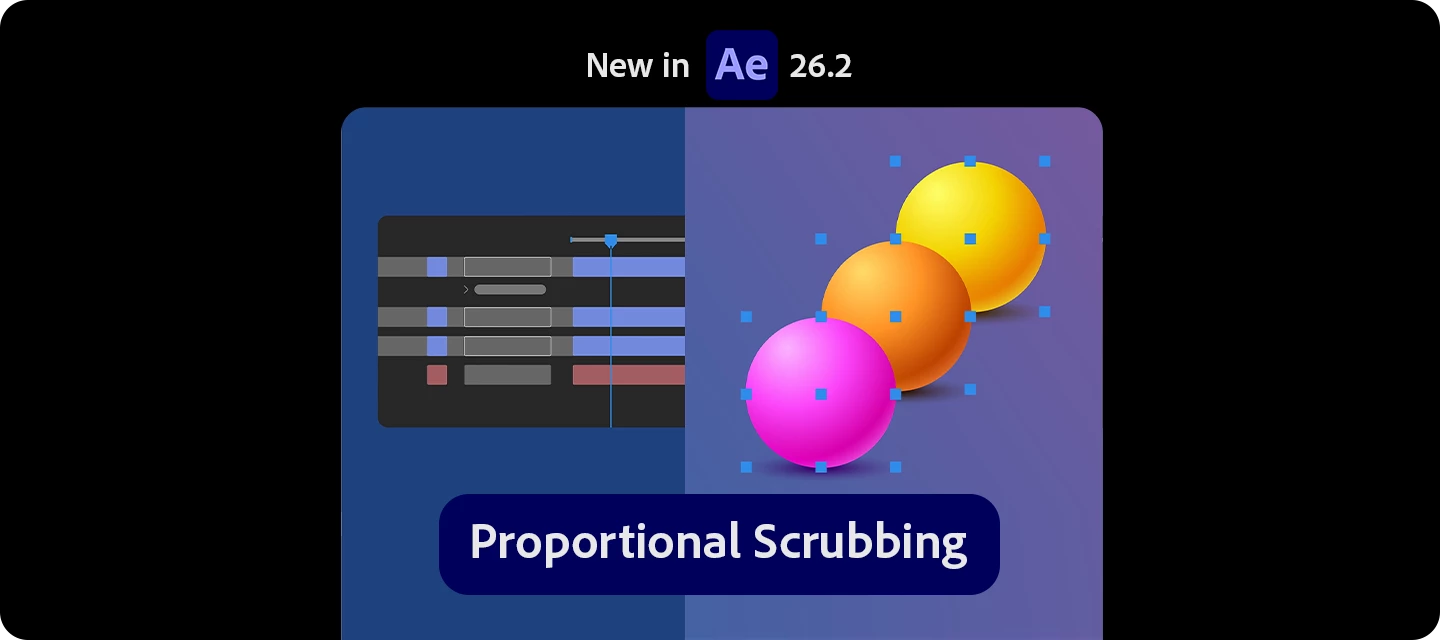
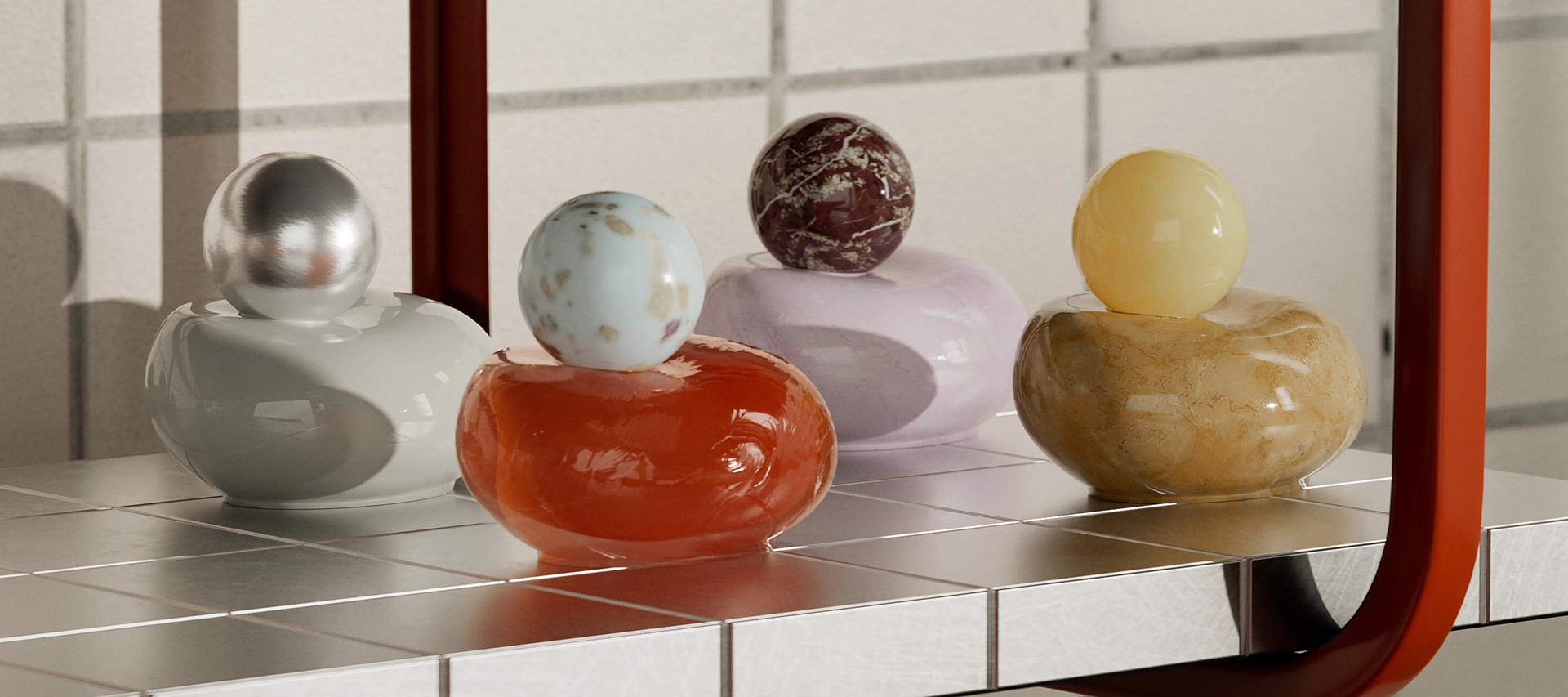
The Shapes of Things to Come     After Effects beta users, time to start building!    We are excited to introduce two new 3D features that work well individually but even better together: Parametric Meshes and Substance 3D Materials. With their powers combined, you can now design beautiful 3D scenes rich in shape and texture natively within After Effects.    AE’s growing toolbox of useful 3D features now includes an assortment of Parametric 3D Meshes, which is a fancy technical description for 3D shapes that you can use as building blocks for your compositions. These meshes include a Cube, a Sphere, a Plane, a Torus (mmm, donut), a Cone and a Cylinder, all of which can be customized to create a wide variety of looks.   Combining Parametric Meshes with Substance 3D Materials (aka SBSARs) can give your 3D meshes and models an exciting new look. SBSARs are dynamic, adjustable materials that can look like almost anything, natural or man-made—construction materials, a forest floor, sci-fi components, you name it. If you’re new to the world of Substance, they’re a lot like MOGRTs but for 3D materials... for example, SBSAR authors can add as many controls as they like, creating endless opportunities for customization!    Both Substance 3D Materials and Parametric Meshes are available in After Effects beta Version 26.0.08 and later. Making a Mesh of Things    Parametric 3D Meshes include a Cube, a Sphere, a Plane, a Torus (mmm, donut), a Cone and a Cylinder, all of which can be customized to create a wide variety of looks. Getting Started    You can add a Parametric Mesh to a composition in multiple ways:    Start by locating the new Parametric Mesh tool in the tool bar.       With your desired shape selected, you can draw directly in the comp window, to place shapes where you want them, at whatever size you wish.  Alternatively, choose the shape that you want to add from the Toolbar, then double-click on the shape icon to add the shape to the active composition with default settings.  Or, in the Layer menu, you can choose a shape option from the new section at the bottom of the list. This will add the shape into the center of your active composition with default settings.    Note: Parametric Meshes require the Advanced 3D Render Engine. If you attempt to access the Parametric Mesh menu using the Classic engine, you will see an alert with a prompt to change to the Advanced 3D engine.    Shape Drawing Tips    Drag anywhere in the comp window with your chosen shape tool to draw a parametric mesh. This should feel very similar to creating a shape layer.  Constrain the X, Y and Z dimensions by adding the shift key as you drag.  Adding the Command (Mac) or Control (Win) key will scale the new shape from the center instead of from the corner.  Adding the Space Bar while dragging will temporarily interrupt the drawing of the 3D Shape and instead allow you to move the shape… releasing the Space Bar then goes back to the drawing behavior. This is a quick way to more precisely align elements while drawing.  One mesh type, the Cone, behaves subtly differently from the other shapes, in that: if you draw a box by dragging down, the cone will point down, and if you draw a box from the bottom up, then the cone will point up.         When drawing meshes, elements will be center-aligned to one of the three cardinal planes: XY, XZ, or YZ. Which plane is selected is determined by the orientation of the camera, so by default you draw on the XY plane (the “back wall”) but if you tilt the camera down past 45 degrees, then you will draw on the XZ plane (the “floor”), similarly if you pan the camera to the right or left past 45 degrees, you will draw on the YZ plane (the “side wall”).      Modifying Meshes    In addition to the basic dimension of each shape, most 3D meshes also have bevel controls that allow you to round off the corners of an object to soften sharp edges. Most also have the ability to control the number of sides, so in addition to a default smooth-sided cone for example, you could reduce the number of sizes to 4 and create a square pyramid shape.     The Sphere, Cone, Torus and Cylinder shapes also allow you to carve out a slice from the object. If you want to build a pie chart, or animate a PAC-MAN, these are the controls for you.    The Cylinder and the Cone have end caps that can be turned off if you want to see inside the object. Similarly, if you create a slice in an object, the slice caps can be turned off if you want to create a hollow-object effect.   Modification Tips    The Cone shape is basically a cylinder with discrete radius controls at each end… you can independently set, bevel and animate the top and bottom of the cone for some creative results. Other shapes have global bevel controls that affect the whole object. Pro Tip: If you want a circular Plane instead of the default square Plane, don’t overlook the Plane's Corner Radius controls! Increase this value for rounded corners, crank it all the way up for a circular Plane, or set the Corner Sides to 1 if you want to create an octagon.      Intrinsic (Default) Materials    Each 3D Object has an Intrinsic, or Default Material applied to it, so you can easily adjust properties like Color, Roughness, Metal… options that are similar to the material controls in legacy 3D elements like extruded text and shape layers. There are some new ones in here however, such as Emission Color and Emission Intensity, which allow you to mix colors on the objects in creative and interesting ways.   Substance 3D Materials   In addition to the Default Materials, you can import and apply Substance Materials (SBSARs) to 3D shapes. This opens up a staggering variety of creative options.   As a starting point you can find a large library of free SBSARs to explore through Substance Community Assets, and thousands more professionally-created materials are available with a Substance 3D subscription. Download, mix & match, and explore! You can of course also create your own materials using the Substance suite of tools.    Working with Substance 3D Materials in After Effects is a slightly different workflow than you are probably accustomed to.   To apply Substance 3D Materials to Parametric Meshes, follow these simple steps: Select a Parametric Mesh layer.  Choose your imported SBSAR in the Material Assignment section of the Timeline or Properties panel.  Note: THIS IS THE UNUSUAL PART. You do not need to add the SBSAR to the timeline... as long as the sbsar file is in the project panel, you can choose it as a Material assignment.  Refine how the material is applied by adjusting its Texture Offset (this shifts its position across the model or mesh’s surface, and the texture seamlessy wraps around to contiuously cover the shape), Rotation (around the native center of the texture) or Scale (around the native center of the texture).  Customize the material properties in the Properties panel. The myriad controls you may find here are unique to each SBSAR, and can produce a wide variety of looks. Very Important Note: While Material Assignment options like Scale are specific to the layer or Mesh Selection, any changes you make to the SBSAR material itself are global changes and will affect every instance of that material in your project. If you’d like to customize just one instance, choose Duplicate and Assign Material in the flyout menu of the Material section of the Properties panel. This will create another instance of the material in your project and automatically assign it to the selected layer in place of the original. 5. Many materials also include helpful presets  that give you quick access to different looks.  Note: Selecting a preset is local to the model, not a global change.   You can also apply Substance 3D Materials to imported 3D models with pre-assigned materials. How well this works will depend on the quality of the UV Maps in the model, but in most cases you will have complete freedom to customize the look of your models.    For models with multiple assignable materials, choose which part of the model you want to apply the material to via the Mesh Selection menu in the Properties panel. You can also navigate to it by twirling open the layer in the Timeline.     Tip: Need to find some more materials? The same menu also includes a shortcut to browse free Substance Community Assets.     SBSARs can currently be mapped to Parametric Meshes using two different methods, “Proportional” and “Stretch”. When you assign Substance materials with patterns to animated 3D shapes, by default the textures will maintain the material’s original proportions.  However, if you animate the mesh properties, that may cause the texture to slide around the shape, or it might create seams that are unsightly. Switch the Projection Mode from Proportional to Stretch to make it “stick” to a mesh, even as it changes size.   Proportional: The default setting attempts to preserve the underlying scale, aspect ratio and general integrity of the material texture. This looks great in many circumstances and should animate well if you are modifying the surface position of the material, for example if you want to create a conveyor-belt texture that moves smoothly along a beveled cube.. However, if you animate the underlying geometry of the shapes, Proportional can appear to “slide around” or produce seams in the textures that many be undesirable.   Stretch: For shapes with animated or exaggerated properties (e.g. animated bevels) stretched can produce clean results with minimal visible seams. However, if your shape has an exaggerated dimension—a cube with a very long Y axis for example—the stretched texture may be noticeable. You can compensate for this with the Material Assignment > Scale property.  Note: If a SBSAR has an Alpha Channel, the 3D Shape will render with appropriate transparency, which can produce some truly beautiful results. As a bonus, if you use a Spot light or Parallel light to cast a shadow on a 3D Object with an appropriate SBSAR, the alpha channel will be correctly rendered in the shadow.     While this article is lengthy, it is far from exhaustive. I hope it has inspired you to dive in and explore these deep new creative features in After Effects Beta, and let us know what you think!    Notes for Testing  Please try using Parametric Shapes in your scenes.  Animate the different geometry and material settings and see how they feel.  Download and apply a variety of SBSARs and try customizing their various settings.  Please provide feedback on any misusing features that you feel are important. This is an evolving feature set and your feedback will help us determine which features to prioritize.   Images and videos by Brian Maffitt unless otherwise noted.  

New Vector Workflow Enhancements in After Effects Beta

Today we’re introducing three significant updates to our vector workflows in After Effects beta version 26.0x8:   You can now import SVG files as native AE shape layers. Logos, UI mockups, and other vector assets are ready to animate – no conversion required. Improved Illustrator Layer Conversion: Illustrator layers now retain gradient fills, gradient strokes, and transparency when converted to native shape layers. New Gradient Controls: We’ve added animatable Scale and Rotation properties for gradient fills and strokes, giving you more control over vector styling and animation.   SVG Import     Client sends you a dozen SVG logos to use in a project? What once required a tedious, multi-app process is now fast and easy: SVGs import as compositions of ready-to-use native shape layers, no conversion required. Gradient fills, strokes, and transparency are preserved and fully editable.   There are a few limitations of SVG import: Because SVGs import directly as shapes, there is no reference to the original SVG in the Project panel and Collect Files will not include the SVG source. Is it important to your workflow to maintain this reference? SVG Text will not be imported; you’ll need to convert text to curves. Animated and raster SVGs are not supported. SVG comps currently import with a 1-frame duration.   Gradient support for converted Illustrator layers     We’ve improved fidelity when converting Illustrator layers to shape layers, reducing the need for manual cleanup and rework.   Convert Illustrator layers to native shape layers by selecting them and choosing Create > Create Shapes from Vector Layer in the Layer menu or layer context menu.   Gradients will remain fully editable, and their properties can be animated in the Timeline.     Note: Freeform gradients and blend modes from Illustrator are not retained. Blend modes can be re-applied within After Effects.   Vector Gradient Scale and Rotation     Scale and Rotation unlock new design possibilities for gradient fills and strokes. These animatable controls combine with existing gradient properties to give you deeper creative flexibility, whether you're designing dynamic vector effects or abstract backgrounds.   The new properties are available for all shape layer gradients, including both imported SVGs and converted Illustrator shapes.   Share Your Feedback   These features are still in development, and we need your input! Please test these new features with Illustrator files and SVGs of your own and let us know how they’re working for you. Your feedback helps shape the future of After Effects.

New in Beta: Unmult effect (about time, right?)

Hello compositors and fans of transparent backgrounds! The After Effects team is excited to introduce a brand-new plug-in: a native Unmult effect.   We know... it's about time.    Starting in After Effects Beta version 26.0.08, you’ll find Unmult under the Effect > Keying menu or in the Effects & Presets panel > Keying category.   How Does it Work? Unmult removes solid black or white backgrounds from a layer to restore the original transparency from when your footage was captured.   For example, if you want to composite this fire element over a grill while people enjoy a barbecue in the background, Unmult converts the black areas to transparency and restores the original colors in semi-transparent regions. Instead of black fringing around the fire, you’ll see vibrant reds, yellows, and oranges.      Effect Parameters Some Unmult effects you may have used have one or two parameters, while others have none. These plug-ins work best with clips where the background is perfectly black, but we know not all footage is ideal—so we’ve included flexible controls:  Background Color: Traditionally Unmult is for black backgrounds, but some stock elements are shot against white, so we’ve got you covered.  Black Level / White Level: A threshold to remove pixels above or below the selected value. This control changes name based on the Background Color setting. Set the Softness to “0” to clearly see how the threshold works. Black Level: Drag the slider up until all the black in the image is gone. Any color values below the Black Level will become transparent. White Level: Drag the slider down until all the white in the image is gone. Any color values above the White Level will become transparent. With Softness at “0”, raising the “Black Level” removes darker areas and reveals the sky behind the fire. The gradient on the right shows how the threshold affects values from 0–100.”   Softness: Increase the value to create a smoother gradient between transparent and opaque areas.With the Black Level set to “4”, increasing the Softness slider smoothly blends outward from the threshold.  Remove Color Matting: Removes the background color from semi-transparent areas, then restores colors to what they likely were before blending with the background.   Clip HDR Results: Limits color values in HDR footage to prevent extreme results when working with negative values or values greater than “1” during the Remove Color Matting process.   Supported Features 8-bpc, 16-bpc, and 32-bpc color CPU and GPU rendering HDR footage

New Audio Plugins for After Effects in AE 26.0x8

Starting with After Effects Beta build 26.0x8, we are introducing 3 new built-in audio effects, the first time in more than 20 years that new audio effects have been added to After Effects.   Gate - Your Audio Noise Door The Gate effect silences audio that falls below a certain volume threshold. It's perfect for cleaning up noisy recordings, removing background hiss, or creating dramatic audio cuts.     Key Parameters: Threshold (dB): Range -60dB to 0dB (default: -60dB). Audio below this level gets muted. Set it just above your background noise level. Attack (ms): Range 0-1000ms (default: 10ms). How quickly the gate opens when audio exceeds the threshold. Fast attack = immediate opening, slow attack = gradual fade-in. Hold (ms): Range 0-2500ms (default: 40ms). How long the gate stays open after audio drops below threshold. Prevents rapid on/off switching. Release (ms): Range 5-4000ms (default: 220ms). How quickly the gate closes once the hold time expires. Fast release = abrupt cutoff, slow release = gentle fade-out.   Tip: Start with the default -60dB threshold and adjust upward until background noise disappears, but be careful not to cut off the natural decay of your main audio.   Compressor - The Volume Leveler Compression reduces the difference between the loudest and quietest parts of your audio, making everything more consistent and punchier. It's essential for dialogue, music, and professional-sounding mixes.     Key Parameters: Threshold (dB): Range -60dB to 0dB (default: -16dB). The volume level where compression kicks in. Audio above this gets compressed, audio below stays untouched. Ratio (x:1): Range 0.4:1 to 30:1 (default: 3:1). How much compression is applied. A 4:1 ratio means for every 4dB above threshold, only 1dB comes out. Knee (dB): Range 0-30dB (default: 15dB). Smooths the transition at the threshold point. Larger values = gentler compression onset. Attack (ms): Range 0-400ms (default: 6ms). How quickly compression starts working once audio exceeds threshold. Fast attack tames sharp peaks. Release (ms): Range 1-4000ms (default: 440ms). How quickly compression stops after audio drops below threshold. Affects the "breathing" feel. Auto Release: Checkbox (default: ON). When enabled, automatically calculates optimal release time and disables manual release control. Makeup Gain (dB): Range -30dB to +30dB. Since compression reduces overall volume, this adds it back to maintain proper levels. Output Limit (dB): Range -30dB to 0dB. Acts as a final limiter to prevent clipping.   Sweet Spot: For dialogue, try the default 3:1 ratio with fast attack. For music, try gentler 2:1-4:1 ratios with slower attack times.   Distortion - The Creative Destroyer This effect clips and saturates your audio signal, creating harmonics and overtones that weren't there before. Use it for everything from subtle warmth to full-blown destruction.     Key Parameters: Distortion Section: Type: Dropdown menu with options: Soft Clip, Hard Clip, Saturation 1, Saturation 2, Tube, Fuzz (default: Soft Clip). Different approaches to distortion. Drive: Range 0-100% (default: 25%). How much you're "overdriving" the effect. Higher values = more distortion intensity. Gain: Range 0-300 (default: 25). Pre-distortion amplification boost. Mix: Range 0-100% (default: 100%). Blends between original (dry) and distorted (wet) signals. 100% = fully distorted, 0% = no effect. Volume: Range 0-100 (default: 11). Controls the final output level after distortion is applied. Bitcrusher Section: Resolution (bit): Digital bit reduction for lo-fi effects Downsample (x): Sample rate reduction multiplier   Creative Uses: Subtle warmth: Soft Clip or Tube type with low drive (10-30%) Radio voice effect: Hard Clip with medium drive and reduced mix Aggressive sound design: Fuzz or Hard Clip with high drive (70-100%) Lo-fi effects: Use the Bitcrusher section to reduce resolution/sample rate   Putting It All Together These effects work great in combination! A common chain might be: Gate first to clean up noise Compressor to even out dynamics Distortion for creative flavor Remember, audio processing is all about serving the story. Don't add effects just because you can - make sure each one has a purpose in your project.   Why Audio Effects Matter in After Effects Before you ask... "Why are you spending time on audio effects and not all the other things missing from AE?". Here's the thing:   Existing Audio Effects Are Actually Used! 350,000+ instances of the existing audio effects are used in projects every month. AE may not be a dedicated audio app, but users are still managing audio in their compositions daily. These 3 effects are missing and often drive users out of AE to fix their audio elsewhere.   Real Problems We Keep Hearing About Rough dialogue tracks: Users tell us working with less-than-perfect audio is difficult to compose against. A Gate and Compressor would make listening to, and working with, that audio a much better experience - way easier than keyframing workarounds. Creative audio needs: Sometimes your music tracks feel a little dull. A little distortion with some saturation is often exactly what you need to give that audio the character you're looking for. Retro aesthetics: Chip tunes are still a thing. 8-bit graphics are still a thing. Use that bit crusher to knock the audio down to match the visual style perfectly. It has been way too long since AE added any new audio plugins. Honestly, we wondered if we knew how to still make them! We're still working on many of the other things you want - these just happen to be ready now and address immediate user needs.   Give them a try on your next project with audio and let us know what you think!   Thanks!

Now in Beta: Enhanced 3D and Vector Workflows, New Effects and Improved Caching

Hello After Effects users!   We have a cornucopia of new features entering public beta today in version 26.0x8, and we’re excited to share what’s on the way:   3D workflow enhancements   Parametric Meshes Parametric Meshes are the 3D version of shape layers. Create spheres, cubes, cones & more; customize and animate their size, shape and appearance. Easily make meshes look plastic or metallic by adjusting simple, physically-based material properties, or assign a Substance 3D material to take things to the next level.   Substance 3D Materials Build beautiful 3D scenes rich in shape and texture natively within After Effects. Substance 3D Materials (.sbsar files) are dynamic, adjustable materials capable of giving 3D models and parametric meshes almost any look, from photo-real to highly stylized. Get access to thousands of free materials through Substance Community Assets.   Learn More Expanded vector support     Import SVG files as native shape layers Import logos, UI mockups and other SVG vector files and start animating instantly with full vector fidelity.   Maintain gradients and transparency when converting Illustrator layers to After Effects shape layers When converted to native AE shape layers, Illustrator vectors will now maintain their gradient fills, gradient strokes and transparency. Smoother conversion means less rework and more creative possibilities.   Scale and rotate vector gradients New Scale and Rotation properties for gradient fills and strokes allow you to stretch, squash and animate gradients to create new looks for all your shape layers.   Learn More Four new effects     Unmult effect Easily composite footage with solid black or white backgrounds like fire, smoke or light leaks. Unmult removes parts of an image based on their brightness level: pixels below a given threshold become transparent, while those above remain opaque.   Learn More   Gate, Compressor and Distortion audio effects Three new audio effects provide access to common audio workflows without having to round-trip through another application. Use Gate to clean up noise, Compressor to even out dynamics and Distortion to add creative flavor.    Learn More Lossless compressed playback   Supercharge your disk cache with compressed frames. Stay in your creative flow by previewing longer durations while using significantly less disk space, with no loss in visual fidelity.   Learn More Heads up: Beta version compatibility You may also notice that the beta version number has switched to 26.0. We make this switch once a year when we get close to shipping the last dot release of one major version and switch to the beta of the next major version.    If you open an existing project in v26, After Effects will guide you through the project upgrade process and automatically version the project file. Unless you specifically save over the original file, you will have a backup.   Like previous major version changes, After Effects projects saved in v26 cannot be opened in previous versions of After Effects, including 25.x shipping versions. You can open your projects in an older version by going to File > Save As > Save a Copy as 25.x. Beta features will not be visible in older versions.   It is also required to have v26 of Premiere Pro beta and Media Encoder beta to make use of Dynamic Link. We suggest updating all three at the same time.

【解消済】システムトラブルに伴う複数の問題について

2025年10月23日追記   システム障害の解消に伴い発生していた● 一部製品で同期が行えない● 生成AI機能が使えない問題についても解消されたことを確認いたしました。   改めて、お困りのところご不便をおかけし、誠に申し訳ございません。   2025年10月21日追記   多くの方にご不便をおかけしました事、改めてお詫び申し上げます。   システム障害が解消され、カスタマーサポートへのお問い合わせが可能となりました。   お困りのところご迷惑をおかけし、誠に申し訳ございません。システム障害の影響を受け、ただいまお問い合わせを多くいただいております。そのため、お問い合わせの際にお待ちいただく場合がございます。恐れ入りますが、その場合は時間をおいてお問い合わせいただくようお願い致します。またアドビのプランの確認、変更については以下からもご確認いただけます。   ◆契約中のプランを確認する方法https://adobe.ly/3VDWONH ◆各種契約プランについてhttps://adobe.ly/4eo3xCA ◆アドビプランの変更https://adobe.ly/4c87rOa お急ぎの場合には、こちらをご活用いただくようお願い致します。また複数のサービスにおいて、多くは解消しておりますが、一部の問題が現在も継続しております。アドビ製品の最新のサービス状況は、以下のページでもご確認いただけます:https://status.adobe.com   こちらも合わせてご確認いただくようお願い致します。   ---   現在、以下のようなシステム障害を確認しております。   ● カスタマーサポートへのお問い合わせができない● 一部製品で同期が行えない● 生成AI機能が使えない   複数のサービスに影響が出ており、原因の調査と復旧作業を進めています。状況が改善次第、こちらで改めてお知らせいたします。   またアドビ製品の最新のサービス状況は、以下のページでもご確認いただけます。https://status.adobe.com/   お困りのところご不便をおかけし、誠に申し訳ございません。   製品のインストール、プランの確認、変更については以下のページからアクセスが可能です。 お急ぎの場合にはご活用いただくようお願い致します。Creative Cloud ヘルプ

Enterprise Trials: A new way for ETLA customers to try Adobe products

We are excited to announce access to enterprise trials for ETLA (Enterprise Term License Agreement) customers; designed to simplify trial access, drive adoption, and accelerate conversion to paid licenses. Activate a trial or a special offer Why enterprise trials matter:Enterprise organizations often need a scalable way to evaluate new tools before committing to licenses. Adobe’s enhanced trial experience ensures efficient discovery, activation, and management of enterprise trials directly within the Adobe Admin Console. Key features and benefits:  Immediate trial access: When a trial or special offer becomes available, Adobe notifies all system administrators of eligible organizations via email, and any system admin can activate the trial or offer from the Admin Console. Automated and self-start options: Admins can activate trials with automatic assignment rules, while users can also self-start or request access. User notifications: Automated email alerts keep teams informed and engaged with available trials. Comprehensive monitoring: Track user provisioning, asset usage, and key contract actions throughout the trial. Informed conversion: Work with your Adobe account manager to convert trials to paid offers and reassign users efficiently. Trial expiration: Trials auto-expire, with a short grace period to ensure continuity and minimize disruption.    With enterprise trials, ETLA customers can easily explore Adobe products, manage access, and convert trials into full licenses; all from the Adobe Admin Console for quick, efficient adoption. IT admins benefit from simplified trial management across teams, reduced manual license work, faster product evaluation, and increased user engagement throughout the organization. To learn more about this, visit our documentation: Manage trials and special offers Have feedback or encountering issues? Let us know by posting in the thread below—we’d love to hear from you! Quick LinksLearn how to view your account manager’s contact details. Learn more about managing product profiles Learn how to manage auto-assignment rules Learn how to manage product requests Create license assignment reports for multiple organizations and product If this was helpful, please click the ‘Like’ icon in the bottom left corner of this post. Your feedback helps us improve the experience. Thank you!Stay Informed! Explore All the Latest Updates & Releases on Our ICYMI Page!Have questions? Click 'Reply' below to ask.