














Design the future of fashion, win Firefly Pro 👗✨
Premiere (Beta)
Recently active
Hey everyone! One of the oldest, most persistent things you've asked us for just landed in Premiere Beta 27.0 (Build 29): New Audio Stretching Modes.Here's the pain we're finally going after. If you've ever needed to re-time a line of dialogue or pull a music bed to fit, you know the drill. You change the speed or duration in Premiere, listen back, and it sounds like a chipmunk or a robot. So you give up, round-trip the clip out to Audition, get a clean render over there, and bring it back. Every single time. That detour has been the default for years, and it breaks your flow for what should be a two-second edit.This changes that. We're introducing new stretching modes that hold pitch through speed and duration changes without the artifacts and the processed, robotic quality you get today. Re-time the clip, keep the pitch, keep the character, and stay on your timeline the whole time.What's New?You now get a choice of stretching modes right inside the Speed/Duration workflow you already
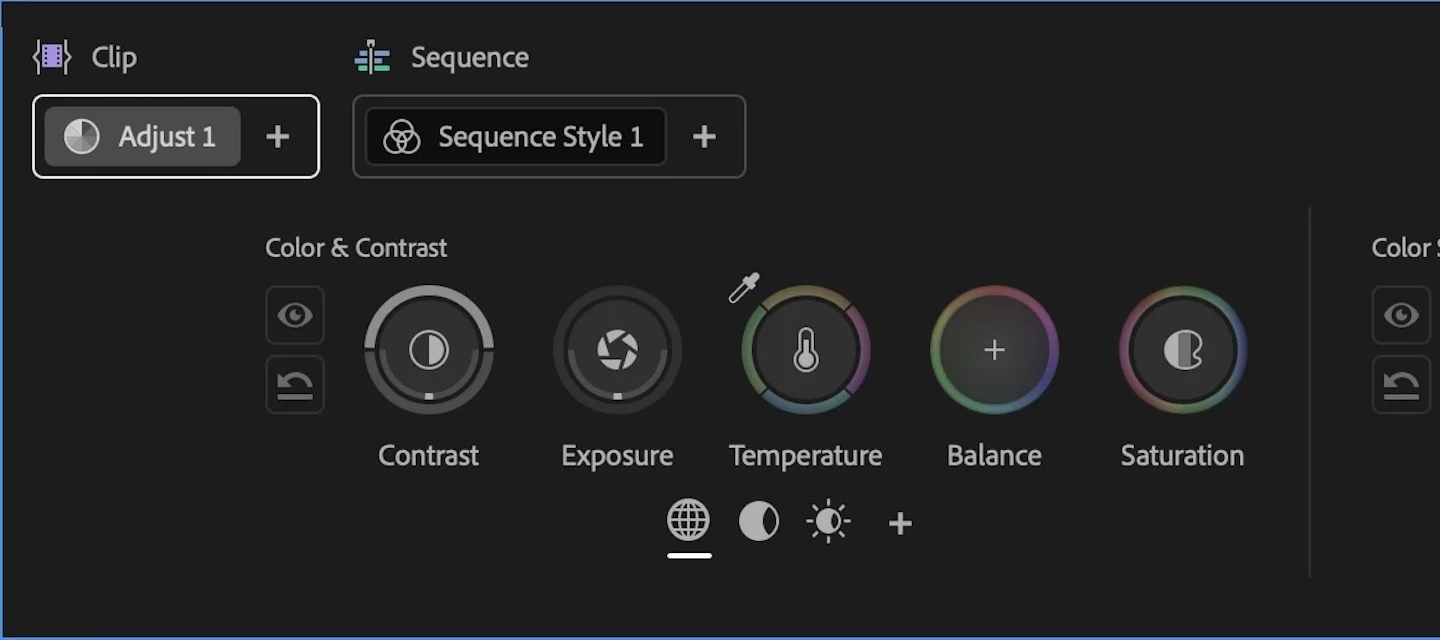
Welcome to the public beta of our brand new Color Mode! This is a colossal release that's been years in the making, months in private beta, and now we're excited to share it with you. Here's all the most important information to get you started.Resources for Learning About Color ModeGiven how new this is, we've prepared the following videos and articles to get you up to speed on Color Mode as quickly as possible. Color Mode Announcement Video Color Mode in Premiere Page Color Mode Training Course Frequently Asked Questions Videos HelpX ArticlesAbout Color ModeColor Mode is a brand new approach to color grading created specifically for the needs of editors. It's been designed to be an accessible, fast to learn, and efficient environment for making every clip in your sequence look its best right inside of Premiere. However, Color Mode has also been built to provide the full functionality necessary for users at every level to make highly detailed improvements as well as the broad stylisti
Hey everyone! We're excited to share a new addition that just landed in Premiere Beta 26.5.0 Build 66: iXML metadata right in your audio clip headers and source monitor. Production sound carries a wealth of metadata, and now you can see it without leaving the timeline or the source monitor.What's New?When your audio has iXML metadata, Premiere now surfaces it directly on the clip header. No more digging through panels or cross-referencing sound reports to know what you're looking at. The same metadata shows up in the source monitor too, displayed at the level of the channel labels, so you can make sorting and selection decisions before a clip ever hits your sequence. It's a global setting, so once you turn it on, it applies in the timeline and the source monitor.Where to find itThe control lives in Settings > Media, under a preference called Show iXML metadata in audio clip headers and source monitor. Flip it on to display the metadata across the timeline and source monitor and flip
Hey everyone! A new quality of life feature just landed in Premiere Beta 27.0 Build 39: color labels for timeline track headers. If you've ever wanted an at-a-glance way to tell your tracks apart on a busy timeline, this is for you.What's New?You can now assign a color label directly to any track header, video, audio, or caption track. It works just like clip labels: pick from any of your project's 16 label colors and apply it to the track itself. This colors just the track header, not the clips sitting on that track, so your timeline stays readable without re-labeling everything on it. Where to find itRight-click any timeline track header and choose a color label from your project's label colors. Click the swatch to toggle it off if you want the track back to no color, and click again to reapply a color. Track Header right-clic menuClick the swatch to toggle it off Why this mattersOn a timeline with a lot of tracks, it's easy to lose track of which is which, especially once you're jug
Hi everyone! As a dialogue editor, I've always chased the same thing: the tool that gets me the best-sounding result in the least amount of time, and the most control over my dialogue, whether I recorded it myself or it came back from set in whatever shape it happened to be in.For years, the answer meant reaching for a few different tools. One to make the voice sound better, another to wrestle down the background noise. And production audio is never just "speech." There's ambience, there's music, there are effects, all baked into the same recording, and that's exactly what makes cleaning it up so hard.This is where Enhance Audio comes to shine. In the same spirit as what we showed at MAX Sneaks last year, it hands you control over the ambience, the music, the sound effects, and the dialogue, and lets you rebalance every stem as much as you need. That's what makes it one of the most powerful noise reduction tools in Premiere today.For a couple of years now, the one thing you've told us
Editors can now generate images in the context they need it. They can describe the image they need, guide the results further using reference frames pulled from their own footage, and generate images that match the look, subject, or composition already established in their edit all using Adobe Firefly or supported partner models. Select a range, choose your model, add optional reference frames, describe what you want, and Premiere inserts the generated image into your sequence. Generating Images Select the Generative Media Tool from the Toolbar Drag across any video track or double click a gap to select the duration you want to generate. Select your model, select any reference images, enter your prompt and generate. The Generative task bar supports Adobe Firefly Image Models and Partner models. The default model on the Generative task bar for Generate Image is Gemini 3.1 (Nano Banana 2)You can use multiple reference frames per generation. Input frames can be sampled from
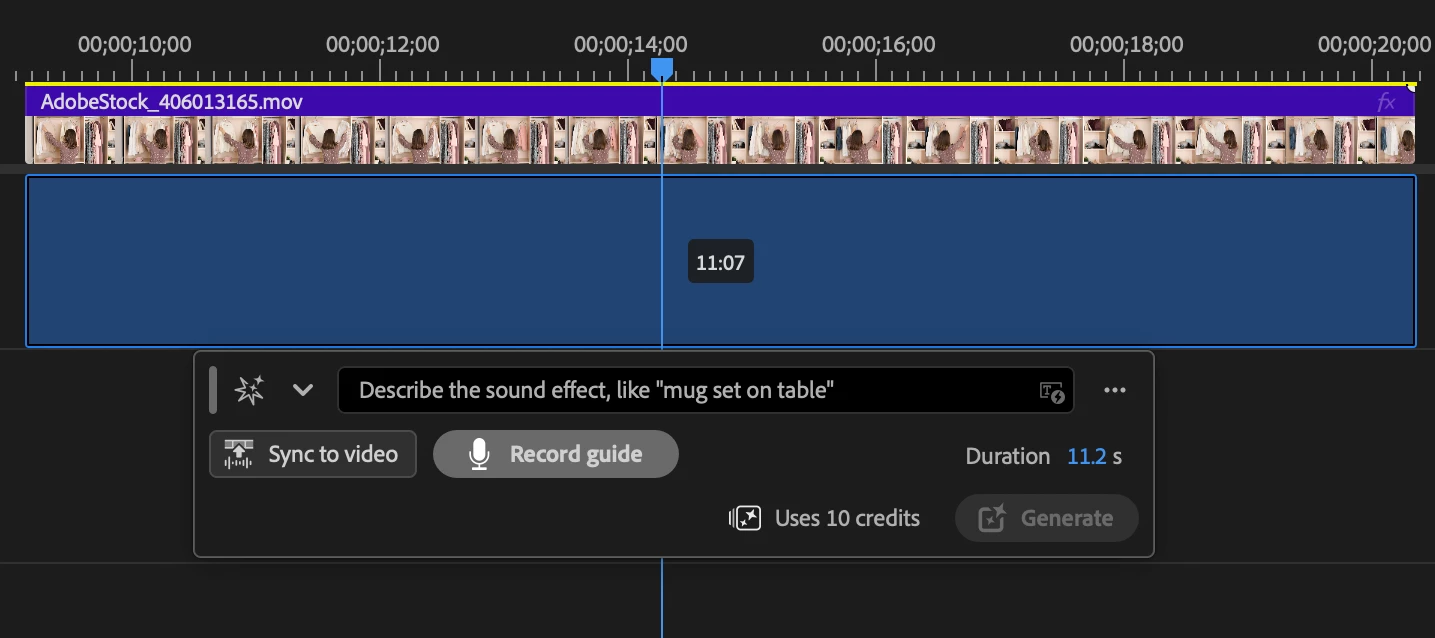
We’re excited to introduce a new generative workflow in Premiere. The new Generative Media Tool lets you generate sound effects and video exactly where you need them, directly in your timeline. Simply select a range in your timeline, describe what you want, and you can generate media directly into your edit. Whether you need missing ambience, a custom sound effect, b-roll, a cutaway or an establishing shot, you can stay focused on editing without switching applications. To add the visual context of your project, use the eyedropper to sample reference frames without leaving the timeline. Generate Sound Effects in ContextNow you can generate custom sound effects directly in the Premiere timeline.Select any audio range, describe the sound you want, and generate multiple variations that match the duration of your selection.Need more control? You can use your voice to guide the timing and intensity of the sound effect, making it easier to create sound effects that feel natural in your ed
Hey everyone! We're excited to share a new dialogue tool that just landed in Premiere Beta 27.0 Build 39: Audio Leveling. It analyzes a dialogue clip and automatically writes volume keyframes that even out the level, so your dialogue sits at a consistent, balanced loudness without you drawing automation by hand.What's New?Audio Leveling listens to your dialogue clip and rides the volume keyframes for you. It detects where the level jumps too hot or drops too low, then lays down clip volume keyframes that attenuate the loud spots and lift the quiet ones toward a steady target. Instead of one static volume adjustment for the whole clip, you get moment-to-moment level balancing that follows the performance. And because the result is real keyframes on your clip, nothing is locked in. You can nudge, reshape, or remove any of them just like keyframes you drew yourself. Where to find itSelect a dialogue clip and you'll find Audio Leveling inside the Loudness module of the Essential Sound pane
Hey everyone! Sync to Video just landed in Premiere Beta 27.0 (Build 30), and it's small enough to miss and big enough to change how you use Generate Sound Effects. It's really the next input we've handed the tool. First you told it what you wanted with text. Then you could shape the timing with your voice using Record a Guide. Now Premiere can watch the footage and time the effect to what's happening on screen for you.What's New?Sync to Video lets the picture drive the result. Instead of placing or timing your effect by hand, you let Premiere read the footage in your selection and match the generated sound to the action in frame. Type "dog barking," and if there's a dog barking on screen, the effect lands on that bark.Think of the three inputs as doing three different jobs. Text says what the sound is. A voice guide lets you perform the timing and intensity. Sync to Video reads the action straight off the picture, so the hit lands without you tapping it out by hand. Sync to Video for
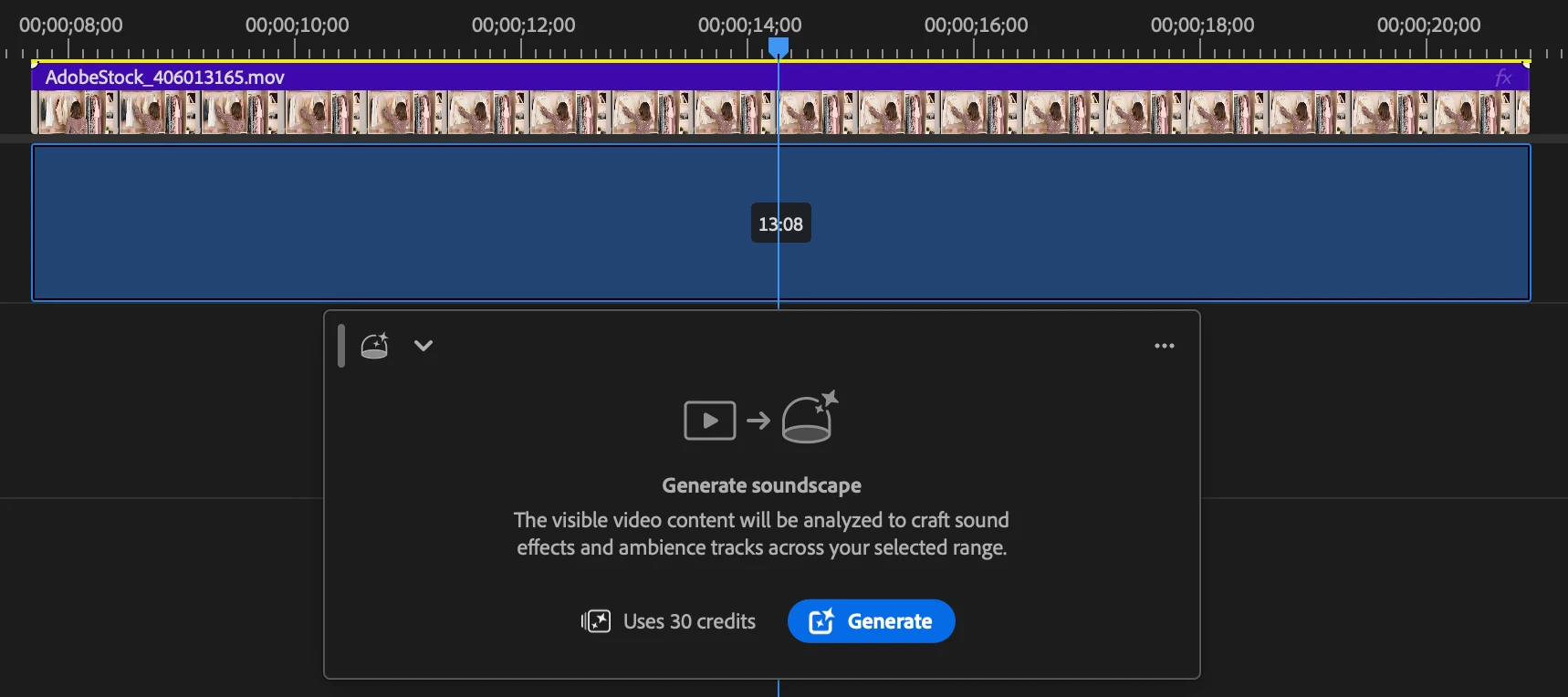
Hey everyone! You know the moment. Picture's basically there, the scene is dead quiet, and you can already hear what it should sound like. Getting that out of your head and onto the timeline is the slow part. And on the flip side, sometimes you're staring at a silent scene with no idea where to start, and you just need something to build from. That's the whole reason for Generate Soundscape, and it's live now in Premiere Beta 27.0 (Build 30).What's New?Select a range in your timeline and Premiere "listens" to the picture, then builds a soundscape that moves with it. It creates two background layers and two foreground layers, all landing where the action does. And you're not stuck with one baked-in mix, you get four editable stems. Regenerate a layer until it clicks, nudge one that's almost there, or rebalance the whole thing.If you've used Generate Sound Effects, this picks up right where that leaves off. Generate Sound Effects hands you one sound; Soundscape hands you a whole bed, wit
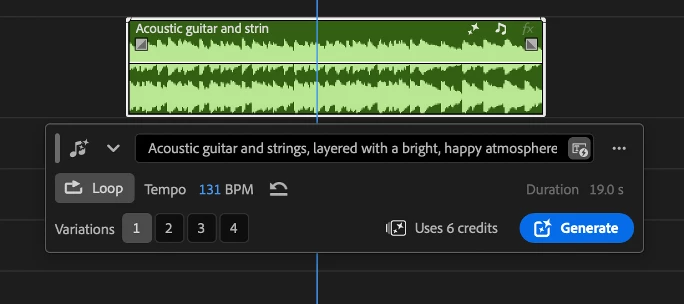
Hey everyone!We're excited to share that Generate Music is now available in Premiere Beta 27.0 (build 22), powered by the Firefly Music model. It brings AI-generated background music right into your timeline, so you can score a scene without ever leaving your project.What's New?Generate Music lets you create original music without stepping outside Premiere, right from your timeline.You've got a few different ways to generate:Describe the music you want in a prompt, with built-in prompt enhancement to help you get better results. Generate from your video with Video to Prompt: make a range selection under a video clip, choose Video to Prompt, and the music is generated to match what's happening on screen. Generate loops for music that needs to repeat seamlessly.You're in control of the details, too. Set the tempo yourself in BPM, or leave it automatic and let the model choose, and pick a duration anywhere from five seconds up to five minutes. Every generation returns four variations, so
Hey everyone! We're excited to share a new Firefly AI-powered audio feature that just landed in Premiere Beta [26.5.0 (Build 75)]: Separate Crosstalk.If you've ever shot a scene on a single mic – whether that's a boom, a phone, or just one lavalier on set – you know the moment: two people start talking at the same time, the mic can't tell the voices apart, and the only real fix is a re-record. Now Separate Crosstalk gives you a way to pull those overlapping voices apart, right inside your timeline! What's New?Separate Crosstalk is built for one specific moment: when two speakers talk over each other at the same time on a single recording – actual overlapping speech, not just two people who happen to be in the same scene. It works on mono and stereo clips and separates up to two overlapping speakers from that shared audio. This isn't full diarization and it isn't meant to split every speaker onto their own track across a whole project. It's meant to solve the crosstalk moment that today
My sequence is set up properly to do a Synchronization, but “Synchronize” is grayed out. I just updated to the most recent version, but it started happening on the immediate prior version. I am going to use the regular version for now, but please report when this has been fixed.
We added the ability to hide the on-clip fade/transition handles. Find this setting in the “timeline display settings” wrench menu. You have independent control over video and audio fade handles. If you find that turning them on an off is a common occurrence, keyboard shortcuts may be assigned as well.The on-clip fade handles make it easier to create audio fades and video cross-dissolves and can greatly speed up your editing. But for some users they get in the way of basic editing functions like trimming and moving clips. If you are one of these people for whom the fade handles are more of a hindrance than a help, we now allow you to turn them off. Just in case you didn’t know, you can customize the look and feel of your sequence in many ways in this menu. We want to know what you think. Please join the conversation below.
Hey everyone!We are excited to share a new feature in Text-Based Editing: Paper Edit. It is in build 34 of Premiere Beta. Many of you have asked for the ability to highlight multiple sections of a transcript and preview them before creating a new sequence.Here’s how it works:Start from a single Source Clip or an existing Sequence. Click the Paper Edit button Highlight what you want to keep. When you click into Paper Edit mode, you can read through your transcript and highlight the sections you want to use. Before you commit anything to a sequence, select “Preview.” This allows you to playback the selections and make changes. Click on a selection to omit it. If something doesn’t sound good in your preview, just remove it by clicking on the text. Jump between sections in long sequences. If your raw footage is long, you can quickly jump between sections instead of scrolling endlessly.We would love to hear what you think! Give Paper Edit a spin and let us know if there is anything we can
Specifically, every time I would use the rectangle tool to create a background for text, the app would crash completely. Then, the same thing happened with the text tool.
I made a brand new file in Premiere Beta. Now it crashes every time I try doing anything. It just started today. I already cleared the cache and used Sift+Alt. Version 27.1.0 Build 16
Running latest build but this has been happening for some time. I recently started using a feature that essentially allows Premiere to auto apply a LUT according to the clips color space (most are S-log3 but some are rec 709) and when ever there is a overlay warning banner, such as what you see when applying effects like warp stabilizer, The footage either changes color or is completely scrambled (as seen in the screen capture) until the banner disappears. Seems like a bug to me but maybe I am doing something wrong? I have been experimenting with my RAW footage workflow and started running into this issue. Thank you for your time!
HILFE BITTE!SEHR WICHTIG FÜR CAPTIONS:Wenn ich ein MOGRT für meine Captions bearbeiten will und dann im Reiter "Eigenschaften" auf das Textfeld klicke um Text Änderungen vorzunehmen, dann wird automatisch beim anklicken des Textfeldes der gesamte Text markiert. Ich kann also keine einzelnen Worte blau markieren oder mit dem Cursor in Worte oder zwischen Sätze rein klicken, es wird immer der ganze TExt angewählt, egal was ich anklicke. Erst wenn ich die Pfeiltasten nutze hebt sich die Markierung auf und ich kann den TExt bearbeiten, das bedeutet aber ich muss alles mit den Pfeiltasten machen und im Text navigieren und löschen und das kostet unnötig Zeit, denn den Maus Cursor kann ich komplett nicht nutzen
I don’t know if this is a bug or an intentional change. If it’s intentional please don’t. The standalone crop effect is way better than built in one and also you can change it’s order. Thanks to Excalibur I was able to apply it to a clip and It’s named ‘Crop (Legacy’ but it’s not in the legacy folder either.
Anyone experiencing Media Encoder 26.0 running extremely slow and only using a small percentage of their GPUs?
Hi,The same Sony Burano X-OCN LT clip (.mxf, S-Log3 / S-Gamut3.Cine) looks noticeably flatter in Premiere (Beta) than in Premiere Pro 2026: lifted blacks, lower contrast and less saturation. All the color management settings are identical in both versions.VersionsPremiere Pro 2026: Premiere (Beta) macOS Settings (identical in both)Color Manage Auto Detected Log and Raw Media: ON Source Clip: Use Media Color Space → Sony S-Log3/S-Gamut3.Cine Input LUT: None, Preserve RGB: OFF Sequence Color Setup: Direct Rec. 709 (SDR), Output: Rec. 709 Sequence Clip: S-Log3/S-Gamut3.Cine → Rec. 709, Luminance Preserving gamut compression, Hue Preservation tone mapping, Highlight Saturation 0.5 Display Color Management: OFF in both No effects applied, Source Settings unavailable (greyed out) in bothSteps to reproduceCreate a new project in both versions. Import the same X-OCN LT clip. Create a sequence from the clip. Compare the Program Monitor.Expected: same result as Premiere Pro 2026.Actual: the Beta
When I launch the installed Premiere Pro Beta Version 27.1, it crashes and closes automatically; I am not sure why. Initially, the beta option did not appear in the Creative Cloud app, but I managed to get it to show up with the help of the Adobe community and ChatGPT. However, the beta version itself refuses to open.
Applications quits during initializing stage.
I can't figure it out. its to Confusing. And there is no videos out there that shows us how to use it properly. For example I was just trying to figure out how to change the highlights I just couldn't figure it out because it doesn't have a highlight slider. I did click on something that said something about highlights. lol. but it didn't seem like it was doing anything. same thing with shadows or any other options. It was just too confusing. And I've yet to find a YouTube video that does a deep dive in it. just a bunch of videos of YouTubers talking about it like it's the greatest thing since sliced bread. Heck I was able to figure out the DaVinci resolves coloring page easier than this one. It seems like Adobe is missing a lot of coloring features with the coloring page.
Remix with Firefly Community Gallery
Thousands of free creations to fall in love with and remix in Firefly.
Already have an account? Login
Enter your E-mail address. We'll send you an e-mail with instructions to reset your password.