



















Design the future of fashion, win Firefly Pro 👗✨
Photoshop (Beta)
Recently active
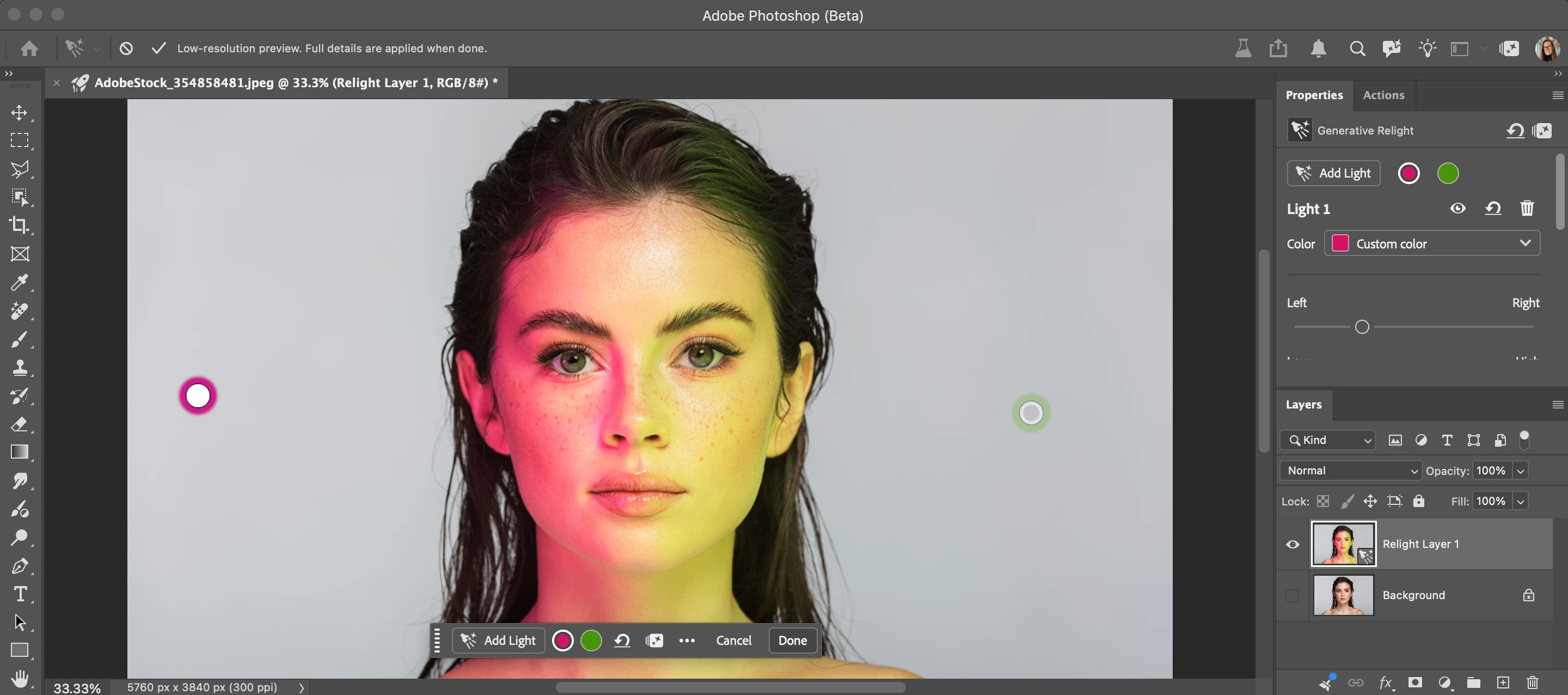
Relight is a new Generative AI feature in Photoshop Desktop that lets you add up to 3 interactive, non-destructive lights and adjust their position, intensity, color, and diffusion (Beta version: 27.12.0 20260927.m.3691 available on 9/28/26). Relight feature with default light added in low-res preview mode. Relight feature with 2 lights added. Select done to commit (30 credits) and upscale.HOW TO TEST Update and launch the latest Beta Build (Version: 27.10.0 202600802.m.3625) → have an active Internet connection Open or place an image Select an unlocked Pixel, Rotate Object, or Smart Object layer. Go to the app Layer menu > New Relight layer... Note you can also go to the Layers Panel flyout menu New Relight layer… A new default (white) light will be added in the middle of the image. You can click and drag the light around on the canvas (inside or outside the image - above the bottom edge of the image). Relight removes the existing lighting in the image and re-creates i
Today, we’re introducing the first phase of a refreshed Photoshop interface in Beta, with updates to the Toolbar, Tool Options, and select panels.It’s the beginning of a broader effort to make Photoshop more modern, accessible, consistent, and easier to use while keeping the workflows you know and rely on familiar.A cleaner, clearer workspaceYou’ll notice refinements throughout the interface designed to reduce visual noise and make Photoshop easier to navigate. The Toolbar and Tool Options have been updated to make tools and their controls easier to find and understand. Refined spacing makes the Toolbar easier to scan, improved icons and clearer labels help communicate what controls do, and stronger contrast makes the selected tool easier to identify. We’re also making tool groups more discoverable. Instead of relying on long-press and the small triangle that traditionally indicated additional tools, you can now hover over a grouped tool to reveal the other tools available within it. I
Describe what you want, and the AI Assistant makes multi-step edits across your whole composite.The AI Assistant works directly inside the Photoshop desktop app. Tell it what you want done, such as swapping a background, resizing for every platform, or cleaning up your layers, and it applies the changes across the whole composite. Every change stays fully editable. As you work, it also suggests edits tailored to the image you have open, next to a prompt field where you can type your own.The AI Assistant panel, docked on the right, suggesting edits tailored to the open image.What you can doRemove & Replace BackgroundsReplace a background by describing the one you want.Smartly Resize Images and AssetsExport your design in any format you need for a poster, ad, or social post. Layouts and object positions adjust to fit each size.Rename and Organize LayersClean up your layer stack: delete empty layers and give the rest clear names.How to try it in Photoshop (beta) for desktopClick the A
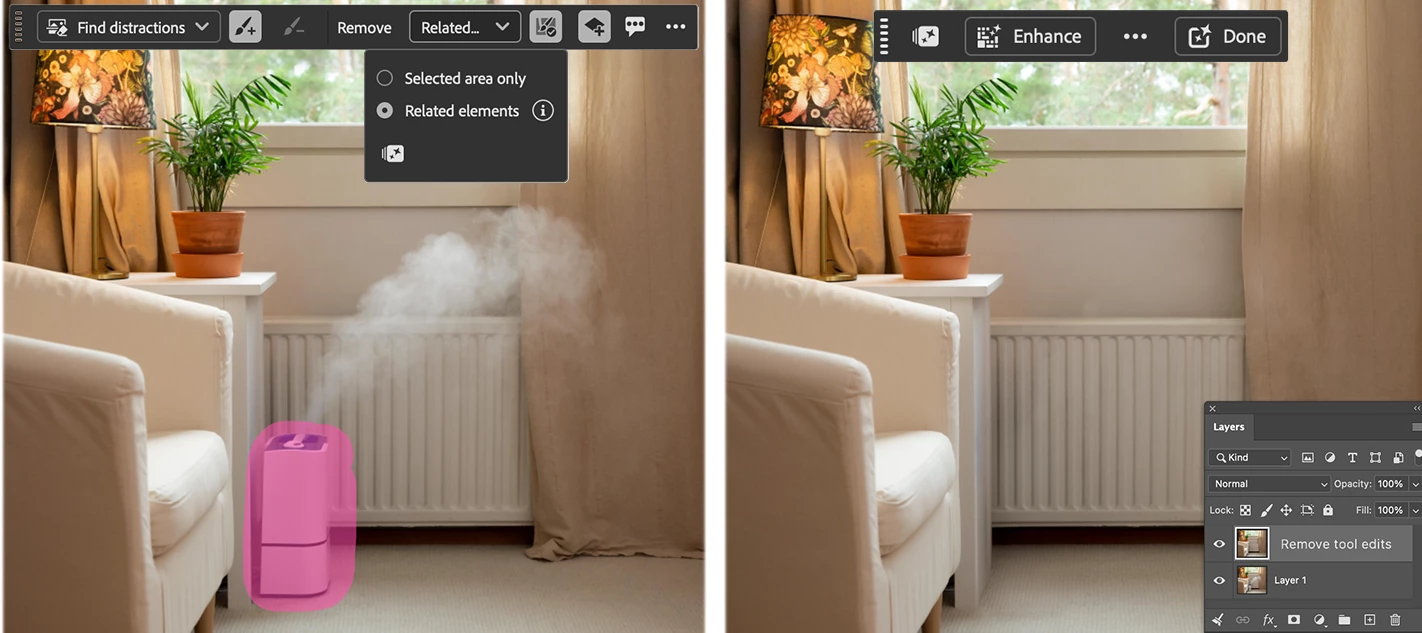
Remove Related Elements (AKA Project Trace Erase) extends the Remove Tool beyond the selected object to clean up the evidence it was ever there—removing shadows, reflections, footprints, splashes, fluid ripples/wakes, lens flare, smoke, steam, and more —for a cleaner, more natural result. This feature is in the public beta as of the October 1, 2026 beta release.Simply brush over the object you want to remove using the Remove Tool. When Remove Related Elements is enabled, Photoshop will automatically find and remove the traces of that object through-out the image. This helps create a more complete and realistic result without requiring separate steps or additional cleanup. Remove Related Elements option in the Remove ToolHow to:Select the Remove Tool from the Tool Bar In the Contextual Task Bar, click on the "Selected Area" drop-down then choose the "Related elements" button. Brush over the object or person you want to remove. (Do NOT brush over just the smoke, shadow, flare etc.) T
This month's update expands access for Freemium users, including a new Start a Free Trial option directly in the toolbar, and rolls Enhance Edge object selection out to more Beta participants with added support for Smart Objects. A broad set of stability and workflow fixes have also been resolved across Generative AI, printing, and performance.New Features & UpdatesMembership & AccessFreemium users can now access the AI Assisted and Pro Editor workspaces, with a new Start a Free Trial option available directly in the toolbar.Generative AIEnhance Edge object selection is now available to more Beta users, including support on Smart Objects.Added credit quota warnings at 90% and 70% usage so you know when you're approaching your limit.Tools & InterfaceAdded an overflow menu for the Object Selection and Firefly Workspace toolbars so controls stay accessible when the window is narrow.Added an up/down squeegee comparison option in Quick Compare.Filters & AdjustmentsAdded on-c
Faster PSD/PSB Save — Now in Photoshop Betaby the Photoshop TeamSince around July we've had multithreaded PSD/PSB opening, so hopefully you've already noticed files opening faster.Today's beta build (Oct 1, m.3694) adds the other half: multithreaded PSD/PSB saving, which is ON by default and speeds up saving for PSD and PSB files.With this enabled, PSD/PSB files that meet certain complexity criteria may be written in parallel (multi-threaded) when saving. In those cases, you should see faster save times, particularly for large files where there is enough work to benefit from parallel processing.⚠️ Avoid Data LossUse Save As when saving so you're working with a copy while you're testing this. If anything goes wrong, better it happens to a copy than your original file. What changedSignificant reduction in save time for many PSD and PSB files. Speed gains depend on file complexity (compression type, bit depth, layers/channels, document content) and hardware (lower end machines with 16GB
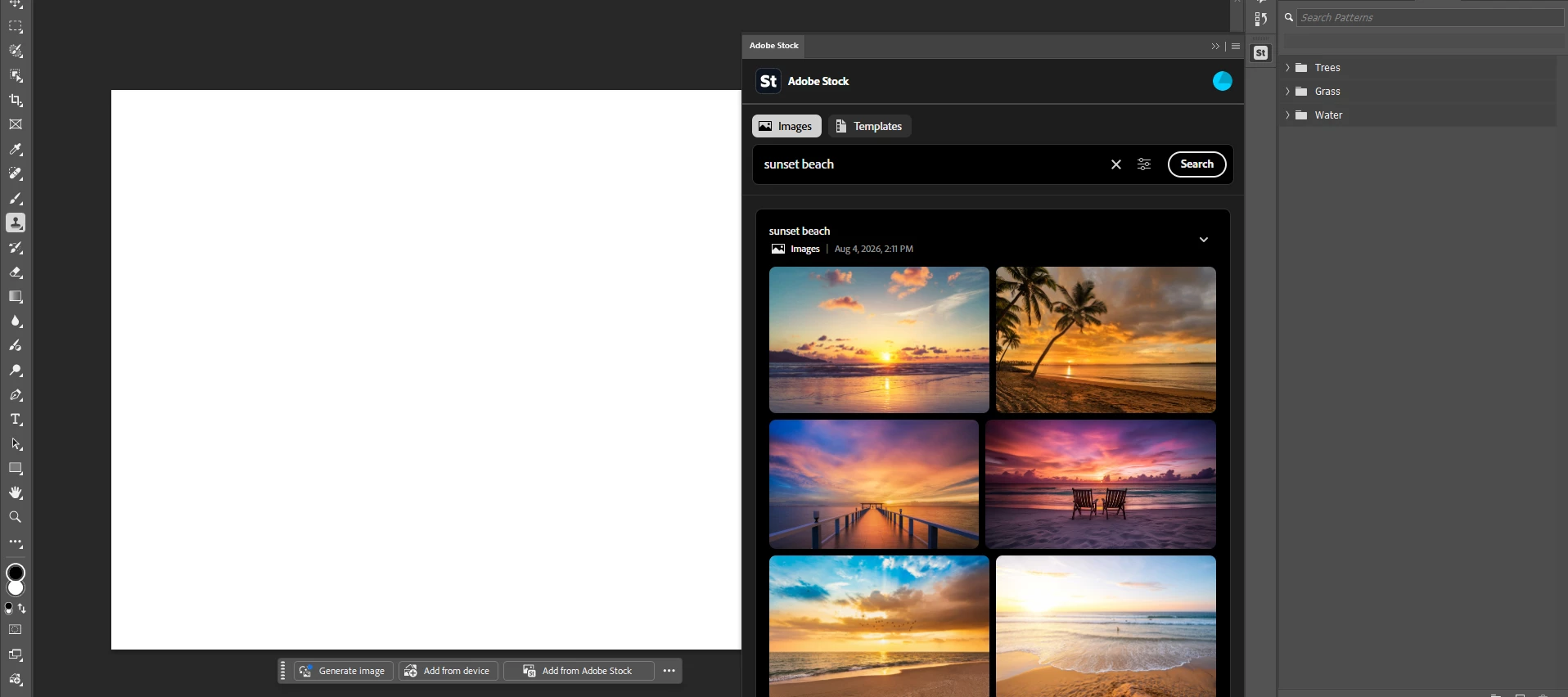
What's New in Photoshop BetaThis month's Photoshop Beta update adds Enhance Edge and a redesigned Stock panel, plus Relight improvements and fixes across stability, color, tools, and localization. New FeaturesEnhance EdgeClean up color fringe along mask edges. Select a mask, pick Enhance Edge from the Contextual Task Bar or by right-clicking a layer mask, and Photoshop uses AI to decontaminate the edge while holding onto fine detail like hair and fur. It uses 20 generative credits, and Content Credentials are recorded on the output layer. View Post.Redesigned Stock panelSearch, preview, and license Adobe Stock content without leaving Photoshop. Browse free and paid assets, drag them straight to your canvas, and keep an eye on your credit balance from the panel. View Post. ImprovementsRelightContent Credentials are now recorded on Relight output layers. The Original Lighting slider now defaults to 100% for a brighter starting point (was 50%). Added X and Y position sliders in Light Prop
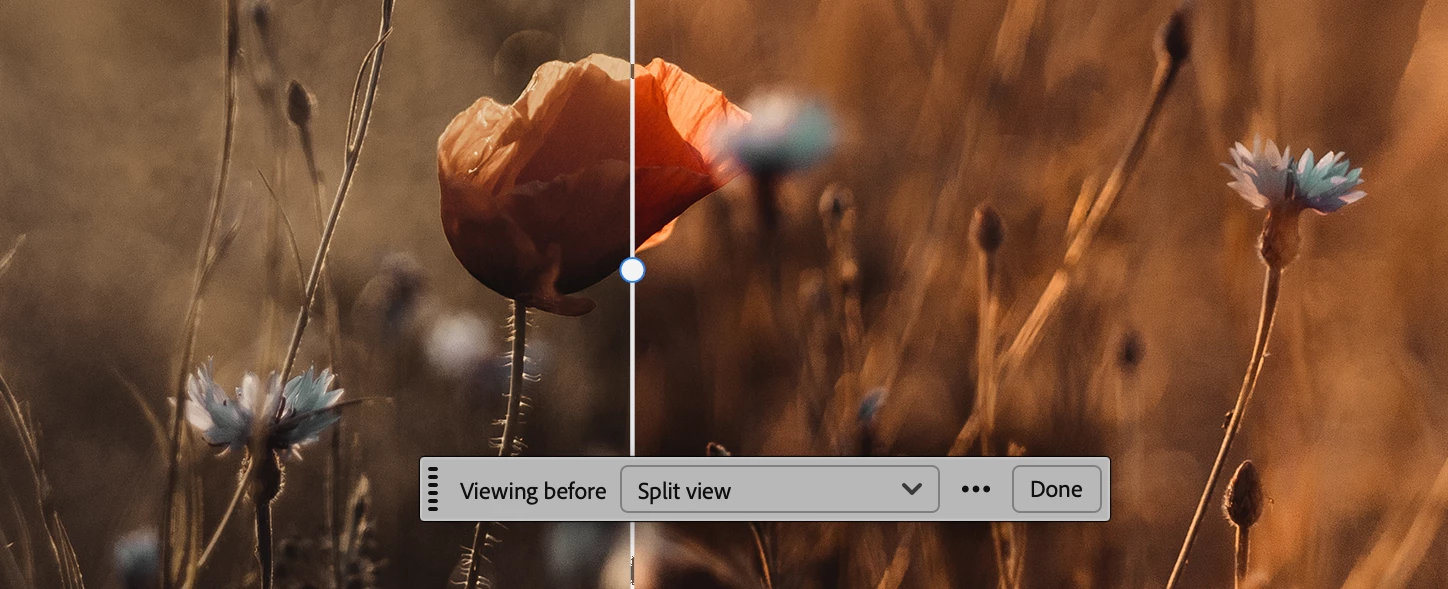
Quick Compare gives you a built-in view for toggling between your current edited state and the original — where "original" is how the file looked when you opened it this session.Enter the modal view and zoom, pan, and move freely to inspect exactly the details you care about. Use Single View to flip between states, or Split View to drag a slider and reveal the before/after in place.It's already resonating with how people work:"A simple way to demonstrate the before/after view — great for visualizing the changes from a technique I just taught." "I do a lot of rebuild work as a finisher for entertainment, and I have to make sure items don't jump too much. This would be SUPER helpful." "Perfect for deciding whether I've gone too far when iterating through adjustments and manipulations." Give it a test drive and tell us what you think — your feedback shapes where this goes next.
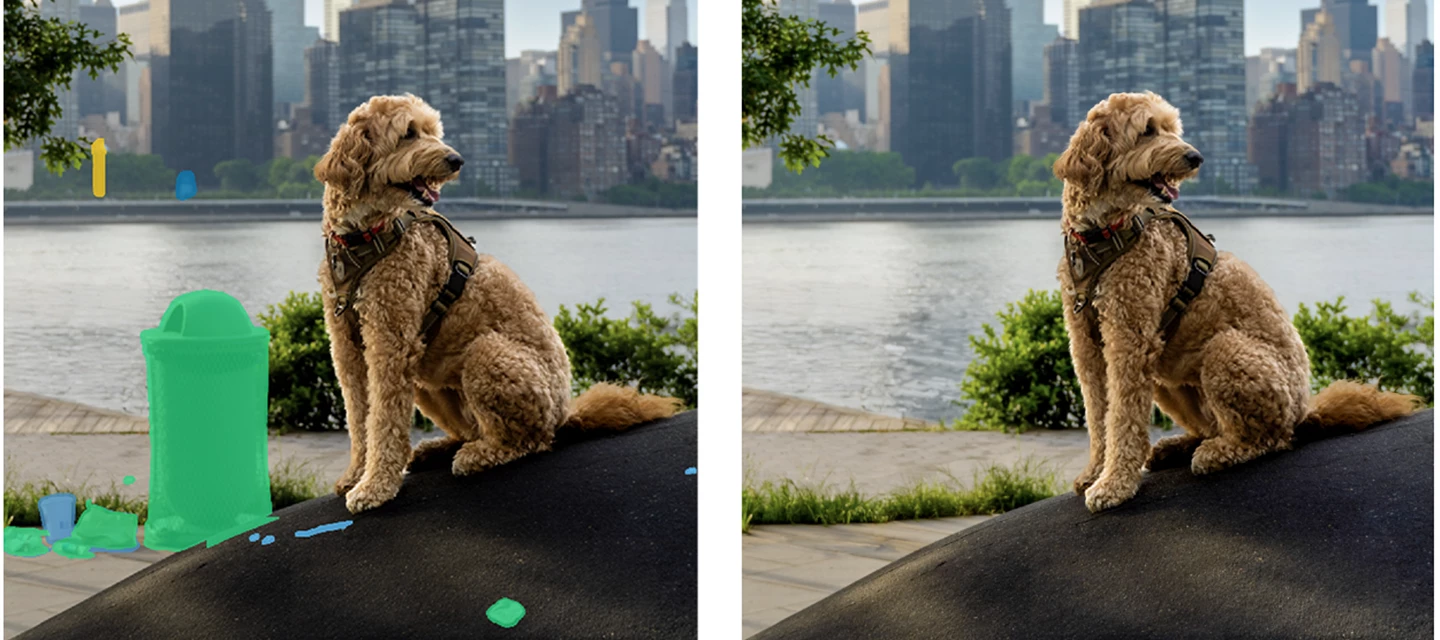
Quickly clean-up unwanted objects that pull attention away from your main subject.General Distraction Removal (beta) in the Remove Tool automatically finds and removes common distractions—like poles, vehicles, and visual clutter—with just a few clicks.How to try it in Photoshop (beta) for desktop:1. Select the Remove Tool from the toolbar.2. In the Options bar, click Find Distractions.3. Click Find next to General Distractions.A color‑coded list of detected distractions appears, and each distraction is highlighted on the canvas with a matching overlay. You can change the color of the distraction overlay by clicking on the color swatch in the panel. Select the Remove Tool, then choose Find General Distractions from the Options Bar to see color‑coded results and editable overlays 4. Use the checkboxes to turn targeting on or off for each distraction category.You can also refine the results by brushing directly on the canvas using the + / − controls in the Remove Tool options bar.
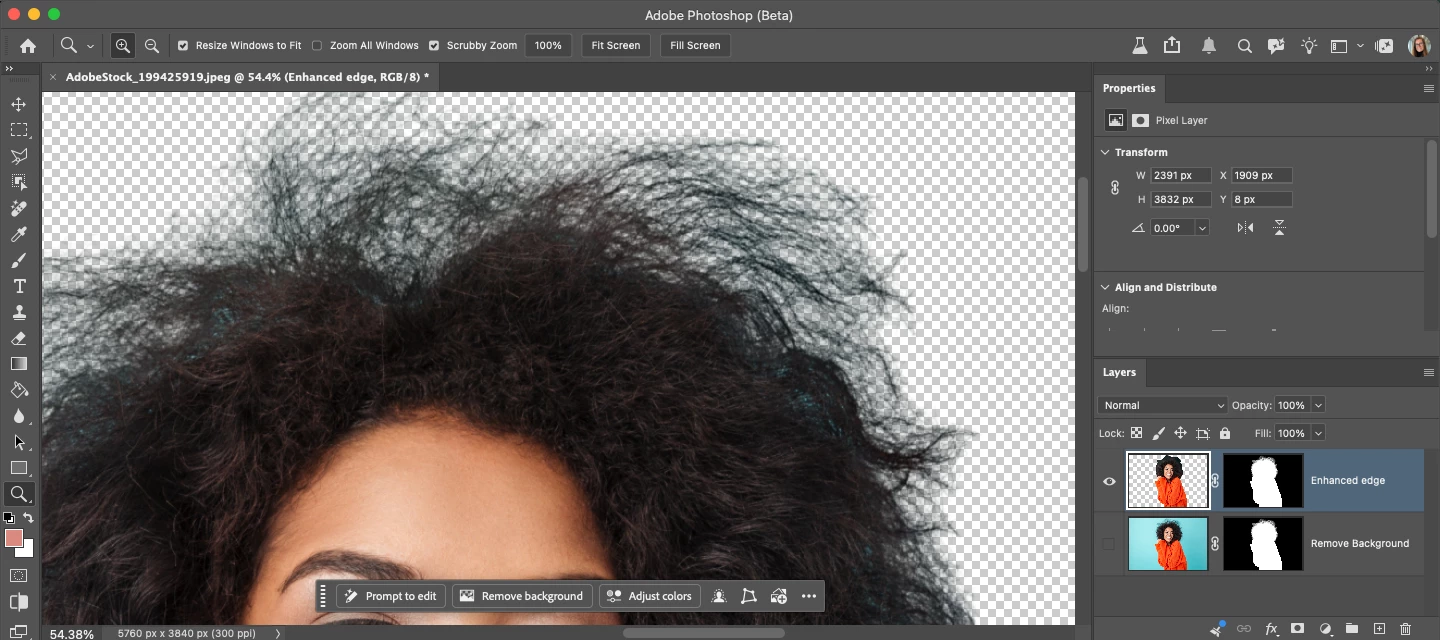
We are happy to introduce Enhance Edge is available in Beta (Aug 31, 2026 - 27.11.0 20260830.m.3655). WHAT IS THIS FEATURE Enhance Edge uses AI to analyze pixels at the edge of a mask, removing background color fringing while preserving fine details and generating smooth, natural-looking edges. This feature is particularly good at removing high contrast background colors from hair and fur.Enhance Edge is a Generative AI feature that costs 20 credits and requires an internet connection. HOW TO TEST 1. Open or place an image you would like to cut out or remove the background. Note that this feature is best used on color-contaminated edges.2. Select a pixel layer that contains an object or subject → Select Remove Background. Currently, Remove Background leaves a blue “halo” around the hair.Note: you can run Enhance Edge on any Layer Mask. Just select the Layer Mask in the Layers Panel and right-click the thumbnail to open the context menu. Select "Enhance edge" 3. On the Mask C
We are happy to introduce an update to Photoshop, scratch disk monitoring. Photoshop uses a scratch disk—a portion of your hard drive—to store temporary files and as virtual memory when the computer's RAM is insufficient for operations. If your scratch disk runs out of space, you risk losing unsaved work. This update could help you avoid that by monitoring the available space. What is the update? At launch, Photoshop will verify that you have the recommended amount of scratch disk space. If you do not, a popup will alert you and allow you to: Switch to a larger scratch disk volume Delete files on your hard drive to free up additional space Add and designate an external hard drive as an scratch disk Close the popup and continue working Opt out of future warnings Click “Learn more” for additional info. Want to set the recommended threshold for your scratch disk warning? By default, you will get a warning if your free space is less than 45GB. Here’s how chan
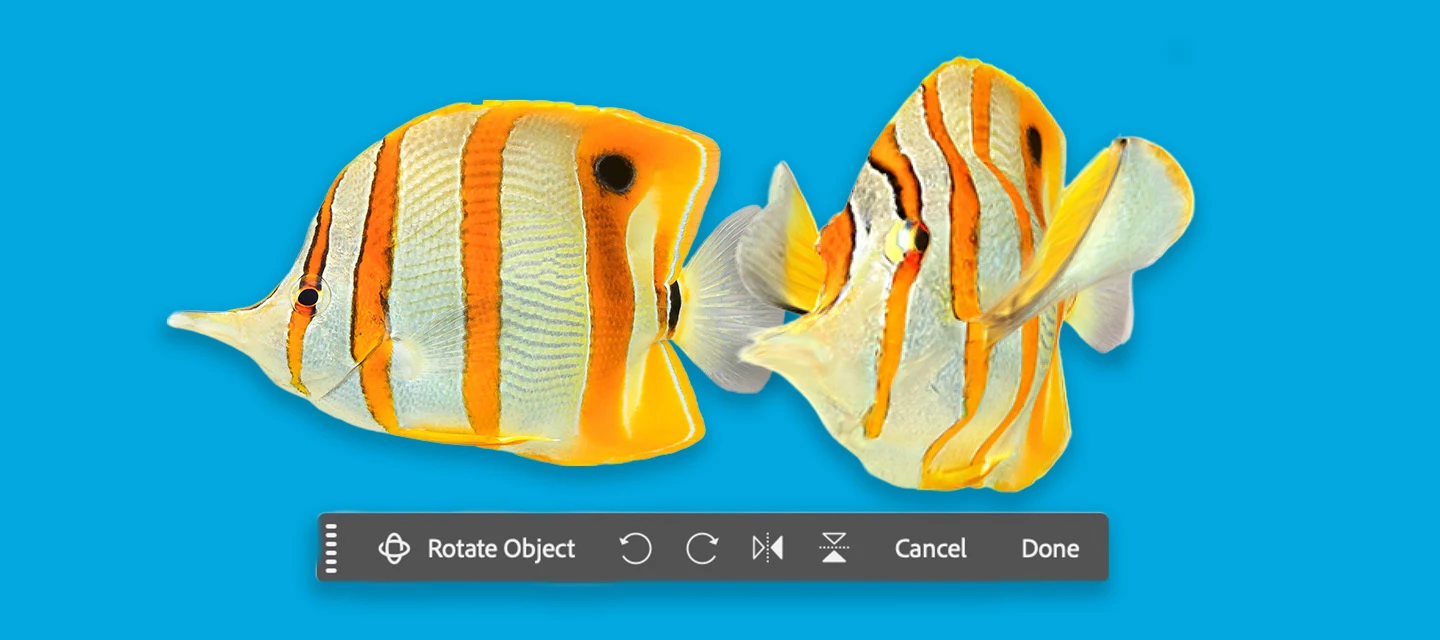
Rotate Object lets you quickly transform 2D objects into rotatable 3D images, allowing rotation (spin, tilt, dolly) from any viewpoint to match perspective and depth. (Version: 27.5.0 20260311.m.3453)HOW TO TEST:1. Open or place an image 2. Select a pixel layer that contains an object. PRO TIP: You may want to duplicate the layer → as the layer will be converted to a Rotate Object LayerCmd + T to enter transform mode or Edit > Rotate Object Click the Rotate object button in the context bar - note this feature is 20 Generative Credits, the first 3 tries do not deduct generative credits.3. After the 3D conversion is complete, the initial rotated object will be a low-res PREVIEW. The layer was converted to a Rotate object layer. DIFFERENT WAYS TO ROTATE AN OBJECT: Contextual Task Bar: click to use the Rotate and Tilt sliders. Click and drag the blue on-canvas controls around the object. Right-click on the object and drag (on-canvas for unconstrained rotation). Properties panel:
Browsing, importing and licensing Adobe stock in Photoshop is getting an overhaul. No more searching for stock content in Photoshop, only to have to tab-hop out to the Stock website to complete the process. This brings Photoshop up-to-grade with the experience you would get in Premiere today.What's actually new hereUpgraded browsing experience now returns free and paid content (not just free), expanding the choices you see when browsing. Drag-and-drop straight from the panel onto the canvas Preview-to-license— license a full-res asset directly from something you previously previewed, no digging required (from the properties panel or the layer panel context menu) Credit balance visible in-panel for subscribersWhere to test it (known WIP)Try every entry point you can find — File menu, Window menu, context bar, Add Image button, frame tool, Photoshop Home. Some may still route to the old experience or not be live yet — that's expected right now, just flag which ones aren't updated.What if
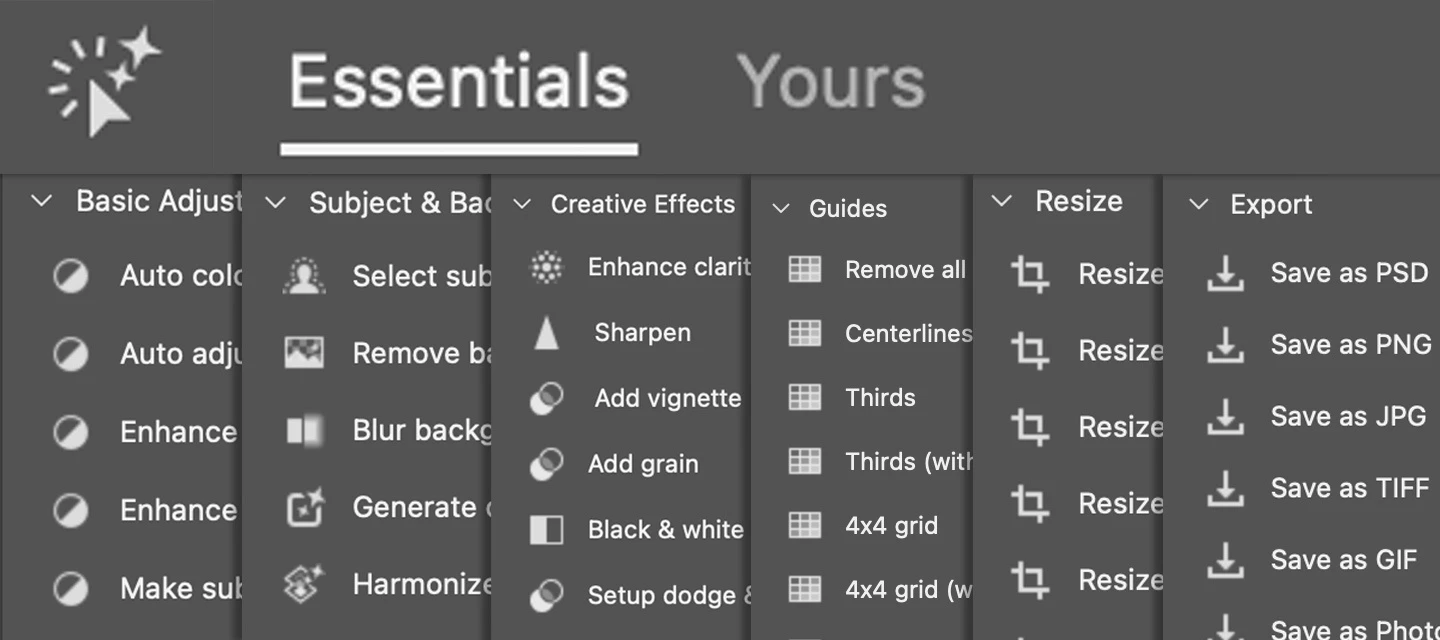
We are excited to announce the latest updates to the Actions panel which are now in Photoshop beta!As part of our continuous efforts to improve the Actions panel, we have introduced some changes to help streamline your editing workflows. 🆕 Introducing the Essentials tabWe're excited to unveil the rebranded "Essentials" tab (formerly known as the "Suggestions" tab). The new Essentials tab provides a new default set of categorized actions, created to help simplify common editing workflows from edit to export. Check it out!Go to Window > Actions. Browse through the Essentials set of actions and select the ones that fit your workflow. Essentials categories include: Basic Adjustments, Subject & Background, Creative Effects, Guides, Resize, and Export. Please try out the new Essential actions and share your feedback with us! Thank you!
Edit your whole image by describing the change, and now direct that edit two new ways: draw or add text on the canvas to guide your generation, or use a slider to view a generated result. Prompt to edit is a streamlined, whole-image editing experience in Photoshop desktop. Open it from Edit > Prompt to edit or the Contextual Task Bar, type what you want changed across the canvas, pick a model, and generate. Results come back as a new layer so you can compare with the original. This build adds two features that build on it. Prompt to edit feature on Contextual Taskbar (CTB) What's newMarkupShow the change instead of describing it. Draw directly on your image inside Prompt to Edit: select areas to recolor, add text annotations, or brush in rough shapes for size and position, then generate. Markup tools require a Gemini model (Nano Banana 2 or Nano Banana Pro) for this Beta release. Switch to another model and the tools disable, with a tooltip explaining why.Example Brush and Text Anno
We are excited to announce the beta launch of an on-device generative AI model for the Remove Tool!You can now download the Generative AI model onto your personal device and work off-line and process locally - ideal when internet connections are unreliable or when cloud processing isn’t preferred. (It’s kind of a big deal!) How to:Select the Remove Tool. In the Options bar, open the Mode drop‑down (Auto / GenAI On / GenAI Off). In the Generative AI Processing section, choose Device.If the Device option is dimmed and unavailable, your system does not meet the minimum requirements to run the model. When prompted, click Download to start the download (approximately 5 GB). Once the download completes, the on‑device model will be used automatically. Switch between Cloud and Device processing at any time from the Mode drop‑down.Choose the Remove Tool, then visit the Mode drop-down in the Options Bar to find the Generative AI processing options.System RequirementsThis is a GPU‑intensive feat
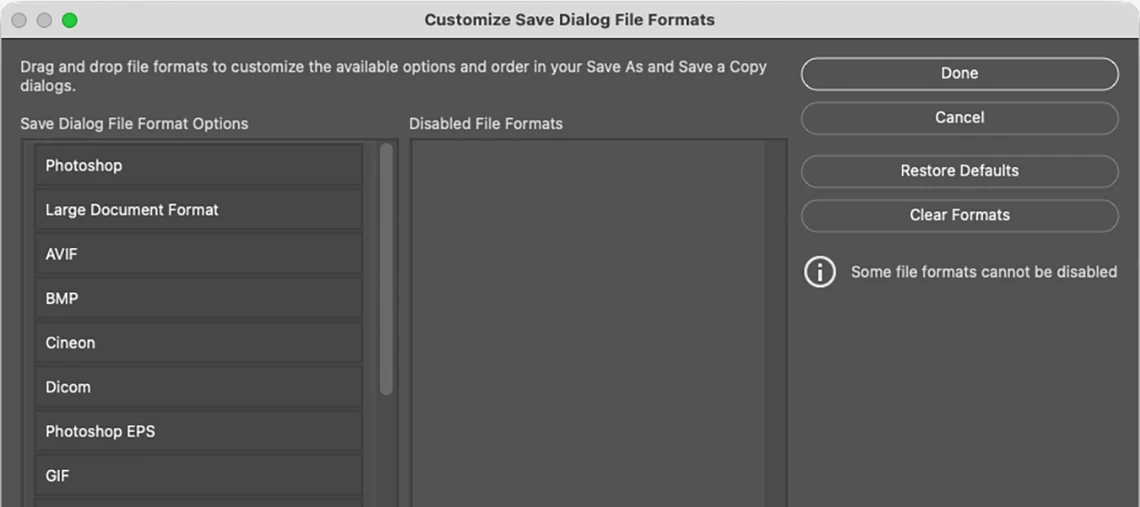
Save As and Save a Copy now let you customize your file format list.When you choose Save As or Save a Copy, Photoshop shows every supported format, all 25 of them. Most people only ever use a handful, and scrolling past formats you'll never need slows you down.With this feature, you can trim that list down to just the formats you actually use, so finding the right one takes seconds instead of a search. How to access: Edit > Customize Save Dialog File Formats…Default view:Drag a File Format to the Disabled File Formats column:After dragging the Cineon File Format to the Disabled File Formats column:After dragging multiple File Formats to the Disabled File Formats column:
The Remove Tool just got even easier to use. It now includes a dedicated Contextual Task Bar (CTB) that brings the most important controls right to your cursor—so you can stay focused on your image, not the options bar.Distraction Removal Brush + Brush - Remove After Each Stroke on/off Create New Layer on/offWhat’s newKey controls at your fingertipsQuickly access the most-used Remove Tool options without moving your cursor across the screen. Distraction removal drop-down Choose Distraction Removal with the drop-down list. Add & Subtract brushes Easily refine your selection by adding to or subtracting from the target area. Auto-apply after each stroke Toggle whether Remove runs automatically after every brush stroke. Create on new layer Choose to make edits non-destructive with a simple on/off toggle. Quick feedback button Share feedback on results in just a click—this helps us improve the tool for you. Dynamic action buttonsRemove and Cancel appear when you n
This month's update includes a redesigned Generative Fill interface with reference image support and an updated model picker in the contextual task bar. Rotate Object received visual and interaction refinements, and a broad set of stability and workflow issues have been resolved across Generative AI, Adjustments, Actions, and Type. Feature Updates & Additions Generative Fill: Redesigned InterfaceThe Generative Fill dialog has been redesigned. Reference images are now accessible directly in the interface, with no need to switch to a separate panel. The model picker now appears in the contextual task bar alongside the prompt. A curated set of models replaces the previous long scrolling list, making it faster to switch between Firefly, Gemini, and other available options. Your generative AI credit balance is now visible in the contextual task bar while you work. Firefly Image 3 is no longer available in the Generative Fill model picker. The new default model is Firefly Fill & Expa
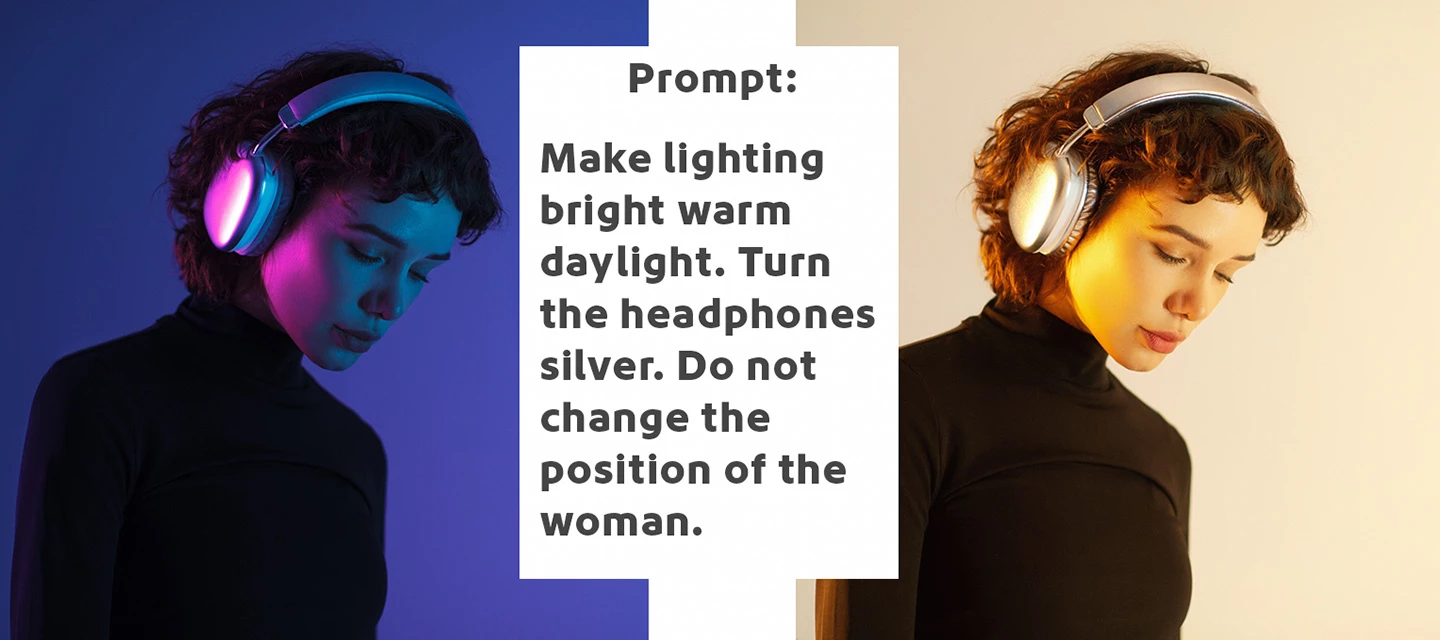
Firefly Image 5 enables a new instruction‑based editing workflow in Generative Fill and it's currently in Photoshop (Beta) for desktopFirefly Image 5 is Adobe's most advanced image generation and editing model yet; you can edit images more intuitively and precisely with just a prompt. Simply describe your edits with natural language instructions to transform the entire image—such as changing time of day or modifying a subject’s pose - making the precise changes you want with high quality results, while keeping the rest of your pixels and the details of your original image the same. How to try it:1. Open an image and select the entire canvas (Select > Select All…).(While smaller selections are supported, this beta performs best when the full image is selected.)2. Click Generative Fill in the Contextual Task Bar.3.Choose Firefly Image 5 (Preview) from the model picker in the Contextual Task Bar.4. Enter a clear, instructional prompt (for example: “change the time of day to sunset”).5.
In the current Ps Beta update: Adobe Photoshop Version: 27.6.0 20260412.m.3501 2f62d66 arm64 (beta, PublicBeta) you will find a new layout of the Save for Web dialog screen.The Photoshop team has been updating many dialog screens and popups as part of an ongoing UI modernization effort, and this is one example of that work.WHY the change? Photoshop has carried a lot of creative work for a long time. But carrying that much, for that long, adds up, and some of the friction you've been feeling is the natural result of a tool that's grown enormously complex over the years.We've heard you on the micro-stutters, the slow previews, the panels that slow you down rather than speed you up. Rather than patch around those things, we're taking a bigger step like modernizing the underlying UI framework that powers Photoshop's interface. That's what this effort is about.WHAT you will see once it is complete We're rolling this out surface by surface, not all at once.Individual panels and controls wil
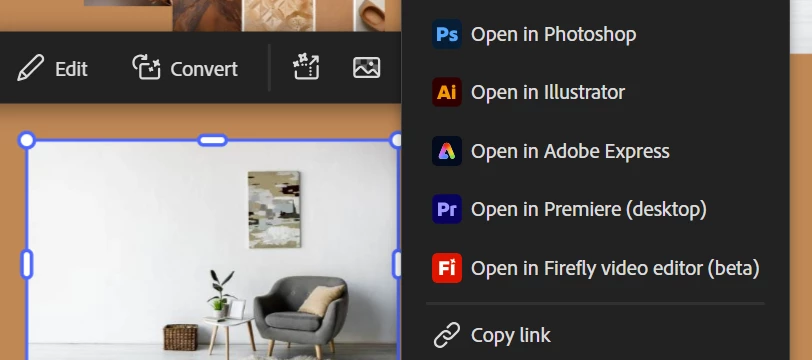
We’re excited to share that Firefly Boards is now more closely integrated with Photoshop workflows, enabling seamless ideation, organization, and round-trip editing. What is Firefly Boards?Firefly Boards is an AI-powered ideation workspace that helps Photoshop users capture inspiration, explore multiple visual directions using the latest AI models, and organize ideas on an infinite canvas. All linked assets stay synced, so updates reflect directly on the Boards canvas.Try it out:Home > Your Files > 3-dot menu > Open in BoardsShare icon > Send to Firefly Boards (PSDC files)File > Export > Send to Firefly Boards (PSDC files)Round-trip workflow from Firefly Boards → Photoshop (Adobe Firefly Boards) We’d love for you to try Firefly Boards for ideation and share your feedback!
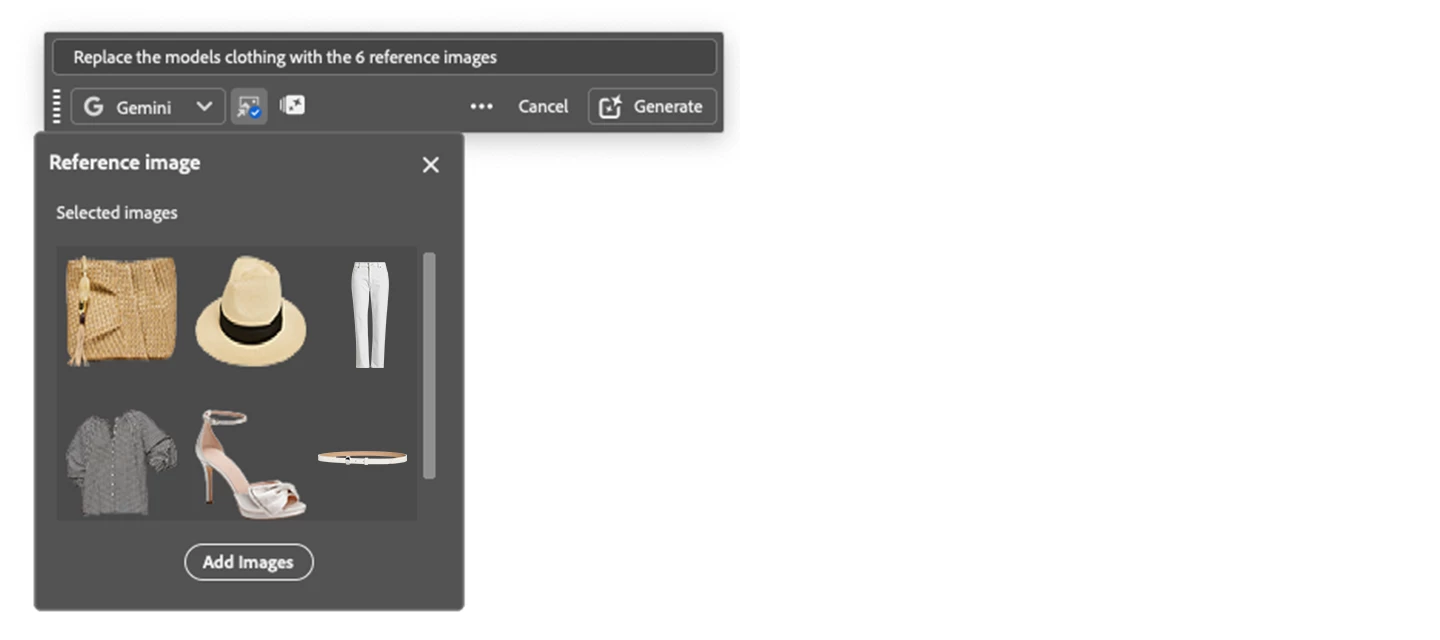
Generative Fill 3rd party partner models such as Gemini 2.5, 3.0 (with Nano Banana), FLUX Kontext Pro, and FLUX.2 Pro can use reference images as inputs that it can "read" and apply according to your prompt instructions.The party partner model scans all uploaded images for identity, style, and structure, then matches your prompt instructions to specific parts of those images. When complete, the 3rd party partner model generates a new image that merges the subject and style from the reference images. HOW TO TEST Open an image > Select All Select > Generative Fill on Context Bar or Edit > Generative Fill Select either Nano 2.5, 3.0, FLUX Kontext Pro, FLUX.2 Pro ENTER A PROMPT in the text field (Example prompt: Replace the model’s clothing with the 6 reference images) Select the Reference Image icon (icon to the right of the model picker dropdown) Add up to 8 reference images if using Gemini 3 > Generate HOW TO PROVIDE FEEDBACK:1. Click on the Beaker Icon in the upper right
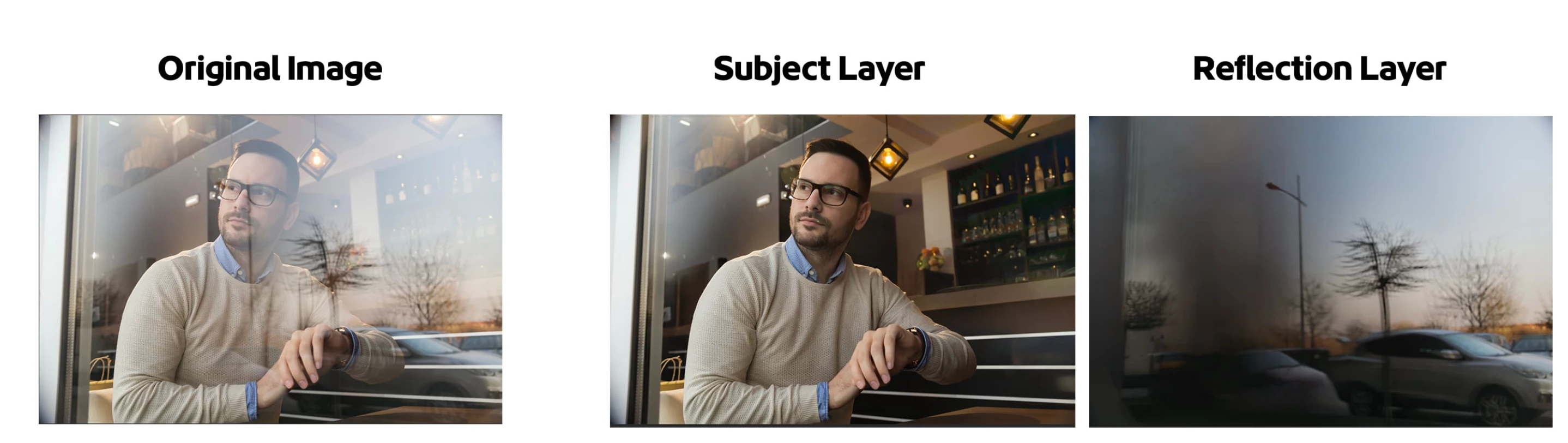
The AI-powered Reflection Removal feature lets you easily extract and remove reflections that impact the majority of your scene. The Reflections Removal command eliminates large and prominent window reflections in just a few steps, allowing your image's subject to stand out clearly. While AI-powered, it is not generative AI and does not use credits.How to:Open a file with reflections that dominate the image. Edit > Reflections Removal…The Reflection Removal Dialog appears Choose the quality of the results from the pop up. Turning on "Create separate reflection layer" will give you both the subject "Reflection Removal" layer and a layer with the extracted reflection. Click [OK] The "Reflection Removal" layer and, if checked ON, the Reflection layer appear in the Layers panel. Adjust the Layer Opacity of the subject "Reflection Removal" layer to bring back subtle reflections if desired. Adjust the Opacity slider in the layers panel to bring back subtle reflections for a natural
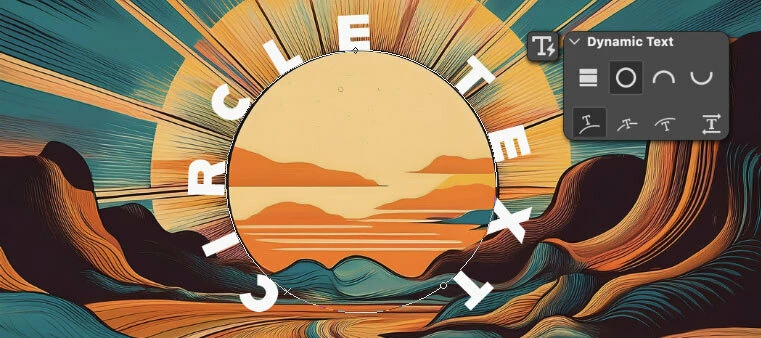
Hi Everyone, The Circle, Arch, and Bow styles of dynamic text are now available in Photoshop beta! Here’s how to use dynamic text circle, arch, and bowCreate a Point type or Paragraph type layer, and convert to dynamic circle, arch or bow using the dynamic text button menu found in the Options bar, Contextual Task Bar, or using the dynamic text section in the Properties panel. New dynamic text options For circle, arch, and bow, there are 4 options for Position (Above, Center, Below) or changing the direction of the text. Edit the start, middle, and end pointsOnce a circle, arch, or bow layer has been created, you can adjust the start, middle, and end points with the Path Selection tool. Customize your text to tasteWith dynamic text circle, arch, and bow, most other text attributes are still editable aside from Font Size. ProtipIf you know how to edit the anchor points on a path, once a dynamic text layer has been made circle, arch, or bow, you can manipulate the path with the Direct
Remix with Firefly Community Gallery
Thousands of free creations to fall in love with and remix in Firefly.
Already have an account? Login
Enter your E-mail address. We'll send you an e-mail with instructions to reset your password.