





















Master Photoshop with the help of our global community.
Recently active
A realistic shadow helps your subject feel grounded in the scene. In Photoshop, there are several ways to create one, depending on your subject and lighting. Based on workflows shared by experts in the Photoshop community, we've brought together a few of the most effective techniques here. Choose the method that best fits your workflow. Method 1: Using Generative AIAI can speed up the setup, but you will still get the best results by refining the shadow yourself.Use Select Subject or Remove Background to quickly isolate your object. Use Generative Fill to extend the surface where the shadow will fall. Learn more. You can also use Harmonize. It analyzes the lighting, color, and tone of the scene, and can also generate a matching shadow to help the subject feel more naturally integrated. Learn more. Refine the generated shadow manually using one of the methods above for the most realistic result. Method 2: Drop Shadow EffectThis is the quickest way to add depth and separation to elemen
The June 2026 Photoshop update is here, bringing more creative choices and meaningful workflow fixes. What’s newThis release expands creative choice in Generate Image with access to custom‑trained AI models, similar to what you’ve seen with Generative Fill. You can now choose from Adobe and partner models, including Firefly Image 5, Flux.2 Pro, and Gemini, making it easier to explore different visual styles, achieve stronger photorealism, and get results that stick closer to your prompts. Whether you’re experimenting with concepts or polishing production‑ready visuals, having multiple models at hand gives you more control over how your ideas come to life. Bug fixes — thanks to you!Your feedback continues to shape these updates. In this release, we’ve addressed several customer‑reported issues to make everyday workflows more reliable:Canvas size relative mode fields display incorrect default values, reject zero and negative values, and use incorrect increment steps. Add support to renam
We've split the Photoshop community into two dedicated spaces so you can find the conversations, tips, and apps that fit how you actually work:🖥️ Photoshop (Desktop & Web)📱 Photoshop Mobile Two focused communities mean more relevant content, better discussions, and an easier way to connect with creators and experts who work the way you do. Were you part of the Photoshop Ecosystem community? That space has been renamed Photoshop and is now home to all Desktop and Web conversations. To jump in, head to the App Communities page and select Photoshop. You'll find desktop-first editing techniques, inspiration, and a place to share your creations. On mobile? Drop into the new Photoshop Mobile community to explore the space and connect with fellow mobile creators. We'd love to hear from you. Does separating Desktop & Web from Mobile make it easier to find what you need? Explore the new spaces and let us know how they're working for you in the comments.
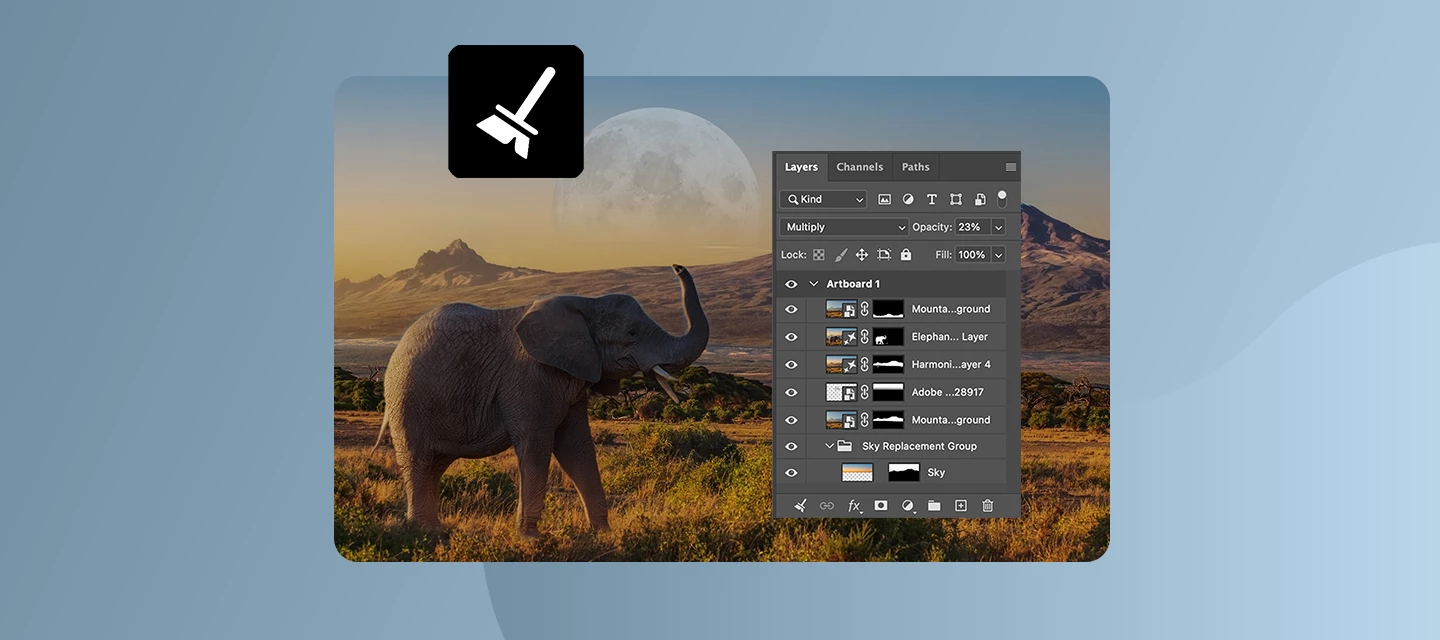
Keeping your Layers panel organized just got a whole lot easier. Layer Cleanup in Photoshop 27.6 and above automatically deletes empty layers and renames layers based on their content, so you can focus on creating, not housekeeping. With a single action from the Layers panel, Photoshop scans your document and removes blank pixel or text layers that tend to pile up during exploration. At the same time, it can intelligently rename layers, giving them clear, descriptive names that reflect what’s inside, so you no longer have to guess what “Layer 37 copy 2” contains. You’re in control of how much cleanup happens. Run it across the entire document for a full reset, or apply it only to selected layers when you want to tidy up as you go. Here is a quick tutorial demonstrating this feature. Why this mattersFaster navigation in complex files Cleaner handoffs when sharing PSDs with teammates Less friction when revisiting older projects Better layer discipline without manual effortWhether you’r
Help us shape this community: What content do you want to see? Whether you're a longtime community member or just found this space, your input will directly shape what we publish here. We want this to be a place you return to, not just when something breaks, but when you want to learn, get inspired, or connect with other creatives. What we’re considering:🚀 Feature Highlights: What’s new in Photoshop, explained with real workflows.📖 How-to Guides: Step-by-step tutorials for common tasks, errors, and workflows.💬 Community Discussions: Polls, questions, and conversations about how you work.🌟 Community Highlights: Spotlighting community members, standout work, and creative journeys. We’d love to hear your thoughts:What type of content do you find most useful when you visit this forum? Is there a Photoshop topic you keep looking up but never find a great answer for here? Would you want to share your own creative workflow or be featured in a community highlight? What kind of projects wou
How to Report a Bug in the Adobe App Community Run into something that’s not working the way it should in Photoshop? Let’s tackle it together. When you share bugs in the Adobe Community, you’re helping product teams see what’s really happening, recreate the issue, and fix things faster. Think of this guide as your sidekick—it’ll walk you through creating a clear, helpful bug report, no technical expertise needed. Before you startBefore jumping in with a new bug report, take a quick look around the community to see if someone’s already spotted the same issue. If you find a matching post, add your vote and feel free to add your experience there instead of starting from scratch. It keeps everything in one place and helps the team connect the dots and solve things faster. Note: Any duplicate posts will be merged into a primary post that you can follow for updates on the issue. What makes a good bug report?A great bug report tells the full story it explains what happened, what you expected
Create a GIF from a series of photos or a video clip Have you ever wanted to create a GIF of your own to post on social media? It really isn't hard!You can easily turn a series of photos or a segment of a video into an animated GIF in a few minutes using Photoshop. Here's how: Create a GIF from a series of photos Step1: Import the still photos you want to use to create a GIF Identify a series of photos that would make a good GIF Open Photoshop and go to File > Scripts > Load Files into Stack Click Browse and locate the photos you want to use (Use the Shift key to select more than one file) and click Open Click OK to import the photos into layers If it is not already open, click on Window > Timeline to open the Timeline panel Click the arrow to the right of the Create Frame Animation button in the middle of the Timeline panel and select Create Frame Animation Now click the Create Frame Animation button to the left of the arrow and it should look something
I've been using Adobe for over 20 years, and I've encountered more issues in the past year than I did in the previous decade combined. I can’t be the only one feeling this.
In the latest Camera Raw update, it stopped accessing graphics acceleration, and I can't activate it.My setup:Windows 11NVidia RTX 5070 Ti 16 GBI've tried absolutely everything: cleaning the card driver and reinstalling it, adding .old to the folders, resetting the graphics card, etc., and finally contacting Adobe technical support... who started by saying that the card was "old" and not suitable for Camera Raw... Adobe, if that's the case, please indicate it on your website, because supposedly my card is suitable (and if it isn't, few people will be able to continue using Adobe products). Lightroom handles everything without a problem, and the other programs that require GPU resources do too (Da Vinci, Topaz, etc.). After saying this, the card is suitable; the problem is with Windows. I honestly don't think so; it seems like a bug in Camera Raw. That's the only thing that has problems. I don't know, maybe it's a credentials issue or something.I'm mentioning this because I think it's a
Steps to reproduce:1. Open Photoshop v27.x on Windows 11.2. Open any image (8-bit PNG/JPG).3. Go to Image > Adjustments > Exposure...4. Move the Exposure slider (for example, +0.5).5. Observe the Gamma Correction slider: it instantly jumps to 0.01 and the preview becomes heavily distorted.Actual result:Gamma Correction resets to 0.01 automatically after moving the Exposure slider, producing a washed-out / broken preview.Expected result:Gamma should remain stable or adjust smoothly; it should not reset to an extreme value.System info:- Photoshop version: 27- OS: Windows 11- GPU: RTX 5070 (12GB)- GPU acceleration: Enabled- Bit depth: 8 bits/channel
If a file is over the “Save for web” maximum resolution of 8192px it scales down the image to max res. Even though exporting slices that are smaller than the max. res. (1080x1350px) it still scales it down to about 75%. The original file is 10800x1350px big, and has 10 slices á 1080x1350px that are scaled down to a height of 1024px.
PS will not open. I am told "The application “Adobe Photoshop 2026.app” can’t be opened." Tahoe 26.6 macbook with Apple chip. Started with trying to update (from either 27.6 or 27.7) which ran a long time and then messaged: "This is taking an unusually long time, investigating". waited some more, at least ½ hr in total and then canceled the update. Then tried to open PS and got the message: "The application “Adobe Photoshop 2026.app” can’t be opened.”Subsequently I succeeded in updated bridge.
I have two Mac Studios on which I use the Creative Suite—obviously, only on one machine at a time. On rare occasions, for academic reasons, I need to work on an old 2012 MacBook Pro that is no longer compatible with the current versions of Adobe. My use on the MacBook would be limited to Photoshop only. I was wondering if it’s possible to get just the standalone installer for this app in the old version compatible with the 2012 MacBook.
The only drawing program that this happens on is photoshop, even programs not really made for drawing have a more smooth/responsive brush.When i opened up paint and just scribbled some lines in it i realized how smoother it is compared to photoshop, then i opened Clip Studio Paint and it was the same, it was way smoother than Photoshop, i can’t just ignore it at this point its too annoying and i don’t know if this problem only affects me or its a photoshop issueThings I Tried that did not fix it: Disable GSYNC Change Scratch disks Smoothing is not even on Rolling back to older versions(Present in CS6 I tried photoshop ME7 and it did not have this issue, but its too old) Small brush, big brush, small canvas, big canvas, none of it makes a difference The MS Paint cursor is not visible because of compression but the brush stroke was following it seamlessly
I have a 2017 iMac running macOS Ventura 13.7.8. According to the forum, the best version of Photoshop is 23.x. Where can I download this version?
Operation was cancelled. Could not download "book.psdc" because of an unexpected error. Please try again. i am getting this error. in photoshop online but i want that file. its urgent.
Hi @Sameer K @Srishti Bali Allow me to share more genius moves by Adobe . On Adobe home page, you have to guess that the community page can be accessed by clicking on the little question mark circle, very user friendly ! Once you're on the community page, what’s one the first things one would like to see? The previous / current posts one participated in; so you click on the profile avatar, and you get there, right? no! Adobe has made the ingenious move of putting only the count for AI credits (because only this matters) there, because it’s the money that counts? Well done, Adobe; you keep surprising us.
I recently compared Firefly, Gemini Nano, and FLUX 1 Kontext Pro inside Photoshop. One gives me ideas in seconds with different generations vs the time it takes to draw one sketch or composed one. It’s an incredible power, but I wonder if we’re losing our creative "gut feeling" in the process. Design has changed for many. In Photoshop, AI has turned the canvas into an interactive partner. As designers, we are no longer just creators; we are curators of a conversation. We’ve never had this much power at our fingertips, but does speed equal mastery? I want to know: Does that speed make you feel like a creative powerhouse, or does it make you wonder who’s really in the driver’s seat? Please drop a comment with your experience! ~ Love to hear how your process or thoughts has shifted—No right or wrong answers here—just your honest take!
Ever open a photo and notice one thing that just doesn’t belong, a passerby, a wire, a random object stealing focus? The Remove tool in Photoshop makes those distractions disappear in just a few strokes, so your subject stays front and center.With the Remove tool, you simply brush over what you want gone, and Photoshop fills the space intelligently to match the surrounding area. No complex selections, no cloning gymnastics, just clean results that blend naturally into your image. Flexible AI, your wayThe Remove tool gives you control over how AI helps with your edit:Auto lets Photoshop decide the best method for the job Generative AI on uses AI to produce more context-aware results (with cloud or on-device processing) Generative AI off keeps things classic when you want full manual controlIf you prefer keeping things local, you can also run the on-device model, which processes removals directly on your machine after the model is downloaded—great for faster edits or working offline (sys
The Reflection Removal tool in the top menu simply stays greyed out so I can’t invoke it. The attached shows this clearly. Note that the reflection itself is not visible as it occurs on the right side of the picture
I have uninstalled and reinstalled the latest version of photoshop, and I have reset all tools. Neither helps.First click with lasso does this.
When running large batch jobs getting "Could not complete the command because there is not enough memory (RAM)" using Photoshop 2026 (2.8.0). Makes large batch jobs difficult in the extreme and was never, ever an issue in Photoshop 2025.
Issue summary: When I use generative fill set to firefly 5 engine, I make a selection, but the generation appears at the very edge of the selection, as though the selection is cutting off the generation. Product and version: Photoshop 27.8.0 Operating system: Mac Steps to reproduce: Make a selection around an object or area of image right click>generative fill engine is set to firefly 5 enter “fire” into dialogue box tiny flame appears at the very edge of selection, almost appears to avoid anything I’ve selected around Expected result: a flame or fire within the boundaries of the selection, blending with the rest of the image Actual result: Before generation, selected areaafter generation; background hasn’t changed, flame appearing at edge of selection and not blended with the rest of the image
When I work on a photo in one Photoshop window and want to transfer that photo to another window while maintaining the same dimensions and depth, the result is different in each window.
Not sure if it´s in every situation but if I use dash “-” while writing with text tool (want to write a bullett list) after hitting right enter on keyboard PS complettly freezes (stops responding but in task manager looks like it´s working) . Adobe Photoshop Version: 27.6.0 20260422.r.11 4804c18 x64 (final, Release)Number of Launches: 357Operating System: Windows 11 64-bitVersion: 11 or greater 10.0.26200.8457System architecture: AMD CPU Family:15, Model:1, Stepping:0, AVX2, HyperThreadingPhysical processor count: 6Logical processor count: 12Processor speed: 3793 MHzBuilt-in memory: 32692 MBFree memory: 20957 MBMemory available to Photoshop: 25130 MBMemory used by Photoshop: 70 %Crash Handler: AdobeDCX Version: 9.22.0SAM SDK Version: 15.1.0ACP.local Status: - SDK Version: 5.11.0 - Core Sync Status: Reachable and compatible - Core Sync Running: 7.8.10.1 - Min Core Sync Required: 4.3.66.28Live Edit Client SDK Version: v6.1.1Adobe Firefly: Please use any generative AI feature to view t
Remix with Firefly Community Gallery
Thousands of free creations to fall in love with and remix in Firefly.
Already have an account? Login
No account yet? Create an account
Enter your E-mail address. We'll send you an e-mail with instructions to reset your password.